
You’ve opened Activity Monitor to check CPU usage or kill a frozen app, but now you’re stuck wondering how to quit Activity Monitor itself. Unlike regular apps, it doesn’t always close the way you’d expect, especially when you’re troubleshooting system issues and want to exit cleanly. This guide walks you through every reliable method to close the app, whether it’s responsive or completely frozen.
Activity Monitor is a powerful macOS utility for managing processes, but it’s still just another application on your system. That means you can, and sometimes should, quit it when you’re finished. The key is knowing when and how to do it correctly without disrupting macOS performance or accidentally terminating a critical process.
In this article, you’ll learn:
– How to quit Activity Monitor like any normal app
– What to do when the app is frozen or unresponsive
– Why quitting matters and when to skip it
– Alternative exit methods using keyboard shortcuts or Terminal
– Common mistakes that confuse new users
Let’s dive in.
Quit Activity Monitor Using Standard Methods
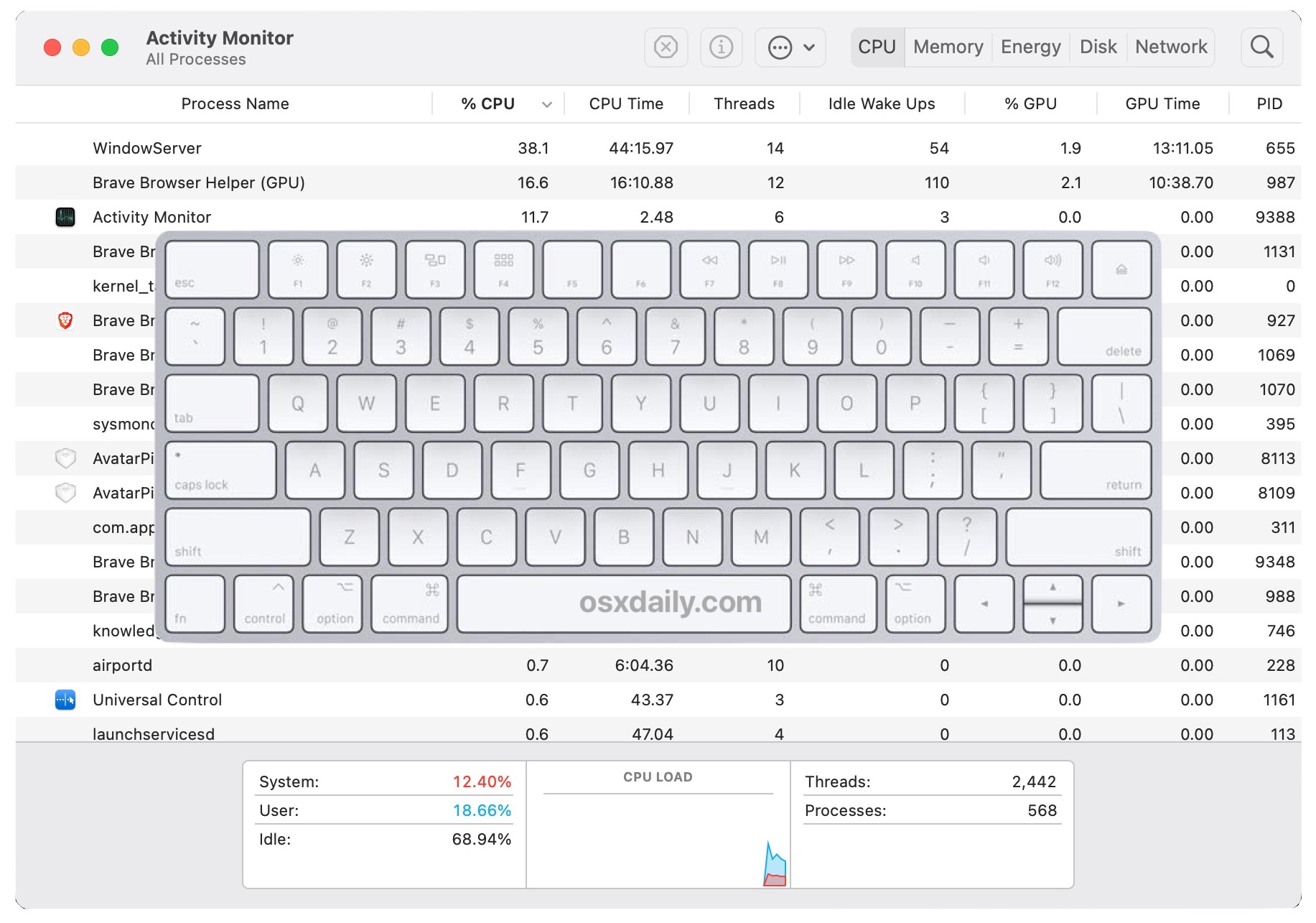
When Activity Monitor is working normally, closing it takes just a few seconds. Use one of these reliable approaches.
Press Cmd + Q for a Clean Exit
With Activity Monitor focused on your screen:
- Press Cmd + Q on your keyboard.
- The app shuts down completely.
You’ll know it’s truly closed because:
– The Activity Monitor icon disappears from the Dock within a few seconds.
– It no longer shows up in the Force Quit Applications menu.
This is the safest and most recommended way to close the app when everything functions normally.
Right-Click the Dock Icon to Quit
Right-click (or Control-click) the Activity Monitor icon in your Dock. Select Quit from the context menu that appears.
Like Cmd + Q, this method ensures the app terminates fully rather than just hiding the window.
Avoid the Red Close Button Trap
Clicking the red X in the top-left corner only closes the window. It doesn’t quit the app entirely. Activity Monitor may keep running in the background after you click the X.
If you want a true exit, always use Cmd + Q or the Dock menu instead.
Force Quit Activity Monitor When It Freezes
Sometimes Activity Monitor becomes unresponsive, especially when your Mac is under heavy load. If standard methods don’t work, here’s how to force the app to close.
Use the Force Quit Menu Shortcut
- Press Cmd + Option + Esc on your keyboard.
- A window titled Force Quit Applications appears.
- Select Activity Monitor from the list.
- Click Force Quit.
This approach works only if Activity Monitor shows up in the list. If it doesn’t appear, move on to Terminal.
Kill Activity Monitor Through Terminal
When the graphical interface is completely frozen, Terminal gives you a direct line to the system.
- Open Terminal (use Spotlight with Cmd + Space, then type “Terminal”).
- Type the following command:
bash

killall "Activity Monitor" - Press Enter.
This sends a polite shutdown signal to the app. If that fails, try the forceful version:
bash

killall -9 "Activity Monitor"
The -9 flag forces immediate termination. Use it sparingly because it doesn’t allow the app to clean up first.
The app closes instantly with no risk of data loss, since Activity Monitor doesn’t save state between sessions.
Why Activity Monitor Won’t Quit on Your Mac

Some users report that Activity Monitor refuses to close, reopens on its own, or seems stuck. Here’s why that happens and how to fix it.
The App Already Quit But the Icon Lingers
After closing, Activity Monitor may briefly remain visible in the Dock due to macOS caching. Wait 10 to 15 seconds. If the icon vanishes, the app was already quit.
To verify, run this command in Terminal:
bash

ps aux | grep "Activity Monitor"
If no process appears (besides the grep command itself), Activity Monitor isn’t running.
Another App Keeps Relaunching It
Some third-party utilities, such as performance monitors or cleanup tools, automatically launch Activity Monitor or refresh it in the background. Check whether any such apps are open.
Close those utilities first, then try quitting Activity Monitor again.
Login Items Restart It at Boot
You may have accidentally added Activity Monitor to your login items. If so, it reopens every time you log in.
To fix this:
1. Open System Settings.
2. Go to General > Login Items.
3. Look for Activity Monitor in the list.
4. Click the minus button to remove it.
Activity Monitor will no longer auto-start when you log in.
Don’t Confuse Quitting Activity Monitor With Quitting Other Apps
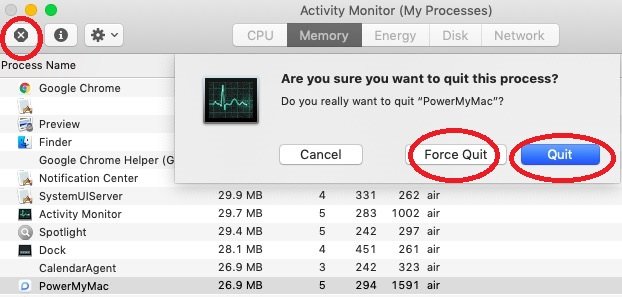
A common point of confusion: the search “how to quit activity monitor” often gets mixed up with “how to quit apps using Activity Monitor.” These are two different tasks.
Clarify your goal first:
– Want to close Activity Monitor itself? Use Cmd + Q or Force Quit.
– Want to stop another app, such as Chrome or Safari? Use Activity Monitor to select and quit that process instead.
End a Frozen App Using Activity Monitor
- Open Activity Monitor through Spotlight or Utilities.
- Find the target app in the process list.
- Click the app name to highlight it.
- Click the Stop button (the octagonal X icon) in the toolbar.
- Choose one of the following options:
– Quit sends a graceful exit request (safe).
– Force Quit kills the process immediately (use only when unresponsive).
Always verify the app name and process owner before stopping anything.
When Should You Quit Activity Monitor?
You don’t need to close Activity Monitor after every use. Here’s a quick guide for when it makes sense.
- Done checking CPU or memory? Quit to reduce clutter.
- Mac is overheating or sluggish? Quit to free minor resources.
- Running a security scan? Close when the scan finishes.
- Actively monitoring performance? Leave it open.
- On battery power? Quit to save a small amount of energy.
While Activity Monitor uses minimal CPU and memory, quitting it keeps your workspace clean and prevents accidental process kills.
Common Mistakes to Avoid When Quitting Activity Monitor
Even experienced users slip up on these points.
Mistake 1: Assuming the Red X Quits the App
Many users think clicking the red close button quits Activity Monitor. It doesn’t. The app keeps running in the background. Always press Cmd + Q or use the Dock menu.
Mistake 2: Jumping Straight to Force Quit
Don’t reach for Force Quit unless Activity Monitor is truly frozen. Start with Cmd + Q. Force quitting should be a last resort.
Mistake 3: Killing Critical System Processes
Never force-quit system processes like:
– kernel_task
– WindowServer
– launchd
These are not regular apps. Terminating them can crash your Mac or force an immediate logout. If you see high usage from these processes, research the cause first instead of killing them blindly.
Pro Tips for Safer Process Management
Use these techniques to manage processes more safely and efficiently.
Check Process Hierarchy Before Quitting
Before ending any process:
1. Go to View > All Processes, Hierarchically.
2. Look for child processes linked to the target app.
Killing a parent process can cascade and crash dependent tools.
Watch for Auto-Relaunching Apps
Some apps, like cloud sync tools, restart immediately after being quit. If you notice this behavior:
– Check System Settings > General > Login Items.
– Disable any auto-launch entries you don’t want.
Use the Apple Menu Force Quit for User Apps
For standard user applications with a visible window that are frozen:
1. Click the Apple menu in the top-left corner.
2. Select Force Quit.
3. Choose the unresponsive app.
4. Click Force Quit.
This method works only for user-facing apps, not background daemons or system processes.
Quick Reference: How to Quit Activity Monitor

| Method | Steps | Best For |
|---|---|---|
| Normal Quit | Press Cmd + Q | Responsive app |
| Dock Quit | Right-click icon, choose Quit | Quick access |
| Force Quit Menu | Cmd + Option + Esc, select, Force Quit | Frozen interface |
| Terminal Kill | killall "Activity Monitor" |
Unresponsive system |
| Terminal Force Kill | killall -9 "Activity Monitor" |
Last resort |
Always prefer Cmd + Q when possible. Reserve killall -9 for situations where nothing else works.
Frequently Asked Questions About Quitting Activity Monitor
How do I quit Activity Monitor using a keyboard shortcut?
Press Cmd + Q while Activity Monitor is the active window. This fully quits the app, unlike clicking the red close button, which only hides the window.
Why won’t Activity Monitor quit when I click the X?
The red X only closes the window. Activity Monitor keeps running in the background. To fully quit, press Cmd + Q or right-click the Dock icon and choose Quit.
What is the difference between Quit and Force Quit in Activity Monitor?
Quit sends a polite request that lets the app save files and clean up. Force Quit immediately kills the process without cleanup. Use Quit first, and Force Quit only when the app is unresponsive.
Can I quit Activity Monitor from Terminal?
Yes. Open Terminal and run killall "Activity Monitor" for a graceful shutdown. If that fails, use killall -9 "Activity Monitor" to force termination.
Does quitting Activity Monitor affect my Mac’s performance?
Not significantly. Activity Monitor uses minimal resources, so quitting it won’t speed up your Mac. Leave it open only when actively monitoring performance.
Is it safe to force quit Activity Monitor?
Yes. Force quitting Activity Monitor is safe because the app doesn’t save state between sessions. You won’t lose any data by force closing it.
Key Takeaways for Quitting Activity Monitor Safely
Knowing how to quit Activity Monitor properly keeps your Mac clean and prevents confusion during troubleshooting. Start with Cmd + Q for a graceful exit, and only escalate to Force Quit or Terminal commands when the app is truly unresponsive.
Avoid killing system processes like kernel_task or WindowServer, since terminating them can crash macOS. When you need to stop another app, use Activity Monitor’s Stop button rather than quitting Activity Monitor itself.
Now that you understand every reliable method to close the app, you can use Activity Monitor with full confidence, knowing exactly how to exit cleanly whenever you need to.


