
You’re working at your desk when suddenly your screen goes black. The monitor’s power light glows amber, and the message reads: “Power Saving Mode. No signal input.” But nothing happens. You’re not alone. This is one of the most common PC issues, and it usually isn’t a broken monitor.
Power save mode doesn’t mean the display is faulty. It means the panel is conserving energy because no active video signal is reaching it. The real problem lies somewhere in the signal chain: your PC, graphics card, cable, driver, or settings. This guide walks you through a complete step-by-step process to remove your monitor from power save mode and prevent it from happening again.
Quick Fixes to Restore Your Video Signal
Before diving into complex diagnostics, try these fast, non-destructive solutions. Most power save issues resolve here.
Restart the Graphics Driver with a Shortcut
If your PC is running but the screen is black, the graphics driver may have crashed. You can restart it instantly without rebooting.
- Press
Ctrl+Shift+Win+B. - You may hear a short beep, and the screen might flicker.
- Wait 10 to 20 seconds for the display to return.
✅ Success means: the driver was unstable, likely due to a recent update, game crash, or thermal event.
❌ No change? The issue may be hardware-related or deeper in the signal chain.
Cycle the Display Projection Mode
Your PC might be sending video to a non-existent display, which happens often after disconnecting from a dock or projector.
- Press
Win+P. - Press
Pagain to cycle through options: PC screen only → Duplicate → Extend → Second screen only. - Press Enter to confirm each selection.
- Wait 5 seconds between changes.
💡 Pro Tip: Try this slowly. If using a laptop with an external monitor, ensure “PC screen only” isn’t selected when the laptop lid is closed.
Power Cycle the System
Residual power in components can trap the system in a bad state.
- Shut down the computer completely.
- Unplug the power cable from the wall or PSU.
- Hold the power button for 20 to 30 seconds to drain capacitors.
- Reconnect power and turn on the system.
🔌 For Laptops: Remove the battery (if removable), then repeat the button hold.
🔁 Also reset docks: Unplug USB-C or Thunderbolt docks for 10 seconds, then reconnect.
Check Cables and Physical Connections
Over half of “no signal” issues stem from faulty or mismatched cables. Don’t skip this step.
Reseat All Video Cables
A loose connection is often invisible to the eye.
- Unplug the video cable (HDMI, DisplayPort, USB-C, VGA) from both the PC and monitor.
- Reconnect firmly at both ends.
- Ensure latches (on DisplayPort and HDMI) are clicked into place.
👀 Visual Check: Look for bent pins (especially on VGA or DVI), frayed wires, or damaged connectors.
Test with a Different Cable
Even if the cable looks fine, internal wires can break.
- Swap in a known-working cable of the same type.
- Preferably use a high-speed certified cable (HDMI 2.0+ for 4K, DP 1.4 for 144Hz).
⚠️ USB-C Warning: Not all USB-C cables carry video. Confirm your cable supports DisplayPort Alt Mode.
Bypass Docks and Hubs
Docks are frequent failure points.
- Connect the monitor directly to your laptop or PC using its native port.
- If the screen works, the dock or hub is the issue.
🔄 Dock Fix:
– Update dock firmware.
– Use a powered dock.
– Avoid daisy-chaining multiple displays unless supported.
Verify Monitor Input and Settings

Your monitor might be looking for a signal on the wrong port.
Manually Select the Input Source
Auto-detection fails often.
- Press the Input or Source button on your monitor.
- Use the OSD (on-screen menu) to manually select:
- HDMI 1 or HDMI 2
- DisplayPort
- USB-C
- Try each active port one by one.
🚫 Disable Auto-Switching: In the monitor’s OSD, turn off “Auto Input Switch” to prevent hunting between inactive ports.
Turn Off Aggressive Power Modes
Some monitors have “Deep Sleep” or “Eco Mode” that delay wake-up or prevent signal detection.
- Enter the monitor’s OSD menu.
- Navigate to Power Settings.
- Disable:
- Deep Sleep
- Eco Standby
- USB-C Power Saving (if not using USB-C charging)
🔁 Test after each change. These settings can make the monitor appear “stuck” when it’s just too slow to wake.
Fix Driver and Software Issues
If hardware checks pass, the problem is likely software-related.
Boot into Safe Mode
This isolates OS and driver issues.
- Hold Shift while clicking Restart (on the login screen).
- Go to Troubleshoot > Advanced Options > Startup Settings > Restart.
- Press F5 for Safe Mode with Networking.
✅ If the monitor works in Safe Mode:
– The issue is software or driver-related.
– Proceed to driver reinstallation.
❌ If still black:
– Likely hardware failure (GPU, RAM, motherboard).
Uninstall and Reinstall the Graphics Driver
Corrupted drivers are a top cause.
- Press
Win+Xand select Device Manager. - Expand Display adapters.
- Right-click your GPU and choose Uninstall device.
- Check “Delete the driver software” if available.
- Restart the PC.
- Windows will install a basic driver.
- Download and install the latest driver from your manufacturer’s website (NVIDIA, AMD, or Intel).
🔄 Alternative: Use Display Driver Uninstaller (DDU) in Safe Mode for a clean wipe before reinstalling.
Roll Back a Recent Driver Update
If the problem started after a driver update:
- Open Device Manager.
- Right-click the GPU, select Properties, then the Driver tab.
- Click Roll Back Driver (if available).
- Restart.
📌 Pro Tip: Disable automatic GPU driver updates in Windows to avoid future surprises.
Adjust Display Settings and Resolution
An incompatible signal can force the monitor into standby.
Set Native Resolution and 60Hz
High refresh rates or incorrect resolution can break sync.
- If you can access the desktop (via another monitor or remote access):
– Right-click the desktop and choose Display settings.
– Set the resolution to the monitor’s native resolution (e.g., 1920×1080, 2560×1440).
– Lower the refresh rate to 60Hz temporarily. - Disable:
– HDR
– G-Sync or FreeSync
– Variable Refresh Rate (VRR)
🔁 Restart and test.
💡 If the screen returns at 60Hz: Your cable, port, or GPU may not support higher bandwidth.
Test with Integrated Graphics
If you have a discrete GPU (e.g., RTX, Radeon), it may be failing.
- Shut down and disconnect power.
- Remove the discrete GPU.
- Plug the monitor into the motherboard’s video port (HDMI or DisplayPort).
- Power on.
✅ If the display works: The discrete GPU is likely faulty.
– Reseat it.
– Check power cables (6-pin or 8-pin PCIe).
– Test in another PC.
Diagnose Hardware Failures

If all else fails, test individual hardware components.
Check for the BIOS or POST Screen
Does the monitor show anything before Windows loads?
- Turn on the PC and watch for:
- Manufacturer logo
- BIOS screen
- Keyboard LEDs responding
❌ No image at all (even before the OS):
– Problem is hardware-level.
– Likely causes: GPU, RAM, motherboard, or monitor input board.
✅ Image appears but disappears later: Likely OS or driver issue.
Reseat RAM and GPU
Loose components cause no-display issues.
- Power off and unplug.
- Open the case.
- Remove and reinsert:
– RAM sticks (one at a time if multiple)
– GPU (if applicable) - Clean contacts with a soft eraser if dusty.
🔋 Reset CMOS:
– Remove the motherboard battery for 5 minutes, or
– Use the CMOS jumper (see motherboard manual).
This resets BIOS settings, including display initialization.
Test the Monitor on Another PC
Final test to confirm monitor health.
- Connect your monitor to a known-working PC or laptop.
- Use a known-good cable.
- Manually select the correct input.
✅ Works? Your original PC is the problem.
❌ Still in power save? The monitor or its input board is faulty.
Special Cases and Advanced Fixes
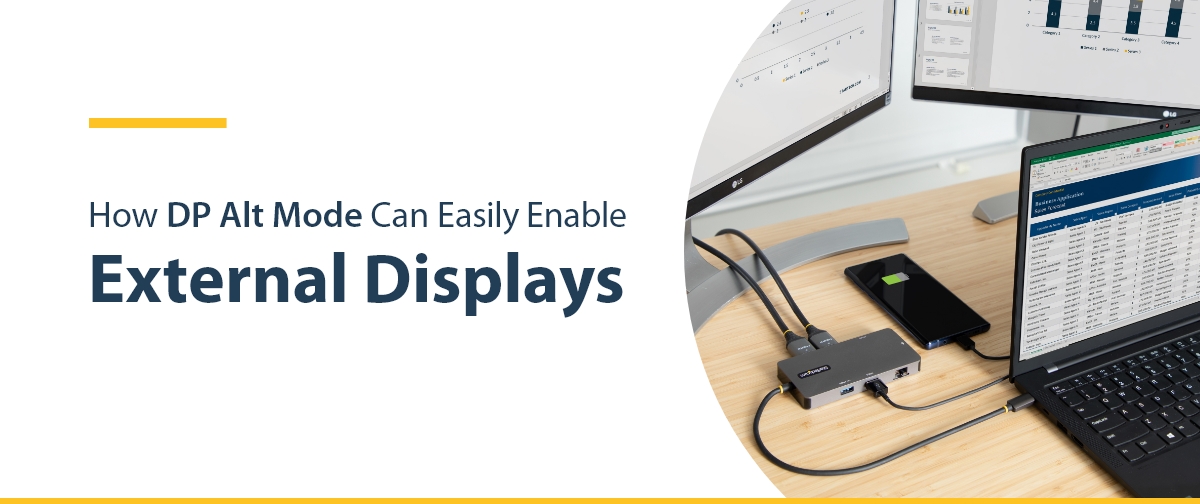
Some setups require extra attention.
Gaming and High-Refresh Monitors
High-performance systems expose weak links.
- Lower refresh rate in-game or via settings.
- Monitor GPU temperature (use MSI Afterburner or HWInfo).
- Ensure the PSU has enough wattage (check GPU requirements).
- Disable GPU overclocks (stock clocks are more stable).
🔥 Thermal Throttling: Dust-clogged fans or dried thermal paste can cause GPU shutdown under load.
Laptop with External Monitor (Clamshell Mode)
The laptop shuts off its display when the lid closes, unless told otherwise.
- Press
Win+Iand go to System > Power & sleep > Additional power settings. - Click “Choose what closing the lid does”.
- Set “When I close the lid” to “Do nothing” (plugged in).
🔁 Also disable “Sleep after” for both battery and plugged-in modes.
USB-C and Docking Stations
Common issues for modern laptops.
- Ensure the USB-C port supports DisplayPort Alt Mode.
- Use a powered dock.
- Update dock firmware (via the manufacturer’s app).
- Avoid cheap hubs, which often fail under high bandwidth.
Troubleshooting Decision Flow
Use this quick-reference table to pinpoint your issue:
| Symptom | Likely Cause | Fix |
|---|---|---|
| Amber light, fans spinning | No video signal | Win+P, reseat cable, check input |
| Works in Safe Mode | Driver conflict | Reinstall or roll back driver |
| Works on another PC | Monitor or PC issue | Swap components to isolate |
| Black during gaming | GPU load or heat | Lower settings, check temps, verify PSU |
| No BIOS screen | Hardware failure | Reseat RAM and GPU, reset CMOS |
| Works direct, not via dock | Dock failure | Bypass dock, update firmware |
Prevent Future Power Save Mode Issues

Once fixed, keep your display working smoothly.
Maintenance Tips
- Replace cables every 2 to 3 years, especially in high-movement areas.
- Clean GPU and case vents every 6 months to prevent overheating.
- Use high-quality, shielded cables for 4K and 144Hz setups.
- Avoid daisy-chaining displays unless your setup supports it.
Power Settings Best Practices
- Set “Turn off display” to “Never” during work sessions.
- Use the “High performance” or “Balanced” power plan.
- Disable “Fast Startup” if it causes wake issues (Settings > Power > Choose what power buttons do).
When to Replace Hardware
- Cable: First and cheapest fix.
- Dock: If direct connection works.
- GPU: If it fails on multiple systems.
- Monitor: Only after all other tests fail.
Frequently Asked Questions About Monitor Power Save Mode
Why is my monitor stuck in power save mode?
Your monitor is stuck because it is not receiving a valid video signal from your computer. The issue usually lies in the cable, the input source, the graphics driver, or the GPU itself, rather than the panel.
How do I wake up a monitor from power save mode?
Press Win + P to cycle display modes, or press Ctrl + Shift + Win + B to restart the graphics driver. If that does not work, reseat the video cable and power cycle the computer.
How do I stop my monitor from going into power save mode?
Disable Deep Sleep and Eco Standby in the monitor’s OSD menu. Also, set Windows “Turn off display” to “Never” and choose the “High performance” power plan.
Why does my monitor say no signal but the PC is on?
This happens when the signal chain breaks between the PC and the monitor. Common causes include a loose cable, wrong input source, crashed graphics driver, or a failing GPU.
How do I disable power saving mode on my monitor permanently?
Enter the monitor’s OSD menu, navigate to Power Settings, and disable Deep Sleep, Eco Standby, and Auto Input Switching. In Windows, set the display sleep timer to “Never.”
What causes a monitor to go into power save mode randomly?
Random triggers include driver instability, loose cables, dock handshake failures, GPU overheating, or aggressive monitor sleep settings. Updating drivers and replacing old cables usually solves this.
Key Takeaways for Removing Your Monitor from Power Save Mode
Power save mode is rarely the monitor’s fault. It is a symptom of a broken signal chain between your computer and the display. By following this guide, you have systematically ruled out software, driver, cable, and hardware issues. Most fixes take under 10 minutes.
If your screen is back, great. If not, you now know exactly which component to replace. Start with the cheapest fix (the cable), then move to docks, drivers, and finally the GPU or monitor itself. Keep your drivers updated, avoid cheap cables, and configure your power settings for your workflow. A stable display connection keeps your productivity and peace of mind intact.


