
Is your monitor running hotter than usual after long work sessions? Excessive heat can cause screen flickering, color shifts, reduced lifespan, or even permanent hardware damage. While most monitors handle internal heat fine, poor ventilation or heavy use can push temperatures past safe limits. The good news: you don’t need expensive gear to cool down monitor performance. With a few household items and smart habits, you can build simple cooling solutions, improve airflow, and prevent overheating. This guide walks you through DIY fixes, placement tips, and low-cost upgrades that keep your display running safely and comfortably.
You’ll learn how to spot early heat trouble, build a custom cooler using toothpicks and a repurposed fan, position it correctly, and maintain optimal temperature over time. Every step is beginner-friendly and budget-conscious.
Check Monitor Ventilation First
Before adding fans or mods, assess how well your monitor breathes on its own. Most displays expel heat through rear or side grilles, and blocked vents are the number one cause of overheating.
Clear Blocked Air Vents
Dust buildup, tight wall placement, or nearby clutter can choke airflow fast.
- Move the monitor at least 2 to 3 inches away from walls.
- Inspect vents for dust and use compressed air to clear them.
- Avoid placing near radiators, heaters, or direct sunlight.
Warning: Running a monitor in enclosed spaces traps heat and raises internal temperature quickly.
Test Ambient Room Temperature
A hot room always means a hotter monitor. Ideal operating temperature sits between 50 and 85°F (10 to 30°C).
- Place a small thermometer near the monitor.
- If room temp exceeds 85°F, add a fan or AC to your workspace.
Build a DIY Monitor Cooler

Create a low-cost cooling setup using common household items. The design uses a small fan mounted on a toothpick frame, powered by an old phone charger.
Assemble the Fan Support Frame
Build a stable base using toothpicks and glue so the fan sits securely on top of the monitor.
- Pair 8 toothpicks into 4 sets and glue each pair together.
- Wrap tape around each joint for extra strength.
- Position the pairs on the fan housing, angling them outward for balance.
- Add horizontal toothpicks across the base for added stability.
Pro Tip: A 24V fan powered at 12V runs quieter and produces less heat while still moving plenty of air.
Reinforce the Structure for Safety
A wobbly frame can fall and damage your screen, so reinforce every joint.
- Apply hot glue at all connection points.
- Wrap electrical tape over glued areas to prevent debris from falling.
- Let the frame dry completely before powering anything on.
Wire the Cooling Fan
Power your fan using a repurposed phone charger instead of buying a new adapter.
- Cut off the USB end of an old phone charger.
- Strip the wires to expose the copper inside.
- Test polarity by connecting to a working fan: if it spins, the polarity is correct.
- Twist fan wires to charger wires and secure with electrical tape.
Safety First: Never leave exposed wires loose. Seal every connection thoroughly with electrical tape before plugging in.
Cover Fan Blades for Better Airflow
Paper shrouds around the fan help direct air downward instead of letting it scatter sideways.
- Cut printer paper to fit each side of the fan housing.
- Glue the paper directly onto the fan frame.
- Fold and glue the corners to create enclosed sides.
- Repeat for all four sides of the fan.
Position Your Cooler Correctly
Where you place the cooler matters as much as how you build it. Proper placement maximizes heat extraction.
Mount on Top of the Monitor
Place the DIY cooler along the upper back edge of your display.
- Align the fan so it blows air over the hottest area of the back panel.
- Use tape to seal gaps between the cooler and monitor surface.
- This creates a partial duct that pulls heat away more efficiently.
Avoid Front Airflow Disruption
Never position a fan where it blows toward your face or causes screen glare.
- Keep the entire setup behind the screen.
- Secure cables so they don’t snag or pull on the frame.
Use External Cooling Options

Skip the DIY build? These plug-and-play alternatives work without tools or wiring.
Add a USB Cooling Fan
A standard USB desk fan clips onto your monitor and powers from your PC.
- Plug into any USB port for automatic on/off with your computer.
- Aim it across the back panel for steady airflow.
- Choose models with adjustable arms for better targeting.
Try a Laptop Cooling Pad Behind the Display
Some thin or portable monitors can benefit from a laptop cooling pad placed behind them.
- Set the pad behind the monitor if space allows.
- Align the pad’s vents with the monitor’s hottest area.
Optimize Monitor Settings to Reduce Heat
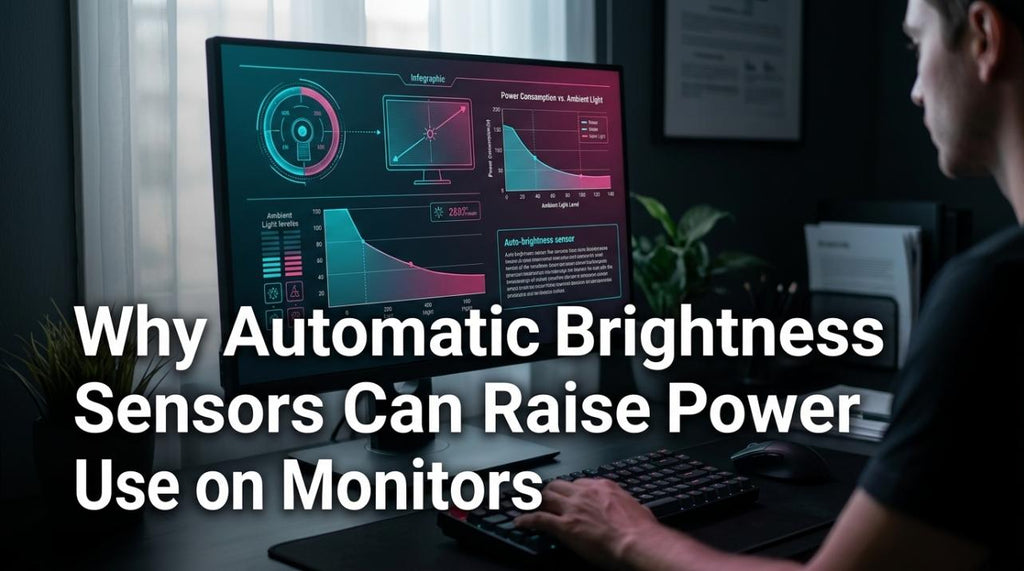
Lowering internal heat output is often easier than adding external cooling.
Lower Brightness Levels
High brightness generates more heat from the backlight. Drop it to 60 to 70 percent in normal lighting.
- Adjust through your monitor’s on-screen menu.
- Use ambient light sensors if your display has them.
Enable Power-Saving Mode
Power-saving features cut backlight intensity and circuit load during idle periods.
- Activates sleep mode when you’re away.
- Lowers average operating temperature across the day.
Prevent Overheating Over the Long Term
A few minutes of monthly maintenance keeps your monitor cool for years.
Clean Vents Monthly
Dust is the silent enemy of airflow.
- Power off and unplug the monitor before cleaning.
- Blow out vents with compressed air.
- Wipe the casing with a dry microfiber cloth.
Watch for Temperature Warning Signs
Catch overheating early by paying attention to your display.
- Screen discoloration or flickering
- Unexpected automatic shutdowns
- Hot casing, especially near vents
If you notice any of these signs, power down immediately and let the monitor cool fully before restarting.
Upgrade When DIY Isn’t Enough
Sometimes aging hardware needs more than a homemade fix.
Consider Monitors with Better Cooling
Newer models often include improved heat dissipation features.
- Look for metal back panels or passive cooling fins.
- Check reviews for mentions of cool running temperatures.
Replace Aging Internal Components
Old capacitors and power boards generate excess heat over time.
- If your monitor consistently overheats, consult a repair technician.
- Weigh repair costs against the price of a replacement unit.
Frequently Asked Questions About Cooling Down a Monitor
What is the ideal operating temperature for a monitor?
Most monitors run safely between 50 and 85°F (10 to 30°C). Anything above 85°F in the surrounding room can push internal components past their comfort zone and shorten lifespan.
Can I use any fan to cool my monitor?
A small 12V DC fan works best, though a 24V fan powered at 12V runs quieter and stays cooler itself. Avoid large fans that create too much noise or vibration near the screen.
Is it safe to build a DIY monitor cooler?
Yes, as long as you seal all electrical connections with electrical tape, secure the frame properly, and test the fan off the monitor first. Always unplug the setup before adjusting anything.
How often should I clean my monitor vents?
A monthly cleaning routine works well for most environments. Dusty rooms or homes with pets may need cleaning every two to three weeks to keep airflow strong.
Will lowering brightness really reduce heat?
Yes. The backlight is one of the largest heat sources inside a monitor. Dropping brightness from 100 percent to around 60 to 70 percent can noticeably lower operating temperature.
When should I replace my monitor instead of cooling it?
If your monitor overheats even after cleaning vents, lowering brightness, and adding external cooling, internal components may be failing. At that point, replacement is usually safer and more cost-effective than repair.
Key Takeaways for Cooling Down Your Monitor
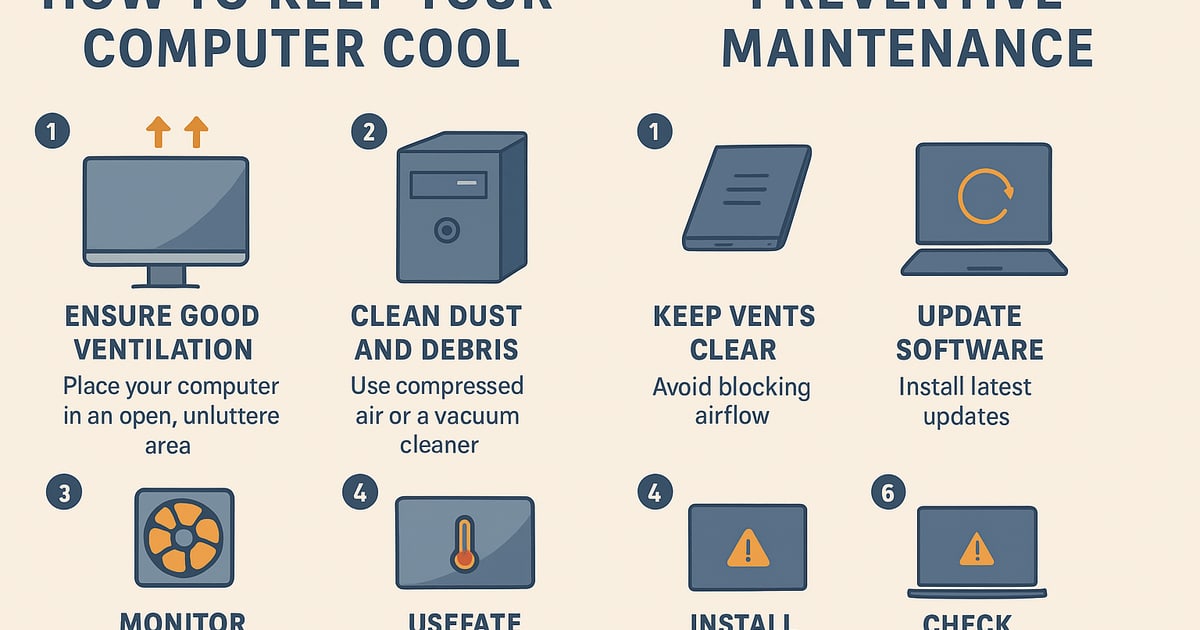
Keeping your monitor at a safe temperature comes down to three simple habits: clear airflow, smart placement, and regular maintenance. Start by moving your display away from walls and heat sources, then clean the vents monthly to prevent dust buildup. If temperatures stay high, build a toothpick-frame cooler using a 12V fan and an old phone charger, or pick up a USB desk fan for a quicker fix. Lower brightness and enable power-saving mode to reduce heat from the inside out. These small steps protect your investment, extend your monitor’s lifespan, and create a more comfortable workspace. Pick one method from this guide and try it today; your monitor will run cooler within minutes.


