
You just unboxed a new monitor, plugged it in, and noticed the “HDR” label on the box. But does it actually deliver true HDR performance, or is it just accepting a signal it cannot properly display? Many budget monitors advertise HDR compatibility while producing visuals nearly identical to standard SDR. Learning how to check if monitor has HDR properly saves you from disappointment and ensures your hardware delivers what it promises.
This guide walks you through every verification layer, from Windows settings and DirectX diagnostics to console output checks and real-world visual tests. You will learn how to confirm genuine HDR performance, troubleshoot detection failures, and distinguish true HDR from marketing claims that overpromise and underdeliver.
Verify HDR in Windows Display Settings
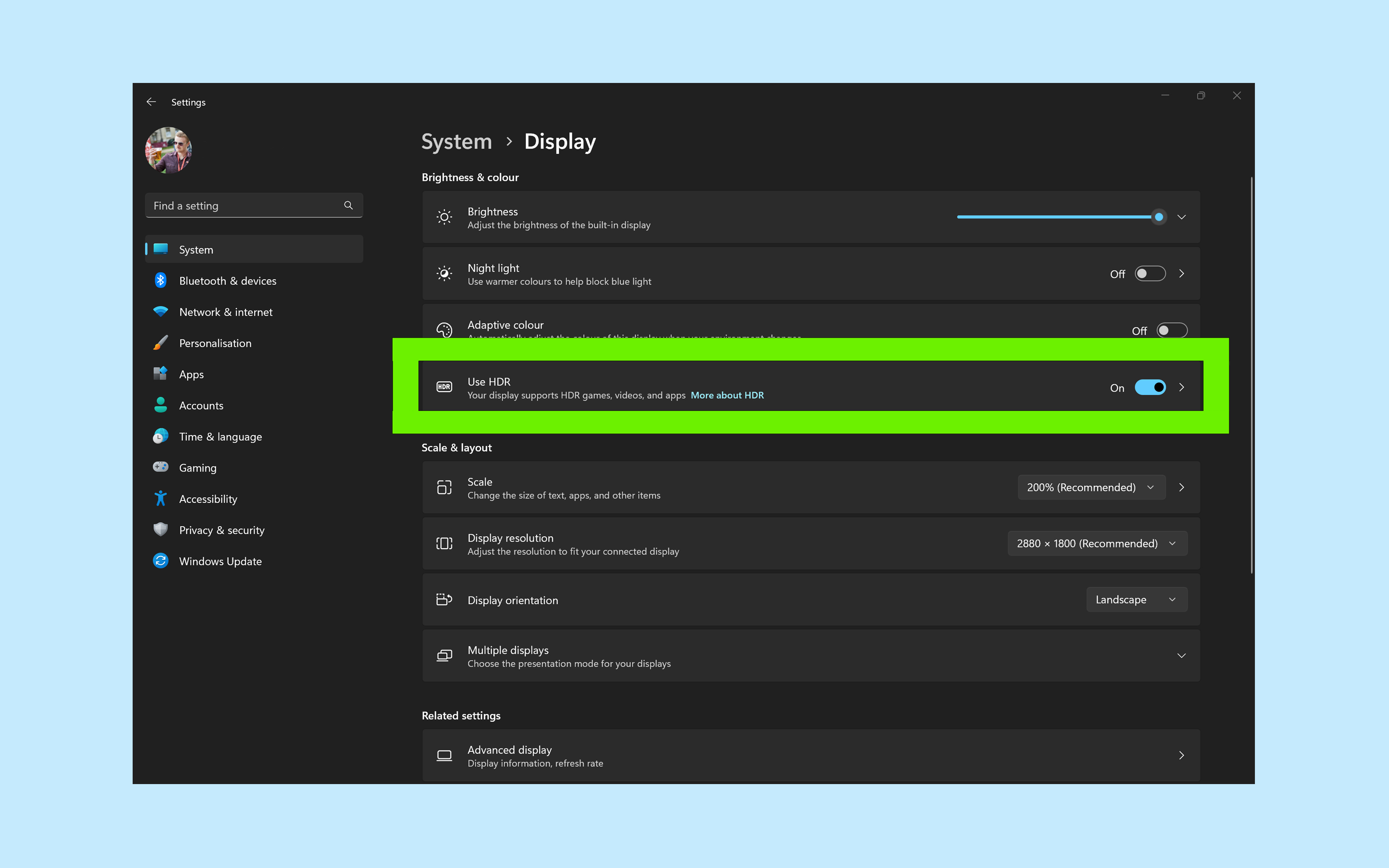
The quickest method to check if monitor has HDR involves your operating system’s built-in display controls. Windows provides a dedicated toggle that confirms whether your system recognizes the display as HDR-capable.
Access the HDR Toggle in Settings
- Press Windows + I to launch Settings.
- Navigate to System, then click Display.
- Select the specific monitor you want to test if you use multiple displays.
- Scroll to the HDR section (called “Windows HD Color” on older Windows 10 builds).
Look for these indicators:
– A toggle labeled “Use HDR” or “Play HDR games and apps”
– Under Display capabilities, the status must read “Supported” (Windows 11) or “Yes” (Windows 10)
If the toggle is missing or shows “Not supported”, your monitor, cable, or graphics card fails to meet HDR10 baseline requirements.
Enable HDR and Adjust Brightness
Switch the HDR toggle to On once confirmed. Your desktop may appear dim or oversaturated initially, which is normal. Use the SDR content brightness slider to balance how regular applications look. Adjust the HDR content brightness slider to control peak highlight intensity without crushing shadow detail.
Note: A grayed-out toggle often points to power management settings or an incompatible HDMI or DisplayPort connection.
Run DirectX Diagnostic Tool for HDR Confirmation
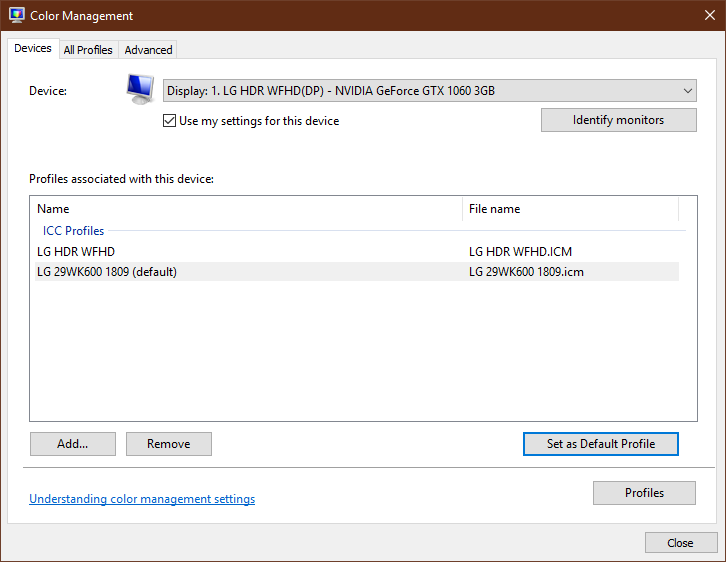
For deeper hardware-level verification, the DirectX Diagnostic tool reveals raw system data about your display’s HDR capabilities.
Use dxdiag to Confirm HDR Support
- Press Windows + R, type
dxdiag, and press Enter. - On the System tab, click Save All Information.
- Open the generated text file and search for these critical values:
Key Values to Verify
- AdvancedColorSupported: Must indicate Yes
- AdvancedColorEnabled: Should show Yes when HDR is active
- Monitor Capabilities: Must include these entries:
- HDR Supported
- BT2020RGB or BT2020YCC (color space identifiers)
- Eotf2084Supported (PQ transfer function)
Missing values or “not supported” entries mean your monitor does not satisfy HDR10 hardware standards, regardless of any HDR branding.
Confirm Console HDR Output Status
PlayStation and Xbox users must verify HDR on both the console and the monitor. Console diagnostics show exactly what signal your device is sending.
Check PlayStation 5 HDR Settings
- Open Settings, then go to Screen and Video > Video Output > Information.
- Confirm these values appear:
– HDR: Supported / Active
– Color space: BT.2020
– Bit depth: 10 bpc
Check Xbox Series X or S HDR Settings
- Navigate to Settings > General > TV & display options > 4K TV details.
- Verify the following:
– HDR10: Supported and Active
– Color depth: 10-bit
– Color format: RGB or YCbCr 4:4:4
If HDR appears inactive, try lowering resolution to 4K at 60Hz instead of 120Hz to free up bandwidth.
Confirm HDR Mode in Monitor OSD

Seeing HDR active on your PC or console means nothing unless your monitor also confirms it is processing the HDR signal correctly.
Check Monitor Signal Information
- While HDR content plays, press the physical buttons on your monitor.
- Open the menu and navigate to Information, Signal Status, or Input Info.
- Look for any of these labels:
– HDR
– HDR10
– PQ
– 10-bit
– BT.2020
– Wide Color
A persistent status page showing these values confirms valid HDR reception. A temporary pop-up banner that disappears quickly does not count as confirmation. If the console reports HDR active but the monitor shows SDR, your cable, port, or input settings are breaking the signal chain.
Test HDR Performance with Real Content
True HDR delivers visible improvements in dynamic range. Software checks confirm signal acceptance, but only real content reveals actual performance.
Play HDR Videos for Visual Comparison
- Open YouTube or Netflix in Edge or Chrome.
- Search for 4K HDR demo videos.
- Play the video in full screen.
- Watch for these visual cues:
– An HDR badge in the video player
– Brighter highlights in sunlight, fire, or reflections
– Deeper blacks without gray washout
– Richer, more natural color saturation
Compare the same scene with HDR toggled off. If you cannot spot a meaningful difference, your monitor may be running in emulation mode rather than true HDR.
Launch Native HDR Games
Games like Cyberpunk 2077, Forza Horizon 5, and God of War offer built-in HDR support.
- Enable HDR in the game’s video settings menu.
- Observe these changes:
– The monitor OSD switches to HDR mode automatically
– Noticeable contrast between bright and dark scenes
– Headlights or explosions retain detail instead of clipping to white
If the game appears identical to SDR despite HDR being enabled, check your GPU driver settings or disable any HDR emulation features.
Troubleshoot Common HDR Detection Problems
Even capable hardware sometimes fails HDR detection due to configuration conflicts. These fixes address the most frequent issues.
Fix Grayed-Out HDR Toggle on Laptops
Windows disables HDR on battery power by default to conserve energy.
- Open Settings > System > Display > HDR.
- Expand the Battery options section.
- Uncheck “Turn off HDR when running on battery” (Windows 11) or “Don’t allow HDR games and apps on battery” (Windows 10).
Always keep your laptop plugged in during HDR sessions for stable performance.
Resolve Dual Monitor HDR Conflicts
Duplicate display mode forces both screens to share the lowest common settings.
- Press Windows + P.
- Select Extend these displays instead of Duplicate.
- Return to Display settings, choose your HDR monitor, and re-enable the toggle.
Fix Washed-Out or Dim HDR Appearance
Adjust the SDR content brightness slider if SDR apps look too bright. Increase the HDR content brightness slider if HDR content appears too dim. Disable Night Light, since it conflicts with HDR color reproduction. Check the monitor OSD to confirm HDR mode is active and not SDR emulation.
Eliminate Signal Dropouts When Enabling HDR
Screen blackouts when toggling HDR usually indicate bandwidth limitations.
- Use a certified HDMI 2.1 or DisplayPort 1.4+ cable.
- Lower the refresh rate to 60Hz.
- Switch color format to YCbCr 4:2:2 or 4:2:0.
- Bypass HDMI hubs, splitters, and AV receivers by connecting directly.
Disable Dolby Vision to Maximize Brightness
Some monitors default to Dolby Vision mode, which can cap peak brightness below HDR10 capabilities on certain panels.
Force HDR10 Mode Instead
- Open Settings > System > Display > HDR.
- Uncheck “Use Dolby Vision mode”.
- Restart your system and re-enable HDR.
This forces the monitor into standard HDR10, potentially unlocking higher peak brightness on capable displays.
Distinguish True HDR from Marketing Claims
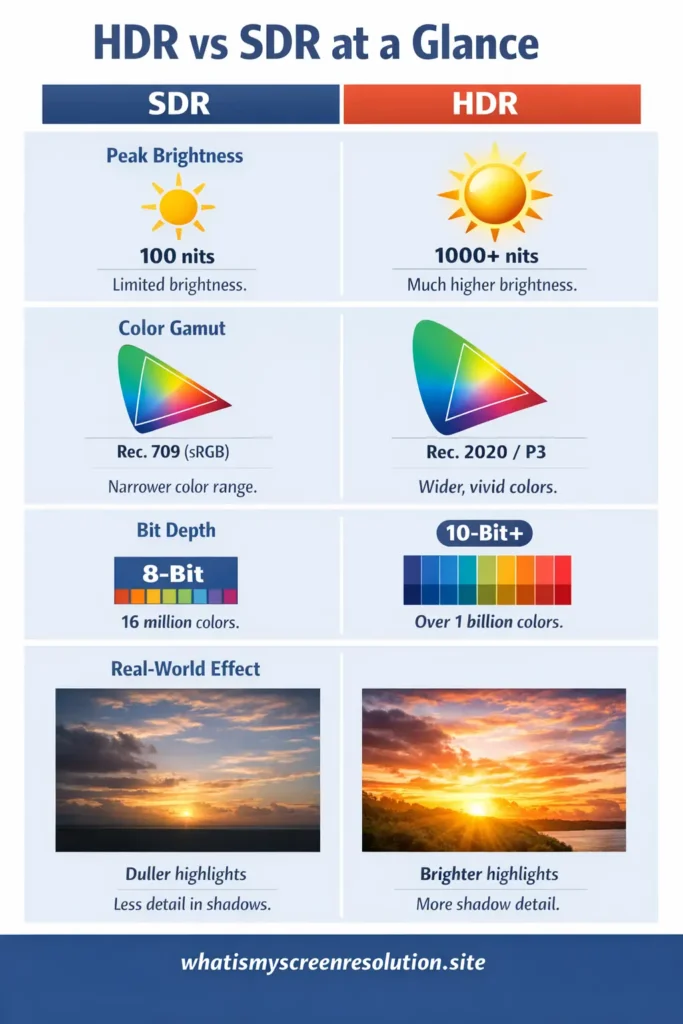
Many monitors labeled “HDR-compatible” deliver disappointing results. Knowing the difference helps you identify fake HDR before purchasing.
| Feature | Entry-Level HDR | True HDR Performance |
|---|---|---|
| Peak Brightness | 300 to 400 nits | 600+ nits (1000+ ideal) |
| Local Dimming | None or global only | Full array or Mini-LED zones |
| Contrast | Grayish blacks | Deep blacks with bright highlights |
| Color Volume | Limited BT.2020 coverage | Full wide gamut reproduction |
| Visual Result | Slightly brighter SDR | Clear dynamic range expansion |
Warning Signs of Fake HDR
- No mention of peak brightness or local dimming in specifications
- Labeled HDR10 but uses an 8-bit panel
- OSD shows “HDR Effect” without any incoming HDR signal
- Blacks appear gray or hazy in dark scenes
If the monitor cannot get noticeably brighter than SDR in highlights or darker in shadows, it is not delivering true HDR.
Calibrate Your Monitor for Optimal HDR
Once HDR is confirmed active, proper calibration maximizes visual quality and prevents common issues like crushed shadows or clipped highlights.
Use Built-In Calibration Tools
Run Settings > System > Display > HDR > Calibrate HDR on Windows. On PS5, navigate to Settings > Screen and Video > Video Output > Calibrate HDR. On Xbox, open Settings > General > TV & display options > Calibrate HDR for TV.
Follow the on-screen instructions carefully. Adjust brightness until the test pattern symbols just disappear. Avoid maximizing brightness, which causes highlight clipping.
Optimize Monitor Settings for HDR
- Set the input to HDMI 2.1 or DisplayPort 1.4.
- Enable the dedicated HDR mode in the OSD.
- Turn on local dimming and set it to Medium or High.
- Disable dynamic contrast, black boost, and shadow enhancer.
- Reduce ambient room lighting to improve perceived contrast.
Final Verification Checklist for True HDR

Confirm all five conditions before concluding your monitor delivers HDR performance.
Five-Point Confirmation
- System Reports HDR Support: dxdiag shows AdvancedColorSupported as Yes, and console video info displays HDR Active.
- Monitor OSD Confirms HDR Mode: Persistent text shows HDR10, PQ, or 10-bit in the signal menu.
- HDR Toggle Functions Properly: The OS allows toggling HDR on without errors or grayed-out options.
- Visible Dynamic Range Difference: HDR content shows brighter highlights, deeper blacks, and richer colors compared to SDR.
- Stable Signal at Target Resolution: No flickering, blackouts, or automatic reversion to SDR.
If all five conditions pass, you have true HDR. If the first three pass but the fourth fails, your monitor has HDR compatibility but lacks the hardware performance for a premium experience.
Frequently Asked Questions About Checking Monitor HDR
What is the fastest way to check if monitor has HDR?
Open Windows Settings, navigate to System > Display, and look for the HDR section. If a toggle appears and Display capabilities shows “Supported” or “Yes,” your monitor accepts HDR signals. For deeper verification, run dxdiag and check for AdvancedColorSupported and BT2020 entries.
Why does my monitor say HDR supported but look the same as SDR?
Your monitor likely accepts the HDR signal but lacks the hardware to display it properly. Entry-level panels with 300 to 400 nits peak brightness and no local dimming cannot produce meaningful dynamic range expansion. True HDR requires higher brightness and effective contrast technologies.
Can I enable HDR without an HDR10-certified monitor?
Windows allows enabling HDR on any monitor, but the visual result depends entirely on hardware capability. Monitors without BT.2020 color space or EOTF2084 support will receive the signal but produce washed-out or dim images that may look worse than SDR.
Why is my HDR toggle grayed out in Windows?
A grayed-out toggle usually indicates power management restrictions (common on laptops running on battery), an outdated graphics driver, or an incompatible cable or port. Check battery settings, update your GPU drivers, and verify you are using HDMI 2.0+ or DisplayPort 1.4+ connections.
Does HDMI 2.0 support HDR?
HDMI 2.0 supports HDR10 at 4K resolution up to 60Hz. For higher refresh rates like 120Hz with HDR, you need HDMI 2.1 or DisplayPort 1.4+. Bandwidth limitations on older cables and ports often cause signal dropouts when enabling HDR.
How do I know if my console is sending HDR to my monitor?
On PS5, go to Settings > Screen and Video > Video Output > Information and check that HDR shows Active. On Xbox, navigate to Settings > General > TV & display options > 4K TV details and verify HDR10 status. Your monitor OSD must also show HDR mode simultaneously.
Final Thoughts on Verifying Monitor HDR Support
Knowing how to check if monitor has HDR goes far beyond clicking a settings toggle. True verification requires validating the entire signal chain, from your graphics card or console through the cable and into the monitor panel itself. Software diagnostics confirm signal acceptance, while real-world content tests reveal whether your hardware can actually produce the expanded dynamic range HDR promises.
The most important takeaway is that “HDR-compatible” labels rarely guarantee a meaningful HDR experience. Entry-level monitors may accept the signal but lack the brightness, contrast, or local dimming needed to make HDR visually distinct from SDR. By following the five-point verification checklist, you cut through marketing noise and confirm whether your setup delivers genuine HDR performance. Start by checking Windows settings or your console’s video information page, then validate with real HDR content to see the difference yourself.


