
Picture this: you plug a single USB-C cable into your laptop, and your monitor lights up while your battery starts climbing. No bulky charger brick, no tangled mess, just one clean connection. This is the promise of single-cable laptop charging, and it works beautifully when your hardware is compatible.
The catch is that most setups fail on the first try. Users connect everything, see the screen flicker to life, then watch in frustration as the battery percentage keeps dropping. The problem usually traces back to one missing piece in a four-part puzzle: laptop port capability, monitor passthrough support, cable rating, or charger wattage. Get any of these wrong, and the whole system collapses.
This guide walks you through every requirement and troubleshooting step. You will learn how to verify compatibility, calculate the right wattage, choose proper cables, and fix common failures. By the end, you will know exactly how to charge your laptop from a monitor with confidence.
Confirm Laptop USB-C Compatibility

Before buying any accessories, verify that your laptop can handle both video and power through one USB-C port. Many users assume all USB-C ports work the same way, but that assumption causes most setup failures. Some ports only transfer data, others only charge, and only specific ones manage video and power simultaneously.
Check for DisplayPort Alt Mode or USB4
Your laptop must support DisplayPort Alternate Mode (DP Alt Mode) or USB4/Thunderbolt over USB-C to send video signals to the monitor. Without this protocol, no image will appear regardless of cable quality. Check your laptop specifications in the user manual or manufacturer website. Search for terms like “USB-C video output,” “DisplayPort over USB-C,” or “Thunderbolt 4 support.” If the port lists video capability, it can likely work with an external display.
Verify USB-C Power Input Support
Video capability alone is not enough. Your laptop must also accept charging through that same USB-C port. Many gaming and high-performance machines use proprietary barrel-plug chargers and cap USB-C charging at 45W or 65W. This level sustains light office tasks but cannot charge under heavy load. Review your laptop specs for “USB-C charging” and the maximum input wattage. If your laptop shipped with a 100W or higher barrel charger, USB-C may only provide partial power.
Identify the Correct Port
Some laptops include multiple USB-C ports with different functions. One might handle video and charging, while another only charges or transfers data. Look for a battery icon, display symbol (DP), or Thunderbolt logo next to the port. These markings indicate dual functionality. Always use the port showing both symbols to enable monitor-based charging.
Choose a Monitor with Power Delivery Passthrough

Not every USB-C monitor can charge your laptop. Many models are designed to draw power from the laptop rather than supply it back. To charge your device, the monitor must include Power Delivery (PD) passthrough, a feature that lets it receive wall power and pass part of it downstream to your laptop.
Look for Explicit PD Passthrough Support
Check the product specifications for terms like:
– “USB-C PD passthrough”
– “Charges connected devices”
– “100W power delivery to host”
Avoid monitors that only list “USB-C input” without mentioning charging output. Those typically support video only. Portable monitors often advertise passthrough wattage (such as 65W or 90W), while desktop monitors may require a docking station to enable this feature.
Understand Passthrough Wattage Limits
Passthrough is not 100% efficient. If the monitor consumes 15W and your charger provides 65W, only about 50W reaches the laptop. High-brightness, touchscreen, or 4K portable monitors consume more power, leaving less available for charging. Always select a monitor with passthrough wattage higher than your laptop’s minimum charging requirement.
Use a Certified Full-Function USB-C Cable

A bad cable is the most common reason setups fail, even when laptop and monitor support everything. Not all USB-C cables carry the same signals. Some transmit data only, others charge only, and only full-featured cables handle power, video, and data simultaneously.
Select a Cable Rated for Video and Power
Your cable must support:
– DisplayPort Alt Mode for video transmission
– USB Power Delivery (PD) at your required wattage (such as 65W or 100W)
– USB 3.2 or higher for data transfer if needed
Avoid thin, cheap cables from unknown brands. Use the cable included with your monitor or buy a certified USB-IF cable labeled for 60W, 100W, or higher. Look for terms like “USB-C to USB-C 100W,” “4K 60Hz,” or “Thunderbolt 4 compatible.”
Avoid DisplayPort-to-USB-C Cables
Never use a DisplayPort-to-USB-C cable if you want charging. These cables transmit video only and do not carry power back to the laptop. They are designed for older laptops without USB-C video output. For combined charging and display, use a USB-C to USB-C cable only.
Match Charger Wattage to Your Power Budget
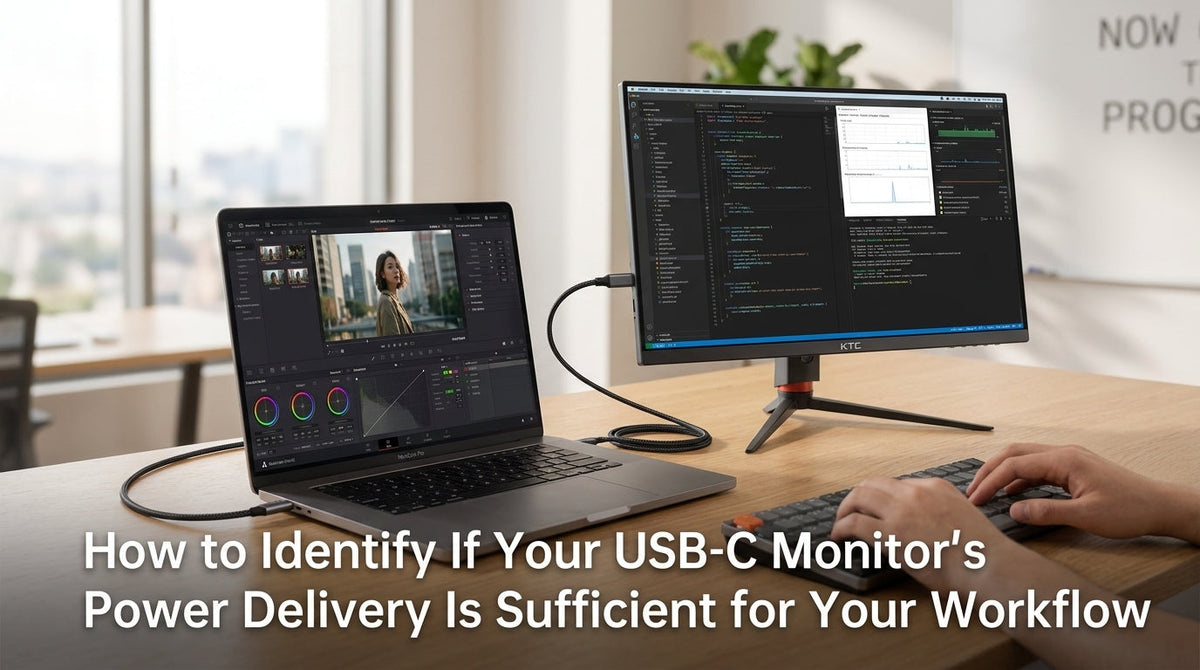
The charger plugged into the monitor must supply enough power for both the display and the laptop. If it falls short, your laptop may not charge or may even lose battery while plugged in.
Calculate Total Power Needs
Use this formula:
Required Charger Wattage = Monitor Power + Laptop Charging Needs
Typical consumption values:
– Standard 1080p portable monitor: 8 to 12W
– High-brightness or 4K monitor: 15 to 30W
– Ultrabook (MacBook Air, Dell XPS): 45 to 65W
– Premium laptop (MacBook Pro, ThinkPad X1): 65 to 100W
– Gaming or creator laptop: 100W or more
Example: If your monitor uses 10W and your laptop needs 65W, choose at least a 90W or 100W PD charger to ensure reliable charging.
Upgrade Charger for Heavy Workloads
During video editing, multitasking, or gaming, your laptop draws more power than the monitor can supply. A 65W charger may not keep up under these conditions. Upgrade to a 100W or 140W PD charger to provide headroom. This ensures your laptop charges or maintains battery level even during demanding tasks.
Connect Devices in the Correct Order
Even with compatible hardware, connection order matters. Plugging in the wrong way can prevent charging or cause flickering.
Step-by-Step Connection Process
- Plug the charger into the monitor first to power the display and activate its PD passthrough circuit.
- Connect the USB-C cable from monitor to laptop using a full-featured USB-C to USB-C cable. Plug into the correct port on both devices (look for DP or PD symbols).
- Wait 5 to 10 seconds while devices negotiate power and video protocols.
- Check for a charging indicator such as a battery icon in your system tray.
If the screen works but the laptop does not charge, double-check the cable and passthrough settings.
Troubleshoot Common Setup Issues
Even with the right hardware, problems can occur. Here is how to diagnose and fix them quickly.
No Charging, But Video Works
Possible causes:
– Monitor lacks PD passthrough support
– Cable does not support power delivery
– Laptop port does not accept charging input
– Charger wattage is too low
Fix:
– Confirm monitor specs include “USB-C PD passthrough”
– Swap in a known 65W or higher certified cable
– Try a different USB-C port on the laptop
– Test with a higher-wattage charger (100W or more)
Video Not Displaying, But Laptop Charges
Possible causes:
– Laptop USB-C port does not support video output
– Cable does not support DisplayPort Alt Mode
– Wrong port on a docking station is being used
Fix:
– Check laptop specs for video support
– Replace cable with a video-capable one
– If using a dock, connect to the port labeled for video output
Flickering Screen or Intermittent Connection
Possible causes:
– Cable is damaged or low quality
– Power budget is too tight
– Monitor brightness is set too high
Fix:
– Replace with a certified USB-C cable
– Lower monitor brightness to reduce power draw
– Upgrade to a higher-wattage charger
Battery Drains While Plugged In
Symptom: Laptop shows “plugged in, charging” but battery percentage drops.
Cause: Power demand exceeds supply. The laptop uses more energy than the monitor can deliver.
Solution:
– Use a higher-wattage charger (100W instead of 65W)
– Close heavy applications like video editors or games
– Reduce screen brightness on both devices
– For gaming or creator laptops, use the original charger for full performance
Set Up Desktop Monitors with a Docking Station
Most desktop monitors lack USB-C input. To charge your laptop from one, you need a USB-C docking station that supports both video output and power delivery.
Choose a Single-Cable Dock
Look for docks labeled “Single Cable Docking” or “USB-C Dock with PD.” These allow one cable from your laptop to handle:
– Power delivery (up to 100W)
– Video output to monitor via HDMI or DisplayPort
– Data transfer through USB ports and Ethernet
Popular options include CalDigit TS4, Dell WD22, and Anker PowerExpand models.
Connect the Dock Correctly
- Plug the dock’s power adapter into the wall outlet.
- Connect the monitor to the dock via HDMI or DisplayPort cable.
- Connect the laptop to the dock using a USB-C to USB-C cable.
- Ensure the laptop connects to the correct USB-C port on the dock, often labeled “Host” or “Laptop.”
If your dock has multiple USB-C ports, only one may support video and charging. Using the wrong port results in charging only.
Avoid Two-Cable Setups
If your dock does not support single-cable docking, you will need:
– One cable for video (HDMI or DisplayPort)
– One USB-C cable for charging
This defeats the clean-desk goal. Always verify single-cable support before purchasing a dock.
Optimize Setup for Different Laptop Types

Not all laptops behave the same when charged via monitor. Adjust your expectations based on your device category.
Ultrabooks and Thin Laptops
Devices like MacBook Air, Dell XPS 13, or Lenovo Yoga thrive on 65W PD. A 65W or 90W charger paired with a 1080p monitor works perfectly. These laptops draw less power, so they charge reliably during video calls and browsing.
Tip: Use a 65W charger and a 15.6-inch portable monitor for travel setups.
Premium Productivity Laptops
Laptops like MacBook Pro 14-inch, ThinkPad X1, or HP Spectre often need 90W to 100W for full performance. A 65W charger may sustain the battery but will not charge during heavy multitasking.
Solution: Use a 100W PD charger and confirm monitor passthrough supports at least 90W.
Gaming and Creator Laptops
High-performance machines like Razer Blade, ASUS ROG, or MSI Creator usually require 140W or higher proprietary chargers. While they may accept 100W via USB-C, they throttle performance or drain the battery during gaming or rendering.
Reality check: USB-C charging from a monitor is not sufficient for full power. Use it only for:
– Light office work
– Travel setups
– Battery conservation mode
For gaming or 4K video editing, stick with the original charger.
Frequently Asked Questions About Charging Laptop from Monitor
Can any USB-C monitor charge a laptop?
No. Only monitors with Power Delivery passthrough can charge a laptop. Many USB-C monitors are video-only and draw power from the connected laptop instead of supplying it. Always check the specifications for “PD passthrough” or “charges connected devices” before purchasing.
Why does my laptop show charging but the battery percentage drops?
This happens when total power demand exceeds the charger’s output. Your laptop uses more energy than the monitor can deliver through passthrough. Upgrade to a higher-wattage charger (100W or more), reduce monitor brightness, or close demanding applications to balance the power budget.
Do I need a special cable to charge my laptop from a monitor?
Yes. You need a full-featured USB-C cable rated for both video (DisplayPort Alt Mode) and high-wattage power delivery (65W, 100W, or higher). Cheap data-only or charge-only cables will not transmit both signals simultaneously. Look for certified USB-IF cables with explicit wattage ratings.
Will charging my laptop from a monitor slow it down?
It depends on the laptop type and power budget. Ultrabooks and premium productivity laptops work normally with adequate wattage. Gaming and creator laptops may throttle performance because USB-C charging cannot match their original high-wattage adapters. For intensive tasks, use the manufacturer’s original charger.
Can I use a docking station to charge my laptop from a desktop monitor?
Yes, if the dock supports single-cable docking with Power Delivery passthrough. Connect the dock to wall power, link it to your monitor via HDMI or DisplayPort, then connect your laptop to the dock’s designated USB-C host port. This setup delivers video, data, and charging through one cable.
What wattage charger do I need to charge my laptop from a monitor?
Calculate the total: monitor consumption plus laptop charging needs. For an ultrabook with a 1080p portable monitor, 65W works well. For premium laptops with brighter displays, use 90W to 100W. For gaming laptops, 100W or higher is required, though original chargers are still recommended for full performance.
Key Takeaways for Charging Your Laptop from a Monitor
Charging a laptop from a monitor is absolutely possible when four elements align correctly. Your laptop’s USB-C port must support both video output and power input. Your monitor or docking station needs explicit Power Delivery passthrough with sufficient wattage. Your cable must be certified for video and high-wattage power delivery. And your charger must provide enough headroom for both the display and the laptop combined.
When these requirements are met, you get a clean, efficient workspace with one cable handling power, video, and data. When any piece is missing, you face flickering screens, dead batteries, or no signal at all. Always verify specifications before buying accessories, test your setup under real workloads, and upgrade your charger if the battery drains during use.
Next step: Check your laptop’s USB-C port specifications right now. Look for DisplayPort Alt Mode and charging input support, then match those capabilities against your monitor’s passthrough wattage. This quick verification tells you whether your existing hardware can support single-cable charging or whether you need to upgrade specific components.


