
You’ve probably searched for “how to change monitor password” because that login screen keeps appearing every time your screen wakes up. Here’s the truth: Windows doesn’t actually have a separate password for your monitor. What you’re really trying to change is the login password that unlocks your entire PC. The term “monitor password” is just a common mix-up for your Windows sign-in credential.
This guide shows you exactly how to change, reset, and manage your Windows login password on Windows 10 and Windows 11. Whether you’re signed in and want a quick update, locked out and need recovery, or simply want to stop the password prompt when your screen wakes, you’ll find every scenario covered step by step.
Identify Whether You Use a Microsoft or Local Account
Before changing anything, you need to know which account type you’re working with. The steps differ significantly between the two.
Quick Ways to Tell Which Account You Have
At the sign-in screen, look for these clues:
• Microsoft Account: Displays a full email address (like yourname@outlook.com).
• Local Account: Shows only a username (like User1) with no email attached.
If you’re already signed in, verify through Settings:
- Press Win + I to open Settings.
- Click Accounts, then Your info.
- Look under your name:
• “Microsoft account” means cloud-based sign-in.
• “Local account” means device-only sign-in.
Knowing your account type saves time and prevents following the wrong instructions.
Change Your Microsoft Account Password While Signed In
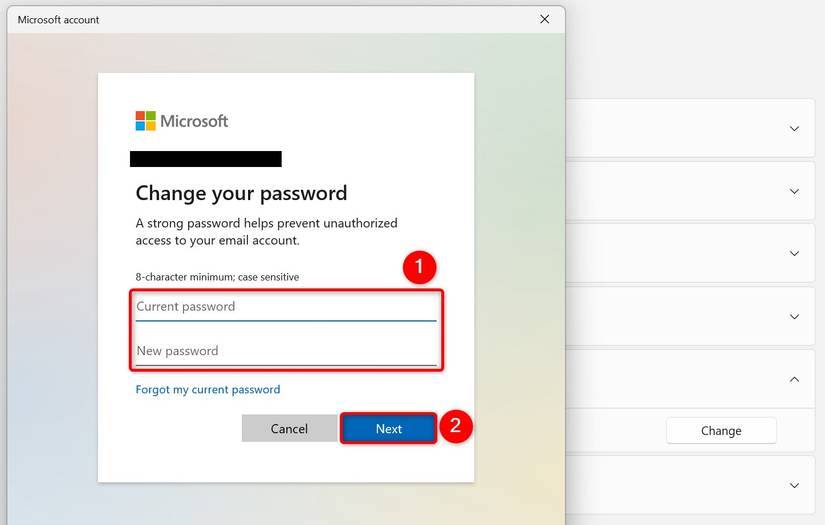
If you can access your desktop and remember your current password, updating it takes just a few clicks.
Update Through the Settings App
- Press Win + I to launch Settings.
- Navigate to Accounts, then Sign-in options.
- Under the Password section, click Change.
- Enter your current password.
- Type and confirm your new password.
- Add a password hint if desired.
- Click Next, then Finish.
Pro Tip: Create a strong password using a mix of uppercase letters, lowercase letters, numbers, and symbols.
Your new password syncs across all devices signed into your Microsoft account once they reconnect to the internet.
Forgot Your Password but Have a PIN?
A working PIN can help you reset your password without knowing the old one:
- Sign in using your PIN.
- Open Settings > Accounts > Sign-in options.
- Click Password, then Change.
- When prompted for the old password, select Forgot my current password.
- Complete the verification process (email code, authenticator app, or phone).
- Set a brand new password.
Note: This only works if your PIN was already set up and functional before you forgot the password.
Reset a Forgotten Microsoft Account Password When Locked Out
Can’t get into your PC? You can still recover access using one of three official methods.
Reset Directly at the Sign-In Screen
- Type any incorrect password on the lock screen.
- Click I forgot my password.
- Choose your verification method (email, phone, or authenticator app).
- Enter the security code sent to your recovery option.
- Create a new password.
- Sign in with your updated credentials.
This method works best when you still have access to your recovery email or phone number.
Use the Web Sign-In Reset Option
- At the login screen, click Sign-in options.
- Select the Web sign-in icon.
- Complete the browser-based login flow.
- Click Forgot my password.
- Verify your identity and create a new password.
This routes authentication through Microsoft’s secure online portal.
Reset From Another Device
Use any phone or computer with internet access:
- Open a browser and visit
https://account.live.com/password/reset. - Enter your Microsoft account email.
- Complete the identity verification steps.
- Set a new password.
- Return to your locked PC and sign in.
Sync Tip: The password update applies once your PC reconnects to the internet.
Change Your Local Account Password While Signed In
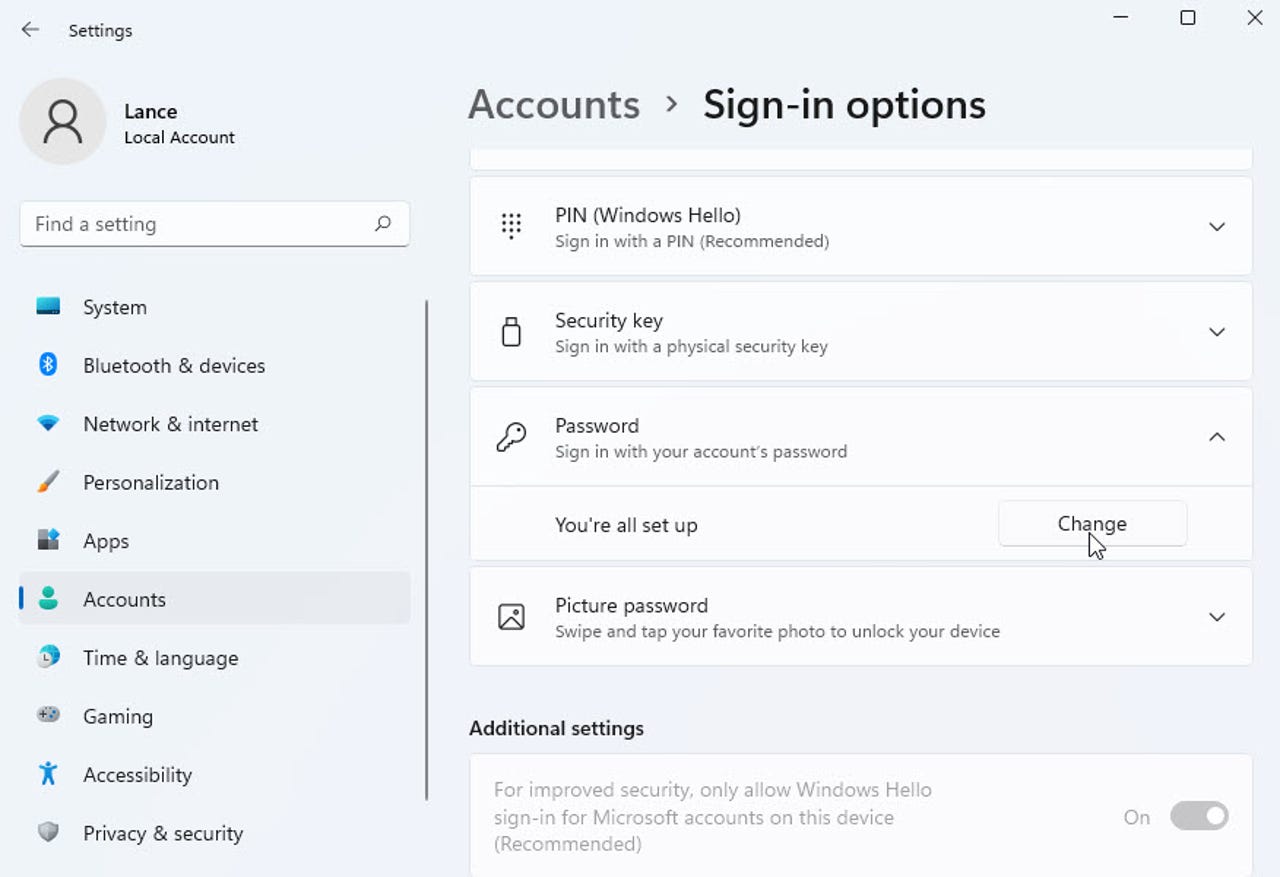
For users without an email-based Microsoft account, here’s how to update a local login password.
Update Through Settings
- Open Settings > Accounts > Sign-in options.
- Under Password, click Change.
- Enter your current password.
- Type and confirm your new password.
- Click Next, then Finish.
No internet connection is required since changes apply locally.
Use the Legacy Control Panel Method
Some users prefer the classic approach:
- Open Control Panel.
- Go to User Accounts, then Manage Accounts.
- Select your account and click Change the password.
- Follow the prompts to complete the update.
Pro Tip: Always set a password hint. It appears when you forget your password and helps with recovery.
Reset a Forgotten Local Account Password
Without cloud-based recovery, local accounts depend on tools you set up ahead of time.
Recover Using Security Questions
This only works if you configured questions during setup:
- Enter an incorrect password at the login screen.
- Click Reset password.
- Answer your security questions correctly.
- Set a new password.
- Log in with your new credential.
Warning: If you never set up security questions, this method won’t work.
Use a Password Reset Disk
If you previously created a USB reset disk:
- Plug in your USB reset drive.
- Click Reset password on the login screen.
- Follow the Password Reset Wizard.
- Create a new password without needing the old one or security questions.
Prep Tip: Create a reset disk now while you still have access. Search for “Create a password reset disk” in the Start menu and follow the wizard.
Disable the Password Prompt When Your Monitor Wakes Up
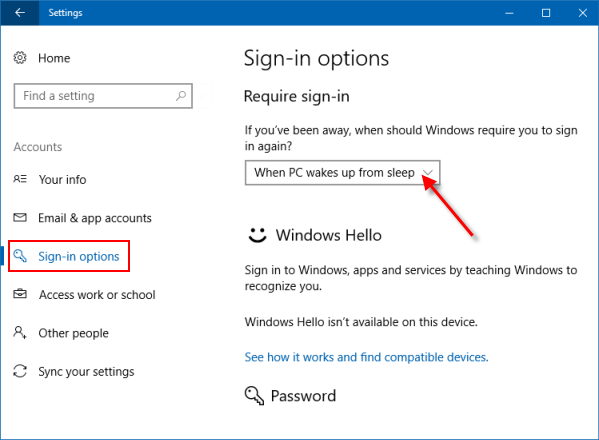
Many users want to stop the password from appearing every time the screen wakes. This isn’t changing your login password. It’s adjusting your lock behavior.
Turn Off the Password After Screen Timeout
- Press Win + I to open Settings.
- Click Accounts, then Sign-in options.
- Scroll to Related settings.
- Click Change screen lock settings.
- Find the Require sign-in dropdown.
- Change it from “When PC wakes up from sleep” to Never.
Result: Your screen turns off after timeout, but waking it no longer asks for a password.
Security Note: This reduces protection. Use it only on secure networks or personal devices.
Adjust How Long Before Your Monitor Turns Off
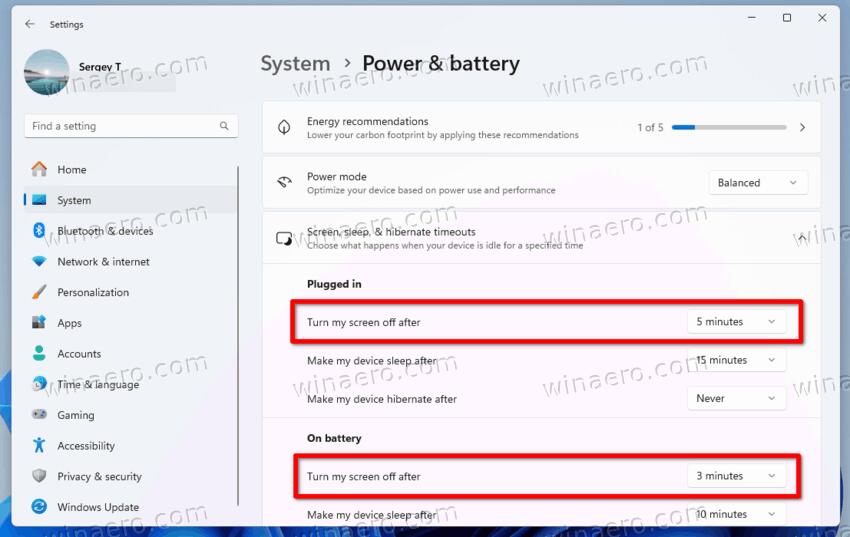
Want your screen to turn off faster or slower?
Customize the Display Off Timer
- Go to Settings > System > Power & battery (or Power & sleep).
- Click Additional power settings.
- Select Change plan settings next to your active plan.
- Click Change advanced power settings.
- Expand Display, then Turn off display after.
- Set your preferred minutes for both On battery and Plugged in.
Example: Set to 5 minutes to save energy without putting your PC to sleep.
Critical Configuration Warnings to Avoid Lockouts
Sleep and Hibernation Can Override Your Settings
Even after disabling the wake-up password, Sleep or Hibernate may trigger a login prompt.
Fix: Disable sleep mode for uninterrupted access:
- In Power Options, set Put the computer to sleep to Never.
- Disable Hibernate using Command Prompt (Admin):
bash

   powercfg /h off
Understand the Difference Between PIN and Password
• PIN: A fast, device-specific shortcut. It only works after your first sign-in with the password.
• Password: Required for full authentication, especially after a reboot.
A PIN can help bypass forgotten passwords, but only if it was already set up.
What to Do When No Recovery Options Work
If you’re locked out without a reset disk, security questions, or recovery email access, your options shrink dramatically.
Microsoft Support Cannot Reset Passwords
Support agents are prohibited from retrieving or resetting passwords. No backdoor exists for Local Accounts without pre-configured recovery tools.
Last Resort: System Reset
Warning: This may delete files unless backed up.
- At the login screen, click Power, then Restart while holding Shift.
- Choose Troubleshoot, then Reset this PC.
- Select Keep my files or Remove everything.
- Reinstall Windows and create a new account.
Always back up important data regularly to avoid permanent loss.
Official Troubleshooting Resources
Sign-In Helper Tool
Diagnose Microsoft account problems at https://account.live.com/signin/issue.
Contact Microsoft Support
- Visit
support.microsoft.com. - Enter your specific issue.
- Click Get Help, then Contact Support.
- Follow the prompts to connect with a technician.
Frequently Asked Questions About Changing Monitor Passwords
What is a “monitor password” on Windows?
There is no separate monitor password in Windows. The term usually refers to your login password that unlocks your PC at boot or when waking from sleep. Windows 10 and Windows 11 only have one sign-in credential per account.
How do I change my Windows password if I know the current one?
Open Settings > Accounts > Sign-in options, click Change under Password, enter your current password, then set and confirm a new one. This works for both Microsoft and Local Accounts when you’re signed in.
Can I reset my Windows password without a reset disk?
Yes, if you use a Microsoft Account. Click I forgot my password at the sign-in screen and verify your identity through email, phone, or authenticator app. Local Accounts require a reset disk or security questions.
How do I stop Windows from asking for a password when my monitor wakes up?
Go to Settings > Accounts > Sign-in options, click Change screen lock settings, and change Require sign-in from “When PC wakes up from sleep” to Never. This keeps your boot password active but skips the wake-up prompt.
Will Microsoft support reset my password for me?
No. Microsoft support agents cannot retrieve, reset, or bypass your password. You must use your own recovery options, such as security questions, a reset disk, or online verification for Microsoft Accounts.
What’s the difference between a PIN and a password in Windows?
A PIN is a local shortcut tied to one device, while a password works across all Microsoft services. PINs only function after the first successful password sign-in and don’t replace the password for full authentication.
Key Takeaways for Managing Your Windows Login Password
Changing your “monitor password” really means managing your Windows sign-in security. The method depends entirely on whether you use a Microsoft Account or a Local Account, so always identify your account type first.
The best defense against lockouts is preparation. Create a password reset disk, set up security questions, link a recovery email or phone, and use a PIN for faster daily access. With the right setup, changing or recovering your login stays fast, secure, and stress-free. Don’t wait until you’re locked out. Take action today while you still have access.


