
You just unboxed a brand new curved monitor and the curve looks stunning, but the screen feels slightly off. Maybe colors look washed out, windows drag to the wrong spot, or video content shows black bars on both sides. These are common frustrations when learning how to set up a curved monitor without guidance.
This guide walks you through every step, from choosing the right curvature rating to fine-tuning Windows or macOS settings. By the end, your curved display will deliver the immersive, comfortable experience it was designed for.
Pick the Right Curvature Rating for Your Tasks
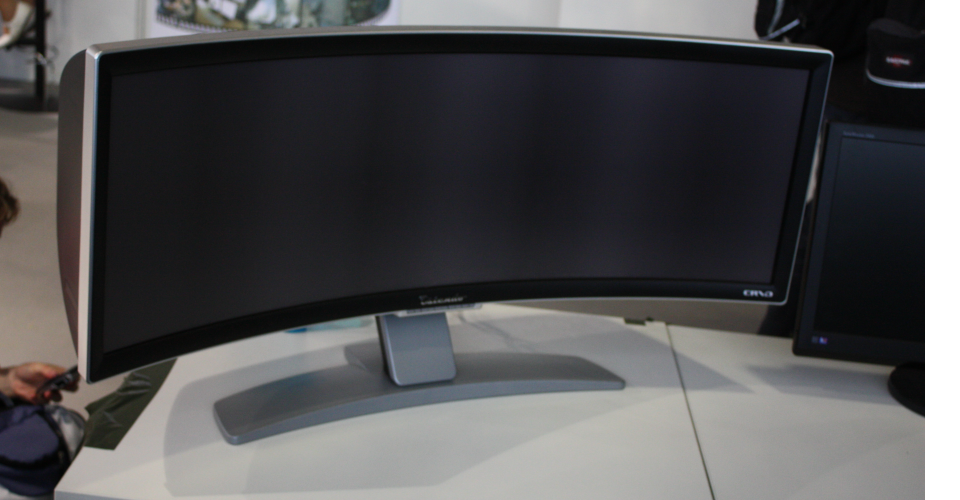
Understand the “R” Number System
The number before “R” (such as 1800R or 3800R) describes the radius of the circle your screen would form if extended into a full ring. A smaller number means a tighter, more aggressive curve.
- 800R to 1500R: Best for immersive gaming and movies. The curve fills your peripheral vision.
- 1800R to 3800R: Ideal for productivity and design work. Straight lines stay straight across the panel.
Match the curve to your primary activity. Aggressive curves pull you into entertainment, while subtle curves preserve accuracy for spreadsheets or timelines.
Match the Curve to Your Workload
Gamers playing racing simulators or open-world RPGs benefit most from tight curves. The wraparound effect boosts depth and focus, especially on 21:9 ultrawide panels.
Creative professionals using Photoshop, Excel, or Premiere Pro often prefer gentler curves. A 3800R panel keeps color consistency reliable and prevents visual warping on flat edges.
If your needs shift throughout the day, consider a bendable OLED like the CORSAIR XENEON FLEX. You can set it flat for work and curve it for evening gaming sessions.
Respect the Single Viewer Sweet Spot
Curved monitors are engineered for one person sitting directly in front of the center. From this position, image geometry, brightness, and color accuracy are all optimized.
Anyone viewing from the side will see distortion. If you regularly share your screen with others, a flat display may serve you better.
Position Your Curved Monitor for Comfort

Set the Correct Eye Level
Place the top of the screen at or slightly below eye level when seated. This keeps your gaze angled slightly downward and reduces neck strain during long sessions.
An adjustable desk mount or stand makes this easy. Avoid placing the monitor on a high shelf unless you pair it with an external keyboard and mouse.
Sit at the Right Distance
Maintain a viewing distance of 24 to 36 inches depending on screen size and curvature.
- 27 to 32 inch monitors: sit roughly 24 to 30 inches away
- 34 inch and larger ultrawides: sit roughly 30 to 36 inches away
Too close exaggerates the curve. Too far reduces immersion. You should see both edges without turning your head.
Align the Center With Your Nose
When seated, the center of the screen should align directly with your nose. The curve is designed so light reaches both eyes at equal angles only from this central position.
A slight upward tilt of 5 to 10 degrees is fine. Avoid steep angles that introduce glare or reflections.
Connect Cables and Set Native Resolution

Choose Cables That Match Your Specs
For full performance at 144Hz or higher, WQHD, or HDR, use DisplayPort 1.4 or HDMI 2.0 or newer. Make sure cables are certified for your monitor’s resolution and refresh rate.
Avoid older HDMI 1.4 or VGA cables. They cap resolution and refresh rate well below what your panel supports.
Enable Native Resolution on Windows
- Press Win + I to open Settings
- Click System then Display
- Under Display resolution, select the native option (such as 3440×1440 for ultrawide)
- Set Scaling to 100% or the recommended value
Running below native resolution causes blurriness and wastes your panel’s quality.
Enable Native Resolution on macOS
- Open the Apple Menu and choose System Settings
- Click Displays
- Hold Option and click Scaled to reveal all options
- Select Default for display or pick native resolution manually
Adjust the Refresh Rate
Higher refresh rates make motion smoother, especially in games.
Windows path:
1. Open Display settings
2. Scroll to Advanced display
3. Choose your highest available refresh rate (such as 144Hz or 240Hz)
macOS note: Most Macs auto-negotiate the highest supported rate on compatible models.
Configure Windows for Ultrawide Setups
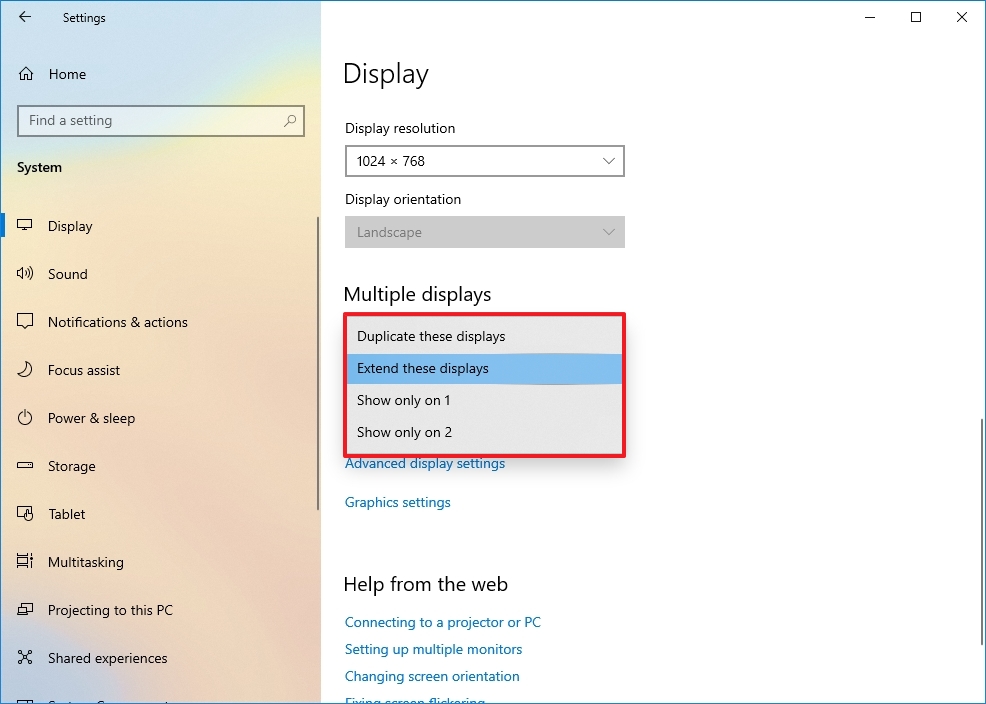
Arrange Multiple Displays Properly
When using more than one screen:
1. Go to Settings then System then Display
2. Drag the monitor icons to match your physical desk layout
3. Select Extend these displays rather than duplicate
Your mouse now moves naturally across screens.
Hide the Taskbar on Secondary Screens
By default, Windows shows the taskbar on every display, wasting space on ultrawides.
- Windows 10/11: Go to Settings then Personalization then Taskbar
- Turn off Show my taskbar on all displays
The taskbar now appears only on your main screen.
Master Window Snapping Shortcuts
Dragging windows to edges can misfire on ultrawides. Use these shortcuts instead:
- Win + Left/Right Arrow: snap to left or right half
- Win + Shift + Left/Right Arrow: move window between monitors
- Win + Up/Down Arrow: maximize or minimize
For deeper control, install Microsoft PowerToys (FancyZones). It is free and lets you create custom layouts, such as three equal columns on an ultrawide.
DisplayFusion ($29 Pro) adds app-specific rules and synchronized wallpapers if you want more advanced control.
Fine-Tune macOS for Curved and Ultrawide Setups
Match the Physical Display Layout
- Open System Settings then Displays
- Click the Arrangement tab
- Drag display thumbnails to match your desk
- Uncheck Mirror Displays
Windows now move smoothly between screens.
Pin the Dock to One Screen
To avoid split attention:
1. Open System Settings then Desktop & Dock
2. Set the Dock position to Left (on your leftmost screen) or Right (on your rightmost screen)
The Dock stays anchored and out of your way.
Add a Snapping Utility
macOS lacks strong native snapping. These apps fill the gap:
- Magnet (~$10): snap windows with keyboard shortcuts
- Mosaic (~$13): drag windows into custom grid zones
- BetterTouchTool (~$10): customize gestures and snapping rules
All three support ultrawide layouts and boost productivity immediately.
Expand Videos With UltraWideo
Ultrawide monitors show black bars on 16:9 videos from YouTube or Netflix. The free UltraWideo browser extension (Chrome and Firefox) expands playback to fill the entire screen width.
Install it, refresh your browser, and enjoy full-screen video without cropping.
Enable Dual Control and Picture-by-Picture
Use LG Dual Controller as a Software KVM
Control two PCs with one keyboard and mouse through LG’s free utility.
Requirements:
– LG monitor with Dual Controller support
– Both PCs on the same network
– LG Dual Controller downloaded from the official site
Setup steps:
1. Install the software on both computers
2. Run Main PC mode on the machine with your keyboard and mouse
3. Run Sub PC mode on the second PC
4. Click Apply Dual Controller on the Main PC
Your cursor now switches between machines as you move it across screens.
Activate Picture-by-Picture Mode
Display two inputs side by side, such as a PC and a console.
- Connect two devices using HDMI and DisplayPort
- Press the joystick button on the monitor to open the OSD
- Navigate to PBP mode
- Select each input source
- Confirm to activate split screen
Audio follows the primary input. Adjust volume through the OSD if needed.
Maintain and Optimize Your Monitor Long-Term
Clean the Screen Safely
Curved panels show smudges easily. Clean weekly using these steps:
– Power off the monitor first
– Use a microfiber cloth only (never paper towels)
– Lightly dampen with distilled water or screen-safe cleaner
– Wipe gently in circular motions
Never spray directly onto the screen. Apply liquid to the cloth first.
Calibrate Brightness and Color
Reduce eye strain by matching brightness to ambient light. Enable Night Light on Windows or Night Shift on macOS after sunset.
Built-in calibration tools help too:
– Windows: search for Calibrate display color
– macOS: open Display Calibrator Assistant under Displays
Prevent Burn-In on OLED Models
If you own an OLED like the XENEON FLEX, take these precautions:
– Enable pixel refresh or screen savers
– Avoid static elements at full brightness for hours
– Use dark mode apps whenever possible
– Reserve HDR peak brightness for movies and games
Frequently Asked Questions About Curved Monitors
What is the best curvature rating for gaming?
Tighter curves between 800R and 1500R work best for immersive gaming. They fill your peripheral vision and pull you into racing sims, RPGs, and open-world titles.
How far should I sit from a curved monitor?
Sit between 24 and 36 inches from the screen. Use 24 to 30 inches for 27 to 32 inch monitors and 30 to 36 inches for 34 inch and larger ultrawides.
Do curved monitors reduce eye strain?
Yes, when set up correctly. The curve matches your eye’s natural field of view, which reduces eye movement and helps during long sessions. Proper positioning and brightness calibration matter most.
Can I use a curved monitor with multiple computers?
Yes. LG Dual Controller lets one keyboard and mouse control two PCs over the same network. Picture-by-Picture mode also lets you display two inputs side by side from different machines.
Why does my ultrawide show black bars on videos?
Most online videos use a 16:9 aspect ratio, while ultrawides are 21:9. Install the free UltraWideo browser extension to stretch playback across the full screen.
Are curved monitors good for office work?
Yes, especially subtle curves between 1800R and 3800R. They minimize distortion on spreadsheets, documents, and design software while adding a slight immersive feel.
Key Takeaways for Your Curved Monitor Setup
Learning how to set up a curved monitor properly transforms it from a beautiful screen into a high-performing workspace or gaming hub. Start by matching the curvature rating to your primary tasks, then position the panel at eye level with your nose aligned to the center.
From there, configure native resolution, refresh rate, and OS-specific settings to unlock the full ultrawide experience. Add tools like FancyZones on Windows or Magnet on macOS to keep windows organized, and use UltraWideo to eliminate black bars on video content.
Your next step is simple: spend ten minutes running through the calibration and window management tweaks above. Once everything is dialed in, sit back in the sweet spot and enjoy the immersive view your curved monitor was built to deliver.


