
If your Terraria keeps launching on the wrong screen, you’re not alone. Many players with dual or multi-monitor setups report that Terraria ignores their active display and opens on a secondary monitor instead. This happens because Terraria reads system-level display data at launch, which can conflict with Windows settings or outdated configuration files. The good news is that learning how to change monitor in Terraria is straightforward once you know the right steps.
This guide walks you through every proven method, from quick keyboard shortcuts to permanent system fixes. You’ll discover how to relocate the window instantly, reset corrupted settings, and prevent the issue from coming back. Whether you use a laptop with an external display or a full multi-monitor gaming station, these solutions work for everyone.
Switch Terraria to Windowed Mode First

Before you can move Terraria to another screen, you need to unlock the window. Fullscreen mode locks the game to one display, so toggling to windowed mode is the essential first move.
Toggle Display Mode with Alt and Enter
Press Alt + Enter while Terraria runs to switch from fullscreen to windowed mode. The game appears in a resizable window with a visible title bar. Once windowed, you can drag or reposition it freely. After relocating, press Alt + Enter again to return to fullscreen on your chosen screen.
Pro Tip: If the shortcut fails, click inside the game window first to ensure Terraria has focus.
Choose Borderless Windowed for Easier Switching
Terraria offers three display modes: Fullscreen, Borderless, and Windowed. For the smoothest monitor switching experience, select Borderless Windowed. It looks identical to fullscreen but behaves like a regular window, making future moves effortless. Find this option under Settings > Graphics > Display Mode in the game menu.
Move Terraria to Your Preferred Monitor
Once the game runs in windowed or borderless mode, you can physically transfer it to any connected display using either your mouse or keyboard.
Drag the Window Across Screens
Click and hold the title bar of the Terraria window, then drag it past the edge of your current screen onto the target monitor. Wait until the window fully transfers before releasing the mouse. Once positioned correctly, press Alt + Enter to restore fullscreen mode. This manual approach works instantly with no system changes required.
Visual Cue: The window will snap toward the edge of each monitor as you drag. Make sure it crosses completely before you let go.
Use the Windows Plus Shift Shortcut
For a keyboard-only solution, press Windows + Shift + Arrow Key to move the active window between displays:
- Right Arrow: Move to the monitor on the right
- Left Arrow: Move to the monitor on the left
- Up Arrow: Move to the monitor above
- Down Arrow: Move to the monitor below
This shortcut requires windowed or borderless mode and works faster than dragging. It’s especially useful for vertically stacked displays.
Note: The arrow direction depends on your monitor layout in Windows. Verify your arrangement in Display Settings before using this method.
Set Your Primary Monitor in Windows

Terraria launches on whichever display Windows marks as primary. If the game keeps opening on the wrong screen, your primary monitor setting is likely incorrect.
Change the Main Display in Windows Settings
Follow these steps to redefine your primary monitor:
- Right-click your desktop and choose Display Settings.
- Click the monitor you want Terraria to launch on.
- Scroll to the Multiple Displays section.
- Check the box labeled “Make this my main display”.
- Close the window and restart Terraria.
The game should now open on your selected screen every time. This is the most reliable long-term fix for how to change monitor in Terraria.
Match Your Display Arrangement to Physical Layout
In Display Settings, drag the monitor icons so they match your actual desk setup. This ensures the Windows + Shift + Arrow shortcut moves windows in the correct direction and prevents confusion during relocation.
Why This Matters: Terraria reads the primary display setting at launch. If the designation is wrong, dragging the window only fixes the current session.
Reset the Terraria Config File
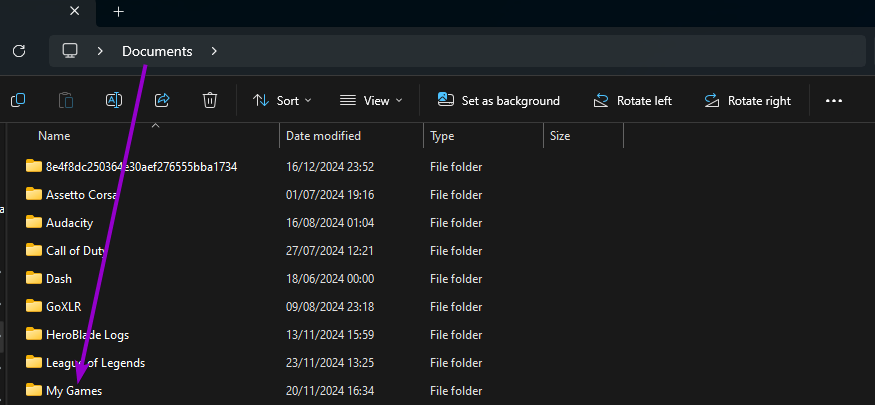
If Terraria still opens on the wrong monitor after relocation, corrupted data in the configuration file may be the cause. Deleting this file forces the game to rebuild default settings, including display preferences.
Locate and Delete config.json
Follow this procedure to reset your Terraria configuration:
- Close Terraria completely.
- Press Win + R, type
%userprofile%\Documents\My Games\Terraria\, and hit Enter. - Open the Config folder.
- Find the file named
config.json. - Delete it or rename it to
config.json.bakas a backup.
When you relaunch Terraria, a fresh config.json file generates with default values. Reconfigure your display mode and monitor preference in-game.
Warning: This resets all video settings, including resolution and fullscreen mode. You’ll need to set them again after launch.
Why Resetting Solves the Problem
Some users report that Terraria stores monitor ID data inside config.json. When you rearrange displays or swap monitors, this cached information becomes outdated. Deleting the file clears the stale data and stops the game from remembering the wrong screen.
Try the Single-Monitor Hardware Workaround
When software fixes fail, a physical workaround can force Terraria onto your preferred display.
Disconnect Secondary Monitors Temporarily
Use this method when nothing else works:
- Shut down Terraria.
- Unplug the video cable (HDMI, DisplayPort, or VGA) from all monitors except your preferred one.
- Launch Terraria. It opens on the only active display.
- Reconnect your other monitors after the game starts.
This brute-force approach works because Windows only detects one display, leaving Terraria no choice but to use it.
Limitation: This method requires physical access to your ports and isn’t practical for daily use. Reserve it for one-time troubleshooting sessions.
Prevent Future Monitor Problems
After fixing the issue, take a few preventive steps to keep Terraria on the right screen permanently.
Stick with Borderless Windowed Mode
Set Terraria to Borderless Windowed mode in the graphics settings. It runs fullscreen visually but allows Windows to manage the window properly. This prevents the game from locking to a specific monitor ID and makes future moves simple.
Avoid Frequent Primary Display Changes
Switching your main monitor often can confuse Terraria’s launch behavior. If you alternate between setups (such as laptop at home versus office), reset config.json each time you change environments.
Wait for the Desktop to Fully Load Before Launching
If you use startup programs or hotkeys to launch Terraria, wait until your desktop finishes loading and all monitors are detected. Launching too early can cause the game to default to an incorrect display.
Troubleshoot Persistent Monitor Issues
If Terraria still refuses to switch monitors, check these common pitfalls.
Confirm the Game Isn’t Running in the Background
Sometimes Terraria launches on a secondary screen you aren’t watching. Press Alt + Tab to cycle through open windows. If you find Terraria, use Windows + Shift + Arrow to bring it into view.
Update Your Graphics Drivers
Outdated GPU drivers can cause display detection errors. Update them through your vendor’s software:
- NVIDIA: Use GeForce Experience
- AMD: Use Adrenalin Software
- Intel: Use Intel Driver and Support Assistant
Run Terraria as Administrator
Right-click the Terraria shortcut and select Run as administrator. Elevated permissions can resolve display issues caused by restricted system access.
Verify Game Files on Steam
If you play through Steam, follow these steps:
- Right-click Terraria in your library.
- Navigate to Properties > Installed Files.
- Click Verify Integrity of Game Files.
- Wait for the process to finish.
This confirms no core files are missing or corrupted.
Frequently Asked Questions About Changing Monitors in Terraria
Why does Terraria always open on my second monitor?
Terraria reads your Windows primary display setting at launch. If your secondary monitor is incorrectly set as primary, the game will default to that screen. Changing your primary display in Windows Settings usually solves this issue.
Does Alt and Tab work to switch Terraria between monitors?
Alt and Tab cycles through open windows but doesn’t move Terraria between screens. To relocate the game, use Alt + Enter to enter windowed mode, then drag the window or press Windows + Shift + Arrow Keys.
Will changing the monitor in Terraria affect my game progress?
No. Moving Terraria between monitors only changes the display location, not your saved worlds, characters, or settings. Your progress remains intact regardless of which screen you use.
Why does Terraria ignore my primary monitor setting?
The game may be reading outdated data stored in the config.json file. Deleting this file forces Terraria to regenerate settings based on your current Windows configuration, which typically resolves the conflict.
Can I play Terraria on three or more monitors?
Terraria supports multi-monitor setups, but the game window can only occupy one display at a time. Use the methods above to choose your preferred screen for each session.
Is there a way to force Terraria to remember my monitor choice?
Yes. Set your preferred display as the Windows primary monitor and switch Terraria to Borderless Windowed mode. This combination tells Terraria to launch on the correct screen consistently.
Key Takeaways for Changing Your Terraria Monitor

Learning how to change monitor in Terraria comes down to three reliable approaches. First, switch to windowed or borderless mode using Alt + Enter, then drag the window or use Windows + Shift + Arrow Keys for instant relocation. Second, set your preferred screen as the primary display in Windows Settings to control where Terraria launches by default. Third, delete the config.json file if the game keeps remembering the wrong monitor, since this clears corrupted display data.
For a permanent fix, combine the Windows primary display setting with Borderless Windowed mode in Terraria. This pairing prevents future launch issues and makes the game easy to move whenever needed. Start by toggling to windowed mode and dragging the window to your preferred screen today.


