
You’re working on your HP computer and spot something important on your screen, such as an error message, a webpage, or a chart you need to share. HP monitors themselves don’t include built-in screenshot functions, but learning how to screenshot on HP monitor displays is fast and simple once you know the right shortcuts. Your keyboard and Windows tools do all the heavy lifting, no extra hardware required.
This guide walks you through every reliable method to capture your HP monitor’s screen using built-in Windows features, keyboard shortcuts, and third-party options. Whether you use a desktop, laptop, or dual-monitor setup, you’ll find step-by-step instructions to capture, edit, and save screenshots in seconds.
Use the Windows Print Screen Key for Quick Captures
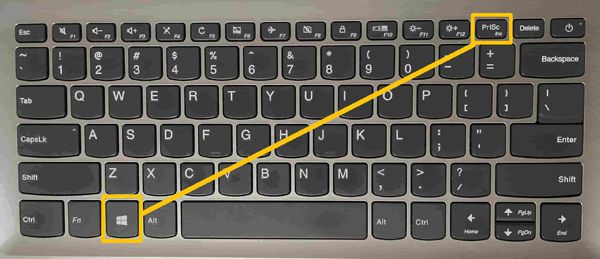
The Print Screen key remains the fastest way to take a screenshot on an HP monitor. This method works on every HP keyboard running Windows 10 or Windows 11 and requires no software installation.
Press PrtScn to Copy the Full Screen
Tap the PrtScn key once to capture your entire HP monitor display. The image copies directly to your clipboard so you can paste it into Paint, Word, email, or any image editor.
- No visual confirmation appears after capture
- Paste with Ctrl + V in any compatible app
- Best for quick, temporary screenshots
Use Win + PrtScn to Save Screenshots Automatically
Hold Windows + PrtScn together to capture the full screen and save it instantly as a file.
- Screen dims briefly to confirm the capture worked
- Image saves to Pictures > Screenshots automatically
- Files follow the naming pattern “Screenshot (1).png” and increment with each save
- Perfect for users who screenshot frequently
Capture Only the Active Window with Alt + PrtScn
Press Alt + PrtScn to grab a snapshot of just the window you currently have selected.
- Copies the active window only, not the full screen
- Paste into any editor using Ctrl + V
- Helpful when multitasking across several open programs
Capture Screenshots with the Snipping Tool

Windows includes the Snipping Tool, a flexible built-in utility that gives you more control over what you capture on your HP monitor.
Open the Snipping Tool in Seconds
Search “Snipping Tool” in the Windows taskbar or press Win + S, type snip, and open the app.
- Pre-installed on all Windows-based HP systems
- Supports delayed captures, free-form snips, and window mode
- Includes basic editing tools like highlight and pen
Choose the Right Snip Type for Your Needs
Click Mode inside the Snipping Tool to pick your capture style.
- Freeform Snip: Draw any custom shape around content
- Rectangular Snip: Drag a box around your target area
- Window Snip: Click any open window to capture it instantly
- Fullscreen Snip: Grab the entire monitor output
Set a delay of up to 5 seconds if you need to capture dropdown menus or tooltips.
Save, Edit, and Share Your Snips
After capturing your screenshot, click the Save icon or press Ctrl + S.
- Choose from PNG, JPEG, GIF, or HTML formats
- Add annotations using the pen or highlighter tool
- Copy to clipboard for instant pasting elsewhere
Take Screenshots with Snip & Sketch on Windows 10/11
Microsoft’s modern screenshot tool, Snip & Sketch, offers a streamlined experience with quick edits and touch support.
Launch Snip & Sketch with a Keyboard Shortcut
Press Win + Shift + S to activate the capture overlay instantly.
- Screen grays out to indicate capture mode
- Toolbar appears with rectangular, freeform, window, and fullscreen options
- Selection copies to clipboard automatically
Access and Edit Recent Snips
A notification appears after each capture. Click it to open the image in the Snip & Sketch editor.
- Crop, annotate, or highlight directly in the app
- Export or share through email and messaging apps
- Recent captures save automatically if history is enabled
Pin Snip & Sketch to Your Taskbar
For one-click access, pin Snip & Sketch to your taskbar.
- Search “Snip & Sketch” in the Start menu
- Right-click the app and select Pin to taskbar
- Launch instantly without using a keyboard shortcut
Screenshot Dual HP Monitor Setups

Running two HP monitors? The capture method you choose affects what gets included in your screenshot.
Full-Screen Shortcuts Capture Both Displays
Pressing PrtScn or Win + PrtScn captures both monitors as one wide image.
- Result includes the taskbar, desktop icons, and both displays
- File size grows larger due to combined resolution
- Use Snip & Sketch to isolate just one screen
Snipping Tool Targets the Primary Monitor by Default
The Snipping Tool typically focuses on your primary display when selecting windows or regions.
- Drag the snip area across both screens to capture secondary monitor content
- Move the desired window to your primary monitor before capturing
- Change primary display in Settings > System > Display
Troubleshoot a Missing or Broken PrtScn Key
Some HP laptops and compact keyboards lack a dedicated PrtScn key or require a function key combination.
Try Fn + Key Combinations on HP Laptops
On many HP laptops, PrtScn functions as a secondary key. Test these combinations:
- Fn + Windows + Spacebar
- Fn + Alt + PrtScn
- Fn + Shift + PrtScn
Check your specific HP model’s keyboard map for labels like PrtSc, PrntScrn, or SysRq/PrtSc.
Use the On-Screen Keyboard as a Backup
If physical keys aren’t responding, Windows includes a virtual keyboard.
- Press Win + S and type on-screen keyboard
- Open the On-Screen Keyboard app
- Click the PrtScn button to capture your screen
- Paste the image into Paint or Word
This method works even when your physical keyboard has damaged or missing keys.
Edit and Annotate Your Screenshots
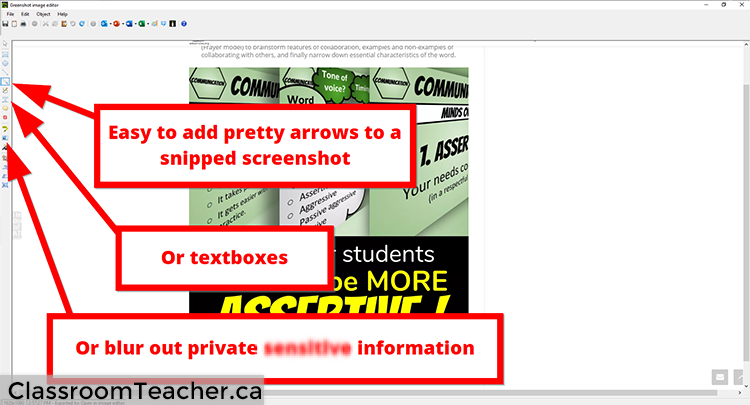
Capturing the image is only half the task. Editing helps you communicate clearly and professionally.
Use Paint for Quick Edits
After pressing PrtScn, open Paint from the Start menu and press Ctrl + V to paste.
- Crop unwanted areas with the Select tool
- Add arrows, text boxes, or highlight marks
- Save as JPEG or PNG for sharing
- Resize images under the Resize menu
Add Polish in Word or PowerPoint
Paste screenshots directly into Microsoft Office apps for more advanced formatting.
- Right-click the image and choose Edit Picture in Word
- Use the Picture Format tab to add borders, effects, or captions
- Crop non-essential areas to keep visuals focused
Save and Organize Screenshots Efficiently
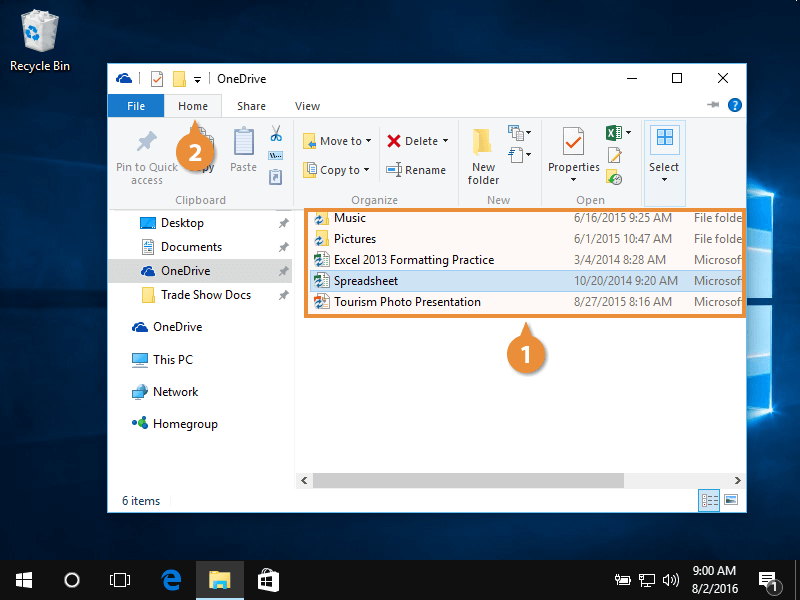
Keeping your captures easy to find saves time when you need them later.
Know the Default Save Location
Screenshots taken with Win + PrtScn save to:
This PC > Pictures > Screenshots
Create subfolders labeled “Work,” “Support,” or “Tutorials” to organize captures by purpose.
Rename Files for Better Searchability
Generic filenames like “Screenshot (34).png” are hard to find later. Use descriptive names instead.
- “HP Printer Error Code 0xc1d00004.png”
- “Monthly Sales Dashboard April 2025.png”
Descriptive filenames make Windows search much more effective.
Frequently Asked Questions About Screenshotting on an HP Monitor
Do HP monitors have a built-in screenshot button?
No. HP monitors function as display devices only and do not include built-in screenshot capabilities. All screenshots rely on your computer’s operating system, keyboard shortcuts, or third-party software.
Where do screenshots save on an HP Windows computer?
Screenshots taken with Win + PrtScn save automatically to This PC > Pictures > Screenshots. Captures made with PrtScn alone only copy to your clipboard and require manual pasting and saving.
Can I screenshot just one window on my HP monitor?
Yes. Press Alt + PrtScn to capture only the active window. You can also use the Snipping Tool or Snip & Sketch in Window mode to select a specific open window.
How do I screenshot on an HP laptop without a PrtScn key?
Use function key combinations like Fn + Windows + Spacebar or Fn + Shift + PrtScn. Alternatively, press Win + Shift + S to launch Snip & Sketch, or use the On-Screen Keyboard app.
What is the best free tool for HP monitor screenshots?
Snip & Sketch is the best built-in option for Windows 10 and 11 users. It offers instant access via Win + Shift + S, supports multiple capture modes, and includes basic annotation tools without any downloads.
Can I take a scrolling screenshot on an HP monitor?
Windows does not include a native scrolling screenshot feature. You will need third-party software like ShareX, PicPick, or Snagit to capture full webpages or long documents that extend beyond the visible screen.
Key Takeaways for Screenshotting on Your HP Monitor
Mastering how to screenshot on HP monitor displays comes down to knowing the right shortcuts and tools. Use PrtScn for quick clipboard captures, Win + PrtScn for automatic saves, and Win + Shift + S for flexible selections. The Snipping Tool and Snip & Sketch give you more control when you need to capture specific regions or annotate images.
Your next step is simple: pick one method from this guide and try it right now. Open a document, take a screenshot, and practice saving and editing it. Within minutes, you’ll have a reliable workflow for capturing anything on your HP monitor.


