
You just pulled your new Acer portable monitor out of the box and want to start using it right away. These slim, lightweight displays work great for remote work, travel, gaming, or simply expanding your laptop screen. Knowing how to use Acer portable monitor correctly saves you time and prevents frustration during setup.
This guide covers everything you need: connecting devices, powering the monitor, adjusting display settings, and solving common issues. Whether you plan to pair it with a laptop, phone, tablet, or gaming console, you’ll have it running smoothly in just a few minutes.
Connect Your Device Using USB-C

The fastest way to start using your Acer portable monitor is through a single USB-C cable that carries both video and power.
Plug Into the USB-C Port
Find the USB-C input on the side or bottom edge of your monitor. Connect it to your laptop, tablet, or phone using the included cable or any certified USB-C cable. If your source device supports DisplayPort Alt Mode, the screen typically activates on its own.
Always use a cable rated for video transmission. Charging-only cables will not deliver a picture and may cause flickering.
Enable Display Output on Windows
Press Win + P on your Windows keyboard after connecting. Choose from these options:
- Duplicate to mirror your laptop screen
- Extend to create a larger workspace across both displays
- Second screen only to turn off your laptop display entirely
Pick “Extend” if you want to multitask, such as keeping chat apps open on one screen while working on the other.
Connect a MacBook
MacBooks with USB-C or Thunderbolt ports detect external displays automatically. Open Apple Menu > System Settings > Displays to adjust resolution, orientation, and screen order.
Drag the white menu bar in the layout window to choose which screen acts as your primary display. You can close the lid and work solely on the Acer monitor when power is supplied through a dock or adapter.
Power the Monitor Correctly
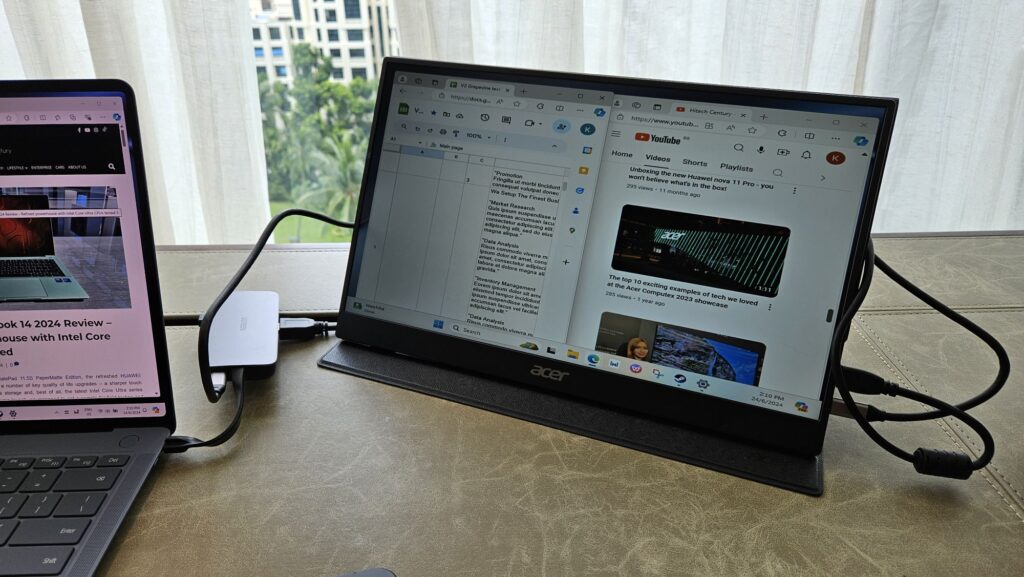
USB-C handles power in many cases, but dedicated power delivery gives you better brightness and stability.
Use the Included Power Adapter
Plug your Acer portable monitor into a wall outlet using the supplied USB-C power adapter. This setup delivers full brightness and prevents dimming during demanding tasks like gaming or video editing.
Some source devices output less power than the monitor needs. When that happens, the screen may dim or disconnect unexpectedly. Use a 5V/2A adapter or higher whenever possible.
Run on Battery When Available
A few Acer portable monitor models include built-in batteries for true cable-free use. Check your model’s specifications before relying on battery power.
If your unit has a battery:
– Fully charge it before first use
– Enable power-saving mode for longer sessions
– Power off the monitor when not in use
Connect Smartphones and Tablets
Your phone or tablet can turn into a portable workstation when paired with the right setup.
Pair an Android Phone
Most modern Android phones support desktop mode over USB-C. Plug one end of a USB-C cable into your phone and the other into the monitor.
Accept the prompt for Display Mirroring or Desktop Mode (such as Samsung DeX or Huawei Easy Projection). You will see a desktop-style interface on the larger screen. Confirm your phone supports video output before starting, since not every Android model does.
Connect an iPhone
iPhones do not output video through their Lightning port natively. To connect one:
1. Plug a Lightning to HDMI adapter into your iPhone
2. Connect an HDMI cable from the adapter to an HDMI to USB-C converter
3. Plug the converter into your Acer monitor
For a wireless option, apps like Duet Display mirror your screen over Wi-Fi after installation on both devices.
Set Up Gaming Consoles
Your Acer portable monitor works well as a personal gaming screen for popular consoles.
Connect the Nintendo Switch
Use a USB-C to USB-C cable to link the monitor to your Switch dock or directly to the console in handheld mode. Select USB-C DP Alt Mode in the input settings if your model requires it.
The Switch outputs 1080p at 60Hz, so confirm your monitor supports that refresh rate for smooth gameplay.
Connect PS5 or Xbox Series X|S
Use an HDMI cable from your console to an HDMI to USB-C adapter that supports DisplayPort Alt Mode and HDCP. Plug the adapter into your Acer monitor.
Audio may need separate routing unless your adapter supports audio extraction. Check the adapter specifications before gaming.
Adjust Display Settings for Better Clarity

Fine-tuning your display improves comfort and image quality during long sessions.
Change Brightness and Contrast
Use the physical buttons on the back or side of the monitor to open the On-Screen Display menu. Adjust these settings:
- Brightness: 70 to 80 percent for indoor use
- Contrast: 50 to 70 percent for balanced tones
- Color Mode: Standard for work, Vivid for movies
Save your changes before closing the menu.
Switch the Refresh Rate
Some Acer portable monitors support higher refresh rates like 120Hz. On Windows, go to Settings > System > Display > Advanced Display and pick the highest available option.
Smoother scrolling and better gaming performance depend on your cable and source device supporting the chosen refresh rate.
Mount and Position the Monitor

Good ergonomics reduce neck strain and improve your viewing experience.
Use the Built-In Kickstand
Flip out the integrated kickstand on the back of the monitor and tilt the screen until the top edge sits at or slightly below eye level. Sit at least 20 to 30 inches away for comfortable viewing.
Position the monitor away from direct light sources to avoid screen glare.
Attach a Stand or Mount
Place the Acer monitor behind your laptop for a dual-screen setup. Use a portable stand or a VESA-compatible mount with an adapter plate.
Align both screens at the same height for seamless cursor movement between displays. A flexible arm mount offers precise positioning for different work environments.
Troubleshoot Common Problems
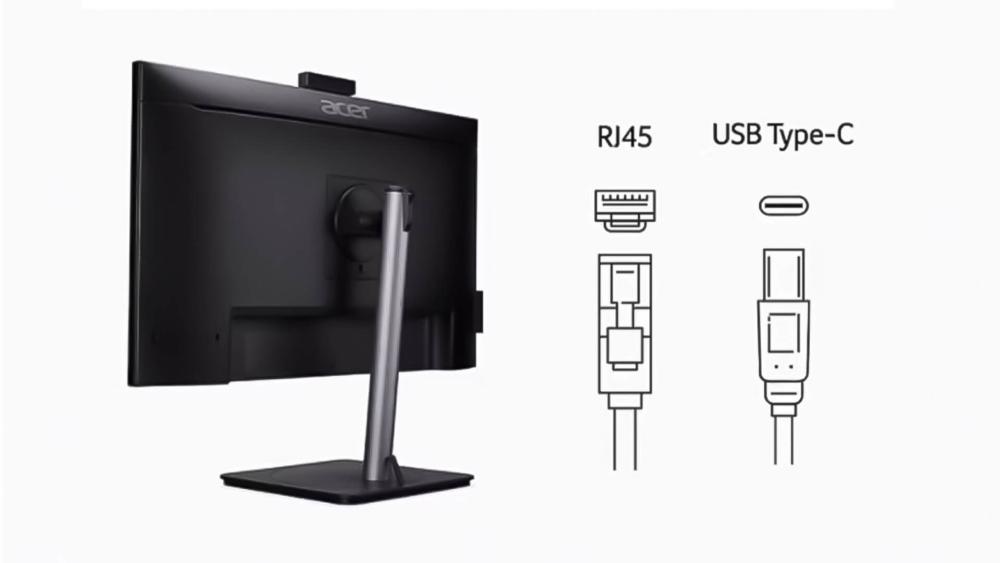
Quick fixes for the most frequent Acer portable monitor issues.
Fix a No Signal or Black Screen
When the monitor displays “No Signal,” try these steps:
1. Reconnect the USB-C cable firmly at both ends
2. Swap in a different cable known to carry video
3. Restart your source device
4. Test the monitor with another phone or tablet
If the issue continues, reset the monitor through the OSD menu under Settings > Reset to Default.
Stop Flickering or Intermittent Display
Flickering usually points to power or cable problems. Use the official power adapter and replace any damaged cables. On Windows, disable USB power saving by opening Device Manager > Universal Serial Bus controllers > USB Root Hub > Power Management and unchecking Allow the computer to turn off this device.
Restore Touchscreen Response
If your monitor supports touch input and stops responding, unplug and reconnect the USB-C cable. A full data connection is required for touch to function.
Update your touchscreen drivers through Settings > Devices > Touchscreen on Windows. Remove any screen protectors that may block touch sensitivity.
Protect the Monitor During Travel
Proper storage keeps your portable monitor safe wherever you go.
Use a Protective Case
Store the monitor in a padded sleeve or hard-shell case when traveling. Dust, scratches, and drops cause the most damage during transport.
Clean the screen with a microfiber cloth only. Avoid paper towels or alcohol-based cleaners that damage the coating.
Organize Your Cables
Keep your cables tidy with a small organizer pouch. Store the USB-C cable, power adapter, and any HDMI converters together.
Label each cable to save time when setting up in new locations.
Frequently Asked Questions About Acer Portable Monitors
Do Acer portable monitors work with any laptop?
Most Acer portable monitors work with any laptop that has a USB-C port supporting DisplayPort Alt Mode or an HDMI output. Older laptops without these ports need an adapter for video transmission.
Can I use an Acer portable monitor without a power source?
Yes, when connected through USB-C to a compatible device, the monitor draws power directly from that source. Models with built-in batteries also run without external power for a limited time.
Why is my Acer portable monitor flickering?
Flickering usually comes from a weak power supply or a low-quality cable. Use the included power adapter and a certified USB-C cable rated for video output.
How do I connect an Acer portable monitor to an iPhone?
Use a Lightning to HDMI adapter combined with an HDMI to USB-C converter. Plug the converter into the monitor for a wired connection, or use a screen mirroring app over Wi-Fi.
What refresh rate should I use for gaming?
Pick the highest refresh rate your monitor supports, such as 120Hz, for smoother visuals. Make sure your source device and cable can handle that refresh rate at your chosen resolution.
Can I use touch features on the Acer portable monitor with my laptop?
Yes, if your Acer portable monitor includes touch capability and your laptop supports it. A full USB-C data connection is required, and you may need to update touchscreen drivers on Windows.
Key Takeaways for Using Your Acer Portable Monitor
Your Acer portable monitor delivers flexible performance across laptops, phones, tablets, and consoles when set up properly. Start with a quality USB-C cable and the included power adapter for the most stable connection. Adjust your display settings to match your work or entertainment needs, and always store the monitor in a protective case during travel.
Set up your Acer portable monitor today and enjoy a true second screen wherever you go.


