
You press the power button, the fans spin, the LEDs light up—but your monitor flashes “No Signal.” Frustrating, right? The good news is that this error usually means your monitor is working fine. The problem lies somewhere in the signal chain between your computer and your display.
The phrase “why does monitor show no signal” ranks among the most common tech issues faced by desktop users, laptop owners, and gamers worldwide. In this guide, you will learn how to diagnose and fix “No Signal” errors step by step, starting with quick checks and progressing to advanced hardware troubleshooting. You will discover exactly where the signal breaks down and how to prove it, saving time and avoiding unnecessary component replacements.
Decode the “No Signal” Message
What the Error Actually Tells You
A “No Signal” screen confirms two critical facts: your monitor has power, and it is not detecting a valid video input. This rules out the display panel as the primary fault. Instead, focus on four key checkpoints: source device, output port, cable, and monitor input. A failure at any single point stops the signal completely.
Modern displays use a handshake protocol, a digital negotiation between your GPU and monitor. If resolution, refresh rate, cable bandwidth, or driver support does not align, the handshake fails. No image appears, even when everything looks physically connected.
Common Triggers Behind the Error
Several scenarios frequently cause this issue:
- After waking from sleep mode
- Following a driver or operating system update
- When launching a high-resolution game
- After connecting to a docking station or adapter
These events change output settings, which can exceed what your cable or monitor supports.
Quick Fixes to Try First
Verify the Monitor Input Source
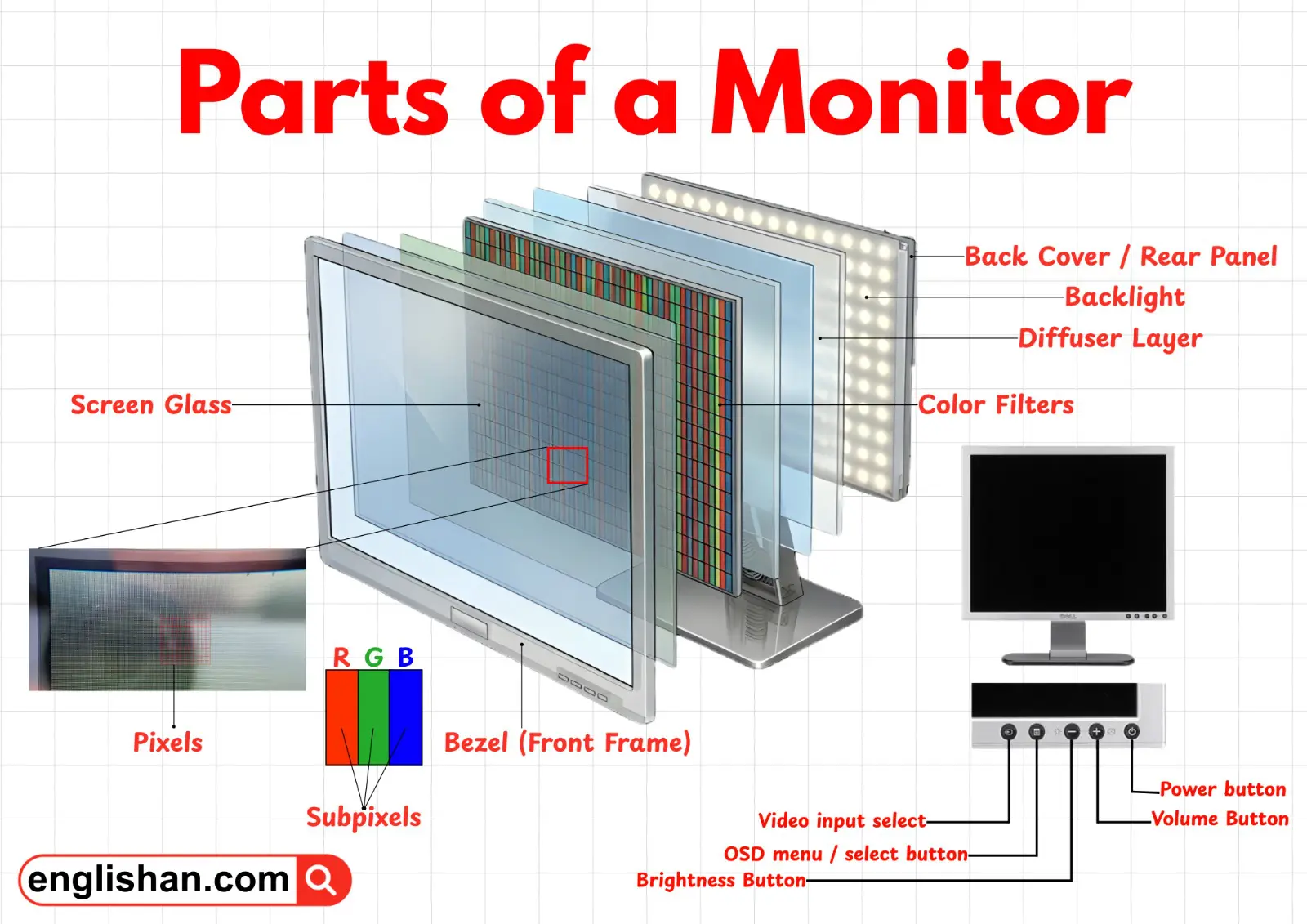
Monitors do not always auto-switch inputs correctly. If your display is set to HDMI 2 but your cable is in HDMI 1, you will see “No Signal.”
Action steps:
- Press the input or source button on your monitor
- Cycle through available options (HDMI 1, HDMI 2, DisplayPort, USB-C)
- Select the option matching your connected cable
Pro Tip: Even when “Auto-Detect” is enabled, manually pick the correct input. Auto-detect often fails after sleep cycles or during handshake issues.
Reseat All Cable Connections
Loose cables are the number one cause of signal loss.
Action steps:
- Power off your PC and monitor completely
- Unplug and reseat the cable at both ends (PC and monitor)
- Ensure the connector clicks firmly into place
- Avoid sharp bends near the connector heads
Warning: Never wiggle or remove cables while the system is powered. Static discharge or short circuits can permanently damage ports.
Perform a Full Power Cycle
A complete reboot clears temporary handshake glitches.
Action steps:
- Shut down your PC
- Turn off the monitor
- Unplug the monitor from power for 30 seconds
- Plug it back in, then power on the monitor first, followed by the PC
This resets the monitor’s EDID (Extended Display Identification Data), helping it renegotiate with the GPU.
Test and Replace the Video Cable
Why Cables Fail Silently
A cable may appear perfectly fine but fail under load. Common scenarios include:
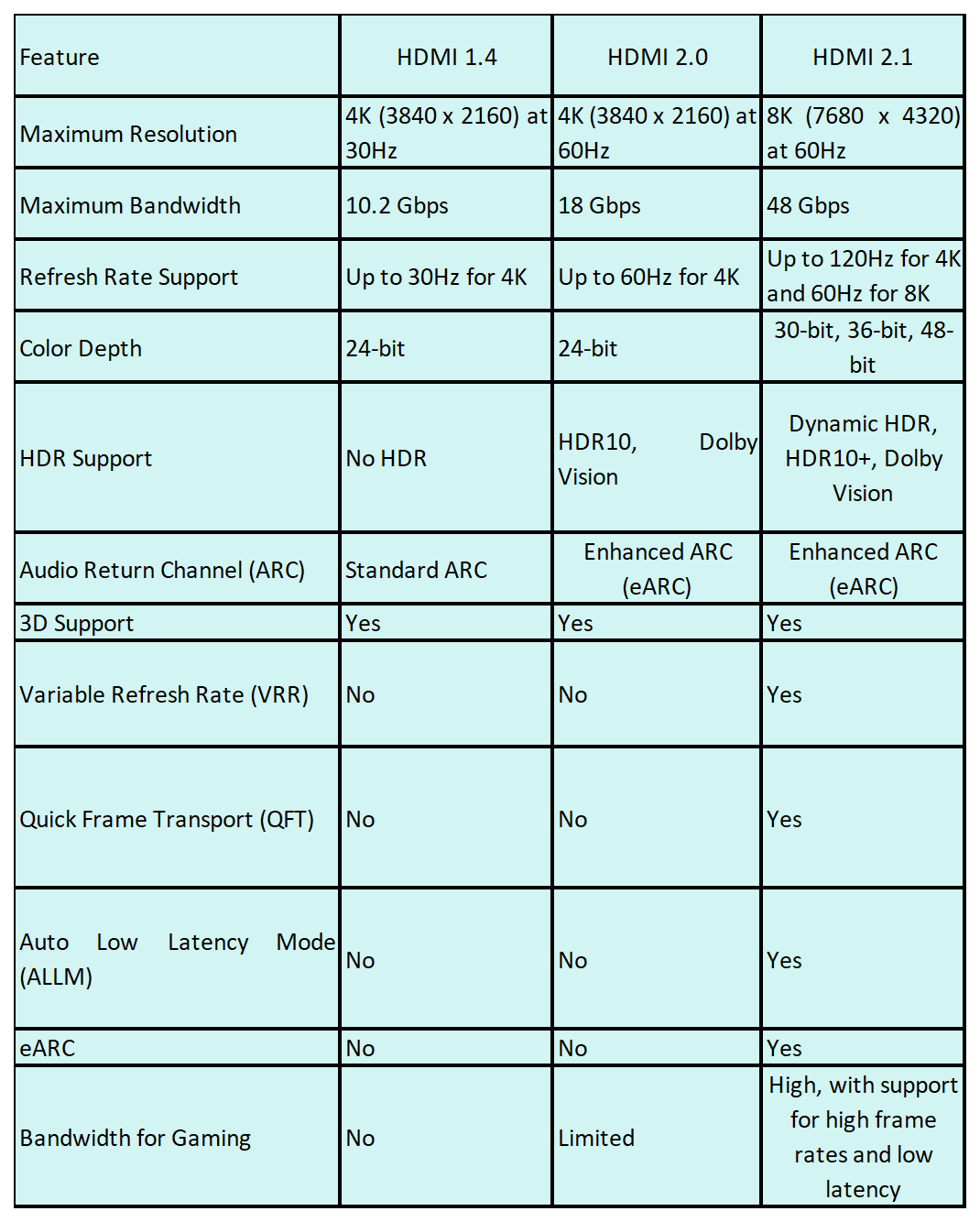
- An older HDMI 1.4 cable works for 1080p but fails at 4K
- A bent pin blocks critical data lanes
- Internal wire breaks cause intermittent signal drops
Action steps:
- Swap in a known-working cable of the same type
- Choose certified high-speed cables for 4K, 144Hz, or HDR content
Test Tip: Try the suspect cable on another system. If it fails there, replace it immediately.
Choose the Correct Port: GPU vs. Motherboard
Many users unknowingly plug into the wrong video port.
On desktops with a dedicated GPU:
- Connect the monitor cable to the GPU’s ports (lower, horizontal slots)
- Avoid the motherboard’s video outputs (upper, vertical near USB ports)
Motherboard video outputs are often disabled when a dedicated GPU is detected. Some CPUs lack integrated graphics entirely, so motherboard ports produce no signal.
Exception: If using integrated graphics only (no dedicated GPU), connect to the motherboard ports.
Diagnose Source Device Configuration Issues
Force External Display Output
Laptops and multi-monitor setups often route video to the wrong screen.
On Windows:
- Press Windows + P
- Choose Duplicate, Extend, or Second screen only
On Mac:
- Go to Apple Menu, then System Settings, then Displays
- Click the external monitor
- Select Mirror, Extend, or set as Primary
Laptop Function Keys:
- Look for a key with two screen icons (commonly F4, F5, or F8)
- Press Fn + [key] to toggle display output
Reset Display Settings in Safe Mode
If the screen goes black after a driver update or game launch, the resolution may be set too high.
Action steps:
- Boot into Safe Mode by holding Shift while clicking Restart
- Once in Safe Mode, right-click the desktop and select Display settings
- Set resolution to 1920 × 1080 at 60 Hz
- Restart normally and gradually increase resolution
Success Check: If you see the desktop in Safe Mode, the issue is software-related.
Inspect and Test the Graphics Card

Reseat the Graphics Card
A loose GPU can cause no signal, even when fans spin normally.
Action steps:
- Power off and unplug the PC
- Open the case
- Remove the GPU from the PCIe slot
- Clean the slot and card contacts with isopropyl alcohol if corroded
- Reinsert firmly until it clicks into place
- Reconnect all PCIe power cables (6-pin or 8-pin)
Visual Cue: A blinking light on the GPU means power is reaching it, but not necessarily that it functions correctly.
Test Integrated Graphics
If your CPU has integrated graphics, this test isolates the GPU.
Action steps:
- Power off and unplug the system
- Remove the dedicated GPU
- Connect the monitor to the motherboard video port
- Power on
Interpretation:
- Signal appears: dedicated GPU or PCIe slot is faulty
- No signal: issue may be motherboard, CPU, RAM, or PSU
Note: Many high-end CPUs (such as Intel F-series or AMD X3D models) lack integrated graphics. This test will not work on those processors.
Evaluate Power Supply and Motherboard Health

Test with a Known-Good PSU
A failing power supply may power fans and lights but fail to deliver stable voltage to the GPU.
Warning signs:
- Fans spin, LEDs light up
- HDD activity light does not blink
- No beep codes or BIOS screen appears
Action steps:
- Replace the PSU with a known-working unit of adequate wattage
- If the system boots, the original PSU was faulty
Pro Tip: Use a PSU tester or multimeter to check voltage rails if you have technical experience.
Reset CMOS and BIOS
Corrupted BIOS settings can block boot and video output entirely.
Action steps:
- Power off and unplug the PC
- Open the case
- Locate the CMOS battery (coin-shaped on the motherboard)
- Remove it for 5 to 10 minutes
- Reinsert the battery and close the case
- Power on
Alternatively, use the CLR_CMOS jumper (refer to your motherboard manual). After reset, BIOS loads default settings, often restoring video output.
Address Special Troubleshooting Scenarios
Fix Sleep and Wake “No Signal” Errors
A common issue occurs when a PC wakes from sleep and the handshake fails to re-establish.
Immediate fix:
- Hold the power button to force shutdown
- Wait 10 seconds
- Power on normally
Prevention steps:
- Update GPU drivers and motherboard BIOS
- Disable fast startup in Windows Control Panel under Power Options
Bypass USB-C Docks and Adapters
USB-C adds complexity because not all ports support video transmission.
Action steps:
- Check if your port supports DisplayPort Alt Mode (consult laptop specifications)
- Connect the monitor directly to the laptop, bypassing the dock
- If signal returns, the dock is the failure point
Power considerations:
- Some USB-C monitors require 60W or more
- If the laptop cannot supply enough power, the display may flicker or show no signal
- Use a powered dock or connect the monitor to separate power
Rule Out Overheating Issues
Extreme heat can cause the GPU or CPU to shut down video output as a protective measure.
Monitoring tools:
- HWMonitor or Core Temp
- Normal idle temperatures: 30 to 50°C
- Dangerous load temperatures: above 90°C
Fixes:
- Clean dust from fans and heatsinks
- Reapply thermal paste if temperatures run high
- Improve case airflow with additional fans
Follow the Complete Diagnostic Workflow

Phase 1: External Checks (5 Minutes)
- Monitor input set correctly?
- Cable reseated at both ends?
- Connected to GPU, not motherboard?
- Tried a different cable?
- Power cycled monitor and PC?
Phase 2: Software and Settings
- Pressed Windows + P?
- Booted into Safe Mode?
- Reset resolution to 1920 × 1080 at 60Hz?
- Reinstalled GPU drivers?
Phase 3: Hardware Isolation
- Reseated GPU and power cables?
- Tested integrated graphics (if available)?
- Swapped PSU?
- Reset CMOS?
Phase 4: Final Verification
- Tested GPU in another PC?
- Tried monitor on another device?
If the monitor works on another PC, the issue is your source device. If no signal appears across multiple systems, the monitor may be faulty.
Prevent Future “No Signal” Errors
Maintenance Best Practices
- Use high-speed certified cables for 4K and 144Hz displays
- Keep GPU drivers and BIOS updated
- Clean dust from your PC every 3 to 6 months
- Use a surge protector or UPS to stabilize power delivery
Setup Recommendations
- Label cables and inputs for easy identification
- Avoid long cable runs or sharp bends
- Use active cables for distances over 2 meters
- Disable overclocks when troubleshooting signal issues
Frequently Asked Questions About “No Signal” Errors
Why Does My Monitor Say No Signal When the PC Is On?
Your monitor says “No Signal” because it is powered on but not receiving a valid video input from your PC. This usually means a cable connection issue, wrong input selection, or a handshake failure between the GPU and display. The monitor itself is likely working correctly.
Can a Bad Cable Cause No Signal?
Yes, a bad cable is one of the most common causes of “No Signal” errors. Cables can fail due to bent pins, internal wire breaks, or bandwidth limitations. An older HDMI 1.4 cable may work at 1080p but fail completely at 4K resolution. Always test with a known-working cable to rule this out.
How Do I Fix No Signal After Waking From Sleep?
To fix no signal after sleep, perform a full power cycle. Hold the power button to force shutdown, wait 10 seconds, then power on normally. For prevention, update your GPU drivers and motherboard BIOS, and disable fast startup in Windows Power Options.
Is No Signal a Monitor or PC Problem?
“No Signal” is more often a PC or connection problem than a monitor fault. The error confirms your monitor has power and is functioning internally. The issue typically lies in the cable, port, GPU, or display settings. Test the monitor with another device to confirm where the fault resides.
Why Does My Second Monitor Say No Signal?
Your second monitor says “No Signal” because it may be set to the wrong input, connected to a disabled port, or not configured in your display settings. Press Windows + P to toggle projection modes, verify the correct input is selected on the monitor, and ensure the cable is firmly seated at both ends.
How Long Should I Unplug My Monitor to Reset It?
Unplug your monitor from power for at least 30 seconds to perform a proper reset. This allows the monitor’s internal capacitors to fully discharge and resets the EDID data. Then plug it back in, power on the monitor first, and finally power on your PC.
Key Takeaways for Resolving “No Signal” Monitor Issues
The “why does monitor show no signal” issue is rarely a dead monitor. Most fixes involve simple steps: reseat cables, select the right input, or reset display settings. When those basic checks fail, follow the isolation process, working backward from monitor to source, to prove exactly where the signal breaks down.
Your next step is to start with Phase 1 external checks right now. Check the input source, reseat the cable, and perform a power cycle. In most cases, one of these three actions will restore your display within minutes. If not, progress through the diagnostic phases systematically until you identify the root cause.


