
Is your screen showing washed-out colors, flat shadows, or eye-straining brightness that ruins your viewing experience? Most users blame the wrong setting when fixing monitor contrast, often lowering it to fix brightness problems and making everything worse. The truth is, learning how to fix contrast on monitor displays correctly requires understanding what each slider actually does and following a tested calibration method. This guide walks you through the exact process using free online tools, no expensive gear, and no risk to your panel. Whether you edit photos, game at night, or just want a clearer picture, you will learn to optimize contrast for accuracy, comfort, and detail.
Understand What Contrast Actually Controls
Before touching any slider, you need to know what the contrast setting really changes on your display. Many users confuse contrast with brightness, which leads to bad adjustments and lost image quality.
Contrast vs. Brightness: The Critical Difference
Brightness controls your backlight intensity, deciding how much light passes through the LCD panel. Contrast controls the white levels, defining how bright the brightest parts of your image can appear.
- Brightness changes overall light output across the whole screen
- Contrast changes the upper range of your tone curve, affecting whites specifically
- Pushing contrast too high causes clipping, where white details disappear into solid blobs
Visual Cue: If bright clouds or white shirts look like flat, glowing patches with no texture, your contrast is set too high.
Why Factory Contrast Is Usually Correct
Most LCD panels ship calibrated with contrast between 50% and 75%, which matches the panel’s native voltage response. Deviating from this range risks:
- Blown-out highlights with no detail
- Crushed shadows that hide texture
- Poor tonal transitions between gray steps
Pro Tip: In nearly every case, the factory default contrast is correct. Never lower contrast to dim your screen; that destroys tonal separation.
Set Brightness Before Touching Contrast
You cannot fix contrast properly until brightness matches your environment. Start here to build a solid foundation for accurate calibration.
Match Brightness to Room Lighting
Your screen should never feel like a flashlight in a dark room or a dim rectangle in a bright one. Adjust brightness to fit your surroundings:
- Bright rooms: Set brightness to 60% to 80% so the screen stays visible without glare
- Dark rooms: Lower brightness to 20% to 25% to prevent eye fatigue
- Mixed lighting: Aim for the lowest comfortable level that keeps text crisp
Warning: Never reduce contrast to make the screen dimmer. Use brightness for light control and contrast for detail.
Add Bias Lighting Behind Your Monitor
A simple LED strip set to 6500K behind your display reduces the perceived contrast between the screen and the room. This single addition eases eye strain during long sessions and makes calibration feel more natural.
Enable Night Mode for Evening Use
Built-in software features help maintain perceived contrast without manual tweaks:
- Windows Night Light
- macOS Night Shift
- f.lux (third-party option)
These tools reduce blue light and dim the screen after sunset, protecting your eyes while keeping image balance intact.
Reset Your Monitor and Pick a Neutral Picture Mode
Before any fine adjustments, you need a clean starting point. Aggressive presets from the factory often distort colors and contrast in ways that ruin calibration.
Step 1: Factory Reset Your Monitor
- Open the OSD (On-Screen Display) menu using the buttons on your monitor
- Navigate to System or Setup
- Select Reset or Factory Reset
- Confirm and wait for the screen to reload
This clears any custom tweaks, vivid modes, or gaming presets that interfere with accurate settings.
Step 2: Choose a Neutral Picture Mode
Select one of these accurate modes for calibration:
- Standard
- sRGB
- User
- Custom
Avoid these modes because they apply artificial boosts:
- Vivid
- Dynamic
- Movie
- FPS or Game Mode
Pro Tip: sRGB mode locks colors to a known standard, making it ideal for editing and general use.
Calibrate Contrast with a White Gradient Test Pattern
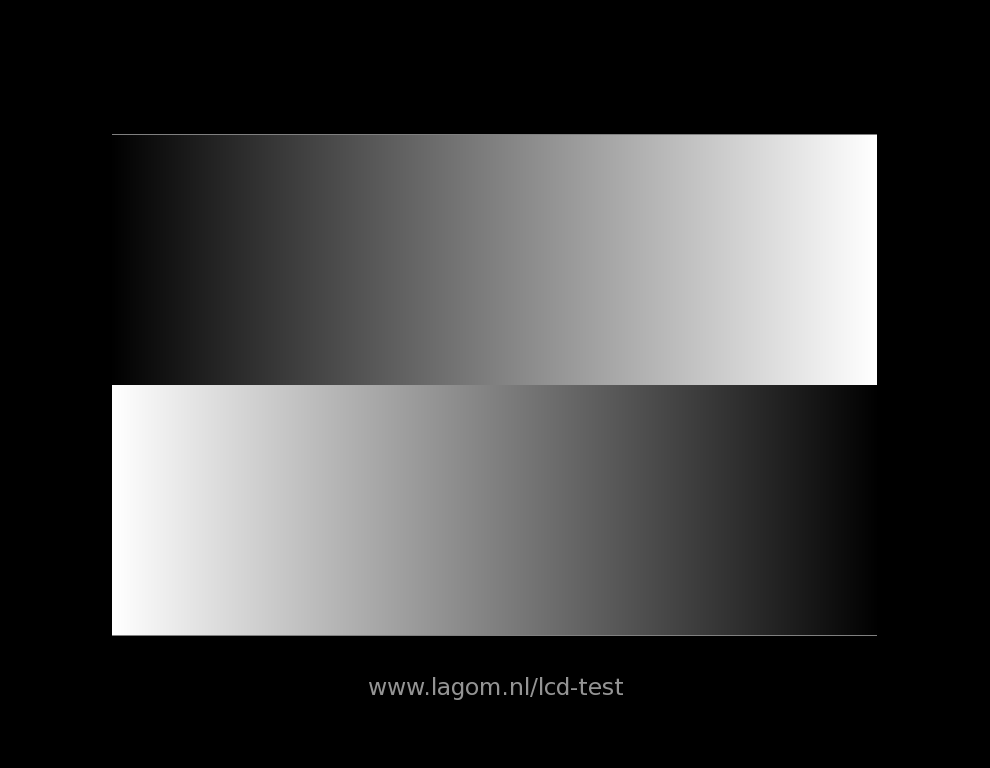
Now that brightness and picture mode are set, use a free online test pattern to dial in contrast with precision.
Open a White Gradient Pattern
Search online for “white gradient test pattern” and display it full screen on your monitor. This pattern shows a smooth ramp from light gray to pure white.
What to Look For
- The last 2 to 3 steps before pure white should appear faint but visible
- No step should merge into a solid white block
- Transitions should feel smooth, not abrupt
Adjust the Contrast Slider
- If the top steps merge into solid white, lower contrast until detail reappears
- If the image looks flat or dull, raise contrast slightly while staying near default
- Stop adjusting once the faintest near-white steps are just barely distinguishable
Target: Faint highlight detail just before pure white. No clipping, no flatness.
Fix Black Level and Gamma for Complete Tonal Range

Contrast works together with black level and gamma. If shadows look gray or highlights crush, these settings need attention too.
Calibrate Black Level with a Near-Black Gradient
- Load a near-black gradient test pattern (search online)
- Observe the darkest bars on the left side of the ramp
- Adjust until the darkest bar is barely distinguishable from pure black
Ideal Results
- The darkest bar should be visible but very dim
- No gray glow should surround black areas
- Shadow textures should appear without gray haze
Brand-Specific Names
Some manufacturers label this setting differently:
- Shadow Boost (ASUS)
- Black Stabilizer (Dell)
- Shadow Detail (Samsung)
Set Gamma to 2.2 for Balanced Mid-Tones
Gamma controls how your monitor transitions from dark to light. The wrong value ruins mid-tones even with perfect contrast:
- Gamma 2.4: Image looks darker, shadows crush (use only in fully dark rooms)
- Gamma 2.2: Industry standard for SDR computer work, balanced tones
- Gamma 1.8: Mid-tones wash out, contrast feels weak
Set gamma to 2.2 for general use and verify with a gamma test pattern showing smooth gray ramp transitions.
Disable Dynamic Contrast and Eco Features
Automatic features constantly shift your image and destroy calibration accuracy. Turn them off before doing any serious work.
Features to Disable
- Dynamic Contrast
- Eco Mode
- Auto-Dimming
- Low Blue Light (when editing)
- Black Equalizer
These settings cause image flickering and inconsistent tone, which ruins photo and video editing.
Brand-Specific Names to Turn Off
| Brand | Settings to Disable |
|---|---|
| Dell | Dynamic Contrast, Eco Mode |
| ASUS | GameVisual (non-neutral modes), Shadow Boost |
| Samsung | Dynamic Contrast, Eco Saving Plus |
| LG | Dynamic Action, Brightness Intelligence |
Leave these off unless you are gaming and need extra visibility in dark scenes.
Troubleshoot Common Contrast Problems
Even with proper calibration, specific issues can appear. Here is how to diagnose and fix the most frequent contrast complaints.
Image Looks Washed Out
Symptoms: Gray blacks, flat colors, no depth.
Causes:
– Black level set too high
– Contrast set too low
– Dynamic features still enabled
Fix:
1. Lower Black Level until blacks appear deep
2. Ensure Contrast sits between 50% and 75%
3. Disable all dynamic and eco features
Loss of Shadow Detail (Crushed Blacks)
Symptoms: Dark areas turn into solid black blobs with no visible texture.
Causes:
– Black level set too low
– Gamma set too high
Fix:
1. Slightly increase Black Level until faint details reappear
2. Set Gamma to 2.2
3. Verify with a near-black gradient pattern
Blown-Out Highlights (Clipped Whites)
Symptoms: Bright clouds, white clothing, or reflections look like solid white patches.
Cause: Contrast set too high.
Fix:
1. Lower Contrast until faint steps appear in the white gradient
2. Stay near factory default unless using analog VGA
Eye Strain After 15 Minutes
Cause: Screen brightness does not match ambient light.
Fix:
1. Reduce Brightness to 20% to 25% in dark rooms
2. Enable Night Light or f.lux
3. Add bias lighting behind your monitor
4. Do not lower contrast to fix eye strain
Optimize Contrast for Gaming and Content Creation
Different tasks need different contrast priorities. Here is how to tune your display for specific use cases.
Gaming: Boost Visibility Without Ruining Quality
Gamers often want to spot enemies hiding in dark corners. Shadow enhancement features help but come with trade-offs:
- Shadow Boost (ASUS), Black Stabilizer (Dell), and Dark Stabilizer (MSI) reveal dark details
- These features make blacks look gray and reduce overall contrast
- Enable only for competitive play, disable for movies or content creation
Also adjust overdrive to Normal or Fast. Extreme settings cause inverse ghosting, which appears as bright trails behind moving objects.
Photo and Video Editing: Prioritize Accuracy
Inaccurate contrast leads to overexposed exports and muddy shadows. Use these settings for color-critical work:
- Picture Mode: sRGB or Custom
- Contrast: Factory default
- Gamma: 2.2
- Brightness: Aim for 120 nits using a sensor or estimation
- Dynamic Features: All turned OFF
Verify your setup using an 8-bit grayscale ramp (should show smooth steps without banding) and a Pluge pattern (confirms black level accuracy).
Pro Tip: For professional results, use a colorimeter like SpyderX or i1Display to generate an ICC profile after hardware settings are correct.
OLED and HDR: Special Contrast Rules
These display technologies handle contrast differently than standard LCDs. Adjust your approach accordingly.
OLED: Infinite Contrast, But Handle with Care
OLED panels produce true black by turning off individual pixels, giving them an infinite contrast ratio. This changes how you should adjust settings:
- Black level is fixed at zero; do not try to adjust it
- Contrast slider only affects peak white brightness
- Avoid static bright elements (like taskbars) to prevent burn-in
HDR: Let the Monitor Handle It
In HDR mode, most contrast and brightness settings become locked. The display uses metadata to auto-adjust tone mapping for each scene.
- Do not manually tweak contrast in HDR
- Default HDR settings work best for most content
- Use per-mode memory if your monitor allows it
Quick Calibration Checklist

Use this list to fix contrast fast and accurately:
- Reset monitor to factory defaults
- Set Picture Mode to Standard or sRGB
- Disable Dynamic Contrast, Eco Mode, and Shadow Boost
- Adjust Brightness to match room lighting
- Calibrate Contrast using a white gradient (no clipping)
- Set Black Level using a near-black gradient (no crushed shadows)
- Set Gamma to 2.2
- Set Color Temp to 6500K (Warm or Normal)
- Set Sharpness to default (no halos around text)
- Save settings and verify with real content
Frequently Asked Questions About Fixing Monitor Contrast
What is the best contrast setting for a monitor?
The best contrast setting for most LCD monitors is the factory default, typically between 50% and 75%. This range matches the panel’s native voltage response and prevents clipping in highlights. Deviating from default often causes lost detail or washed-out images.
Should I lower contrast to reduce eye strain?
No, lowering contrast to reduce eye strain is a mistake. Eye strain comes from brightness mismatching ambient light, not contrast. Reduce brightness to 20% to 25% in dark rooms, enable Night Light, and add bias lighting instead of lowering contrast.
How do I know if my monitor contrast is too high?
Your monitor contrast is too high if bright areas like clouds, white shirts, or reflections appear as solid white patches with no visible texture. Run a white gradient test pattern; if the top 2 to 3 steps merge into a single white block, lower contrast until detail returns.
What is the difference between contrast ratio and the contrast slider?
Contrast ratio is a fixed hardware specification showing the difference between your monitor’s darkest black and brightest white (like 1000:1). The contrast slider is a user-adjustable setting that changes how the video signal maps to the panel’s range. The slider does not change the physical ratio.
Can I fix monitor contrast without a colorimeter?
Yes, you can fix monitor contrast without a colorimeter using free online test patterns. A white gradient pattern helps set contrast, while a near-black gradient helps set black level. These tools provide accurate results for general use, though professional editors may still want a colorimeter for ICC profiling.
Does HDR mode change how I adjust contrast?
Yes, HDR mode locks most contrast and brightness settings because the monitor uses metadata to auto-adjust tone mapping. Manually tweaking contrast in HDR can break the tone curve and produce worse results. Leave HDR settings at default unless your monitor allows per-mode memory.
Key Takeaways for Fixing Monitor Contrast the Right Way
Fixing contrast on your monitor is not about chasing a punchy image; it is about preserving detail, ensuring color accuracy, and protecting your eyes. The most important lesson is that factory contrast defaults are correct for nearly every LCD panel. Match brightness to your room lighting, use test patterns to verify every adjustment, and disable all dynamic features before calibration. Whether you edit photos, game competitively, or browse at night, a properly calibrated monitor reduces fatigue, improves productivity, and delivers truer colors. Start with the quick checklist above, run the test patterns, and save your settings; your screen will look better than it has in years.


