
Setting up your Hubble baby monitor should feel simple, but a failed pairing can leave you staring at a blank screen right when you need it most. The most common frustration? Pressing buttons at the wrong moment or misinterpreting a green LED as “ready” when it actually means “still waiting.” This guide walks you through exactly how to connect your Hubble camera to the monitor using verified procedures for the Nursery Pal Essential and similar smart monitor systems.
You’ll learn the precise button sequence, what each LED color means, how to fix stuck pairings, and when to escalate to support. Every step comes from official technical documentation, so you can follow along with confidence and get your monitor streaming live video in minutes.
Pair Your Hubble Camera and Monitor in the Correct Order
The pairing sequence matters. Reversing the steps or pressing buttons too briefly causes the most failures. Follow this exact order for a reliable first-time connection.
Start by Pressing the Monitor Pair Button
Locate the round physical button on the right side of your monitor, positioned just below the power button. It displays an icon of two arrows forming a circle. Press and hold this button for 3 full seconds. The screen must display the word “Pairing” to confirm the monitor is listening for a signal. If nothing appears, release and try again with a firmer, longer press.
Activate the Camera Pairing Mode
With the monitor showing “Pairing,” move to the camera unit. Find the small recessed pinhole on the back, near the power port. Insert a paperclip or reset pin and press firmly for 3 seconds. Watch the LED indicator closely. It should shift from solid green to a blinking red light. This red blink confirms the camera is actively broadcasting its signal.
Wait for the Connection to Complete
Once both devices are in pairing mode, the handshake takes up to 60 seconds. Watch for these success indicators:
- Monitor screen changes from “Pairing” to “Paired”
- Camera LED stops blinking red and turns off
- Live video feed appears on the monitor
Do not unplug either device during this window. Interrupting power mid-pairing corrupts the handshake and forces a full reset.
Decode the LED Status Lights on Your Camera
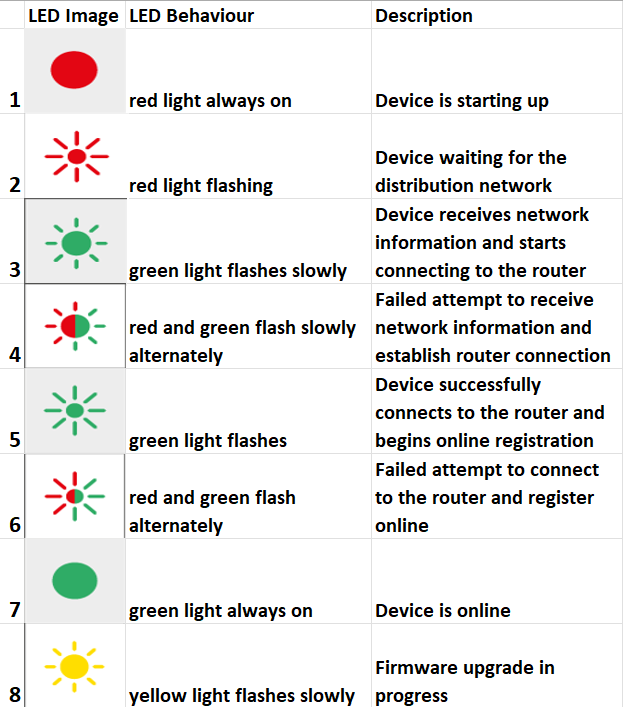
Misreading the LED is the number one cause of failed setups. Each light pattern communicates a specific state.
Solid Green Means Powered but Unpaired
A steady green LED tells you the camera has power but has not connected to any monitor. Many users mistake this for “ready to use,” but it actually means the device is waiting for a pairing command. You must initiate pairing from this state.
Blinking Red Confirms Pairing Mode
When the LED blinks red, the camera is actively searching for a monitor signal. If you do not see this after pressing the pinhole button, the input failed. Try again with a straightened paperclip and firmer pressure.
Red Light Off Signals Success
When the red blinking stops completely, pairing is complete. Some models keep the green light on; others turn all LEDs off. Both behaviors are normal after a successful connection.
Fix the Most Common Pairing Failures
Even with correct steps, pairing sometimes fails. Targeted troubleshooting based on symptoms gets you back online faster.
Camera Stays Green and Never Blinks Red
If the LED never transitions to blinking red:
- Check that your paperclip is reaching the internal switch. The hole is small, and slight misalignment prevents actuation.
- Power cycle the camera by unplugging it for 10 seconds, then reconnecting and trying again immediately.
- Test for hardware damage. If no red light ever appears despite correct technique, the internal module may be faulty.
Pairing Times Out After 60 Seconds
If the monitor stays on “Pairing” with no connection:
- Unplug both devices from power.
- Press and hold the reset pinhole on the camera and monitor simultaneously for 10 seconds.
- Leave both devices unplugged for 15 minutes. This wait is critical for clearing cached network errors.
- Reconnect power and restart the pairing sequence from the beginning.
Video Feed Cuts Out After Pairing
Intermittent dropouts usually come from distance or interference:
- Move both devices within 3 to 5 feet during initial testing.
- Keep the camera and monitor away from microwaves, cordless phones, and metal furniture.
- Minimize walls and floors between units. Thick barriers weaken the signal significantly.
Ensure Your Power Setup Meets Requirements
Power issues cause more failed connections than any other factor. Even a green light does not guarantee sufficient power for pairing functions.
Use Only the Original Hubble Power Adapter
Third-party adapters often deliver incorrect voltage or amperage. This starves the radio frequency modules needed for pairing and can permanently damage internal circuitry. Using non-original chargers also voids your warranty if damage occurs.
Verify Every Connection Is Secure
Check both ends of the power cable. The connector must be fully inserted into the camera’s port and firmly seated in a working wall outlet. A loose connection may power the green LED but fail to sustain the energy required for pairing mode.
Optimize Wi-Fi for Full App Integration
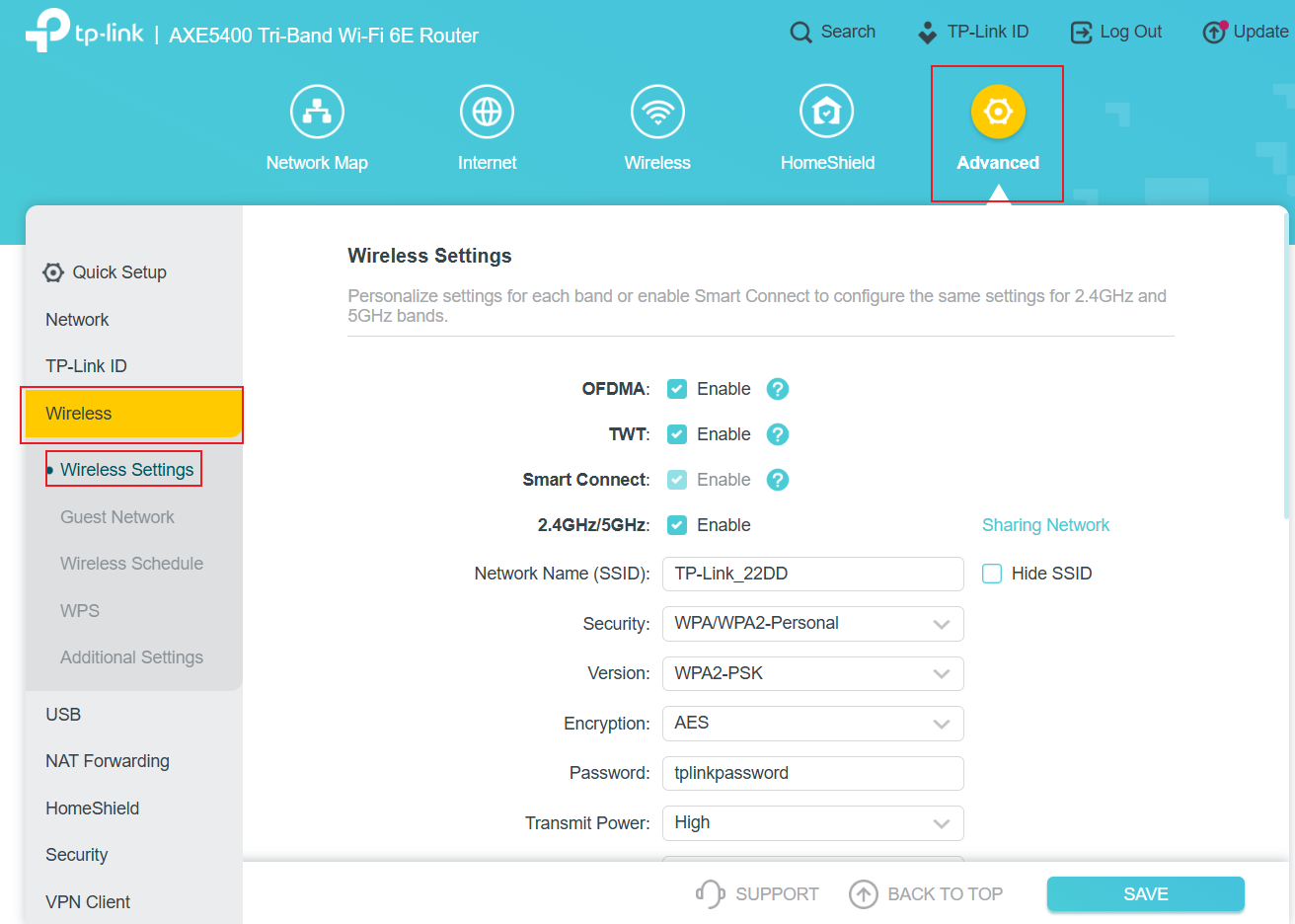
Basic monitor viewing works through direct RF signals, but remote access and smart features require Wi-Fi through the HubbleClub app.
Connect Only to a 2.4 GHz Network
Hubble cameras do not support 5 GHz Wi-Fi. Your router must broadcast a 2.4 GHz signal, and your phone must connect to that band before opening the app. Dual-band routers often merge network names, so check your router settings to confirm which band you are using.
Confirm the Camera Appears in the App
Open the HubbleClub app and check the device list. If the camera shows up there but not on the dedicated monitor, the problem is isolated to the RF link between devices, not your internet connection.
Resolve Regional Account Binding Errors
Users registering with non-local phone numbers may encounter binding failures. This suggests regional server restrictions. Contact Hubble Support for region-specific account assistance before attempting repeated registrations.
Reset Devices the Right Way

A proper reset clears corrupted settings and restores factory defaults. Skipping steps reduces effectiveness.
Perform a 10-Second Hard Reset
Unplug both devices. Use a pin to press and hold the reset hole on the camera and monitor simultaneously. Hold for exactly 10 seconds, then release. Leave both devices unplugged.
Wait the Full 15 Minutes Before Restarting
After resetting, wait 15 minutes before reconnecting power. This drains residual charge from internal capacitors and clears network memory. Skipping this wait is the most common reason resets fail to resolve connection issues.
Position Devices for the Strongest Signal

Physical placement affects both initial pairing and long-term stability.
Begin Pairing Close Together
Start with both units within 3 feet of each other. Once paired, you can gradually test range limits by moving them apart.
Avoid Common Signal Blockers
Keep devices away from large metal furniture, mirrors, refrigerators, microwave ovens, and other wireless transmitters. These objects reflect or absorb RF signals, causing dropouts and failed handshakes.
Understand Night Vision Activation Rules
Night vision does not work until pairing succeeds. Knowing this prevents wasted troubleshooting.
IR LEDs Only Activate After Connection
The infrared lights will not turn on if the camera remains unpaired. Even in total darkness, no night vision occurs until the monitor displays a stable video feed.
Low-Light Detail Is Surprisingly Clear
Once connected, the camera automatically switches to night vision in low light. Users report being able to see fine details like flushed cheeks and eyelid movement, thanks to sensitive IR sensors and accurate image processing.
Contact Hubble Support When Hardware Is the Cause
If all troubleshooting fails, the issue may require professional repair or replacement.
Know When to Escalate
Contact support if the camera never produces a blinking red light, the monitor never displays “Pairing,” the unit was dropped or exposed to liquid, or regional restrictions block app access.
Prepare Your Information in Advance
Have these details ready before calling:
- Model number, such as Nursery Pal Essential
- Detailed symptom description, including LED behavior
- List of troubleshooting steps already performed
- Proof of purchase for warranty validation
This preparation speeds up repair or replacement significantly.
Frequently Asked Questions About Connecting Hubble Cameras to Monitors
Why does my Hubble camera show a solid green light but will not pair?
A solid green LED means the camera has power but is not connected to any monitor. You must press the recessed pinhole button on the back for 3 seconds to trigger pairing mode. The light should change to blinking red. If it stays green, the button press did not register. Try again with a straightened paperclip and firmer pressure.
How long does it take to connect a Hubble camera to the monitor?
The pairing handshake takes up to 60 seconds after both devices enter pairing mode. Do not interrupt power during this window. If the connection does not complete within one minute, perform a full reset and wait 15 minutes before retrying.
Can I use a third-party power adapter with my Hubble camera?
No. You must use the original Hubble-branded power supply. Third-party adapters often deliver incorrect voltage or amperage, which can prevent pairing or damage internal components. Using non-original chargers also voids your warranty.
Why does my Hubble camera not connect to 5 GHz Wi-Fi?
Hubble cameras only support 2.4 GHz Wi-Fi networks. They cannot communicate on 5 GHz bands. If your router broadcasts both bands under one name, check your router settings to confirm your phone connects to the 2.4 GHz network before opening the HubbleClub app.
What should I do if pairing keeps timing out?
Unplug both devices and press the reset pinhole on each for 10 seconds. Leave them unplugged for 15 minutes to fully discharge internal capacitors. Reconnect power and restart the pairing sequence from the beginning. This clears cached network errors that cause timeouts.
Does night vision work before pairing is complete?
No. The infrared LEDs only activate after the camera successfully pairs with the monitor or app. Until pairing completes, the camera will not switch to night vision, even in complete darkness.
Key Takeaways for Connecting Your Hubble Camera to a Monitor
Success comes down to three critical details: press each pairing button for exactly 3 seconds, wait the full 15 minutes after any reset, and only use the original Hubble power adapter. Misreading the LED status is the most common mistake. Remember that solid green means waiting, blinking red means broadcasting, and red off means connected.
If pairing fails after following every step, perform the full reset procedure with the mandatory 15-minute wait, then retry. For persistent hardware issues, gather your model number, symptom description, and proof of purchase before contacting Hubble Support. This preparation ensures the fastest path to a working monitor and peace of mind for your family.


