
Tiny on-screen text causes daily frustration for millions of computer users, especially on modern high-resolution displays where everything looks shrunken. Whether you’re squinting at spreadsheets, emails, or websites, the solution is simple: you can increase font size on your monitor through built-in system settings, keyboard shortcuts, or app-specific controls. No new software or technical expertise required.
This guide covers every reliable method to enlarge text across Windows 10/11, macOS, Chrome, Firefox, Safari, and popular apps like Outlook and Mail. You’ll discover system-wide scaling options, instant zoom shortcuts, and fixes for stubborn programs that ignore your settings. By the end, you’ll know exactly how to make text comfortable for your eyes in any situation.
Adjust Windows Display Scaling for System-Wide Changes

The fastest way to increase font size on your monitor in Windows is through display scaling. This method enlarges text, icons, menus, and apps proportionally across your entire system.
Change Scale Through Settings
- Press Windows + I to open Settings.
- Select System, then click Display.
- Under Scale & layout, choose a percentage like 125% or 150%.
- Wait a few seconds for your screen to refresh and apps to reposition.
Use the Accessibility Text Slider
If you only want text to grow without altering app layouts, this slider gives you precise control.
- Open Settings > Accessibility > Text size.
- Drag the slider rightward to enlarge menu text, file names, and notifications.
- Changes appear instantly without requiring a restart.
Quick Desktop Shortcut
Skip the full Settings menu with this faster route:
- Right-click any empty space on your desktop.
- Choose Display settings from the context menu.
- Adjust the Scale dropdown under Scale & layout.
- Confirm any prompts to apply the new size.
Activate Windows Magnifier for Temporary Zoom
When you need quick magnification without permanently changing settings, the Magnifier tool delivers instant results anywhere on your screen.
Turn Magnifier On and Off
- Press Windows + Plus (+) to launch Magnifier immediately.
- Press Windows + Esc to exit the tool when finished.
- Move your mouse to pan across different areas of your zoomed view.
Fine-Tune Your Zoom Level
- Zoom in further by pressing Windows + + repeatedly.
- Zoom out using Windows + Minus (-).
- This works perfectly for reading fine print in documents or inspecting image details.
Enlarge Text in Specific Windows Applications
Some programs ignore system scaling entirely. Adjust these apps individually for better readability where it matters most.
Microsoft Outlook Email Font
Email text often stays small even after system adjustments. Fix it directly in Outlook:
- Launch Outlook and click File > Options > Mail.
- Under Stationery and Fonts, click the Font button next to compose or read messages.
- Select a larger size such as 14pt or 16pt, then confirm with OK.
New messages and your reading pane will immediately display the bigger font.
Resize Text and Interface on macOS
Mac computers handle font adjustments differently than Windows. You’ll typically work through resolution scaling or individual app settings rather than a universal text slider.
Scale macOS Display Resolution

Lowering your display resolution forces macOS to render all elements larger, including fonts.
- Click the Apple menu and select System Settings (or System Preferences on older versions).
- Choose Displays from the sidebar.
- Click the Display tab and select Scaled.
- Pick a lower resolution like 1680 x 1050 instead of the native maximum.
Everything on your screen, including fonts, will appear noticeably bigger.
Increase Text in the Messages App
- Open Messages and click Messages in the top menu bar.
- Select Settings (or Preferences on older macOS versions).
- Go to the General tab.
- Drag the Text size slider rightward to enlarge all message bubbles.
Enlarge Font in the Mail App
- Open Mail and click Mail > Settings in the menu bar.
- Navigate to the Fonts & Colors tab.
- Click Select next to Message font.
- Choose a larger point size and confirm your selection.
All incoming and outgoing emails will now display in your preferred larger font.
Master macOS Keyboard Zoom Shortcuts
Speed matters when adjusting text on the fly. These shortcuts let you zoom instantly without opening any menus.
Full-Screen Zoom Commands
- Zoom in: Press Command (⌘) + Plus (+).
- Zoom out: Press Command (⌘) + Minus (-).
- These work in Safari, Preview, most browsers, and document viewers.
Text-Only Zoom Commands
Keep images at original size while enlarging only the text:
- Increase text: Press Command + Option + Plus (+).
- Decrease text: Press Command + Option + Minus (-).
This approach prevents layout distortion when reading web articles or PDFs.
Increase Browser Font Size for Web Pages
Web content often needs separate adjustment from your operating system settings. Each browser offers multiple ways to make page text more readable.
Universal Browser Shortcuts
These commands work identically in Chrome, Edge, Firefox, and Safari:
- Zoom in: Press Ctrl + + (Windows) or Cmd + + (Mac).
- Zoom out: Press Ctrl + – or Cmd + –.
- Reset to default: Press Ctrl + 0 or Cmd + 0.
Each website remembers its own zoom level, so one site can stay at 125% while another remains at 100%.
Set Default Font Size in Chrome
Make every new page load with larger text automatically:
- Open Chrome and click the three dots menu > Settings.
- Select Appearance from the left sidebar.
- Under Font size, choose Large or Very large.
- Optionally set Page zoom to 125% or higher.
Enable Text-Only Zoom in Firefox
Prevent layout breakage when enlarging content:
- Click the menu icon (three horizontal lines) in Firefox.
- Go to Zoom and check Zoom Text Only.
- Use Ctrl + + to grow only text while images stay normal.
Customize Safari Default Zoom
- Open Safari and go to Safari > Settings > Websites.
- Select Page Zoom from the left panel.
- Choose a default percentage under “When visiting other websites.”
All unlisted sites will now open at your preferred zoom level.
Fix Desktop Icons and Folder Labels
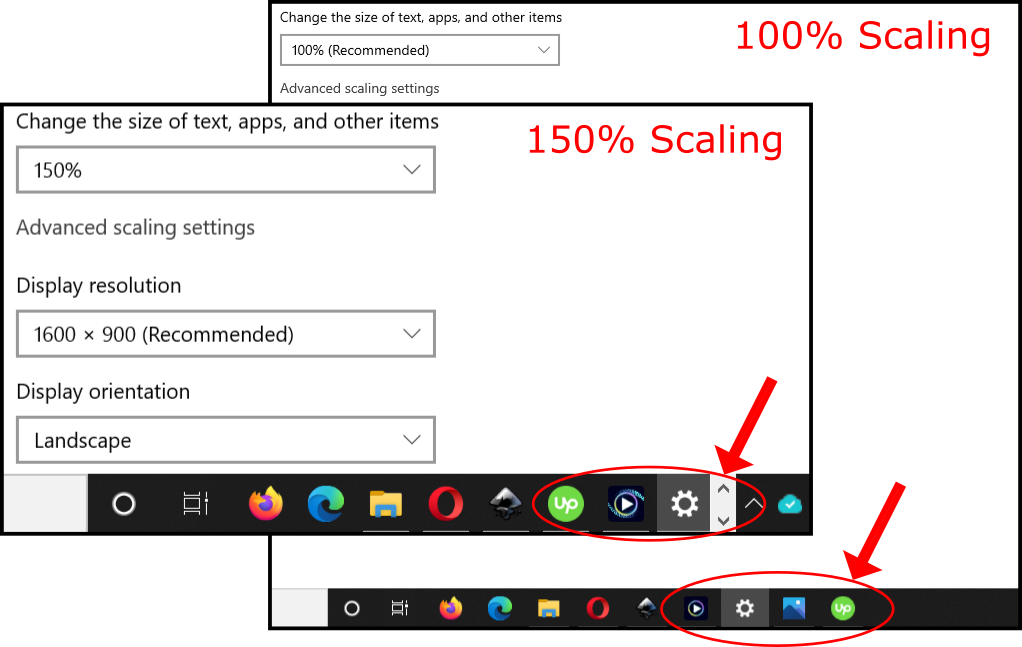
Small desktop text and file names need direct adjustment. Here’s how to resize them on both operating systems.
Windows Desktop Adjustments
- Right-click the desktop and select Display settings.
- Scroll to Scale & layout and click Advanced scaling settings.
- Enable Custom scaling and enter a value like 125%.
- Sign out and back in to apply changes.
For quick icon resizing, hold Ctrl and scroll your mouse wheel upward on the desktop.
macOS Desktop Label Resizing
- Right-click (or Control-click) the desktop.
- Select Show View Options from the menu.
- Move the Text size dropdown to a larger option.
- Adjust the Icon size slider if needed.
Changes apply instantly to all desktop items and folder labels.
Troubleshoot Missing Font Size Options
Sometimes scaling settings disappear or refuse to work. These fixes resolve the most common issues.
Update Your Operating System
Older systems often lack modern accessibility features that control font sizes.
- Windows: Open Settings > Windows Update and click Check for updates.
- macOS: Go to Apple menu > System Settings > Software Update.
After installing updates, scaling options typically reappear in their standard locations.
Understand User Account Isolation
Font size changes apply only to the currently logged-in user. If multiple people share one computer, each person must adjust settings in their own account. No automatic syncing occurs between profiles.
Override Stubborn Website Font Limits
Some websites ignore browser zoom entirely due to fixed coding dimensions.
Solutions:
– Install browser extensions like “Zoom Page WE” for Firefox or Chrome.
– Activate Reader Mode in Safari, Edge, or Firefox for clean, resizable text.
– Use the Magnifier tool as a temporary workaround for unresizable pages.
Choose Smart Fonts for Better Readability
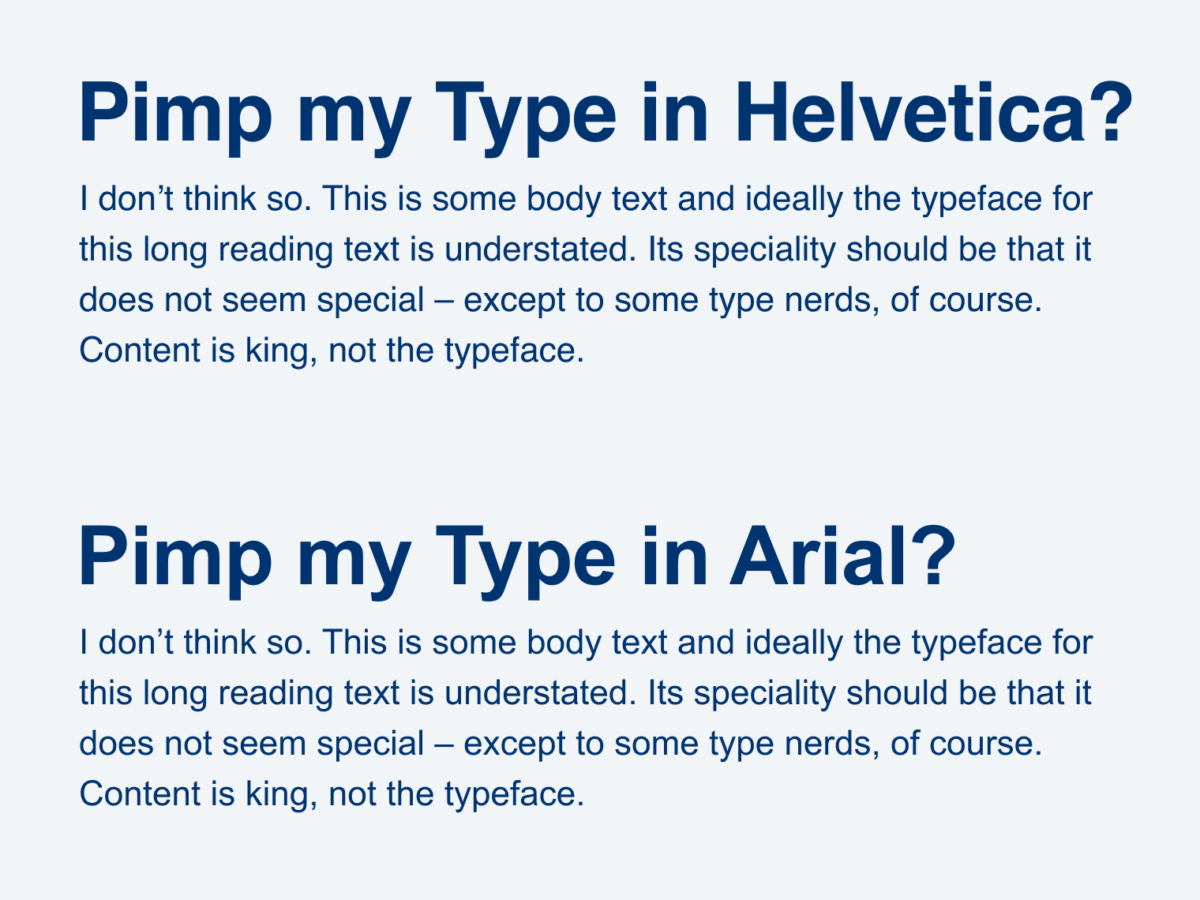
Bigger text helps, but the right font style makes an even bigger difference for eye comfort.
Pick Legible Font Types
- Choose sans-serif fonts like Arial, Calibri, or Helvetica for screen reading.
- Avoid decorative, thin, or script typefaces that strain the eyes.
- Set your default system font to 12pt or larger for daily comfort.
Optimize Display Settings Alongside Font Size
- Match screen brightness to your room lighting to reduce contrast strain.
- Enable night mode or dark themes during evening use.
- Combine larger fonts with high contrast settings for maximum readability.
Quick Reference Table for Font Size Shortcuts
| Task | Shortcut or Path |
|---|---|
| Windows scale | Settings > System > Display > Scale |
| Mac resolution scale | System Settings > Displays > Scaled |
| Zoom in (any browser) | Ctrl + + (Win) or Cmd + + (Mac) |
| Text-only zoom on Mac | Cmd + Option + + |
| Reset browser zoom | Ctrl + 0 or Cmd + 0 |
| Outlook email font | File > Options > Mail > Stationery and Fonts |
| Firefox text-only zoom | Enable in menu > Zoom > Zoom Text Only |
| Chrome default font size | Settings > Appearance > Font size |
Frequently Asked Questions About Increasing Font Size on Monitors
What is the fastest way to increase font size on a Windows monitor?
Press Windows + Plus (+) to activate Magnifier for instant zoom, or open Settings > System > Display and choose a higher scaling percentage like 125% or 150%. The scaling method affects everything permanently, while Magnifier provides temporary enlargement.
Can I increase font size without changing my screen resolution?
Yes. On Windows, use the Accessibility > Text size slider to enlarge only text without affecting resolution. On macOS, adjust fonts within individual apps like Mail and Messages, or use Command + Option + Plus (+) for text-only zoom in browsers.
Why does my browser font size reset on some websites?
Web browsers remember zoom levels per website, so each site maintains its own setting. Additionally, some websites use fixed pixel dimensions in their code that ignore browser zoom commands. Use Reader Mode or a zoom extension to override these restrictions.
How do I make Outlook email text bigger permanently?
Open Outlook and navigate to File > Options > Mail > Stationery and Fonts. Click the Font button next to either compose messages or read mail, then select a larger point size like 14pt or 16pt. Click OK to apply changes to all future emails.
Does changing font size affect other users on the same computer?
No. Font and display settings are tied to individual user accounts. Each person who logs into the device must adjust their own preferences. Settings do not sync or transfer between accounts on the same machine.
Will increasing font size slow down my computer?
No. Display scaling and font size changes use minimal system resources and have no noticeable performance impact. However, running Magnifier continuously may use slightly more memory during active sessions.
Key Takeaways for Increasing Font Size on Your Monitor
You now have every tool needed to increase font size on your monitor across Windows, macOS, and all major web browsers. Start with system-wide display scaling for the broadest impact, then use keyboard shortcuts like Ctrl + + or Cmd + + for quick adjustments when browsing. For stubborn apps like Outlook or Mail, dive into their individual font settings to customize reading and composing experiences.
Your next step: pick one method from this guide and try it right now. If system scaling feels too dramatic, start with the text-only slider or browser zoom for a gentler change. Within minutes, you’ll see noticeably clearer text and feel less eye strain throughout your workday.


