
Spending eight or more hours a day staring at screens has become the norm for millions of professionals, students, and remote workers. If your eyes feel dry, tired, or blurry by the end of a workday, you are not alone. Research shows that roughly 50% of computer users experience some form of digital eye strain, also known as Computer Vision Syndrome.
The good news is that learning how to protect eyes from computer monitor use does not require expensive equipment or drastic lifestyle changes. This guide walks you through practical adjustments to your workspace, daily habits, and device settings. By the end, you will have a complete toolkit to reduce strain, improve comfort, and safeguard your long-term vision.
Set Up Your Monitor for Comfortable Viewing
Maintain the Right Viewing Distance
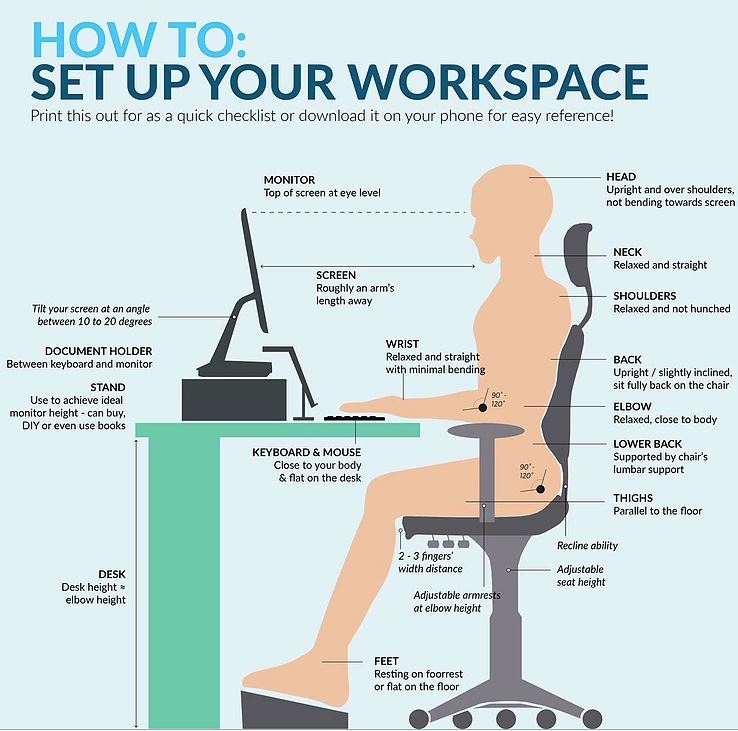
Position your screen 20 to 28 inches from your face, with 25 inches as the ideal target. This distance lets your eyes relax while keeping text and images sharp. A quick test: extend your arm fully toward the monitor. Your fingertips should fall just short of the screen.
Adjust Height and Tilt Properly
Place the top of your monitor at or slightly below eye level. This setup encourages a natural downward gaze of 10 to 20 degrees, which reduces the surface area of your eye exposed to air. Tilt the screen back 10 to 20 degrees to align with your line of sight and minimize glare.
Keep Reference Materials Nearby
If you regularly work with printed documents, place them on a document holder beside your screen at the same height and distance. This prevents constant refocusing and reduces neck strain from twisting back and forth.
Control Lighting and Screen Glare
Balance Ambient Room Lighting
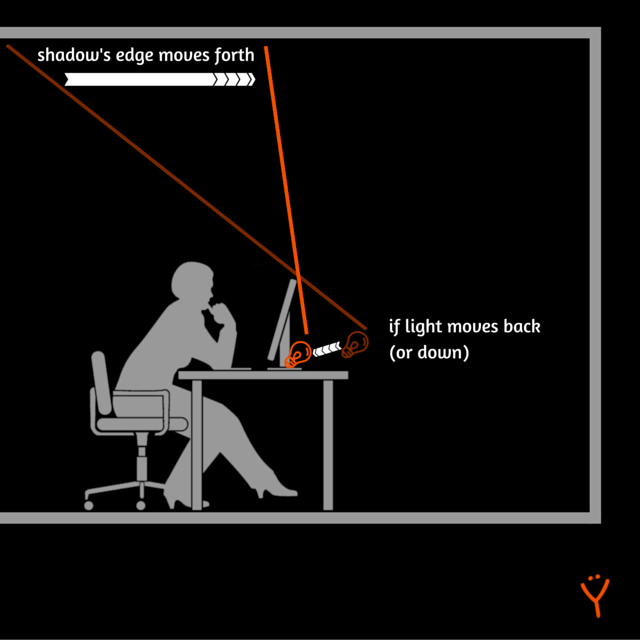
Keep room lighting at about 50% of standard office brightness. Harsh fluorescent lights often create reflections and visual stress. Use desk lamps or dimmer switches to soften the overall illumination in your workspace.
Position Light Sources Correctly
Place windows or bright lamps to the side of your workstation, never directly behind or in front of your monitor. This prevents direct glare on the screen. If natural light is unavoidable, use blinds or curtains to diffuse incoming sunlight.
Calibrate Screen Brightness and Contrast
Your monitor should blend with the room rather than glow like a lightbulb. Open a blank white document to test:
– If the page glows, lower the brightness.
– If it looks dull or gray, raise the brightness.
– Increase contrast so text stands out clearly against the background.
Follow the 20/20/20 Rule Consistently
Take Micro-Breaks Every 20 Minutes
Every 20 minutes, shift your gaze to an object at least 20 feet away for 20 seconds. This simple habit relaxes the ciliary muscles that handle close-up focusing. Set a timer or use a reminder app until the routine becomes automatic.
Add Hourly Movement Breaks
Beyond micro-breaks, take a 10-minute break every hour. Stand up, stretch your neck and shoulders, and walk briefly. After two continuous hours of screen time, take a 15-minute break to fully reset your body and eyes.
Practice Deliberate Blinking
Counteract Reduced Blink Rates
Screen use cuts your blink rate by up to 66%, which leads to dry, irritated eyes. Make it a habit to blink 10 times every 20 minutes. Perform full, deliberate blinks by closing your eyes completely, as if falling asleep, to spread the tear film evenly across your cornea.
Use Artificial Tears When Needed
Apply preservative-free lubricating eye drops whenever your eyes feel dry or gritty. Avoid redness-relief drops, as they can worsen irritation with frequent use. In dry environments, pair drops with a desk humidifier to slow tear evaporation.
Choose Eye-Friendly Display Hardware

Select a Quality Monitor
When shopping for a new screen, prioritize these features:
– Refresh rate of 75Hz or higher to eliminate invisible flicker.
– Dot pitch of 0.28mm or smaller for sharp, pixel-free text.
– Matte (non-reflective) surface to cut glare.
– Minimum 18.5-inch screen size for comfortable viewing.
Activate Built-In Eye Protection Modes
Many modern monitors include “Eye Saver,” “Low Blue Light,” or “flicker-free” settings. Enable these features through the On-Screen Display menu to reduce strain during long sessions.
Elevate Your Screen with Risers or Stands
Use a monitor riser or laptop stand to bring your screen to proper eye level. This prevents neck strain and supports the optimal viewing angle. Adjustable stands offer the most flexibility for finding your ideal height.
Manage Blue Light Exposure Throughout the Day

Use Built-In Night Mode Features
Activate the blue light filters already on your devices:
– Windows: Settings > System > Display > Night Light.
– macOS and iOS: Night Shift.
– Android: Night Mode or Blue Light Filter.
Schedule these tools to activate at sunset or during evening hours to protect your sleep cycles.
Install Advanced Filtering Software
Apps like f.lux and Iris give you more granular control over color temperature, brightness, and scheduling. These tools adjust your screen gradually based on time of day and your geographic location, reducing strain without manual input.
Apply Physical Blue Light Filters
For extra protection, use tempered glass screen protectors or blue light filter films on your monitors and phones. Quality filters can block up to 50% of harmful blue light while reducing glare, especially on glossy screens.
Wear Protective Eyewear
Invest in Computer-Specific Glasses
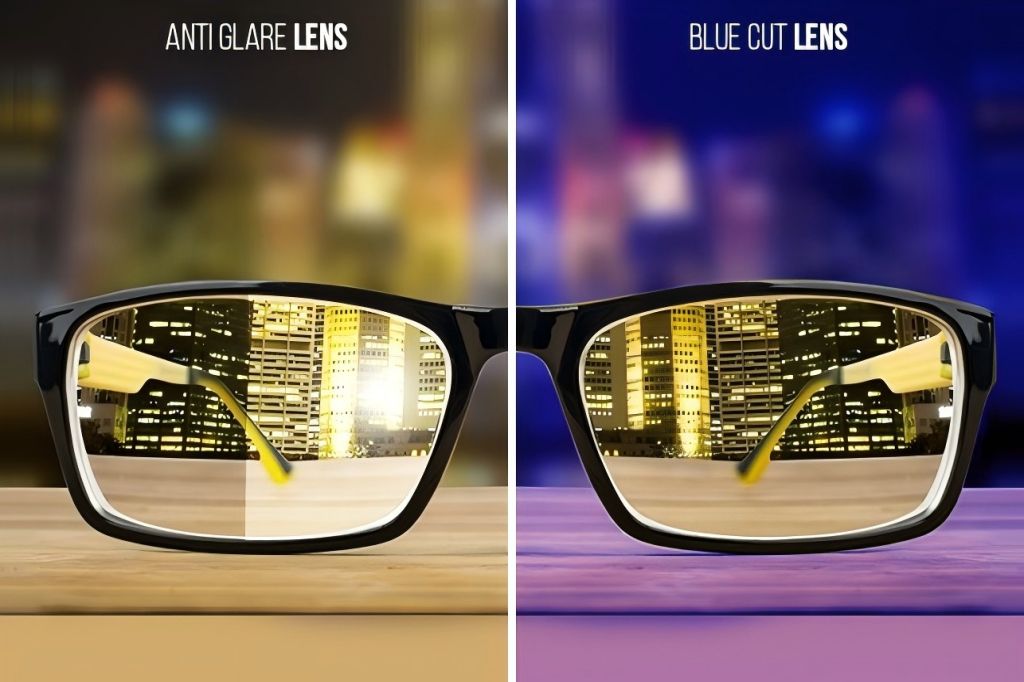
Choose glasses designed for the 20 to 26 inch intermediate distance. These may include slight magnification and an anti-reflective coating to reduce glare and focusing effort. Unlike reading or distance glasses, computer glasses target your specific screen viewing range.
Consider Blue Light Blocking Lenses
Different tints serve different purposes:
– Daytime: Clear lenses that block the 400 to 455nm range while allowing mood-boosting wavelengths.
– Nighttime: Amber or orange-tinted lenses that block more blue light to support melatonin production and better sleep.
Research on strain reduction is ongoing, but many users report less fatigue and improved sleep quality.
Apply Best Practices for Phones and VR Devices
Maintain Safe Phone Viewing Distance
Hold your phone 16 to 18 inches from your eyes. If text feels too small, increase the font size rather than bringing the device closer. Enable auto-brightness, Night Mode, and consider a matte screen protector to reduce glare.
Limit VR and AR Session Length
Virtual and augmented reality headsets create a focus-convergence mismatch that can trigger headaches and dizziness. Limit sessions to 30 minutes or less, ensure proper headset fit, and take breaks to reset your visual alignment.
Perform Regular Eye Maintenance
Run Weekly Setup Checks
Use these quick tests to verify your workspace:
– White document test: Confirm screen brightness matches ambient light.
– Glare inspection: Look for reflections and adjust lighting or screen angle.
– Ergonomic audit: Verify monitor distance, height, and posture.
Schedule Annual Eye Exams
Visit an optometrist every year to update prescriptions and detect uncorrected vision issues like astigmatism. Seek immediate care if you experience persistent headaches, vision changes, or chronic eye pain.
Quick Reference: 12-Step Eye Protection Checklist
| Step | Action |
|---|---|
| 1 | Position monitor 20 to 28 inches away |
| 2 | Set top of screen at or below eye level |
| 3 | Tilt screen back 10 to 20 degrees |
| 4 | Use 50% ambient room brightness |
| 5 | Eliminate glare with filters or repositioning |
| 6 | Calibrate brightness using a white document test |
| 7 | Follow the 20/20/20 rule every 20 minutes |
| 8 | Blink 10 times every 20 minutes |
| 9 | Use a flicker-free monitor with 75Hz+ refresh rate |
| 10 | Enable Night Light, Night Shift, or f.lux |
| 11 | Wear computer glasses with AR coating |
| 12 | Apply preservative-free eye drops when dry |
Frequently Asked Questions About Computer Eye Protection
Does blue light from screens really damage your eyes?
Current research shows that blue light contributes to digital eye strain and disrupts sleep cycles, but there is no strong evidence that it causes permanent eye damage. However, reducing blue light exposure, especially in the evening, can improve comfort and sleep quality.
How long should I use the 20/20/20 rule?
Use the 20/20/20 rule throughout your entire workday. Every 20 minutes, look at something 20 feet away for 20 seconds. This habit relaxes your focusing muscles and prevents the fatigue that builds up during continuous screen use.
Are computer glasses worth the investment?
Computer glasses can be helpful if you spend long hours at a screen, especially if you experience frequent eye strain. They are designed for the intermediate viewing distance of 20 to 26 inches and often include anti-reflective coatings that reduce glare.
Can screen protectors really block blue light?
Yes, quality tempered glass screen protectors and blue light filter films can block up to 50% of harmful blue light emissions. They are especially useful for glossy screens that reflect additional light into your eyes.
What is the best monitor setting for eye comfort?
The best settings combine proper brightness (matching ambient room light), high contrast for clear text, a refresh rate of 75Hz or higher, and an activated low blue light mode. Position the screen 20 to 28 inches away with the top at or slightly below eye level.
When should I see an eye doctor about screen-related symptoms?
Schedule an appointment if you experience persistent headaches, noticeable vision changes, chronic eye pain, or redness that does not improve with rest. Annual eye exams are also essential for updating prescriptions and detecting underlying conditions.
Key Takeaways for Protecting Your Eyes from Monitor Use
Protecting your eyes from computer monitor strain comes down to three core strategies: optimize your workspace, build healthy daily habits, and use the right tools. Start by adjusting your monitor distance, height, and lighting to reduce physical strain. Then build consistent routines like the 20/20/20 rule and conscious blinking into your workday. Finally, invest in quality hardware, blue light filters, and computer glasses when needed.
Your next step is simple: pick one or two changes from this guide and implement them today. Once those feel automatic, add another habit or adjustment. Within a few weeks, you will likely notice less fatigue, fewer headaches, and clearer vision during and after work.


