
You’re deep in a critical task—editing a photo, coding, or gaming—and your mouse slips off to the second monitor. It breaks your focus, slows you down, and feels like losing control of your workflow. While Windows and macOS don’t offer a built-in “lock cursor” button, you can absolutely keep your mouse confined to a single screen using smart workarounds and reliable tools. Whether you’re on Windows 10, Windows 11, or macOS, this guide covers every proven method to lock mouse to one monitor.
You’ll learn how to rearrange displays, use hotkeys for instant locking, pick the best software for your setup, and avoid the common mistakes that trip up most users. No fluff, just clear steps that actually work.
Diagonal Monitor Layout Fix

Restrict cursor movement by changing how your screens are arranged in Windows.
Rearrange Screens in Display Settings
Windows treats your monitors as one continuous desktop. By default, they’re aligned side by side, letting the cursor slide freely between them. Shift one monitor diagonally in the layout, and you drastically reduce accidental crossings.
Here’s how to do it:
- Right-click your desktop and select Display settings.
- Click Identify to see which number matches each physical screen.
- In the visual diagram, drag the secondary monitor so its corner touches the primary monitor’s edge.
- Optionally, create a slight overlap of 5 to 10 pixels for smoother intentional crossings.
- Click Apply.
Your cursor now only jumps to the second monitor when you move it precisely into that corner. Accidental escapes become rare.
Pro Tip: For a three-monitor setup, place the laptop on the left and stack the externals vertically to the right. This forces a deliberate up or down motion to switch screens.
When This Method Fails
Avoid this fix if you use a graphics tablet. Wacom and similar devices map directly to screen coordinates. A diagonal layout can misalign your pen input, making drawing inaccurate.
Also remember, this isn’t true locking. A precise diagonal swipe can still move the cursor. For most users though, it’s an effective, no-software solution.
Disable Secondary Display Temporarily
Force the mouse to stay on one screen by turning off the second monitor.
Switch to Primary-Only Mode
If you don’t need both screens active, this is the simplest way to lock the cursor to one monitor.
Steps to follow:
- Open Settings > System > Display.
- Scroll down to Multiple displays.
- Select Show only on 1 or your preferred monitor.
The second screen goes dark or shows a static background. No interaction is possible, so your cursor stays put.
Pros: 100% effective at confining the cursor.
Cons: Disables the second screen entirely.
Use this during presentations, focused writing, or full-screen gaming. Toggle back to “Extend” when you need both monitors again.
Slow Mouse to Prevent Accidental Crossing
Reduce pointer speed to make edge crossing harder.
Adjust Pointer Speed in Windows 11
This isn’t a true lock, but slowing the mouse helps avoid slips.
- Go to Settings > Devices > Mouse.
- Drag the Pointer speed slider to the lowest setting.
You must now move the mouse farther and faster to reach the screen edge. It won’t stop intentional moves, but it reduces mistakes.
Trade-off: General navigation becomes sluggish. Best used short-term or paired with a diagonal layout.
Not ideal for precision work, but useful if you can’t install software.
Use Dual Monitor Tools (Free)
Lock your mouse with a hotkey using the most trusted free utility.
Install and Enable Sticky Cursor
Dual Monitor Tools is a lightweight, open-source utility that gives you full control over cursor behavior across multiple screens.
Download from the official site, install, and follow these steps:
- Right-click the system tray icon (it looks like two monitors).
- Go to Options > Cursor > Sticky.
- Find Lock cursor onto screen and click Change.
- Check Enable this Hotkey.
- Set a shortcut like
Ctrl + Alt + L. - Optionally, enable Allow cursor to move freely if this key is pressed and assign
ShiftorCtrlas the override. - Click OK.
Press your hotkey to lock the cursor to the current monitor. Hold the override key to move freely between screens.
Why users love it:
– Works in borderless games
– No performance hit
– Free and reliable
Ideal for gamers, designers, and anyone who needs focus without disabling a screen.
Fix Common Issues
- Cursor not locking? Make sure you enabled the hotkey, not just assigned it.
- Software not responding? Run as administrator. Some mouse drivers conflict, so update from your manufacturer’s site.
- Centering glitch? The “Center cursor” function may need two presses. It’s minor and doesn’t affect locking.
Try Lock Cursor in Monitor (On-Demand)

Hold a key to lock, perfect for precision tasks.
Use the GitHub Lightweight Tool
Unlike permanent locks, Lock Cursor in Monitor restricts the mouse only when you hold a key down.
Download from GitHub, run it, and:
- Hold
Ctrl(default) to lock the cursor to the current screen. - Release
Ctrlto regain full movement.
No toggling, no menus, just press and go.
Best for:
– Snapping small windows
– Clicking tiny UI elements
– Users who switch screens often but need momentary control
Runs silently in the background with minimal CPU use.
Alternative Cursor Locking Apps
Choose based on your specific needs.
Mouse Trapper
- Locks cursor to one monitor until you press a key like
F12to release. - Simple interface.
- Great for kiosks or single-tasking environments.
Cursor Lock
- Focuses on confining the mouse to a specific window, not just a monitor.
- Can lock to specific apps like Photoshop or OBS.
- Useful for streaming or software demos.
Both are free and portable, requiring no installation.
macOS: Limited Options, One Paid Fix
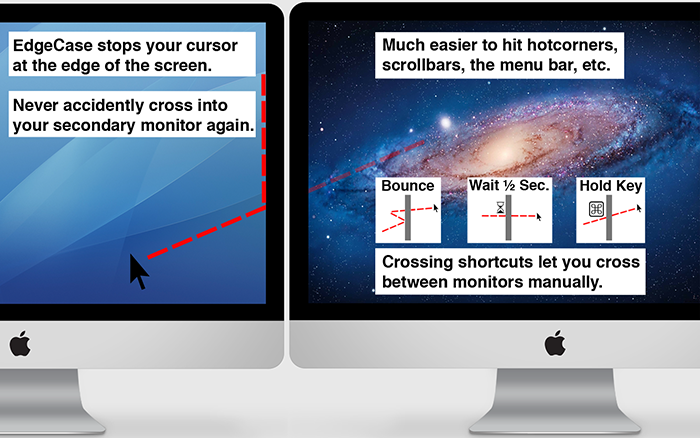
Apple doesn’t allow native cursor locking, so here’s what actually works.
Use EdgeCase (Paid App)
EdgeCase is the only reliable solution for macOS users who want to lock mouse to one monitor.
- Available on the App Store for $14.99.
- Blocks mouse movement between monitors.
- Simple on/off toggle.
No free alternatives offer full locking. Some older tools like Mos or BetterTouchTool can tweak cursor behavior but not fully restrict it.
Enlarge Cursor for Better Control
If you can’t buy EdgeCase, improve visibility instead.
Navigate to:
Apple Menu > System Settings > Accessibility > Display > Cursor
Increase the size slider. A bigger cursor is easier to track, reducing disorientation.
Limitation: Doesn’t prevent crossing.
Benefit: Helps you stay aware of cursor position.
Use this as a stopgap while adapting your workflow.
Gaming: Stop Mouse Escape in Fullscreen

Keep your cursor locked inside the game window.
Switch to Fullscreen Mode
Borderless window mode lets the cursor escape. Exclusive Fullscreen doesn’t.
In your game settings:
– Change display mode from Borderless Window to Fullscreen.
– The OS treats the game as the only active display, so the cursor stays locked.
Note: Alt-tabbing takes longer, but interruptions are prevented.
Use Borderless Plus Dual Monitor Tools
Want quick alt-tabbing? Keep borderless mode and do this:
- Launch Dual Monitor Tools.
- Press your lock hotkey before starting the game.
- Your cursor won’t leave the screen, even in borderless mode.
Perfect for competitive games or streamers.
Fix Aspect Ratio Glitches
Sometimes borderless mode resizes the game window incorrectly, shifting cursor alignment.
- Reset resolution to match your monitor’s native settings (like 1920×1080).
- Disable dynamic resolution scaling if enabled.
- Restart the game after changing display settings.
Troubleshoot Cursor Locking Problems
Fix common issues fast with these solutions.
Cursor Stuck in Corner
Common causes include:
– Mismatched refresh rates
– Driver bugs
– Overly tight diagonal layout
Try these fixes:
– Match both monitors to the same refresh rate (like 60Hz).
– Reconnect the mouse by unplugging USB or restarting Bluetooth.
– Reopen Display settings and adjust the overlap to add 10 pixels of shared edge.
Can’t Enable Lock in Software
Check these items:
– Admin rights: Run the app as administrator.
– Driver conflicts: Update mouse drivers from Logitech, Razer, or your brand.
– Hotkey enabled: In Dual Monitor Tools, confirming “Enable this Hotkey” is required.
Need Temporary Locking?
Use these options:
– Dual Monitor Tools with Shift-to-release
– Lock Cursor in Monitor (hold to lock)
Avoid constantly toggling settings. These give you dynamic control instead.
Choose the Right Method for You
| Use Case | Best Solution |
|---|---|
| No software allowed | Diagonal monitor layout |
| Gaming in borderless | Dual Monitor Tools plus hotkey |
| Drawing with tablet | Avoid diagonal; use software lock |
| macOS user | Buy EdgeCase or enlarge cursor |
| Quick precision clicks | Lock Cursor in Monitor (hold Ctrl) |
| Full focus session | Show only on 1 (disable second screen) |
Frequently Asked Questions About Locking Mouse to One Monitor
Can I lock my mouse to one monitor without installing software?
Yes. The diagonal monitor layout method in Windows Display Settings lets you restrict cursor movement without any third-party tools. By arranging your screens diagonally so only a small corner touches, you make accidental crossings rare. For absolute locking without software, you can disable the second display entirely using the “Show only on 1” option.
Does Windows 11 have a built-in cursor lock feature?
No. Windows 11 does not include a native setting to lock the mouse cursor to a single monitor. Users must rely on workarounds like diagonal display arrangements or third-party software such as Dual Monitor Tools to achieve cursor restriction.
What is the best free software to lock mouse to one monitor?
Dual Monitor Tools is widely considered the best free solution. It offers a “Sticky Cursor” feature with customizable hotkeys, allowing you to lock and unlock your cursor instantly. It also includes a temporary release key for moments when you need to move between screens.
How do I stop my mouse from leaving a game window?
Switch your game from Borderless Window mode to exclusive Fullscreen mode. This forces the operating system to treat the game as the only active display, naturally keeping the cursor inside. If you prefer borderless mode for quick alt-tabbing, use Dual Monitor Tools with a lock hotkey activated before launching the game.
Can Mac users lock the mouse to one monitor?
True cursor locking on macOS requires a paid app called EdgeCase, available on the App Store for $14.99. There are no free third-party tools that fully restrict cursor movement between extended displays on Mac. As a free alternative, enlarging the cursor through Accessibility settings improves visibility and tracking.
Will a diagonal monitor layout affect my drawing tablet?
Yes. Diagonal arrangements can interfere with graphics tablets like Wacom that map directly to screen coordinates. The misaligned logical layout can cause pen input to register incorrectly. If you use a drawing tablet, stick to software-based locking methods like Dual Monitor Tools instead.
Key Takeaways for Locking Your Mouse to One Monitor
There’s no built-in “lock mouse” button on Windows or macOS, but you have plenty of effective options. Start with the diagonal layout for a free, instant fix that solves most accidental crossing issues. If you need true locking, Dual Monitor Tools is the best free choice for Windows users, offering hotkey control and temporary release options.
Mac users should invest in EdgeCase or adapt with larger cursors through Accessibility settings. Pair any method with updated mouse drivers and proper display alignment, and you’ll never lose your cursor again. Pick the method that matches your workflow today and enjoy uninterrupted focus on every task.


