
A dirty touch screen monitor does more than look bad. It reduces touch sensitivity, distorts visuals, and collects germs from constant finger contact. Whether you manage an office kiosk, a home desktop, or an interactive display, fingerprints and dust build up quickly. Cleaning it the wrong way can strip protective coatings, cause scratches, or even trigger electrical failure. The good news is that learning how to clean touch screen monitor surfaces properly takes just a few minutes with the right tools. This guide walks you through screen-safe techniques that keep your display clear, responsive, and free from streaks or damage.
Choose the Right Cleaning Tools

Your touch screen has a sensitive surface, often coated with an oil-repelling layer that wears away under harsh chemicals or rough fabrics. Starting with safe materials protects this coating and prevents lasting harm.
Microfiber Cloth Is the Only Safe Fabric
A microfiber cloth is the gold standard for touch screen care. Its lint-free, ultra-soft fibers lift dust and oils without leaving scratches. Paper towels, tissues, and cotton shirts contain rough fibers that create micro-scratches over time. Always use a clean section of the cloth to avoid spreading grime back onto the screen.
Distilled Water Beats Tap Water
For damp cleaning, distilled water is the safest option. Tap water carries minerals that leave hazy streaks, especially on matte and anti-glare finishes. Never spray water directly onto the screen. Lightly dampen your microfiber cloth and wring it until barely moist. Excess liquid can seep into the bezel and damage internal electronics.
Skip Harmful Household Cleaners
Avoid window cleaners like Windex, which contain ammonia that strips protective coatings. High-concentration isopropyl alcohol (above 85%) and undiluted bleach also degrade screen layers. Even hand sanitizer can harm the surface with frequent use. Stick with distilled water and screen-safe products for the best results.
Power Down Before You Start
Always turn off and unplug your monitor before cleaning. A black screen makes smudges and dust far more visible, helping you spot missed areas. Powering down also eliminates shock risks and prevents accidental touch inputs during wiping.
Eliminate Electrical Hazards
Even small amounts of moisture can short-circuit components if they reach the monitor’s edges. Unplugging removes this danger entirely. Wait one to two minutes after wiping before powering the device back on to ensure complete dryness.
Spot Grime More Easily
With the screen dark, fingerprints, dust, and oily residues stand out clearly. This visibility leads to a more thorough clean, especially along the bezel where buildup tends to hide.
Use the Correct Wiping Technique
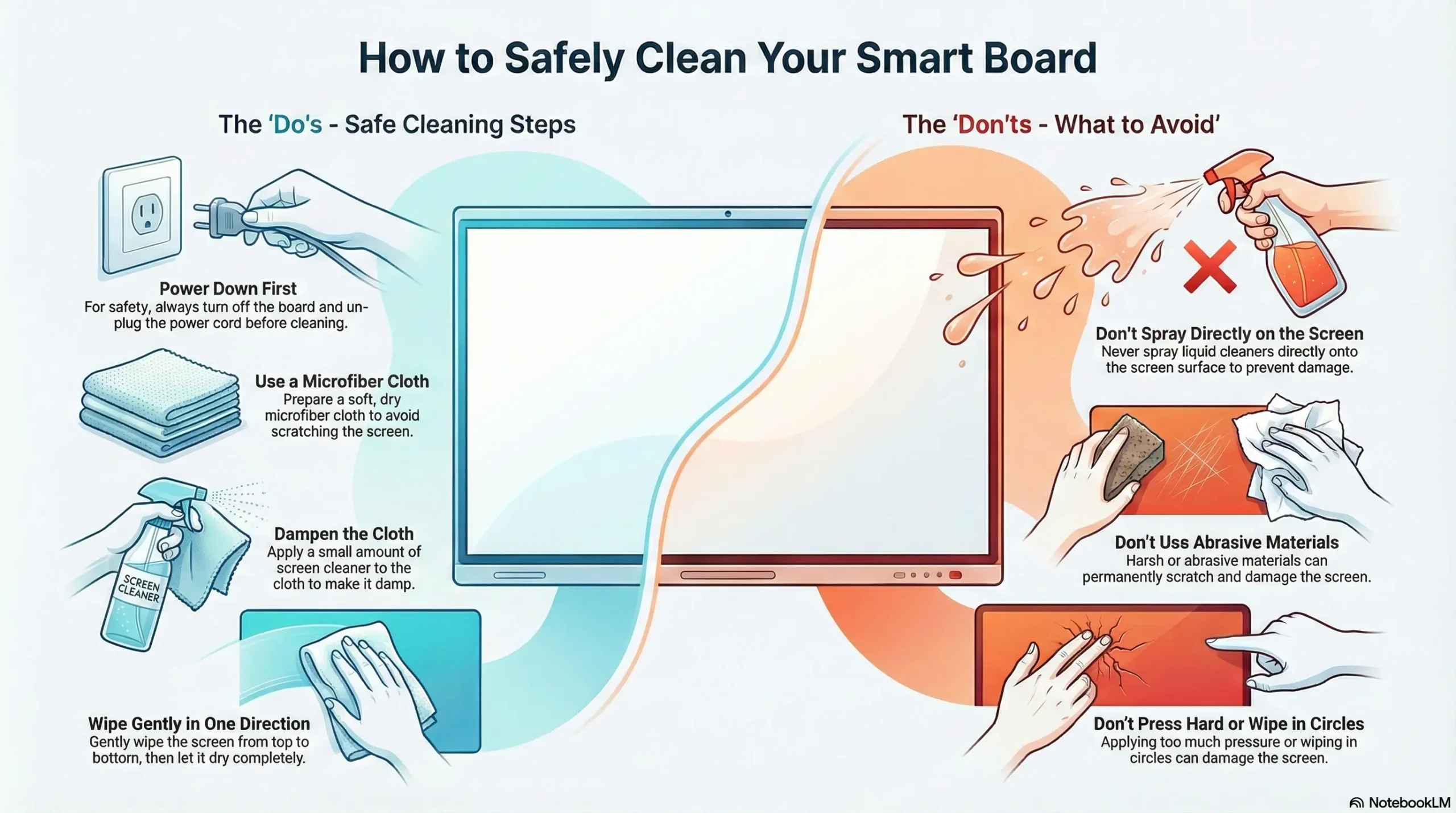
How you wipe matters as much as what you use. Wrong motions or heavy pressure can damage coatings or leave streaks behind.
Begin With a Dry Wipe
Start with a dry microfiber cloth. Gently wipe in straight lines or small circles to lift loose dust and light fingerprints. This step alone often removes most daily grime without needing any liquid.
Dampen Only When Necessary
If smudges remain, lightly mist distilled water onto the cloth, never the screen. Wring thoroughly so the cloth feels damp, not wet. Wipe gently using top-to-bottom strokes on large monitors to control liquid flow. Scrubbing is never the answer.
Buff Dry for a Streak-Free Finish
After wiping, use a dry section of the microfiber cloth to buff the screen. This step eliminates water spots and ensures no moisture lingers near the edges. Allow an extra minute of air-drying before powering back on.
Remove Stubborn Smudges Without Damage
Dried spills and sticky residues sometimes resist standard cleaning. Tackle them safely with these techniques.
Try a Vinegar Mix on Glossy Screens
For tough grime on glossy displays, mix equal parts distilled water and white vinegar. Lightly dampen the cloth and wipe gently. Never use this mix on matte or anti-glare finishes since vinegar can degrade the textured surface over time.
Use Eyeglass Cloths for Sticky Spots
An eyeglass cleaning cloth works wonders on sticky residue. These cloths are designed for delicate optical surfaces and often dissolve grime without added liquid. Breathing lightly on the screen creates a thin fog that helps loosen stubborn marks before wiping.
Never Press Harder
If a smudge does not lift after three gentle passes, re-dampen the cloth slightly. Pressing harder grinds debris into the coating and causes permanent scratches or burnishing. Patience and proper moisture always beat force.
Clean Large Screens With Extra Care
Monitors 32 inches and larger need special attention because gravity pulls liquids downward and surface area makes even pressure harder to maintain.
Work in Quadrants
Mentally divide the screen into four sections. Clean one quadrant at a time and buff it dry before moving on. This prevents liquid from drying mid-process, which causes streaks.
Control Moisture on Vertical Panels
On upright large displays, liquid runs downward quickly. Over-wetting increases the risk of seepage into the bottom bezel. Wring your cloth more thoroughly than you would for a phone or tablet.
Maintain Even Pressure
Applying consistent light pressure across a big screen is challenging. Use broad, sweeping motions instead of focused scrubbing. This protects the coating and ensures uniform cleaning.
Disinfect Only When Truly Necessary

Cleaning removes dirt while disinfecting kills germs. For shared screens in offices, schools, or healthcare settings, disinfection matters, but it should never replace routine cleaning.
Use EPA-Registered Disinfectants
Choose only EPA-registered wipes that are safe for electronics:
– Clorox Disinfecting Wipes (Reg. No. 5813-79)
– Lysol Clean & Fresh Multi-Surface Cleaner (20% solution)
– Purell Professional Surface Disinfectant Wipes
– Sani-Cloth Prime Germicidal Wipes
Never spray directly on the screen. Dampen a cloth first and squeeze out excess liquid.
Follow the Required Contact Time
Most disinfectants need the surface to stay wet for 30 seconds to 4 minutes to kill pathogens. Wipe gently in circles and reapply if the surface begins drying. Let the screen air-dry completely before use.
Limit Frequency to Preserve the Coating
Daily disinfection with alcohol-based wipes degrades the oleophobic layer over time. Reserve disinfecting for high-risk periods or visible contamination. Routine hygiene should rely on microfiber and distilled water.
Treat Glossy and Matte Finishes Differently

Not all screens respond the same way to cleaning. Knowing your finish type prevents irreversible damage.
Glossy Screens Tolerate Mild Solutions
Glossy displays show fingerprints easily but handle mild cleaning better than matte screens. Distilled water and microfiber work perfectly. A vinegar-water mix is acceptable occasionally for tough spots.
Matte Screens Need Gentle Handling
Matte and anti-glare screens have a textured surface that diffuses light. Dry scrubbing or heavy pressure can polish this texture, creating shiny burnished spots that ruin the anti-glare effect. If a smudge refuses to lift after dry wiping, add a drop of distilled water instead of pressing harder.
Never Use Alcohol on Matte Finishes
Alcohol and vinegar break down the chemical treatment on matte surfaces. Stick with water-only cleaning to preserve the texture and performance.
Prevent Damage With Smart Habits
Good daily habits extend your screen’s life and reduce how often you need deep cleaning.
Wipe Daily With a Dry Cloth
Run a dry microfiber cloth over the screen every day, especially in shared environments. This removes fresh oils before they bond with the surface.
Encourage Clean Hands
Ask users to wash their hands before touching the screen. Oily fingers accelerate smudging and wear down the protective coating faster.
Add a Screen Protector
A high-quality screen protector shields the surface from scratches, smudges, and disinfectant damage. Replace it easily when worn to preserve the original screen underneath.
Store Portable Devices Properly
For portable touch monitors, store them in sealed cases when not in use. This prevents dust buildup and accidental spills during transport.
Recover From Common Cleaning Mistakes
Even careful users make errors. Here is how to correct them without causing further damage.
After Using Paper Towels
If streaks or scratches appeared from paper towel use, switch immediately to microfiber and distilled water. Microfiber will gradually remove residue, though permanent micro-scratches may remain.
After Spraying Cleaner Directly on the Screen
Power off and unplug the monitor right away. Blot excess moisture with a dry cloth and let the device air-dry for at least 24 hours in a well-ventilated space. Never use heat sources like hair dryers, which can drive moisture deeper into components.
After the Coating Is Already Damaged
If the screen feels sticky or fingerprints will not wipe away, the oleophobic coating may be stripped. While it cannot be restored, a quality screen protector can improve usability and reduce future smudging.
Frequently Asked Questions About Touch Screen Monitor Cleaning
Can I use Windex to clean my touch screen monitor?
No. Windex contains ammonia, which strips oleophobic coatings and damages the screen surface over time. Use distilled water and a microfiber cloth instead for safe daily cleaning.
How often should I clean my touch screen monitor?
Dry-wipe daily with a microfiber cloth to remove fresh fingerprints. Perform a deeper clean with distilled water weekly. Disinfect only during high-risk periods or when visible contamination appears.
What is the best cloth for cleaning a touch screen?
A clean microfiber cloth is the best option. Its lint-free, ultra-soft fibers lift oils and dust without scratching. Avoid paper towels, tissues, and cotton shirts, which contain abrasive fibers.
Is it safe to use alcohol wipes on a touch screen?
Alcohol wipes are safe only at concentrations between 70% and 85% and only when disinfection is truly necessary. Frequent use degrades the oleophobic coating, so limit alcohol-based products to occasional disinfection.
How do I clean sticky residue like coffee or soda off my touch screen?
Use an eyeglass cleaning cloth or a microfiber cloth lightly dampened with distilled water. Breathe on the screen to create a thin fog that loosens the residue, then wipe gently. Never scrub or press harder.
What should I do if liquid spills directly on my monitor?
Power off and unplug the device immediately. Blot excess liquid with a dry cloth without wiping. Let the monitor air-dry for at least 24 hours in a ventilated area. Avoid heat sources and consult a professional if seepage is suspected.
Key Takeaways for Cleaning Your Touch Screen Monitor
Learning how to clean touch screen monitor surfaces protects your investment and keeps your display looking sharp. Always power down before cleaning and use microfiber cloths with distilled water as your primary tools. Avoid ammonia, high-concentration alcohol, and paper products that scratch or strip coatings. Treat glossy and matte finishes differently, and reserve disinfectants for situations where germ control truly matters. Build a simple daily habit of dry-wiping to prevent buildup before it starts. With these practices, your touch screen will stay clear, responsive, and protected for years to come.


