
You’ve just unboxed a new monitor or need to set up a second screen for work, gaming, or creativity. But how do you actually connect it? Whether you’re using a laptop, desktop, or all-in-one PC, the process hinges on matching ports, using the right cable, and configuring your display settings correctly. This guide covers how to connect a monitor to any system, wired or wireless, with clear, actionable steps.
You’ll learn how to identify your ports, choose the correct cable, troubleshoot detection issues, and optimize your setup for productivity or performance. By the end, you’ll have a crisp, stable image and a workspace tailored to your needs.
Identify Your Monitor and PC Ports
Before plugging anything in, check the available video output ports on your computer and the input ports on your monitor. Matching them ensures a seamless connection.
Common Monitor Input Ports
- HDMI: Found on nearly all modern monitors. Carries both video and audio.
- DisplayPort: Preferred for high-refresh gaming and 4K+ resolution work.
- USB-C: Slim, reversible port that supports video, data, and power delivery.
- DVI/VGA: Older ports; mostly seen on legacy systems.
PC Output Port Options
- Laptops: Often have HDMI, USB-C (sometimes with video support), or Thunderbolt.
- Desktops: Graphics cards typically include HDMI, DisplayPort, and sometimes DVI.
- MacBooks: Use USB-C or Thunderbolt 3 or 4 for video output.
💡 Pro Tip: Look up your device model online if unsure. Not all USB-C ports support video. Only those with DisplayPort Alt Mode or Thunderbolt can drive a display.
Choose the Right Cable or Adapter

Your connection type depends on which ports are available on both devices. Direct port matching delivers the best performance.
Match Ports Directly for Best Results
| Source → Monitor | Cable Needed |
|---|---|
| HDMI → HDMI | HDMI to HDMI |
| DisplayPort → DisplayPort | DisplayPort to DisplayPort |
| USB-C → USB-C | USB-C to USB-C (with video support) |
Use high-speed certified cables for 4K, HDR, or 144Hz+ refresh rates.
Use Adapters When Ports Don’t Match
- USB-C to HDMI/DisplayPort: For modern laptops connecting to older monitors.
- HDMI to DisplayPort: Requires an active adapter, not passive.
- USB-A to HDMI: Only works with DisplayLink adapters and driver installation.
- VGA from Digital Source: Use a USB-C or HDMI to VGA adapter for analog conversion.
⚠️ Warning: Passive adapters like HDMI to DisplayPort usually don’t work. Always verify active status for cross-standard conversions.
Connect the Monitor with a Wired Setup
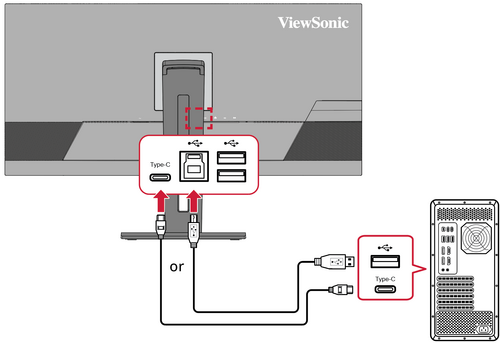
Follow these universal steps for a reliable wired connection.
Power and Cable Connection Steps
- Shut down the computer to prevent signal conflicts.
- Plug in the monitor’s power cable to the wall and the monitor.
- Connect the video cable:
– Insert one end into the PC’s video output (not motherboard HDMI if using a dedicated GPU).
– Plug the other end into the monitor’s input port. - Attach USB upstream cable (if applicable): If your monitor has USB ports, connect the included USB-B to USB-A cable to your PC for hub functionality.
- Turn on the monitor first, then power on the computer.
Select the Correct Input Source
If no image appears, press the Input or Source button on the monitor. Cycle through options like HDMI 1, DisplayPort, or USB-C until the signal is detected.
USB-C and Thunderbolt Connections
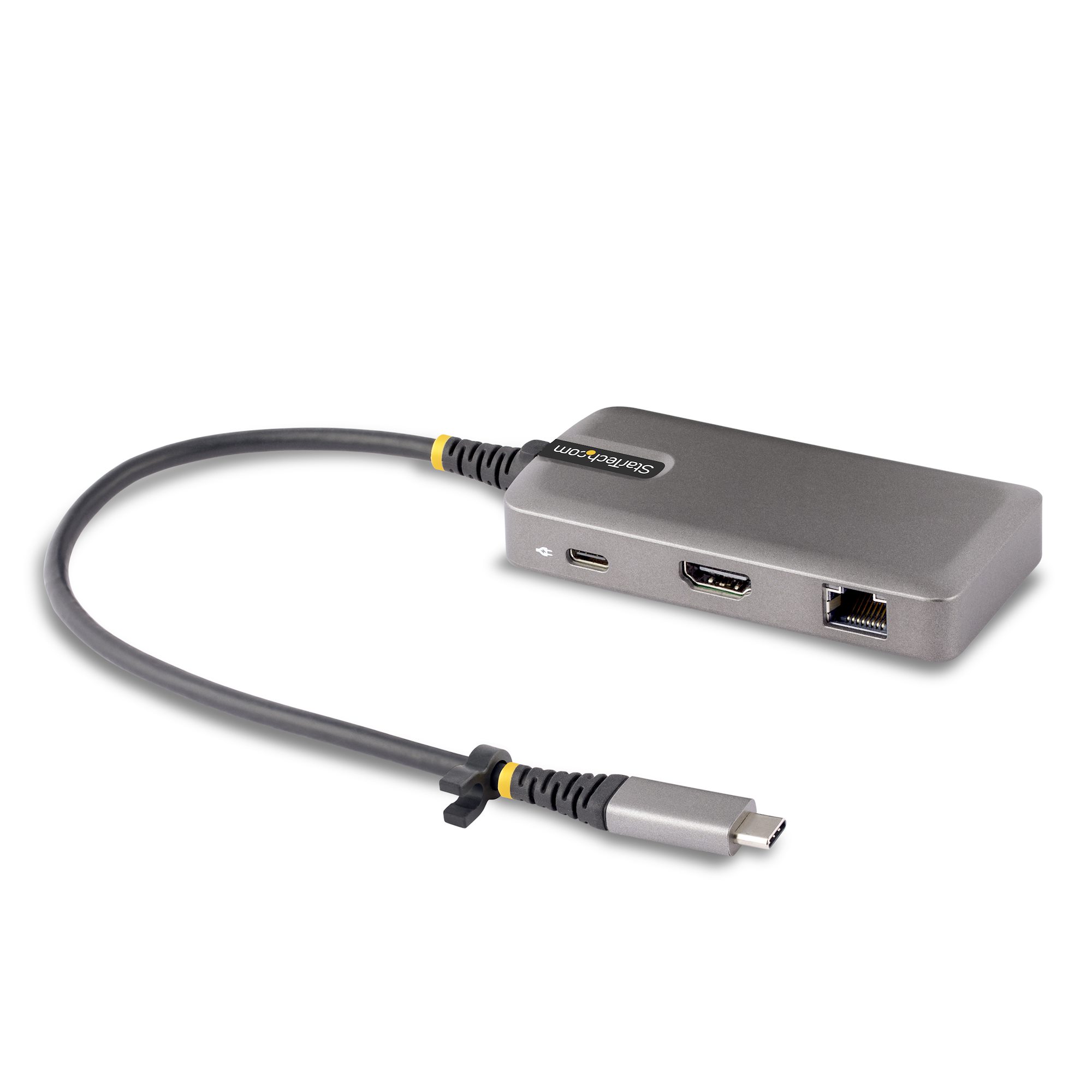
Modern laptops often rely on USB-C. Here’s how to use them effectively.
Direct USB-C to Monitor
- Requirement: Both devices must support DisplayPort Alt Mode.
- Action: Use a USB-C to USB-C cable. The monitor should wake automatically when the PC boots.
USB-C to HDMI or DisplayPort via Adapter
- Plug a USB-C to HDMI adapter into your laptop.
- Connect an HDMI cable from the adapter to the monitor.
- Choose HDMI input on the monitor.
Using a Docking Station
- Connect a powered USB-C dock to your laptop.
- Plug the monitor into the dock via HDMI or DisplayPort.
- Benefit: Single-cable setup for power, display, and peripherals.
✅ Best Practice: Use docks with their own power supply to avoid bandwidth throttling.
Wireless Monitor Connection Using Miracast
Skip the cables if both devices support wireless display technology.
How to Connect Wirelessly on Windows
- Press Windows + K to open the Cast menu.
- Select your monitor or wireless display from the list.
- Wait for connection; it may take a few seconds.
Requirements
- PC and monitor or dongle must support Miracast.
- Both must be on the same Wi-Fi network.
- Expect slight latency; this method is not ideal for gaming or video editing.
📝 Note: Apple devices use AirPlay, not Miracast. Use AirPlay-compatible monitors or third-party software.
Configure Display Settings on Windows and Mac
After physical connection, configure your OS to use the monitor properly.
Windows 10/11: Set Up Dual Screens
- Right-click desktop → Display settings.
- Click Detect if the monitor isn’t showing.
- Arrange displays: Drag on-screen boxes to match your desk layout.
- Choose display mode:
– Extend: Spread desktop across screens (recommended).
– Duplicate: Mirror screen (good for presentations).
– Show only on 1/2: Disable one display. - Set primary monitor: Select a display → check Make this my main display.
- Adjust resolution and scaling per monitor for clarity.
🔧 Quick Switch: Press Windows + P to toggle between modes instantly.
macOS: Extend or Mirror Display
- Apple Menu → System Settings → Displays.
- Click the Arrangement tab.
- Drag the white menu bar to the screen you want as primary.
- Uncheck Mirror Displays to extend; leave checked to duplicate.
- Use Scaled under Resolution to adjust clarity.
Fix Common Connection Problems
Even with the right cable, issues can arise. Here’s how to fix them fast.
Monitor Shows “No Signal”
- Check power and input source: Ensure monitor is on and set to correct input (e.g., HDMI 2).
- Reseat cables: Unplug and firmly reconnect both ends.
- Try a different cable or port: Rule out hardware failure.
- Restart with monitor connected: Boot PC after monitor is powered on.
No Audio Through HDMI
- Windows: Right-click speaker icon → Open Sound settings. Under Output, select the monitor.
- Mac: System Settings → Sound → Output → choose monitor.
💡 Test with a different HDMI cable if audio still fails. Some cables degrade over time.
Blurry or Fuzzy Text
- Set resolution to native (e.g., 1920×1080, 3840×2160).
- Adjust scaling in Display Settings (e.g., 125% for 4K screens).
- Update graphics drivers:
- Windows: Device Manager → Display adapters → Update driver.
- Mac: Software Update in System Settings.
USB-C Not Working
- Confirm the port supports video (check device specs).
- Try a different USB-C port. Some are data-only.
- Use a certified adapter; cheap ones often fail.
Advanced Multi-Monitor Setups

Boost productivity with dual or daisy-chained displays.
Run Two Monitors with Different Resolutions
- In Display Settings, select each monitor individually.
- Set independent resolution and scaling.
- Example: 1080p laptop (100% scale) + 4K monitor (150% scale).
Daisy Chain Monitors Using DisplayPort MST
- Requirement: Monitors must support DisplayPort 1.2+ MST.
- Steps:
1. Connect PC to first monitor via DisplayPort.
2. Link first monitor’s DisplayPort Out to second monitor’s DisplayPort In.
3. Windows or macOS detects both as separate displays.
⚠️ HDMI does not support daisy chaining.
Use Thunderbolt for High-Bandwidth Work
- Ideal for dual 4K displays, video editing, or docking.
- Connect via Thunderbolt 3 or 4 to a compatible dock or monitor.
- Supports power delivery, data, and video over one cable.
Optimize Ergonomics and Longevity
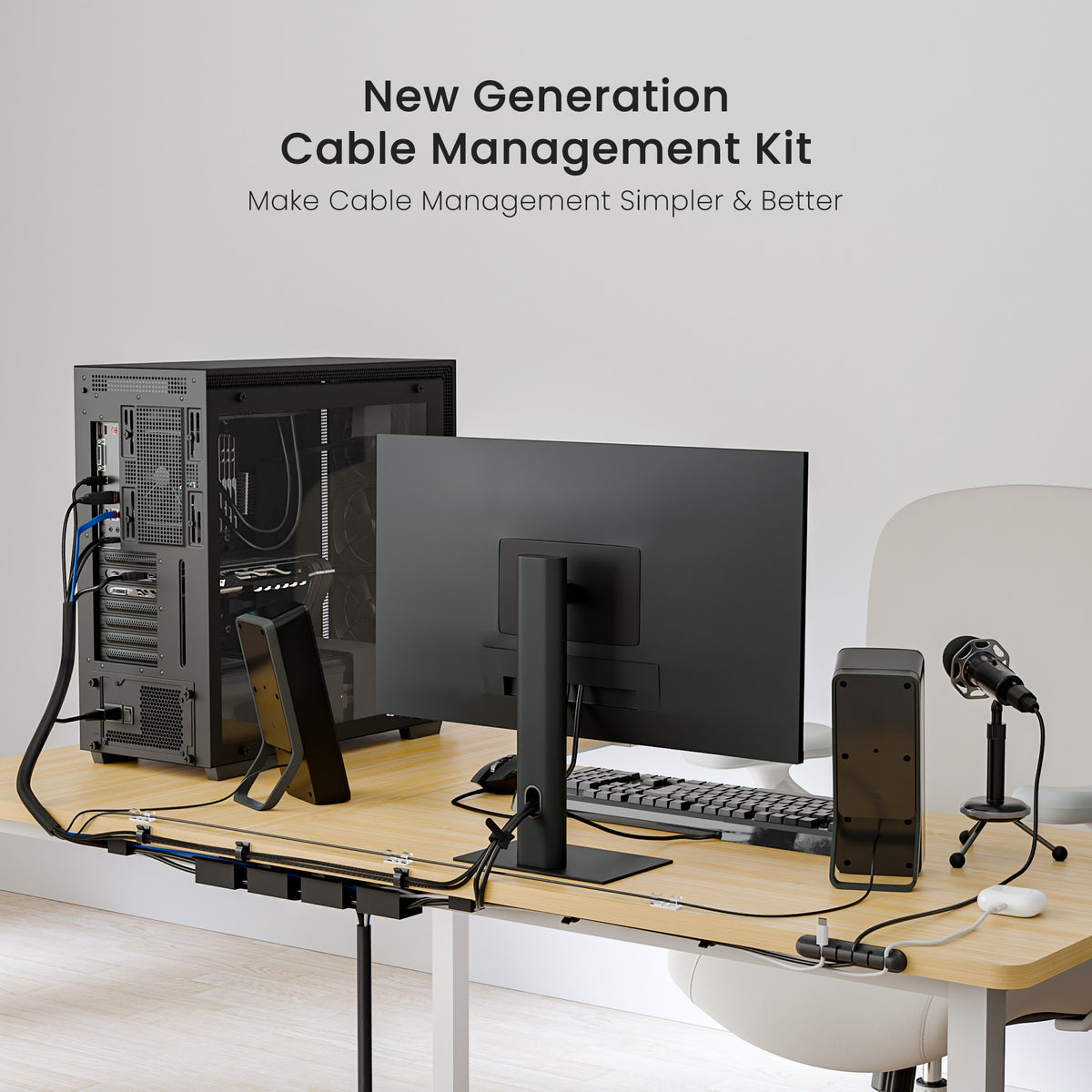
A great setup isn’t just technical. It’s comfortable and durable.
Monitor Positioning Tips
- Top of screen at eye level to avoid neck strain.
- 20 to 30 inches away (arm’s length).
- Tilt slightly back (10 to 20 degrees).
- Use a stand or arm for adjustability.
Protect Your Equipment
- Avoid cable stress: Don’t let cords hang or bend sharply.
- Clean ports gently: Use compressed air to remove dust.
- Update drivers regularly: Ensures compatibility and peak performance.
- Use certified cables: Especially for USB-C or Thunderbolt to prevent damage.
🔐 Warranty Alert: Third-party non-compliant adapters may void hardware warranties. Stick to branded or certified gear.
Frequently Asked Questions About How to Connect a Monitor
What cable do I need to connect a monitor to my laptop?
You need a cable that matches ports on both devices. HDMI and USB-C are most common on laptops. If ports differ, use an active adapter like USB-C to HDMI or DisplayPort.
Why is my monitor saying no signal?
The monitor may be on the wrong input source, or the cable may be loose. Reseat both ends, confirm the correct input (HDMI 1, DisplayPort), and restart with the monitor powered on first.
Can I connect a monitor without HDMI?
Yes. DisplayPort, USB-C with DisplayPort Alt Mode, Thunderbolt, and DVI all support video output. Older systems can use VGA with a compatible adapter.
How do I connect two monitors to one computer?
Use two separate video cables from your graphics card, or daisy chain via DisplayPort MST. In Windows Display Settings, choose Extend to spread your desktop across both screens.
Does wireless monitor connection work for gaming?
It works for casual use but introduces latency. For competitive gaming or video editing, use a wired DisplayPort or HDMI connection instead.
How do I get sound to play through my monitor?
Set the monitor as the audio output device. On Windows, go to Sound settings and choose the monitor. On Mac, go to System Settings → Sound → Output.
Key Takeaways for Successfully Connecting Your Monitor
Connecting a monitor is simple when you match the right ports and configure settings properly. Start with HDMI or DisplayPort for reliability, use USB-C for modern laptops, and leverage adapters only when necessary.
For future-proofing, invest in high-quality cables and consider a docking station if you move between desks often. Whether you’re expanding your workspace or upgrading your gaming rig, these steps ensure you’ll get a crisp, stable image every time.


