
A flickering screen, frozen settings, or a completely black display can stop your work in its tracks. Most Dell monitor problems trace back to corrupted internal memory or stuck configurations that a proper reset can clear. This guide shows you exactly how to reset a Dell monitor using three proven methods, plus how to verify the fix and troubleshoot what comes next.
You will learn the hard power cycle, the on-screen menu reset, and the deep softMCCS factory restore. We will also cover built-in diagnostics so you know whether your monitor is truly fixed or needs professional service.
Perform a Hard Power Reset on Your Dell Monitor

A hard reset clears residual electrical charge that causes blank screens, frozen menus, or signal detection failures. This is always the first step when your Dell monitor stops responding.
Disconnect Every Cable
Power off both your PC and monitor completely. Unplug the following:
- Power cord from the wall and monitor
- HDMI, DisplayPort, VGA, DVI, or USB-C video cable
- USB peripherals connected to the monitor hub
- External drives, printers, or hubs linked to the PC
Removing every connection isolates the monitor from signal conflicts that may be blocking startup.
Drain Residual Power
Hold the power button for 8 seconds to discharge internal capacitors.
- Mechanical button: press and hold firmly
- Touch-sensitive button: simply wait 8 seconds after unplugging
This duration matters. Shorter holds may not clear volatile memory errors stored in the circuitry.
Reconnect and Test
Plug in only the power cable. Turn on the monitor, then boot the PC. Look for the floating “No Cable” message on screen.
Pro Tip: Seeing the “No Cable” dialog confirms the panel and electronics work. The problem was likely power-related, and you can now reconnect your video cable.
Use softMCCS for a Deep Factory Reset
When colors look washed out, geometry appears skewed, or OSD settings refuse to save, the softMCCS utility performs a firmware-level reset that the on-screen menu cannot match. This tool communicates directly with your monitor through DDC/CI commands.
Install the softMCCS Tool
Download smsetup.exe from a trusted source. Run the installer and follow these steps:
- Click Yes when User Account Control appears
- Accept the license agreement
- Check “Create a desktop icon”
- Leave “Launch softMCCS” selected at completion
- Click Install, then Finish
Restore All Factory Defaults
Open softMCCS and verify your Dell monitor appears at the top of the window. If a detection warning pops up, click Cancel to proceed.
Scroll to the Preset operations section. Click the green restore arrow next to each of these four options:
- Restore factory defaults
- Restore factory luminance and contrast defaults
- Restore factory geometry defaults
- Restore factory color defaults
Each click may briefly black out the screen. This is normal behavior. Close the application and click Yes when prompted to save changes.
Note: softMCCS requires a working video cable connection and Windows detection of the monitor to function.
Reset Through the On-Screen Display Menu
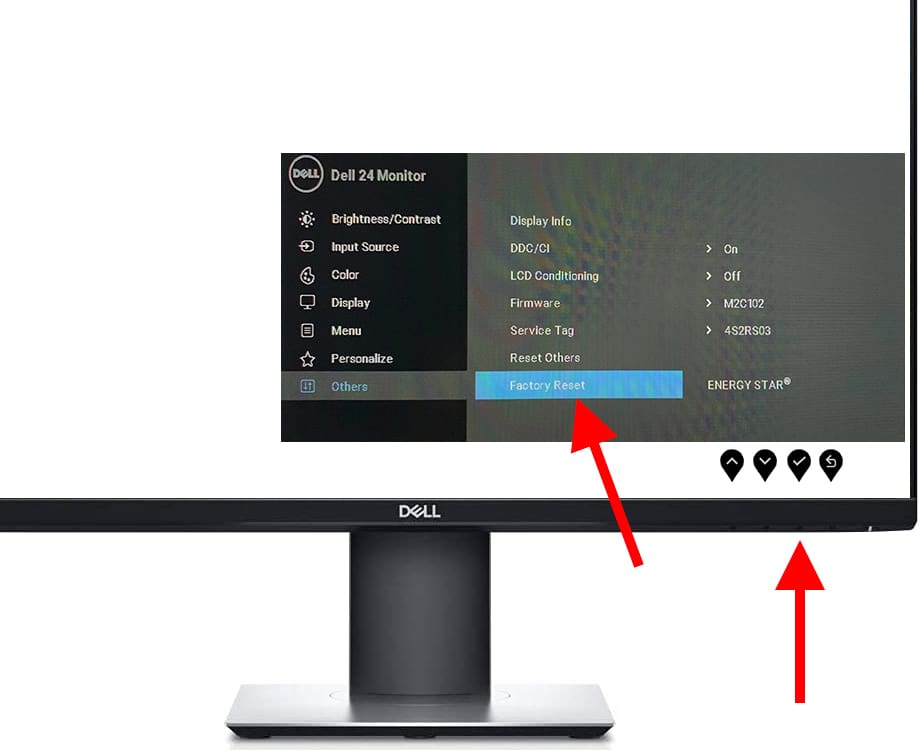
For minor glitches like wrong brightness, input selection errors, or color temperature drift, the built-in OSD menu offers the fastest fix. This method works on virtually every Dell monitor model.
Access the OSD Menu
Press the bottom control button or joystick on the front or right edge of your monitor. A menu appears on screen.
Navigate to the reset location:
- Menu
- Settings
- Others or Reset
The exact path varies by model, so consult your manual if these labels differ.
Select the Factory Reset Option
Look for one of these labels:
- Factory Reset
- Reset All
- Reset to Default
Select the option, confirm your choice, and let the monitor restart on its own.
Model-Specific Help: Enter your Service Tag or monitor model number at the Dell Support site to download the correct Product Manual with navigation maps for your specific display.
Run Built-in Diagnostics After Resetting
After completing any reset method, verify the monitor’s hardware health using Dell’s diagnostic tools. This step confirms whether the issue is internal or external.
Enter Self-Test Mode
- Shut down the PC
- Disconnect the video cable from the monitor
- Power on the monitor
If functional, a floating “No Cable” dialog scrolls across a black background. The power LED glows white (or amber on older models).
Good Sign: Floating message means the panel and electronics work correctly.
Bad Sign: Black screen with no message indicates likely hardware failure.
Start the Built-in Diagnostics Test
On Dell monitors released after March 2016, Built-in Diagnostics (BID) activates automatically in Self-Test mode or through a button press, often the menu button.
The screen cycles through solid colors:
- Red
- Green
- Blue
- White
- Black
Interpret the Results
- No defects visible: the monitor is healthy. The problem lies with your PC, cable, or graphics card.
- Dead pixels, streaks, or discoloration visible: hardware fault confirmed.
Take photos of any faulty screens and contact Dell Support with your Service Tag for warranty evaluation.
Fix Common Problems After a Dell Monitor Reset

Some issues persist even after a successful reset. Use these targeted checks to isolate the real cause.
Screen Still Black? Check Brightness First
In bright rooms, a dim screen looks completely black. Press the menu button to summon the OSD. Navigate to Brightness/Contrast and raise brightness to 100%.
If the OSD does not appear, the problem is not a setting. It is a signal or hardware issue.
Eliminate Peripheral Conflicts
External devices can block boot signals or interrupt video processing.
- Disconnect all non-essential peripherals
- Boot the system
- Reconnect devices one at a time
This process identifies which hardware is interfering with your display.
Test Cables and Ports
A faulty cable mimics monitor failure perfectly.
- Swap in a known working cable
- Try a different port type (HDMI to DisplayPort, for example)
- Connect the monitor to another PC
Cross-Test Rule: If a different monitor fails on your PC, the computer is the source of the problem, not the display.
Assess Physical Damage on Your Monitor
Resets cannot repair physical trauma. Inspect your monitor for these warning signs:
- Cracked screen surface
- Bent or crushed casing
- Liquid stains inside the panel
- Visible impact marks from drops
Such damage usually means internal component failure that requires professional service.
Warranty and Repair Options
- Under warranty: contact Dell Support immediately
- Accidental Damage Service (ADS): covers drops, spills, and surges
- No coverage: visit the Out of Warranty Repair page for a quote
Keep your Service Tag handy. It sits on the back label and unlocks manuals, support, and repair eligibility.
Prevent Future Dell Monitor Problems
A few simple habits keep your display running smoothly long after the reset.
Update Graphics Drivers
A reset clears monitor settings, but outdated GPU drivers can reintroduce glitches.
- Use Dell SupportAssist or Device Manager
- Download the latest drivers from Dell Drivers and Downloads
Inspect Cables Regularly
Frayed or sharply bent cables fail silently over time.
- Avoid tight bends
- Unplug by the connector, not the cord
- Replace damaged cables immediately
Control Environmental Factors
Heat, direct sunlight, and humidity degrade panel quality.
- Keep the monitor away from windows
- Avoid rapid temperature swings
- Use a surge protector
Frequently Asked Questions About Resetting a Dell Monitor
How long do you hold the power button to reset a Dell monitor?
Hold the power button for 8 seconds after disconnecting all cables. This duration allows internal capacitors to fully discharge and clears temporary memory errors stored in the monitor’s circuitry.
Will resetting a Dell monitor delete my settings?
Yes. A factory reset restores brightness, contrast, color, geometry, and all other settings to their original出厂 defaults. Any custom calibration or adjustments you made will be lost.
Why is my Dell monitor still black after a reset?
A black screen after reset usually means signal loss, not monitor failure. Check brightness first, swap video cables, test another port, and connect the monitor to a different PC. If the “No Cable” message appears during Self-Test, the monitor works and the issue lies elsewhere.
What is softMCCS and is it safe to use?
softMCCS is a Windows utility that sends DDC/CI commands directly to your monitor. It performs deeper resets than the OSD menu can handle. The tool is safe when downloaded from trusted sources and used as directed, though each reset briefly blacks out the screen.
How do I find my Dell monitor’s Service Tag?
The Service Tag is printed on a sticker on the back of your monitor. It is also accessible through Dell SupportAssist if installed on your PC. You need this tag to download model-specific manuals and check warranty status.
Can I reset a Dell monitor without a PC?
Yes. The hard power cycle and OSD factory reset both work without a connected computer. Only the softMCCS method requires a Windows PC with a working video connection.
Key Takeaways for Resetting Your Dell Monitor

Start with the 8-second hard power cycle since it solves most unresponsive display issues. Move to the OSD factory reset for setting-related glitches like wrong brightness or input selection. Use softMCCS when colors, geometry, or calibration refuse to cooperate. Always verify your fix with the Self-Test floating dialog and Built-in Diagnostics color cycle before assuming hardware failure.
Your next step: locate your Service Tag on the back of the monitor, run the hard reset right now, and check for the “No Cable” message. That single test tells you whether your monitor works and where to focus your troubleshooting efforts.


