
Is your ASUS monitor showing strange behavior like flickering, broken HDR, or an unresponsive OSD menu? These issues often trace back to outdated firmware. Learning how to update ASUS monitor firmware can resolve bugs, unlock new features, and ensure your display works smoothly with the latest GPUs and operating systems. This guide covers every supported method, from PC-based tools to USB flash drives, plus troubleshooting tips and safety best practices.
Whether you own a ROG Swift gaming monitor, a color-accurate ProArt display, or a newer MyASUS-compatible model, you’ll find clear instructions tailored to your setup. We’ll walk through verifying firmware availability, preparing your hardware, executing the update, and recovering if something goes wrong. By the end, you’ll know exactly how to update ASUS monitor firmware safely and confidently.
Verify Firmware Availability Before You Begin
Before downloading anything, confirm that your specific monitor model actually supports a user-accessible firmware update. Skipping this step can lead to wasted time or, worse, using the wrong file.
Check the ASUS Download Center
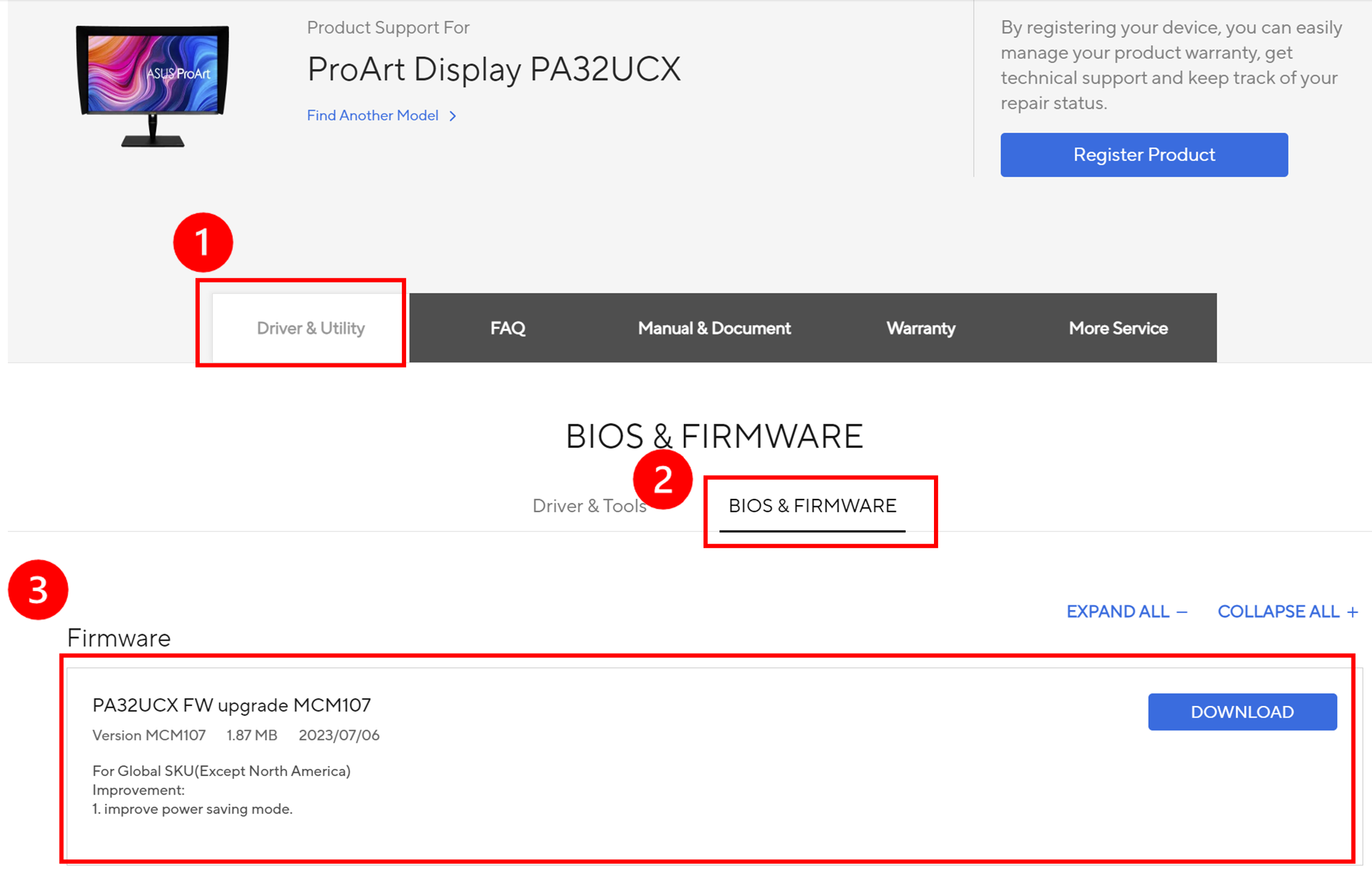
Visit the official ASUS Support website and enter your exact monitor model number. Navigate to the “Drivers and Utilities” section and look for a tab labeled “BIOS and Firmware.”
- A visible tab means a firmware update exists for your model.
- A missing tab means no public firmware is currently available.
- Never use firmware from a different model, even if it looks similar.
Some monitors, particularly ProArt and ROG Swift OLED units, only list firmware under this specific category. If you don’t see it, no action is required.
Identify Your Exact Model Number
Model suffixes matter. For example, PA32UCX-PK is not the same as PA32UCX, and PG42UQ differs from PG32UQ. Using incorrect firmware can permanently damage your monitor. Double-check the model printed on the back of your display before proceeding.
Prepare Your Hardware and Files
Firmware updates are low-risk when done correctly, but a power interruption or wrong file can brick your display. Preparation prevents disasters.
Gather What You Need
Your required tools depend on which update method you’ll use.
For PC-based updates (ROG series):
– Windows 10 or 11 PC
– HDMI or DisplayPort cable
– USB Type-A to Type-B cable (the same style used for printers)
For USB flash updates (ProArt and select models):
– USB flash drive with at least 100MB capacity
– A computer to format the drive
– Access to the monitor’s designated service port
Never use a USB hub. Plug the flash drive directly into the monitor’s built-in port.
Format the USB Drive Correctly
If you’re using the USB method, the drive must be formatted to FAT32.
- Insert the USB drive into your computer.
- Right-click the drive in File Explorer and select “Format.”
- Choose FAT32 as the file system.
- Check “Quick Format” and click Start.
NTFS and exFAT formats will not work. The monitor only recognizes FAT32.
Place the Firmware File in the Root Directory
After downloading the firmware package, extract the .bin file (such as PA32UCX.bin) and copy it directly to the main level of your USB drive. Do not place it inside any folder.
Correct path: USB:\PA32UCX.bin
Incorrect path: USB:\Firmware\PA32UCX.bin
Update ROG Swift Monitors Using the PC-Based Tool
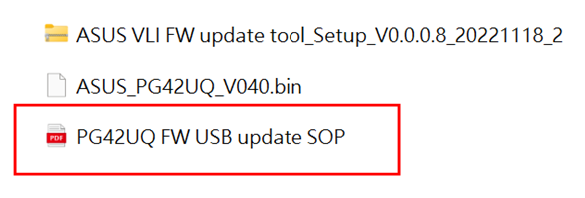
This method works for ROG Swift OLED and select high-end gaming monitors that include the ASUS VLI FW Update Tool in their firmware package.
Install the Firmware Tool
On the ASUS support page for your model, locate the firmware download and run the installer. The file is typically named something like ASUS VLI FW update Tool setup v0.0.8202211182.exe. Follow the on-screen prompts to complete installation, then launch the ASUS FW Update Tool from your Start menu.
Some packages include a README or SOP file. Read it before continuing, as instructions can vary slightly between models.
Connect the Monitor to Your PC
Connect your display using an HDMI or DisplayPort cable, then attach the USB Type-B end of your cable to the monitor and the USB Type-A end to your computer. Power on the monitor and wait for the update tool to display “Device Connect” before moving forward.
Run the Firmware Update
- Click “Open File” in the tool.
- Select the
.binfirmware file from the downloaded package. - Click “FW Update” to begin.
- Wait 10 to 15 minutes without interrupting power or unplugging cables.
- The monitor will reboot automatically when complete.
After the reboot, navigate to the OSD menu, go to Settings, and perform a Factory Reset. This step clears old configurations and ensures the new firmware takes full effect.
Verify the New Firmware Version
Open the OSD menu and navigate to “Information” or “System Info.” Confirm that the firmware version matches the one you just installed. If it hasn’t changed, the update likely failed and needs to be repeated.
Flash ProArt Monitors via USB Drive
For ProArt professional monitors, you can flash firmware directly from a USB drive without keeping a PC connected during the update.
Confirm Your Model Supports USB Updates
This method applies to the following ProArt models:
– PA24AC, PA27AC
– PA27UCX, PA27UCX-K
– PA329C, PA329Q
– PA32UC, PA32UCG, PA32UC-K
– PA32UCX, PA32UCXK, PA32UCX-P, PA32UCX-PK
– PA34VC
Always verify support through the ASUS Download Center before proceeding.
Start the USB Update Process
- Turn off the monitor completely.
- Insert the prepared USB drive into the correct port. Many models require a specific USB 2.0 Type-A port labeled “Service Only.” Check your manual if you’re unsure.
- Press and hold two designated buttons on the monitor for about 3 seconds. Common combinations include Shortcut Key 1 plus Shortcut Key 2, or Menu plus Down. Exact buttons vary by model.
- While holding the buttons, power on the monitor. Release once the update screen appears.
Wait for the Update to Complete
The screen may flicker or display a progress bar. Do not remove the USB drive or cut power. The process usually finishes in under 10 minutes, and the monitor restarts automatically.
A factory reset is not always required, but performing one ensures clean settings. Check your model’s SOP file for specific instructions.
Update Through the MyASUS App
Some newer ASUS monitors support firmware updates directly through the MyASUS desktop application, offering a simpler, more automated experience.
Install and Launch MyASUS
Download MyASUS from the Microsoft Store on Windows 10 or 11. Install the app, launch it, and connect your monitor using a USB Type-B cable.
Check for Available Updates
Navigate to Device, then Customer Support, then Firmware Update. Click “Check for updates.” If a new version is available, click “Download and Install” and follow the prompts.
This method is the lowest-risk option because it’s fully automated. It requires DDC/CI to be enabled in your monitor’s OSD. If detection fails, go to System Setup, then DDC/CI Control, and enable it.
Troubleshoot Common Update Problems
Even with careful preparation, issues can arise. Here’s how to handle the most frequent problems when learning how to update ASUS monitor firmware.
The Update Fails Midway
If the monitor freezes or restarts unexpectedly during the update:
– Retry the process using the same method.
– Try a different USB cable or flash drive.
– Re-download the firmware file to rule out corruption.
– Reformat the USB drive to FAT32 again.
If the monitor won’t power on after a failed update, contact an ASUS Service Center. Do not attempt to open the casing yourself.
No Firmware Section Appears Online
If your model doesn’t show a “BIOS and Firmware” section, no update is currently available. Your display issues likely stem from GPU drivers, cables, or hardware faults rather than firmware. Most standard TUF and VP series monitors do not support user firmware updates.
Conflicting Instructions in the SOP File
Some downloads include a Standard Operating Procedure (SOP) PDF or text file. This document overrides generic guides. Always read it before starting the update.
Follow Safety Best Practices
A successful update depends on preparation and caution. These practices protect your monitor during the process.
Ensure Stable Power
Use a surge protector or UPS during the update. Even a brief power flicker can corrupt the monitor’s internal controller.
Use Quality Cables
Cheap or damaged USB cables cause communication errors. Use a known-good, shielded USB A-to-B cable for the best results.
Always Perform a Factory Reset
After any firmware update, reset the monitor through the OSD. This clears old configurations, ensures new defaults take effect, and prevents menu glitches.
Confirm Success Before Regular Use
Double-check the firmware version in the OSD Information menu before returning to normal use. If the version hasn’t changed, the update failed and needs another attempt.
When to Visit an ASUS Service Center
If all DIY methods fail or your model doesn’t support user updates, professional help is the safest path.
What Technicians Can Do
Service center technicians use internal tools and proprietary firmware not available to the public. This option works best for bricked units or unsupported models. Turnaround typically ranges from 3 to 7 business days, depending on location and shipping requirements.
Quick Comparison of Update Methods
| Method | Best For | Difficulty | Risk Level |
|---|---|---|---|
| PC-Based Tool | ROG Swift OLED, PG series | Medium | Moderate |
| USB Flash | ProArt PA series | Medium | Moderate |
| MyASUS App | Newer integrated models | Easy | Low |
| Service Center | Failed updates, unsupported models | None | None |
Frequently Asked Questions About Updating ASUS Monitor Firmware
How do I know if my ASUS monitor needs a firmware update?
Check the ASUS Download Center for your exact model number. If a “BIOS and Firmware” section appears under Drivers and Utilities, an update is available. If the section is missing, no public firmware update exists for your model.
Can I update ASUS monitor firmware without a PC?
Yes, but only on supported models. ProArt monitors like the PA32UCX series can be updated directly via a USB flash drive formatted to FAT32. The process requires pressing specific button combinations during power-on.
What happens if power is lost during a firmware update?
A power interruption during the update window can corrupt the monitor’s internal controller and potentially brick the display. Always use a surge protector or UPS, and never turn off the monitor while the update is running.
How long does an ASUS monitor firmware update take?
PC-based updates typically take 10 to 15 minutes. USB flash updates usually complete in under 10 minutes. MyASUS app updates vary based on file size and connection speed.
Do I need to factory reset after updating firmware?
Yes, performing a factory reset through the OSD after any firmware update is strongly recommended. This clears old configurations and ensures the new firmware initializes correctly.
Is it safe to update firmware on a ROG Swift OLED monitor?
Yes, when done correctly. Use the ASUS VLI FW Update Tool included in the firmware package, follow the connection steps precisely, and never interrupt power. The process is designed to be safe for ROG Swift OLED models like the PG42UQ.
Final Thoughts on Updating Your ASUS Monitor Firmware
Knowing how to update ASUS monitor firmware gives you control over your display’s performance and longevity. The three main methods (PC-based tool, USB flash, and MyASUS app) each serve different model lines, but all follow the same core principles: verify your model, prepare the correct files, maintain stable power, and confirm success afterward.
Bookmark your model’s ASUS support page and check it every 6 to 12 months, especially after major GPU or operating system upgrades. If you encounter issues that DIY methods can’t solve, an authorized ASUS Service Center can help without risking further damage. With the right preparation, updating your ASUS monitor firmware is a straightforward way to unlock better performance and stability from your display.


