
You press the power button, hear fans spin, see lights flicker, but your screen stays pitch black with a “No Signal” message staring back at you. It is one of the most frustrating tech problems, especially when you need your PC for work or gaming right away. The good news is that a “no signal” error rarely means your hardware is dead. In most cases, the problem is a simple broken link somewhere in your video signal chain.
This guide gives you a proven, step-by-step method to diagnose and fix monitor no signal problems on desktops, laptops, and gaming consoles. You will learn how to isolate the exact failure point, whether it is the cable, port, GPU, or software, and resolve it quickly. We cover everything from quick fixes like reseating cables to advanced steps like testing with integrated graphics or clearing your BIOS.
Confirm Your Monitor and Input Source
Before touching any hardware, verify the monitor itself is not the source of the problem.
Test the Monitor with Another Device
Plug a different device, such as a laptop, game console, or streaming stick, into your monitor. If the second device displays normally, your screen works fine. The problem lies upstream with your PC, cable, or settings.
If the monitor still shows “No signal” with every device you test, the monitor itself may be faulty. Try connecting your PC to a different monitor to confirm which side has the issue.
Manually Select the Correct Input
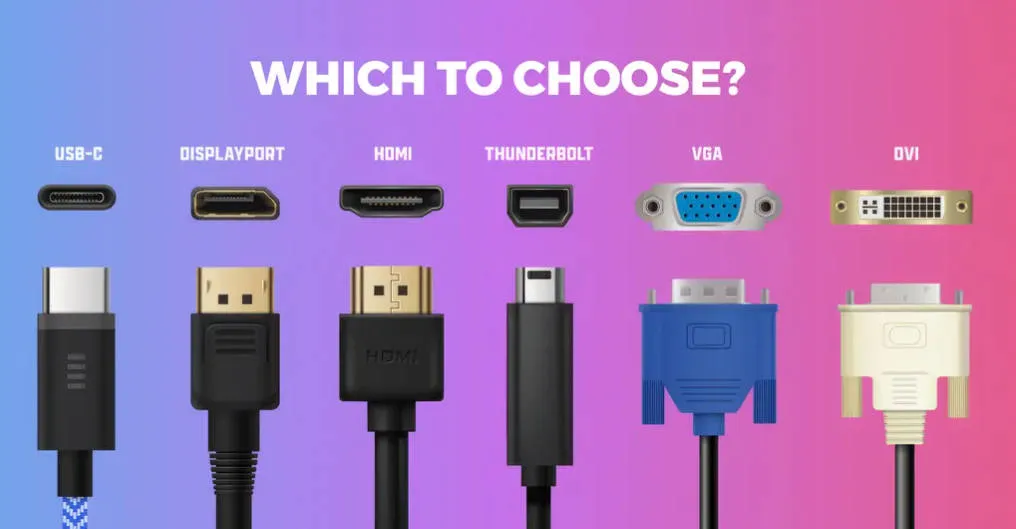
Monitors do not always auto-detect the active source reliably. Press the Input or Source button on your monitor and manually choose the correct port, such as HDMI 1, HDMI 2, DisplayPort, or USB-C.
Even with only one device connected, auto-detect can fail, especially after sleep mode or a cold boot. Manually selecting the input forces the monitor to listen to the right port.
Check USB-C and Docking Station Compatibility
Not every USB-C port supports video output. Only ports with DisplayPort Alt Mode can transmit video signals. If you use a dock or adapter, confirm the following:
- The dock receives power if it requires external power
- You power devices in the correct order: Monitor On, then Dock On, then PC On
- Your USB-C cable supports video (look for “DP Alt Mode” labeling)
Portable monitors connected via USB-C may also need external power if your laptop cannot supply enough wattage through the port.
Inspect Cables and Connections

More than half of all “no signal” problems come from cable or connection issues.
Reseat All Video Cables
Unplug and replug the video cable at both ends, including the GPU and monitor sides. A slightly loose connection can break the signal entirely. For HDMI, DisplayPort, or VGA cables, push firmly until you feel or hear a secure click.
For DisplayPort cables, confirm the latch is fully engaged. A loose latch can cause intermittent signal loss, especially if the cable gets bumped.
Replace with a Known-Good Cable
Even if a cable looks fine on the outside, internal damage from bending or wear can kill the signal. Use a different cable rated for your resolution:
- 1080p at 60Hz: Standard HDMI or DisplayPort works
- 1440p or 4K at 60Hz or higher: Use High-Speed HDMI or DisplayPort 1.4
- 4K at 120Hz or 8K: Requires Ultra High-Speed HDMI or DisplayPort 2.0
Test your suspect cable on another setup. If it fails there, replace it.
Inspect Ports for Damage
Look for bent pins or debris inside both the GPU and monitor ports. A single bent pin in an HDMI or DisplayPort connector will block the signal completely.
Use a flashlight and magnifier if needed. Never force a cable into a damaged port, as this can make the problem worse.
Diagnose Graphics Hardware

If cables and the monitor check out fine, the problem likely sits in your GPU or motherboard.
Plug Into Dedicated GPU Ports
On desktops, your monitor must connect to the dedicated GPU’s ports, which sit in the horizontal slots at the back of the case. Do not plug into the motherboard’s video outputs (vertical ports near the USB and audio jacks). The motherboard ports only work when:
- No dedicated GPU is installed
- Your CPU has integrated graphics (such as Intel UHD or AMD Radeon Vega)
If you have a dedicated GPU but plug into the motherboard, you will get a “no signal” message every time.
Reseat the GPU
Power down your PC, unplug it, and open the case. Remove the GPU and reinsert it firmly into the PCIe slot. Confirm the following:
- The card clicks securely into place
- All PCIe power cables connect firmly from the PSU
- The GPU retention clip locks properly
A poorly seated GPU will not initialize, even if the system powers on and fans spin.
Test with Integrated Graphics

If your CPU has integrated graphics, follow these steps:
- Power off and unplug the PC
- Remove the dedicated GPU
- Connect the monitor to the motherboard’s HDMI or DisplayPort
- Power on the system
If you see the BIOS screen, your dedicated GPU or its power delivery is faulty.
Cross-Test the GPU
Install your suspect GPU in a known-working PC. If it fails there, the GPU is dead. If it works, the issue lies in your original system, likely the PSU or motherboard.
Troubleshoot RAM and Power Supply
No video can also mean your system never completes the boot process.
Reseat and Test RAM Sticks
Faulty or loose RAM prevents the system from passing POST (Power-On Self-Test), so no video gets output. Follow these steps:
- Power off and unplug the PC
- Remove all but one RAM stick
- Insert it into the primary slot (check your motherboard manual)
- Power on and test
- Repeat with each stick and each slot
Clean RAM contacts with a rubber eraser to remove oxidation buildup.
Check PSU for Stability
A failing PSU may power fans and lights but fail to deliver enough voltage to the GPU. Watch for these signs of PSU failure:
- “No signal” only in cold environments
- System works after warming the case or PSU
- Intermittent boot failures with no clear pattern
Swap in a known-good PSU to test. If the video returns, replace your old PSU. Also confirm your PSU has enough wattage for your GPU, especially after hardware upgrades.
Reset BIOS and CMOS
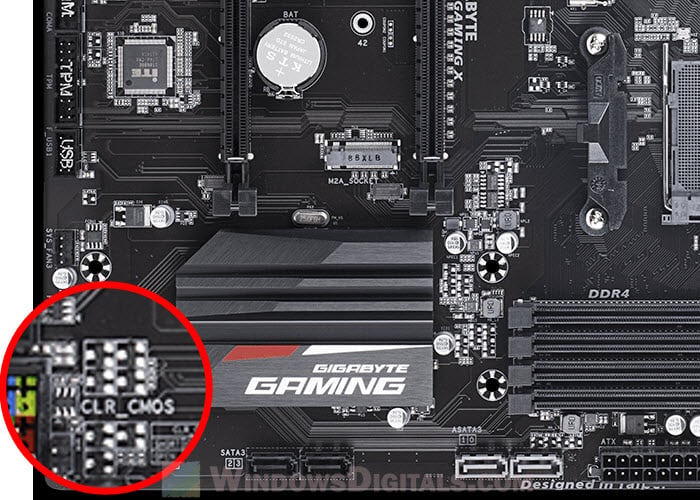
Corrupt BIOS settings can block video output entirely.
Clear CMOS Settings
Reset BIOS to factory defaults with these steps:
- Power off and unplug the PC
- Open the case
- Remove the CMOS battery (coin-shaped, 3V) for 5 minutes
- Reinsert the battery
- Close the case and power on
Alternatively, use the CLR_CMOS jumper on your motherboard (refer to your manual for location).
Replace a Weak CMOS Battery
A battery below 2.6V can cause boot instability. Replace it with a fresh CR2032 battery if:
- The system works once after a reset but fails on the next boot
- Date and time reset on every boot
Verify BIOS Display Settings
Enter BIOS by pressing Del, F2, or F12 during boot. Check these settings:
- Primary Display Adapter is set to PCIe (for dedicated GPU) or iGPU (for integrated)
- Above 4G Decoding is enabled for modern GPUs
- Temporarily disable Secure Boot and Fast Boot for testing
Fix Windows Software Issues
Even with perfect hardware, software can block the signal.
Disable Fast Startup
Windows Fast Startup can cause handshake failures after crashes or updates. Follow these steps:
- Press Windows + X and select Control Panel
- Go to Power Options
- Click “Choose what the power buttons do”
- Click “Change settings that are currently unavailable”
- Uncheck “Turn on fast startup”
- Click Save changes
Reboot and test your display.
Boot into Safe Mode
If the screen stays black but the system seems to boot, the issue may be driver-related. Force Safe Mode with these steps:
- Power on, wait 10 seconds, then force shutdown
- Repeat this two more times
- On the fourth boot, Windows enters Automatic Repair
- Go to Advanced Options, then Startup Settings, then Restart
- Press F4 for Safe Mode
Once in Safe Mode, right-click the desktop, select Display Settings, and set resolution to 1920×1080 at 60Hz. You can also reinstall or roll back your graphics drivers here.
Address Refresh Rate and Resolution
Mismatched display settings can prevent signal during boot.
Lower the Refresh Rate
If your GPU is set to 144Hz, 240Hz, or HDR, the monitor may not sync during startup. Boot into Safe Mode (see above) and set the refresh rate to 60Hz. Reboot normally afterward.
Reset Display Settings via an External Monitor
If your main monitor stays black, connect a second monitor or TV via HDMI. Once you see the desktop:
- Right-click and select Display Settings
- Choose the primary monitor
- Set resolution and refresh rate to default values
- Apply settings and reconnect to your original monitor
Handle Laptop-Specific Issues
Laptops have unique display problems that desktops do not.
Toggle Display Mode with Windows + P
Press Windows + P to open projection options. Your laptop may be set to “Second Screen Only,” which disables the built-in display. Select Duplicate (shows the same image on both screens) or PC Screen Only (laptop only). Try each option to restore your display.
Close and Reopen the Lid
The lid switch may think your laptop is closed. Close the lid, wait 5 seconds, then reopen it to trigger the display sensor.
Disconnect and Reconnect the Dock
Docks can lose their handshake with your laptop. Unplug the dock, wait 10 seconds, then reconnect it. Power cycle devices in this order:
- Monitor
- Dock
- Laptop
Prevent Future No Signal Issues
Avoid recurring problems with these simple habits.
Clean Dust Regularly
Dust buildup in RAM slots, GPU ports, or fans can cause overheating or electrical shorts. Use compressed air every 3 to 6 months to keep components clean. One user fixed a years-long “no signal” problem by vacuuming dust from memory slots, proving that maintenance matters.
Use High-Quality Cables
Avoid cheap, thin cables that lack proper shielding. Invest in certified high-speed HDMI or DisplayPort cables with reinforced connectors. Keep cables away from power supplies and avoid sharp bends that damage internal wires.
Monitor PSU Health
PSUs degrade over time. If your system is more than 5 years old and shows intermittent boot issues, especially in cold rooms, replace the PSU proactively before it fails completely.
Frequently Asked Questions About Monitor No Signal Problems
Why does my monitor say no signal when the computer is on?
Your monitor says “no signal” because it cannot detect a valid video input from your computer. This usually happens when the cable is loose, the wrong input is selected, or the GPU fails to initialize. Start by checking the input source and reseating cables at both ends.
How do I fix no signal on my monitor without replacing parts?
Start with the simplest fixes: reseat all video cables, manually select the correct input on your monitor, and power cycle both devices. If those fail, test with a different cable, reseat your RAM and GPU, and try connecting to integrated graphics. Most “no signal” issues resolve without buying new parts.
Can a bad HDMI cable cause no signal?
Yes, a bad HDMI cable is one of the most common causes of “no signal” errors. Internal wire damage from bending, worn shielding, or broken pins can block the signal entirely. Replace your cable with a known-good one rated for your resolution and refresh rate.
Will reseating RAM fix monitor no signal?
Reseating RAM often fixes “no signal” issues when the system fails POST. Loose or oxidized RAM contacts prevent the system from completing boot, so no video gets output. Remove all sticks, clean the contacts with a rubber eraser, and test one stick at a time in the primary slot.
How do I know if my GPU is dead or just loose?
Test your GPU in a known-working computer. If it fails there, the GPU is dead. If it works in another system, reseat the GPU in your original PC and check all PCIe power connections. You can also test with integrated graphics by removing the GPU and connecting to the motherboard.
Why does my monitor lose signal only in cold weather?
Cold temperatures cause metal components inside your PSU to contract, creating temporary connection failures. This is a strong sign that your PSU is aging and needs replacement. Warming the PSU with a hair dryer can temporarily restore function, but a new PSU is the permanent fix.
Key Takeaways for Fixing Your Monitor No Signal Problem
Start with the simplest steps first: verify the input source, reseat all cables, and test your monitor with another device. Move to hardware diagnostics only if those fail, including reseating the GPU, testing RAM sticks, and checking PSU stability. Finish with software fixes like disabling Fast Startup and resetting display drivers in Safe Mode.
Your next step: begin with the monitor and input verification section above. In most cases, you will solve the problem within the first few steps without spending money on replacement parts.


