
You step away from your desk for a quick break, but your screen stays lit, draining power and exposing your work to anyone passing by. Learning how to turn off a monitor while your computer keeps running solves this common problem in seconds. Background downloads, music playback, and rendering tasks continue without interruption, while your display goes dark to save energy and protect your privacy.
Windows offers several built-in tools, command-line options, and third-party utilities that make this process fast and reversible. This guide walks you through every reliable method, ranked by ease of use and speed. You will learn how to disable your screen on demand, automate it after inactivity, and even control multiple monitors separately, all without ending your active sessions.
Press the Physical Power Button on Your Monitor
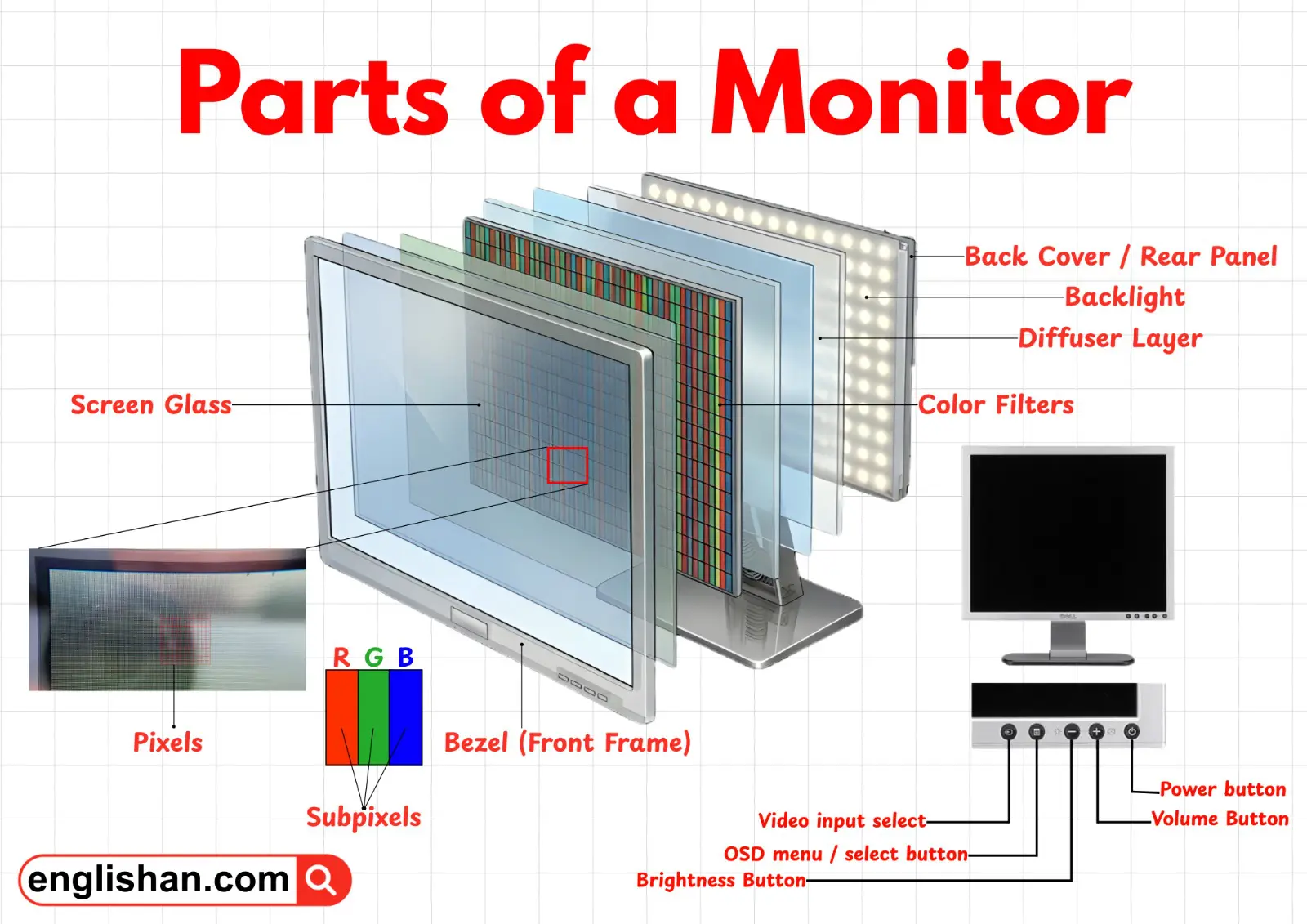
The fastest, most universal way to turn off a monitor requires no software at all.
Locate and Activate the Power Control
Every monitor includes a physical power button, typically marked with the universal power symbol (a circle with a line breaking the top). You will usually find it on the front bezel, bottom edge, or rear panel.
- A single press toggles the screen on or off in most models.
- A press and hold for 2 to 3 seconds forces shutdown if the monitor becomes unresponsive.
- Touch-sensitive panels on modern displays respond to a light tap rather than a physical push.
The screen goes completely dark, and your active programs keep running in the background.
Confirm the Display Is Off
When the monitor powers down, the LED indicator near the button usually changes color (from white to amber) or switches off entirely. This visual cue confirms your display has entered a low-power state.
Pro Tip: Wake the screen by moving your mouse or pressing any keyboard key. If the monitor does not respond, press its power button once. Some models require manual reactivation after a hard shutdown.
Configure Automatic Display Timeout in Windows
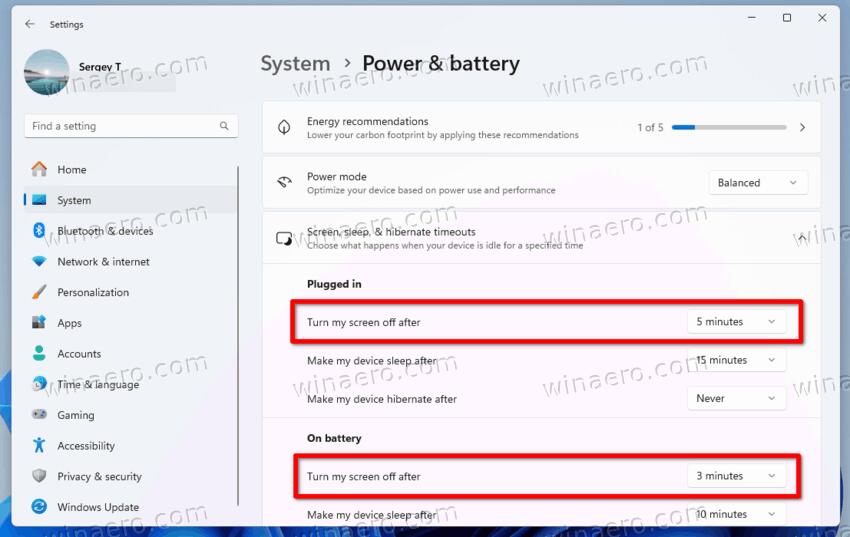
Let Windows handle the work by turning off your monitor after a set period of inactivity.
Adjust Screen and Sleep Settings
This built-in feature requires no extra tools and works on both laptops and desktops.
For Windows 10 or 11:
1. Press Win + I to open Settings.
2. Navigate to System, then Power & sleep (or Power & battery on Windows 11).
3. Under the Screen section, set the “Turn off after” timer for both battery and plugged-in states.
Once the timer expires without mouse or keyboard input, the display shuts off automatically.
Customize Advanced Power Plans
Need finer control over different power states? Use the legacy power options menu.
- In Power & sleep, click Additional power settings.
- Select Change plan settings, then Change advanced power settings.
- Expand Display, then Turn off display after.
- Set distinct values for battery and AC power, then click Apply.
Note: Background processes like downloads or music playback do not count as user activity. The timer only resets when there is actual mouse movement or key presses.
Create a One-Click Shortcut with DisplaySwitch.exe
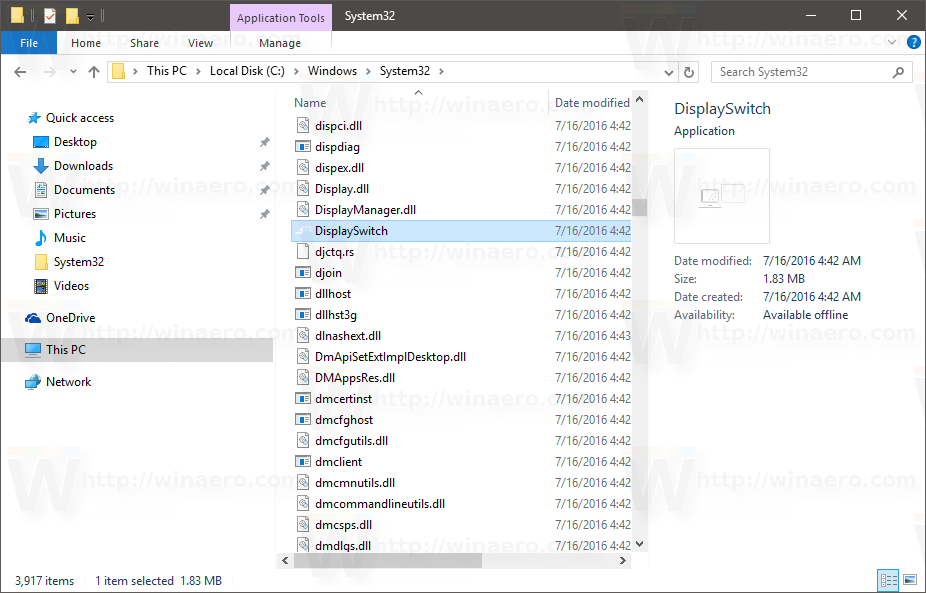
Windows includes a hidden command that lets you turn off the screen instantly, especially useful for multi-monitor setups.
Run the Built-in Command
Open the Run dialog with Win + R and enter the following command to disable secondary displays:
DisplaySwitch.exe /internal
This forces the video signal to route only to the primary monitor, sending secondary screens into a deep sleep state. To restore all displays, use:
DisplaySwitch.exe /extend
Even single-monitor users can leverage this command to force the screen off when needed.
Build a Desktop Shortcut for Instant Access
Make this functionality one click away:
- Right-click your desktop and choose New, then Shortcut.
- Enter
DisplaySwitch.exe /internalas the target. - Name the shortcut “Turn Off Monitor.”
- Click Finish.
- Right-click the new shortcut, select Properties, then Change Icon to assign a power symbol.
Double-click the shortcut anytime to black out your screen instantly.
Use PowerShell to Black Out the Screen Instantly
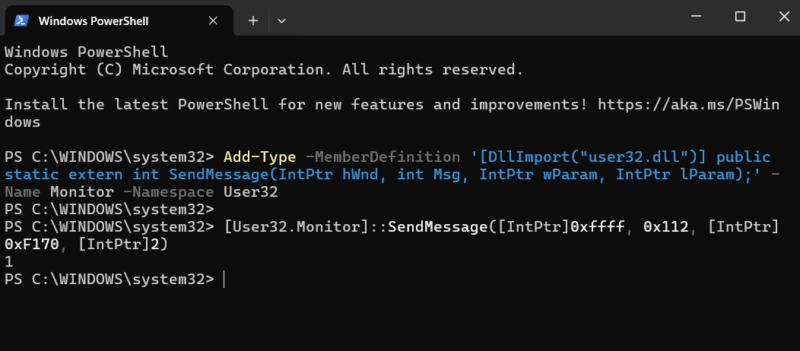
For users comfortable with scripting, PowerShell sends a direct API command to power off the display.
Enable Script Execution
Before running any script, adjust your execution policy.
- Open PowerShell as Administrator.
- Run:
Set-ExecutionPolicy RemoteSigned - Confirm with
Ywhen prompted.
Create and Run the Screen-Off Script
- Open Notepad and paste the following code:
“`powershell
Add-Type -TypeDefinition @”
using System;
using System.Runtime.InteropServices;
public class Monitor {
[DllImport(“user32.dll”)]
public static extern int SendMessage(int hWnd, int hMsg, int wParam, int lParam);
}
“@
“`
- Save the file as
ScreenOff.ps1. - Right-click the file, choose Properties, check Unblock, and click Apply.
- Run the script in PowerShell to turn off the monitor immediately.
You can also create a shortcut that points to powershell -File "C:\Path\To\ScreenOff.ps1" for one-click activation.
Try Portable Utilities for Quick Monitor Control
Lightweight, standalone tools offer instant monitor control without installation.
Use Turn Monitor Off (Generic EXE)
These single-file executables run directly from any folder or USB drive.
- Double-click the file to turn off the screen immediately.
- Move the mouse or press any key to wake the display.
- No installation or admin rights required.
Warning: Windows SmartScreen may flag unsigned executables. Download only from trusted sources to avoid security risks.
Explore Feature-Rich Utilities Like Dekisoft
Dedicated utilities add extra functionality for frequent users.
- Assign custom keyboard shortcuts (such as
Ctrl + Alt + O) for instant toggling. - Add a system tray icon for quick access via double-click.
- Configure automatic lock before screen shutdown for added privacy.
These tools work across all connected monitors and bypass power plan settings entirely.
Set Up AutoHotkey for Custom Hotkey Activation
AutoHotkey (AHK) is a free scripting language that lets you bind monitor control to any key combination.
Install AutoHotkey and Create the Script
- Download and install AutoHotkey from the official website.
- Open Notepad and paste this script:
“`autohotkey
Persistent
^o::
SendMessage, 0x112, 0xF170, 0,, Program Manager
Return
“`
- Save the file as
MonitorOff.ahk. - Double-click the script to run it.
Press Win + Ctrl + O to instantly turn off your monitor. The script runs quietly in the background and uses minimal system resources.
Integrate with Microsoft PowerToys for Streamlined Control
Microsoft’s official PowerToys suite includes tools that simplify display management.
Configure a Custom Shortcut in PowerToys
- Install PowerToys from the Microsoft Store or GitHub.
- Open PowerToys Settings and navigate to Keyboard Manager.
- Select Remap a shortcut and create a new mapping.
- Assign a physical key combination (such as
Ctrl + Alt + M) to run this command:
rundll32.exe user32.dll,SendMessageA -1 0x112 0xF170 0
- Save the mapping and test the shortcut.
This method is trusted, regularly updated, and integrates seamlessly with Windows.
Troubleshoot Common Monitor Power Issues
Even reliable methods occasionally fail. Here is how to resolve the most frequent problems.
Monitor Won’t Turn Back On
- Move the mouse vigorously or press several keyboard keys.
- Press the physical power button on the monitor once.
- Check whether the PC itself has gone to sleep by looking for HDD or LED activity.
Shortcut or Script Does Nothing
- Verify the file path in the shortcut target is correct.
- Check whether antivirus software or SmartScreen is blocking the executable.
- Confirm PowerShell execution policy is set to
RemoteSigned. - Ensure you are not already in the target display mode when using DisplaySwitch.
Confusion with “Internal” Display Mode
Many users worry that /internal will disable their external monitor on a laptop. In reality, this command targets the primary display as defined by Windows. If your external monitor is set as primary, it stays on while other screens power down.
Match the Right Method to Your Workflow

Different users need different solutions. Use this quick guide to pick the best fit.
- Casual users: Configure Windows Power Settings for automatic timeouts.
- Privacy-conscious workers: Use a portable EXE with a taskbar shortcut for instant screen blanking.
- Multi-monitor power users: Rely on DisplaySwitch.exe shortcuts to control individual displays.
- Developers and tech enthusiasts: Deploy PowerShell scripts or AutoHotkey for full customization.
- Laptop users on battery: Use a dedicated utility with a hotkey to extend battery life during media playback.
Frequently Asked Questions About Turning Off Your Monitor
How do I turn off my monitor without putting my PC to sleep?
Use the physical power button, create a DisplaySwitch.exe shortcut, or run a PowerShell script that sends the SC_MONITORPOWER command. These methods disable only the display while leaving your system fully active.
Will turning off my monitor stop background downloads?
No. Background tasks like file downloads, music playback, and rendering continue normally. Turning off the monitor only affects the display, not the CPU or running processes.
Why won’t my monitor turn back on after I turn it off?
Move your mouse or press any keyboard key first. If the screen stays black, press the monitor’s physical power button once. Some models require manual wake-up after a hard shutdown.
Is there a keyboard shortcut to turn off my monitor?
Windows does not include a default shortcut, but you can create one using AutoHotkey, PowerToys, or a dedicated utility like Dekisoft. Popular combinations include Ctrl + Alt + O and Win + Ctrl + M.
Can I turn off just one monitor in a dual setup?
Yes. Use the command DisplaySwitch.exe /internal to disable secondary monitors while keeping the primary display active. You can also use feature-rich utilities that target individual screens.
Does turning off the monitor save electricity?
Absolutely. Monitors consume significant power, and disabling them during inactivity reduces electricity costs on desktops and extends battery life on laptops.
Key Takeaways for Turning Off Your Monitor Safely
Learning how to turn off a monitor without shutting down your PC unlocks faster workflows, better privacy, and meaningful energy savings. The physical power button remains your universal fallback, but software-based shortcuts deliver instant control with one click.
For the best results, combine two approaches: configure automatic Windows timeouts for forgotten screens, and create a desktop shortcut using DisplaySwitch, PowerShell, or a portable utility for immediate manual control. This hybrid setup ensures your display powers down exactly when you need it, while background tasks keep running uninterrupted.
Start by setting up the DisplaySwitch.exe shortcut today. It takes less than two minutes and gives you instant, reversible monitor control whenever you step away from your desk.


