
You settle in to work or game, and your screen goes blank, flickers wildly, or shows nothing but a stubborn “no signal” message. Before you panic or rush to buy a replacement, take a breath. Most monitor display problems have straightforward solutions that don’t require technical expertise or expensive parts. The fix usually lives in your cables, software settings, drivers, or a single faulty component.
This guide walks you through proven methods to diagnose and resolve monitor display issues from start to finish. You’ll learn how to identify whether the problem is your computer or monitor, perform a proper power cycle, update graphics drivers, and recognize when hardware repair makes sense. Every step uses verified information from technical repair sources, so you can trust the process.
Diagnose Monitor Display Problems: Cables and Power First
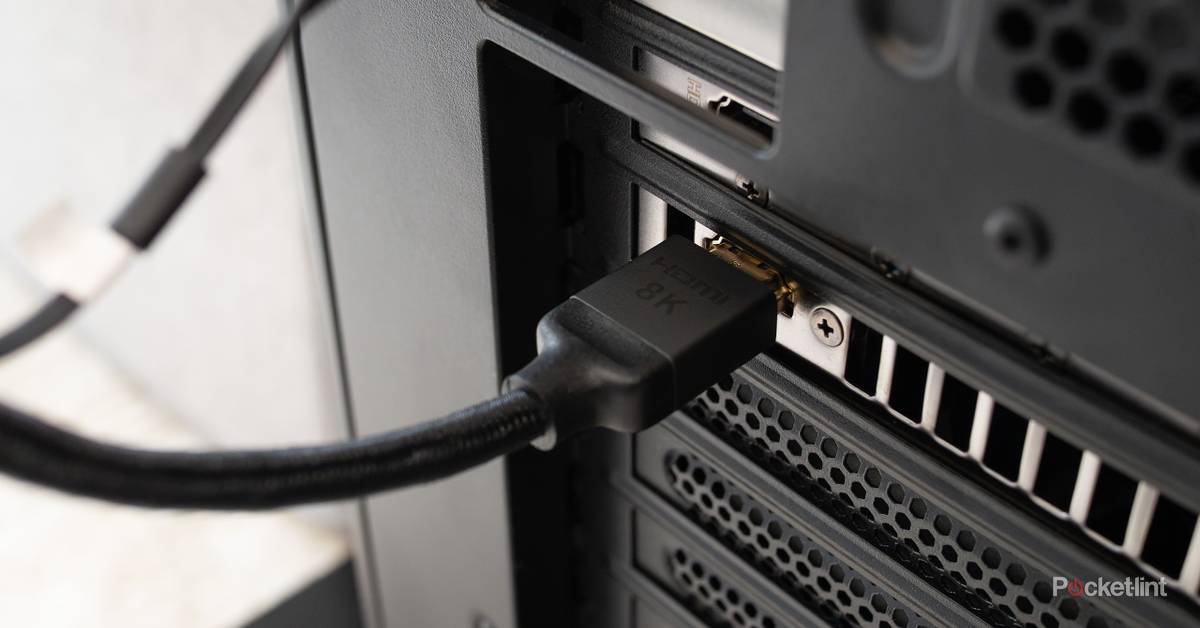
Loose or damaged cables cause more display failures than actual broken monitors. Start here before touching any software or internal components.
Secure Every Cable Connection
Confirm that HDMI, DisplayPort, VGA, or DVI cables are fully seated at both ends. A cable that looks connected can still have a poor contact point. Unplug each cable and push it back in firmly until you feel or hear it click into place. If you use an adapter like USB-C to HDMI, try connecting directly without it to rule out adapter failure.
Swap in a Known-Good Cable
Cables wear out internally even when they look fine outside. Grab a spare cable of the same type and test it. If your display suddenly works, the original cable was the culprit. This single swap resolves many “no signal” messages and intermittent blackouts.
Verify the Power Supply
Check that your monitor’s power cord is firmly plugged into both the unit and the wall outlet. Try a different outlet to rule out a tripped circuit or dead socket. If your monitor uses a detachable power brick, touch it carefully. Excessive heat suggests internal failure.
Perform a Full Power Cycle
Residual electrical charge can lock up your monitor’s circuits. Clear it with this sequence:
- Unplug the monitor and computer from power.
- Wait at least 10 seconds.
- Press and hold the power button on both devices for 15 seconds.
- Reconnect power and turn everything back on.
This discharge method often resolves random shutdowns and startup failures.
Select the Correct Input Source on Your Monitor

Even with perfect cables, your monitor stays dark if it’s listening to the wrong port. The input source setting tells your display where to expect a signal.
Navigate the On-Screen Display Menu
Press the physical buttons on your monitor to open the OSD menu. Find the Input Source option and confirm it matches your connection type, such as HDMI 1, HDMI 2, DisplayPort, or VGA. If you’re unsure which port you’re using, cycle through every input until your screen lights up.
Locate Hidden Joystick Controls
Many modern Dell and LG monitors hide their control joystick behind the bezel or under the brand logo. Accidentally bumping this nub can change your input or scaling settings without warning. Run your finger along the bottom edge or back of the front panel until you find a movable control. Press it to access the menu and correct any unintended changes.
Reset to Factory Defaults
Wrong OSD settings cause stretched images, black bars, or overscaling. Open the menu and look for Reset or Factory Default. Confirm the selection to restore original brightness, scaling, and input configurations. This quick fix often resolves display anomalies caused by accidental adjustments.
Adjust Display Settings in Windows and macOS
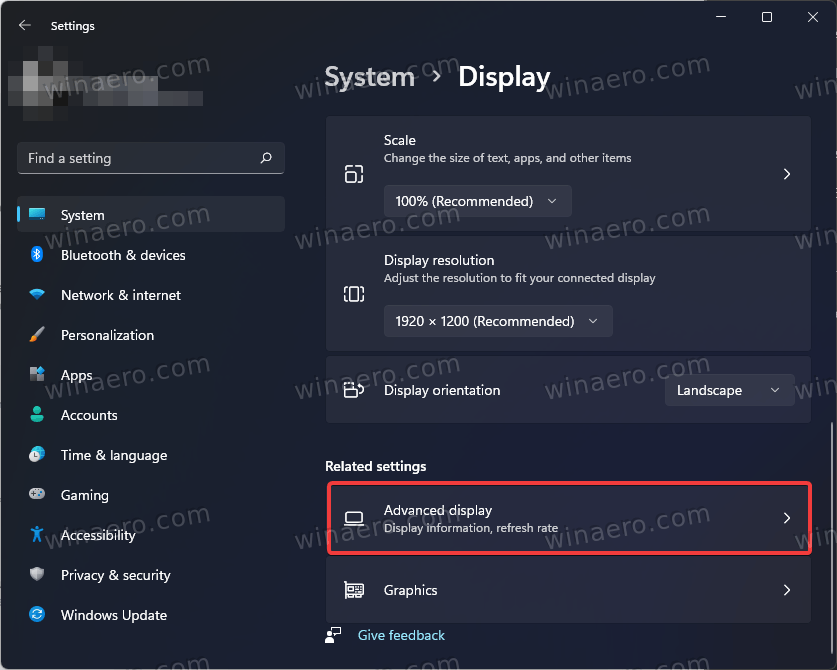
Your operating system controls resolution, refresh rate, and scaling. Wrong settings mimic hardware failure even when your monitor works perfectly.
Match Your Monitor’s Native Resolution
A blurry or stretched image usually means the resolution is set incorrectly.
On Windows:
– Open Settings, then System, then Display.
– Under Display resolution, choose the recommended option, which is typically the highest available.
– If the recommended option is missing, your graphics driver may be corrupted.
On Mac:
– Open System Settings and select Displays.
– Click Default for display or pick the highest resolution listed.
Running below native resolution causes pixelation and can trigger “no signal” errors on some monitors.
Increase Refresh Rate to Stop Flickering
Screen flicker often comes from a refresh rate set too low for your monitor’s capabilities.
On Windows:
– Go to Advanced display settings and find Refresh rate.
– Choose 60Hz, 75Hz, or higher if your monitor supports it.
– Gaming monitors typically offer 144Hz or 240Hz options.
On Mac:
– Open System Settings, then Displays.
– Adjust the refresh rate dropdown to the highest stable value.
Higher refresh rates reduce visible flicker and ease eye strain during long sessions.
Correct Scaling and Orientation
Accidental changes make text oversized or push content off the screen.
- In Windows Display settings, confirm Scale is set to 100% or the recommended value.
- Verify Orientation reads Landscape unless you intentionally rotated the screen.
- On Mac, hold Option while clicking Scaled to reveal all resolution and scaling choices.
Use Your GPU Control Panel
NVIDIA and AMD offer extra display controls that override operating system defaults.
- Open NVIDIA Control Panel and select Adjust desktop size and position.
- Set scaling mode to Full-screen and confirm the correct display is selected.
- AMD Radeon Software offers similar options under display settings.
These panels fix stubborn scaling issues and persistent black borders.
Update or Reset Your Graphics Drivers
Outdated or corrupted graphics drivers rank among the top causes of black screens, flickering, and resolution errors. Keeping them current prevents most display problems.
Update Through Windows Device Manager
- Press Win plus X and choose Device Manager.
- Expand the Display adapters section.
- Right-click your graphics card and select Update driver.
- Choose Search automatically for drivers.
Windows installs the latest compatible version. Reboot your computer and check the display.
Download Drivers from the Manufacturer
For best results, grab drivers directly from the source:
- NVIDIA download page
- AMD support page
- Intel download center
Use their auto-detect tools if you don’t know your exact GPU model. Install cleanly by unchecking bundled software you don’t need.
Reset the Driver With a Keyboard Shortcut
When your screen freezes or goes black, try this before restarting:
- Press Windows key plus Ctrl plus Shift plus B.
Your screen flashes briefly and you hear a beep. This restarts the graphics driver instantly without rebooting your computer.
Reinstall the Driver From Scratch
If updates don’t help, remove the current driver completely:
- Open Device Manager and expand Display adapters.
- Right-click your GPU and select Uninstall device.
- Check Delete the driver software if that option appears.
- Restart your computer.
Windows installs a generic driver on reboot, or you can install a fresh manufacturer version manually.
Boot Into Safe Mode to Isolate Display Issues
When your screen won’t display anything or flickers constantly, Safe Mode helps you determine whether software or hardware is to blame.
Enter Safe Mode in Windows
- Hold Shift while clicking Restart from the Start menu.
- Choose Troubleshoot, then Advanced Options, then Startup Settings, then Restart.
- Press 4 or F4 to boot into Safe Mode.
If your display works normally in Safe Mode, a third-party driver or startup application is likely causing the issue.
Start Your Mac in Safe Mode
- Apple Silicon Macs: Shut down, then hold the power button until startup options appear. Select your startup disk and hold Shift before clicking Continue.
- Intel Macs: Restart and hold Shift immediately until the Apple logo shows.
Safe Mode clears system caches and loads only essential drivers, exposing software conflicts.
Test Your Monitor vs. Your Computer

Before opening any cases, isolate the fault by swapping components. This tells you exactly where the problem lives.
Connect Your Monitor to Another Device
Plug your monitor into a laptop, gaming console, or another computer. If the display works perfectly, your original computer’s GPU or ports are at fault. If the same problem appears, the monitor itself is broken.
Connect Your Computer to Another Monitor
Hook your computer up to a known-working display. If the issue persists, your graphics card, drivers, or motherboard are likely responsible.
Try Different Ports on Both Devices
Monitors and computers often have multiple input or output ports. Switch to a different port on each device. A single port can fail from wear, dust, or power surges while the others work fine.
Identify Common Monitor Hardware Failures

When software and connections check out, internal hardware is the next suspect. These failures show up across many brands and models.
Capacitor Failure
Swollen or leaking capacitors in the power supply cause several symptoms:
- Monitor refuses to turn on
- Random shutdowns during use
- Flickering or distorted images
This issue appears frequently in older models like the Acer AL1716 and Dell 1905FP. Open the case and look for bulging tops or brown residue on capacitors. Replacement requires soldering skills and basic tools.
Backlight or Inverter Problems
A dark screen with a faint image visible under bright light points to backlight failure. Flickering at low brightness or uneven lighting across the panel suggests the same issue. Causes include:
- Failed LED backlight strips
- Faulty backlight inverter (common in older LCD monitors)
- Loose ribbon cable connections
Replacement inverters cost under $20 and work as universal substitutes in most models.
Button Board or Control Failure
When the OSD won’t open or buttons stop responding, the button board ribbon cable may have disconnected. The board itself can also fail. Reopening the monitor to reseat the cable or swap the board resolves this. Models like the Philips Brilliance 272P and Hannspree HP227DCB commonly need this repair.
Cracked or Damaged Panel
Physical damage shows clear signs:
- Visible cracks or spiderweb patterns across the surface
- Black blotches where screen layers separated
- Permanent vertical or horizontal lines
These symptoms indicate LCD matrix damage. Software fixes cannot repair them, and panel replacement usually costs more than buying a new monitor.
Decide Whether to Repair or Replace Your Monitor
Not every broken monitor deserves a repair attempt. Use these guidelines to make a smart choice.
Repair When Parts Are Cheap and Accessible
- Swollen capacitors cost a few dollars each and require basic soldering
- Backlight inverters run under $20 with universal compatibility
- Loose internal cables just need reseating during disassembly
- Button boards are inexpensive and straightforward to swap
Total parts and tools typically run $10 to $50. The work takes one to two hours for someone with moderate experience.
Replace When Damage Is Severe
- Cracked screens or vertical lines mean panel replacement costs more than a new monitor
- Failed main logic boards are hard to source and expensive
- No power with good capacitors suggests high-voltage component failure
A new 24-inch 1080p monitor costs between $100 and $150. If repair exceeds half the replacement cost, buying new makes more sense.
Seek Professional Help for Risky Repairs
Power supplies hold dangerous charges even when unplugged. Micro-soldering requires steady hands and proper equipment. Services like uBreakiFix or Asurion handle diagnostics and repairs for branded monitors from Dell, HP, and Lenovo. Contact the manufacturer first if your warranty is still active, since internal failures are usually covered.
Fix Specific Monitor Display Problems
Some symptoms point to specific causes. Match your problem to the right fix.
No Signal Message
Work through these steps in order:
- Reseat your HDMI or DisplayPort cable at both ends
- Use the OSD to select the correct input source
- Try a different cable of the same type
- Test the monitor on another device
- Test your computer on a different monitor
If all steps fail, your graphics card may be overheating or dead.
White Screen on Startup
This symptom usually means a faulty video cable, GPU artifacting, or monitor logic board failure. Swap cables first, then connect to another source. If the white screen persists across devices, the monitor’s internal processing board is likely damaged.
Vertical Red Line or Stuck Pixels
A permanent red line indicates LCD matrix damage and requires panel replacement. Stuck pixels (small colored dots) may respond to gentle pressure with a damp cloth or pixel-fixing software like JScreenFix. Dead pixels (black dots) rarely recover on their own.
Flickering Display
Try these fixes in sequence:
- Increase the refresh rate in your operating system settings
- Update your graphics driver to the latest version
- Replace your cable, especially if it’s a cheap HDMI model
- Replace the backlight or inverter if flickering happens at low brightness
Incorrect Aspect Ratio
Wrong aspect ratios come from three sources:
- Operating system scaling settings
- GPU control panel settings
- Accidental OSD changes from a bumped joystick
Set Windows scaling to 100%, choose Full-screen mode in your NVIDIA or AMD control panel, and reset the monitor to factory defaults through the OSD.
Frequently Asked Questions About Fixing Monitor Display Issues
Why does my monitor say “no signal” even when it’s plugged in?
A “no signal” message means your monitor receives power but no video data from your computer. The most common causes are a loose cable, wrong input source selected in the OSD, or a failed graphics card. Reseat your cables, cycle through input sources, and test with a different cable or device to isolate the problem.
How do I know if my monitor or computer is broken?
Connect your monitor to a different computer or laptop. If it works fine, your original computer has the problem. Then connect your computer to a different monitor. If that display also fails, your graphics card or drivers are at fault. This swap test takes just a few minutes and pinpoints the exact source.
Can dead pixels be fixed?
Dead pixels appear as permanent black dots and rarely fix themselves. Stuck pixels (colored dots that won’t change) sometimes respond to gentle pressure with a soft cloth or pixel-refreshing software. However, if multiple dead pixels appear or they spread over time, the panel itself is failing and replacement is the only option.
Is it worth repairing an old monitor?
Repair makes sense when the fix costs under half the price of a new monitor. Capacitor replacement, inverter swaps, and button board repairs fall into this category. Cracked screens, severe panel damage, or failed logic boards usually cost more to fix than replace, especially with budget 1080p monitors selling for $100 to $150.
What tools do I need to open a monitor?
Basic monitor disassembly requires Phillips #00, #0, and #1 screwdrivers, plus plastic opening tools like spudgers and picks to separate the casing without cracking it. Capacitor and inverter replacement adds a soldering station, solder wick, and lead-free solder to your toolkit. Always discharge the power supply before touching internal components.
How do I reset my graphics driver without rebooting?
Press the Windows key, Ctrl, Shift, and B all at the same time. Your screen flashes black briefly and you hear a beep. This restarts the graphics driver on the spot, which resolves freezes and black screens without losing your work or restarting your computer.
Key Takeaways for Fixing Your Monitor Display
Start every troubleshooting session with the simplest checks: cables, power, and input source selection. These three areas resolve the majority of monitor display problems without any tools or technical knowledge. A proper power cycle clears stuck signals, while a known-good cable swap eliminates the most common hardware variable.
Move to software only after physical connections check out. Update your graphics drivers, adjust resolution and refresh rate settings, and boot into Safe Mode to catch software conflicts. These steps fix flickering, black screens, and scaling issues without opening anything.
Reserve hardware repair for confirmed internal failures. Capacitors, inverters, and button boards are affordable and worthwhile fixes. Cracked panels and severe matrix damage usually justify replacement instead. When in doubt about high-voltage components or soldering work, a professional repair service protects both you and your equipment.


