
You’re coding on one display and researching on another when you need to capture just a single screen. You hit Print Screen, and Windows grabs a panoramic image of every monitor stitched together. Now you’re cropping, editing, and wasting precious minutes. If you’ve ever felt this frustration, you’re definitely not alone. Most multi-monitor users have struggled with this exact problem at some point.
The good news is that you can screenshot just one monitor without third-party software in most cases. This guide covers native shortcuts, smart utilities, and pro techniques for isolating content from a single display. You’ll learn the fastest methods for Windows, macOS, and Linux, plus how to avoid common pitfalls and when specialized software makes sense. No more accidental data exposure or manual cropping.
Use the Snipping Tool for Manual Selection on Windows

The most reliable built-in method to capture only one monitor is the Windows Snipping Tool or Snip & Sketch. Unlike the full-screen PrtScn key, this tool lets you manually define the capture area, making it perfect for isolating a single display.
Activate the Tool with Win + Shift + S
Press Windows + Shift + S to launch the snipping toolbar. The screen dims, and a small menu appears at the top with four options: Rectangular, Window, Freeform, and Full-screen snip. Choose Rectangular Snip to draw a box around your target monitor.
As soon as you click and drag, the selected area copies to your clipboard. A notification pops up; click it to open the image in the editor for annotation or saving.
Capture One Monitor Precisely
To ensure only one monitor is captured, follow these steps:
- Position your cursor at the top-left corner of the desired screen.
- Click and drag diagonally to the bottom-right corner of that same monitor.
- Release the mouse to capture only the region you selected.
Make sure your drag doesn’t cross into the adjacent monitor. If it does, the image will include part of the second screen.
Use Delay Mode for Menus and Hover States
Need to capture a right-click menu or tooltip that disappears when you move the mouse? Use the Delay feature:
• Open Snipping Tool manually via the Start menu.
• Click “Delay” and set a 3 to 5 second timer.
• Click “New,” then quickly position your cursor or open the menu before the countdown ends.
This gives you time to prepare the screen exactly how you want it before capture.
Capture the Active Window with Alt + PrtScn
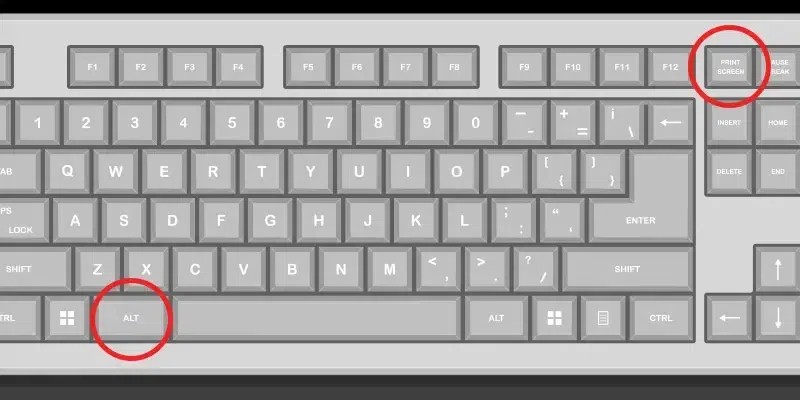
If the content you need lives inside a single application window, this is the fastest native method with no selection required.
Focus and Capture in One Step
Press Alt + Print Screen to capture only the active window. It doesn’t matter which monitor the window is on; as long as it’s in focus (click it once), the shortcut grabs its full frame including title bar and borders.
For example, click your browser on Monitor 2, press Alt + PrtScn, then paste (Ctrl + V) into Paint, Word, or Slack. The result is a clean image of just that window with no background or second monitor visible.
Avoid Desktop Focus Pitfalls
If your desktop (not a window) is active when you press Alt + PrtScn, the shortcut may fail or capture nothing. Always click inside the target window first to ensure proper focus.
Some full-screen applications like games or video players may not respond to this shortcut due to hardware acceleration or DRM restrictions.
Capture by Monitor with Third-Party Tools
For frequent multi-monitor users, manual selection gets old fast. Dedicated tools let you screenshot a single monitor with one keystroke, no dragging required.
MurGeeMon for One-Click Monitor Capture
MurGeeMon is a lightweight free Windows utility that captures the monitor under your cursor instantly.
• Download and run the app.
• Point your mouse at the screen you want to capture.
• Press the hotkey (default is Ctrl + M).
• The tool saves a BMP file of that monitor’s full resolution and opens the folder.
No configuration is needed, making it perfect for traders, developers, or anyone who needs full-screen captures fast.
Pro Tip: Since it saves as BMP (high quality but large file), use a free converter to batch-resize or convert to PNG for easier sharing.
Snagit for Professional-Grade Control
Snagit by TechSmith is considered the gold standard for screenshot workflows.
• Launch Snagit and click “Capture.”
• A thumbnail view of all monitors appears.
• Click the one you want or press a custom hotkey assigned to a specific screen.
Beyond capture, it offers auto-scrolling long pages, built-in annotations (arrows, blur, text), and video recording across monitors. It’s paid software but ideal for creating tutorials, documentation, or bug reports.
Greenshot for Free and Customizable Capture
Greenshot is a powerful open-source alternative for Windows users.
• Set up hotkeys for “Current Window,” “Region,” or “Monitor 1/2.”
• Press PrtScn to open a quick menu.
• Choose “Last Region” or “Monitor” to capture full screens instantly.
It supports direct output to clipboard, file (auto-named with timestamp), printer, email, or image editor. Highly configurable and perfect for power users who want speed without cost.
macOS: Capture One Monitor with Cmd + Shift + 4

Mac users enjoy a smooth native experience for single-monitor captures.
Select Area with Crosshair
Press Command + Shift + 4. The cursor turns into a crosshair.
• Move it to the monitor you want to capture.
• Click and drag from one corner to the opposite.
• Release to take the screenshot.
By default, the image saves to your Desktop as a PNG file named “Screenshot [date] at [time].png.”
Capture Entire Monitor Without Dragging
Want the whole screen without dragging? Press Command + Shift + 4, then press the Spacebar. The crosshair becomes a camera icon. Hover over any monitor; the entire screen will highlight. Click to capture just that display.
This method captures the full desktop, menu bar, and dock of the targeted monitor only.
Copy to Clipboard Instead of Saving
Hold Control while using the above shortcuts to copy the image to clipboard instead of saving a file. This is useful for pasting directly into emails, messages, or design tools.
Linux: Use Shift + PrtScn for Region Selection

On GNOME-based Linux systems like Ubuntu, capturing one monitor is straightforward.
Select Region Manually
Press Shift + Print Screen. The cursor changes to a crosshair.
• Click and drag over the monitor you want to capture.
• Release to save the selection as a file on your Desktop.
Unlike the basic PrtScn (which captures all monitors), this method gives you full control over the area.
Capture Active Window Only
Press Alt + Print Screen to capture just the focused window, regardless of which monitor it’s on. This works great for isolating apps without background clutter.
Check Your Desktop Environment
Shortcuts may vary by desktop environment:
• KDE Plasma uses Meta + Print for region selection.
• XFCE’s default PrtScn may open a dialog where you choose “Region” or “Window.”
Always verify in Settings > Keyboard > Shortcuts if the default doesn’t work on your system.
Fix Common Screenshot Problems
Even with the right method, things can go wrong. Here’s how to troubleshoot the most frequent issues.
Screenshot Captures All Monitors
This happens when you press PrtScn or Win + PrtScn, which captures the entire virtual desktop. The fix is to use Alt + PrtScn for windows, Win + Shift + S for region selection, or switch to a tool like MurGeeMon that targets one monitor by default.
Image Comes Out Black or Blank
DRM-protected content from Netflix, Disney+, or Zoom screenshare often blocks capture. Try recording the screen instead using Windows Game Bar (Win + G), or use a tool like OBS Studio which can sometimes bypass capture restrictions. Taking a photo with your phone works as a last resort.
Shortcut Does Nothing
Your keyboard may require the Fn key, or another app is blocking the shortcut. Try Fn + PrtScn (common on laptops), open the On-Screen Keyboard (osk.exe) and click PrtScn there, or check if OneDrive, Dropbox, or Snagit is overriding the shortcut.
Low-Quality or Blurry Image
Mismatched display scaling (like 125% on one monitor and 150% on another) causes this. Right-click desktop, select Display settings, then under Scale and layout set both monitors to the same percentage. Ensure resolution matches the native spec of each monitor for sharp text and consistent visuals.
Optimize Your Multi-Monitor Workflow
Efficiency matters when you’re capturing screenshots daily. A few tweaks can save minutes every time.
Match Resolution and Scaling
Go to Settings > System > Display > Scale and layout. Set both monitors to the same scaling (100%, 125%, or 150%) and native resolution (1920×1080 or 3840×2160). Mismatched settings cause blurry text and make region selection harder.
Calibrate Colors Across Monitors
Screenshots should look consistent whether taken on Monitor 1 or Monitor 2. Use Windows Color Calibration by searching “Calibrate display color” in Start, then follow the wizard to adjust gamma, brightness, and color balance. Save a custom profile for each monitor.
Assign Custom Hotkeys for Speed
If you use Greenshot or Snagit, assign hotkeys:
• Ctrl + F1 to capture Monitor 1
• Ctrl + F2 to capture Monitor 2
• Ctrl + F3 to capture the active window
No more menus; just press and capture.
Organize Screenshots Automatically
High-resolution dual-monitor captures eat up space fast. Set up a system to save all screenshots to a dedicated folder, use a script or tool to move files older than 7 days to archive, and convert BMP or PNG files to compressed JPG when quality isn’t critical.
When to Use Each Method
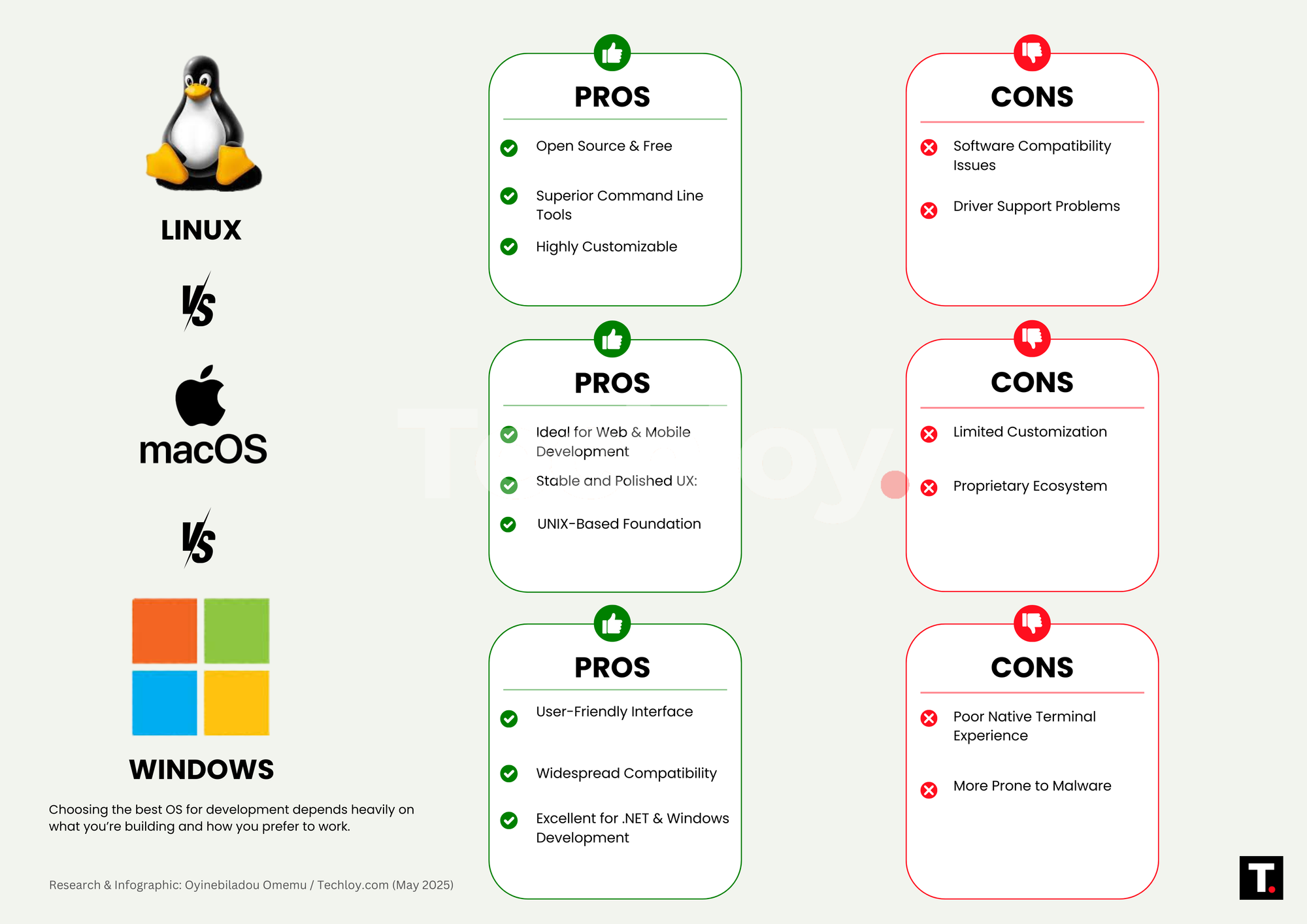
Not every situation calls for the same tool. Here’s a quick decision guide.
Use Alt + PrtScn when capturing a single app window, when you need speed with no editing, or when sharing via chat or email.
Use Win + Shift + S when you need part of a screen or full monitor, when the window spans both monitors, or when you want to annotate before saving.
Use MurGeeMon when you frequently capture full monitors, want one-click no-selection speed, or need a free simple Windows tool.
Use Snagit when creating tutorials, guides, or bug reports, when you need scrolling capture or video, or when working in a team that requires consistent output.
Use macOS Cmd + Shift + 4 + Space when you want the whole screen fast, prefer native tools, or need clipboard copy instead of file save.
Frequently Asked Questions About Screenshotting One Monitor
Why does Print Screen capture all my monitors?
The standard PrtScn key captures the entire virtual desktop, which in Extended mode includes all connected monitors stitched together. To capture just one monitor, use Alt + PrtScn for a single window or Win + Shift + S to manually select one monitor’s area.
Can I screenshot just one monitor without installing software?
Yes. On Windows, use Win + Shift + S for region selection or Alt + PrtScn for the active window. On macOS, use Cmd + Shift + 4 and drag over one monitor. On Linux GNOME, use Shift + PrtScn to select a region. All of these are built-in features.
What is the fastest way to capture one monitor repeatedly?
Dedicated tools like MurGeeMon let you point your cursor at the desired monitor and press a hotkey to capture it instantly. Snagit and Greenshot also support custom hotkeys bound to specific monitors for one-click capture.
Why is my screenshot black when capturing streaming video?
DRM protection on platforms like Netflix and Disney+ blocks screen capture to prevent piracy. Try using OBS Studio, which sometimes bypasses these restrictions, or use Windows Game Bar (Win + G) to record instead of screenshot.
How do I screenshot one monitor on a Mac?
Press Cmd + Shift + 4 to get a crosshair, then drag over the monitor you want. To capture the entire monitor without dragging, press Cmd + Shift + 4, then Space, and click the target monitor. Add Control to copy to clipboard instead of saving a file.
Does scaling affect screenshot quality?
Yes. If monitors use different scaling percentages (like 125% vs 150%), text can appear blurry or misaligned in screenshots. Set both monitors to the same scaling and native resolution in Display Settings for consistent, sharp captures.
Final Takeaways for Screenshotting a Single Monitor
Capturing just one monitor doesn’t require extra steps or post-editing when you know the right method. Use Alt + PrtScn for windows, Win + Shift + S for regions, or invest in tools like MurGeeMon or Snagit for true one-click efficiency. Match your display settings across monitors, avoid common pitfalls like DRM-protected content, and streamline your workflow so every screenshot comes out clean and professional.
Start by trying the native shortcut that fits your operating system today. If you screenshot frequently, download Greenshot or MurGeeMon and assign a custom hotkey to each monitor. You’ll save hours of cropping and editing within the first week.


