
You press the power button on your computer, but the screen stays dark. No signal, no display, nothing. You have to walk over and manually press the monitor’s power button every time you boot up. If you use a TV as a monitor, things get worse because it might launch into a streaming menu instead of showing your desktop. This is a common frustration, and the good news is that it is almost always fixable.
The core issue comes down to your monitor not detecting a video signal quickly enough, or simply lacking the right setting to power on automatically. Since the problem happens across multiple displays and only with your current PC, the root cause sits within your system settings, hardware behavior, or monitor configuration. This guide walks you through proven steps to make your monitor turn on automatically when you power up your computer, whether you use a traditional display or a smart TV.
Keep Your Monitor in Standby Mode
Leave the Monitor Powered On After Shutdown
If you flip the physical power switch on your monitor, it goes fully off. That means even when your PC boots, the monitor has no way to know it should wake up. The fix is simple:
• Leave the monitor powered on after shutting down your PC
• Let it rest in standby mode (black screen with LED lit or blinking)
• When you start your PC next, the monitor should detect the video signal and wake automatically
Common mistake: Cutting power at the wall switch or pressing the power button until the LED goes dark. This breaks the wake-on-signal function entirely.
If you use a TV as a monitor, avoid letting it fully power down. Some TVs disable HDMI signal detection when powered off completely.
Plug Into an Always-On Outlet
Many power strips and surge protectors offer two outlet types:
• Switched outlets that turn off with a master button
• Always-on outlets that stay powered regardless
Plug your monitor or TV into an always-on outlet so it stays in standby while your PC powers down completely. This keeps the monitor receptive to incoming signals when you boot up.
Enable Auto Power-On in Your Monitor Settings
Locate the Auto Start Feature in the OSD Menu
Most modern monitors and TVs include a setting called Auto Power On or Power On by Signal. This feature wakes the display when it senses an incoming video signal. To enable it:
- Turn on your monitor or TV manually
- Press the Menu or Home button on the monitor or remote
- Navigate to Settings, then System, then Power (path varies by brand)
- Look for options like:
• Auto Power On
• Wake on Signal
• HDMI Link
• Signal Wake-Up - Enable the feature
- Save and exit the menu
Brands with known support include: LG, Samsung, Dell, ASUS, Vizio, and select ONN models.
Can’t find the option? Search online using your specific model number followed by “auto power on signal.” For example, “ONN 43 inch TV auto power on HDMI signal.”
Set a Fixed HDMI Input on Your TV
Smart TVs often default to a home screen or streaming interface when powered on, even when your PC is actively sending a signal. To avoid this:
• Manually switch the input to your PC’s HDMI port (such as HDMI 1)
• Avoid using Home or Live TV inputs as the default
• Enable a “default input on power-up” setting if your TV offers one
Pro Tip: Use an HDMI port labeled “HDMI PC” or “HDMI Gaming” when available. These ports often detect signals faster and handle auto-wake behavior more reliably.
Fix HDMI Signal Detection Delays
Allow Time for Signal Before Sleep
Sometimes the monitor wakes before the GPU starts sending a signal, especially with dedicated graphics cards from NVIDIA or AMD. The monitor sees no signal and stays off or returns to sleep. To handle this:
• Wait 10 to 20 seconds after powering on your PC before expecting the monitor to wake
• If the screen stays black beyond that timeframe, move on to driver or BIOS fixes below
Test With a Different HDMI Port
Try connecting your PC to a different HDMI input on your TV. Some ports, like HDMI 2 or HDMI ARC, may not support auto-wake or have slower detection speeds.
Best choice: Use HDMI 1 or any port labeled “HDMI with CEC” or “HDMI Game.”
You should also:
• Swap the HDMI cable to rule out a faulty or low-quality connection
• Use a certified high-speed HDMI cable, especially for 4K or 1440p resolutions
Update or Reinstall Your Display Driver

Uninstall the Current Graphics Driver
Corrupted or outdated display drivers can break EDID communication (Extended Display Identification Data). This means your monitor fails to recognize the incoming signal properly. To reinstall:
- Press Win + X, then select Device Manager
- Expand Display adapters
- Right-click your GPU (such as Intel UHD, NVIDIA GTX, or AMD Radeon)
- Select Uninstall device
- Check “Delete the driver software for this device” if the option appears
- Click Uninstall
- Restart your PC
Windows will install a generic driver on reboot. Test whether the monitor now wakes automatically.
Install the Latest GPU Driver
After the clean uninstall, visit the manufacturer’s website to grab the newest driver:
• Intel drivers at intel.com/drivers
• NVIDIA drivers at nvidia.com/drivers
• AMD drivers at amd.com/support
Download and install the latest driver for your specific GPU model and Windows 10 version.
Warning: Avoid third-party driver updater tools. They frequently install wrong or outdated versions that cause more problems.
Perform a Clean Boot to Rule Out Software Conflicts
Disable Startup Programs and Services
Background applications, especially RGB control software, display managers, and startup utilities, can delay GPU initialization or interfere with display detection. A clean boot helps isolate the problem:
- Press Win + R, type
msconfig, then press Enter - Go to the Services tab
- Check “Hide all Microsoft services”
- Click “Disable all”
- Go to the Startup tab, then click Open Task Manager
- Disable all startup items
- Close Task Manager, click OK, then restart
After the reboot, power on your PC and check whether the monitor wakes automatically. If it works, re-enable services in batches to identify the culprit.
Common offenders include:
• Corsair iCUE
• Razer Synapse
• Logitech G Hub
• Monitor manufacturer utilities like Dell Display Manager
Once you find the conflicting app, update it or configure it to launch later in the startup sequence.
Adjust BIOS or UEFI Settings
Enable Fast Boot and Set Primary Display
Your motherboard’s BIOS can influence when the GPU begins sending a signal. To access BIOS:
• Restart your PC
• Press F2, F10, Del, or Esc during boot (the key varies by motherboard brand)
Look for these specific settings:
• Fast Boot: Set to Disabled temporarily to help with detection
• Primary Display: Set to PCIe if you use a dedicated GPU, or iGPU if you use onboard graphics
• ERST (Enhanced Resume): Enable if available
• HDMI/CEC Control: Enable if your TV supports it
Save changes before exiting (usually by pressing F10). Test after reboot to see if the monitor wakes up.
Adjust Windows Power Plan Settings
Prevent the GPU From Entering Deep Sleep
Windows power plans can send your graphics card into a deep sleep state that delays signal output. To adjust:
- Open Control Panel, then go to Power Options
- Click Change plan settings, then Change advanced power settings
- Expand PCI Express, then Link State Power Management
- Set both On battery and Plugged in to Off
You should also:
• Expand Display, then Turn off display after, and set it to Never while testing
• Expand Sleep, then Sleep after, and adjust as needed
This keeps the PCIe link active, which helps the monitor detect the signal faster.
Try Hardware Workarounds for Stubborn Cases
Use HDMI-CEC if Your Devices Support It
HDMI-CEC (Consumer Electronics Control) lets devices power each other on and off. If your TV and GPU support this protocol:
• Enable HDMI-CEC on the TV (it may be called Anynet+, Bravia Sync, SimpLink, or VIERA Link)
• Some motherboards allow CEC control through BIOS or add-on cards
When enabled, turning on the PC can trigger the TV to switch inputs and power on automatically.
Note: GPU HDMI-CEC support remains limited. Dedicated HDMI-CEC adapters like Pulse-Eight offer better reliability.
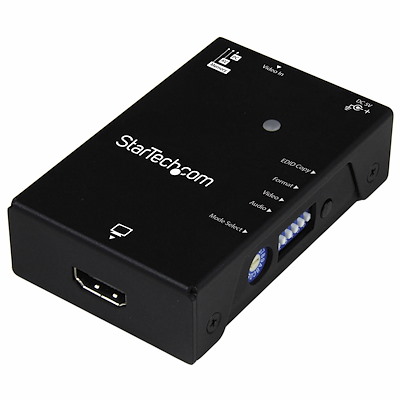
Try an HDMI Signal Booster or EDID Emulator
If your monitor still refuses to wake:
• Use an EDID emulator to trick the PC into thinking a display is always connected
• This forces the GPU to output a signal at boot
These small devices sit between your GPU and monitor and work especially well for headless setups or unreliable detection scenarios.
Final Fixes and Ongoing Maintenance
Reset the Monitor to Factory Settings
If settings were changed accidentally:
- Open the monitor OSD menu
- Navigate to Settings, then Reset or Factory Reset
- Confirm the reset
- Re-enable Auto Power On after the reboot
This clears any conflicting configurations that may have built up over time.
Keep Firmware Updated
Check for updates regularly:
• Monitor or TV firmware: Visit the manufacturer support site and enter your model number
• Motherboard BIOS: Visit your PC or motherboard manufacturer site
• GPU firmware: Rare, but sometimes available through manufacturer tools
Outdated firmware can cause handshake failures between your PC and display.
Build a Consistent Daily Routine
To minimize hassle going forward:
• Shut down your PC normally rather than cutting power
• Leave the monitor or TV plugged in and resting in standby
• Use the same HDMI port and cable every time
• Avoid switching inputs manually
This consistency helps the system recognize and wake the display faster over time.
Frequently Asked Questions About Turning On a Monitor Automatically
Why does my monitor not turn on when I start my PC?
Your monitor likely enters a fully powered-off state when you shut down your PC, or it lacks the auto-wake setting. The monitor needs to stay in standby mode and have Auto Power On enabled in its settings to detect the video signal when your PC boots.
How do I make my monitor turn on automatically?
Enable the Auto Power On or Power On by Signal feature in your monitor’s OSD menu. Keep the monitor in standby mode rather than fully powered off. Also, make sure your graphics driver is up to date and your power plan settings do not send the GPU into deep sleep.
Can a TV be used as a computer monitor?
Yes, a TV can work as a computer monitor, especially smart TVs with HDMI ports. However, you may need to set a fixed HDMI input, enable HDMI-CEC, and adjust power settings to prevent the TV from launching into a streaming menu instead of displaying your PC output.
Do HDMI cables affect monitor auto-wake?
Yes, faulty or low-quality HDMI cables can delay or block the signal handshake between your PC and monitor. Using a certified high-speed HDMI cable improves reliability, particularly for higher resolutions like 4K or 1440p.
What is HDMI-CEC and does it help with auto-wake?
HDMI-CEC (Consumer Electronics Control) allows connected devices to control each other’s power and input settings. When enabled on both your TV and PC, turning on the computer can trigger the TV to switch inputs and power on automatically.
Will updating drivers fix monitor detection issues?
Often, yes. Outdated or corrupted graphics drivers can break EDID communication, which prevents your monitor from recognizing the incoming signal. Reinstalling or updating your GPU driver from the manufacturer’s website resolves most detection problems.
Key Takeaways for Getting Your Monitor to Turn On Automatically

Getting your monitor to wake with your PC comes down to aligning three things: hardware settings, firmware behavior, and system configuration. Start with the simplest fix: leave the monitor in standby and enable Auto Power On in the OSD menu. If that does not work, move on to driver updates and software conflict checks.
Most users resolve the issue within two or three steps. Once fixed, your PC and monitor will work together seamlessly, just as they should. Begin by checking your monitor’s power state and OSD settings right now, and work through each section until your display wakes on its own.


