
You’re working at your desk when you notice faint, persistent horizontal lines creeping across your LCD monitor. At first, they flicker only during gaming or video playback, but soon they’re visible even on your desktop or startup screen. This common issue can stem from anything as simple as a loose cable to permanent hardware failure.
The good news is that horizontal lines on an LCD monitor are often fixable without opening the device. The key is systematic troubleshooting to isolate whether the problem lies in the cable, software, GPU, or monitor panel itself. This guide walks you through proven diagnostic steps and easy fixes so you can act before the screen fails completely.
Test the Monitor Without a Video Signal
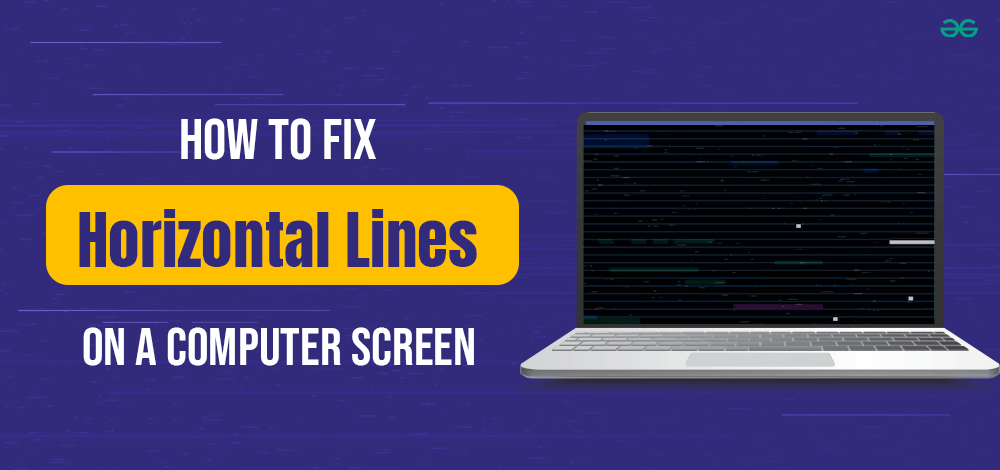
Before blaming your PC or software, determine if the issue is internal to the monitor. This is the most critical diagnostic step when learning how to fix horizontal lines on LCD monitor setups.
If horizontal lines appear even when no video cable is connected, the fault lies within the monitor’s hardware, not your computer.
Check the On-Screen Display (OSD)
- Power on your monitor.
- Disconnect the HDMI, DisplayPort, or VGA cable from the back.
- Press any button to open the OSD menu (brightness, input select, volume).
- Look closely at the menu overlay.
- If lines appear over the menu, the LCD panel, internal ribbon cable, or timing controller is damaged. Software fixes won’t help.
- If lines disappear, the issue is external, likely cable, GPU, driver, or settings.
This simple test saves hours of unnecessary driver updates or GPU troubleshooting.
Replace or Reseat the Video Cable

Faulty or low-quality cables cause the majority of signal-related display artifacts, including horizontal lines, especially at high refresh rates.
Try a Known-Good Cable
• Use a certified high-speed HDMI or DisplayPort 1.4+ cable.
• Avoid long cables over six feet or thin, unshielded ones.
• Replace any adapters (HDMI to VGA, USB-C to HDMI) with a direct digital connection.
Reseat Both Ends
- Power off the PC and monitor.
- Unplug the cable from both devices.
- Inspect for bent pins, dirt, or corrosion.
- Firmly reconnect and ensure a snug fit.
Pro Tip: If lines appear only at 144Hz or higher but vanish at 60Hz, your cable likely can’t handle the bandwidth. Upgrade to a DisplayPort 1.4 or HDMI 2.1 cable.
Swap Input Ports and Test Different Sources
A single faulty port can mimic a failing GPU or monitor and complicate your effort to fix horizontal lines on LCD monitor displays.
Try Different Ports
• Plug into another HDMI or DisplayPort on your monitor.
• Use a different GPU output, switching from HDMI to DisplayPort.
• On laptops, test with USB-C or Thunderbolt if available.
Test with Another Device
Connect the monitor to a second PC, a game console (PS5, Xbox), or a streaming box (Fire Stick, Apple TV).
- No lines on the second device means your original PC has the problem (driver or GPU).
- Lines still present confirms a monitor hardware issue.
Fix Portable Monitor Power Delivery Issues

Many portable monitors rely on a single USB-C cable for both video and power. Insufficient wattage causes flickering or horizontal lines.
Check Power Requirements
• Smaller portable displays need around 30W.
• Larger units can demand up to 60W.
• Laptops often deliver only 15W to 25W over USB-C.
Test with a Wall Charger
- Connect the monitor to a dedicated USB-C wall charger (60W recommended).
- Use a dual-cable setup if supported, one for power and one for video.
Warning: If lines disappear when plugged into AC power but return on battery, your host device isn’t supplying enough power.
Update or Reinstall Graphics Drivers
Corrupt or outdated GPU drivers are a top software cause of screen artifacts and a common reason people search how to fix horizontal lines on LCD monitor issues.
Update via Device Manager
- Press Win + X and select Device Manager.
- Expand Display adapters.
- Right-click your GPU, choose Update driver, then Search automatically.
- Restart after the update completes.
Clean Reinstall (Advanced)
- Boot into Safe Mode by holding Shift while clicking Restart.
- Open Device Manager, right-click the GPU, and select Uninstall device.
- Check “Delete the driver software.”
- Restart so Windows installs fresh drivers.
Note: Use this method if lines appear only in games or full-screen apps.
Adjust Resolution and Refresh Rate Settings
Mismatched or unsupported display settings can cause visual glitches that look like horizontal lines on LCD monitor screens.
Set Native Resolution
- Right-click the desktop and choose Display settings.
- Under Display resolution, select the recommended option.
Lower the Refresh Rate
- Go to Advanced display settings and find Refresh rate.
- Change from 144Hz or 165Hz down to 60Hz.
- Check if lines disappear.
- Lines gone at 60Hz means your cable, port, or panel can’t sustain high refresh rates.
- Lines still present points to a likely hardware fault.
Disable Sync Technologies
Turn off G-Sync (NVIDIA) or FreeSync (AMD) temporarily through your graphics control panel to test for timing-related artifacts.
Test with an External Monitor (Laptop Users)
For laptops, this test separates GPU issues from screen problems and is essential when figuring out how to fix horizontal lines on LCD monitor setups.
Connect to an External Display
Use HDMI, DisplayPort, or USB-C to connect to a working monitor or TV.
Analyze the Results
- External monitor clear but laptop screen has lines: fault is in the laptop screen, hinge cable, or connector.
- Both screens show lines: likely GPU failure or driver issue.
Critical Insight: If both screens are affected, update drivers first. If the problem persists, GPU hardware may be failing.
Reseat the Internal Ribbon Cable (Laptops)
The LVDS or eDP ribbon cable connects the laptop motherboard to the screen. A loose or damaged cable causes horizontal lines.
Access the Cable
- Power off and unplug the laptop.
- Remove the back panel (consult a model-specific guide).
- Locate the flat, silver ribbon cable near the GPU or hinge area.
Reconnect Both Ends
- Gently unclip the connector on the motherboard and screen side.
- Inspect for fraying, burns, or bent pins.
- Reinsert firmly and ensure the locking flap is closed.
Warning: Use plastic tools. Never force the cable. Static discharge can damage components.
Diagnose Panel vs. GPU Failure
Once external variables are ruled out, pinpoint the failing hardware.
Internal Panel Failure Signs
• Lines visible on the monitor menu or a black screen.
• Lines are static, not flickering.
• Appear immediately on power-up and worsen over time.
• Common in aging or physically stressed panels.
GPU Failure Signs
• Lines appear only during high GPU load (gaming, rendering).
• Accompanied by artifacts, crashes, or driver timeouts.
• Affect all connected displays.
Run a Stress Test
Use FurMark or AIDA64 to heat up the GPU. If lines appear only under load, the GPU may be failing or overheating.
Clean and Cool the System
Overheating GPUs or dusty internals can cause temporary display glitches that look like horizontal lines on LCD monitor panels.
Clean Vents and Fans
- Power down and unplug.
- Use compressed air to blow dust from GPU vents, CPU fans, and monitor ventilation slots.
Improve Airflow
• Keep laptops on hard surfaces, not beds or laps.
• Use a cooling pad for gaming laptops.
• Ensure desktop case fans are working properly.
Fact: GPU temps above 85°C can cause rendering artifacts. Monitor temps with MSI Afterburner or HWMonitor.
Perform a Final Software Reset
If all hardware checks pass, reset the software to a factory state.
Run System File Checker
- Open Command Prompt as Administrator.
- Type
sfc /scannowand press Enter. - Wait for the scan and repair process to complete.
Full Malware Scan
Run Windows Security or a trusted antivirus. Malware can corrupt display processes and cause artifacts.
Factory Reset (Last Resort)
For Chromebooks, use Powerwash. For Windows, go to Settings > System > Recovery and select Reset this PC.
Warning: Back up all data first. This erases everything.
Replace the LCD Panel (Last Option)
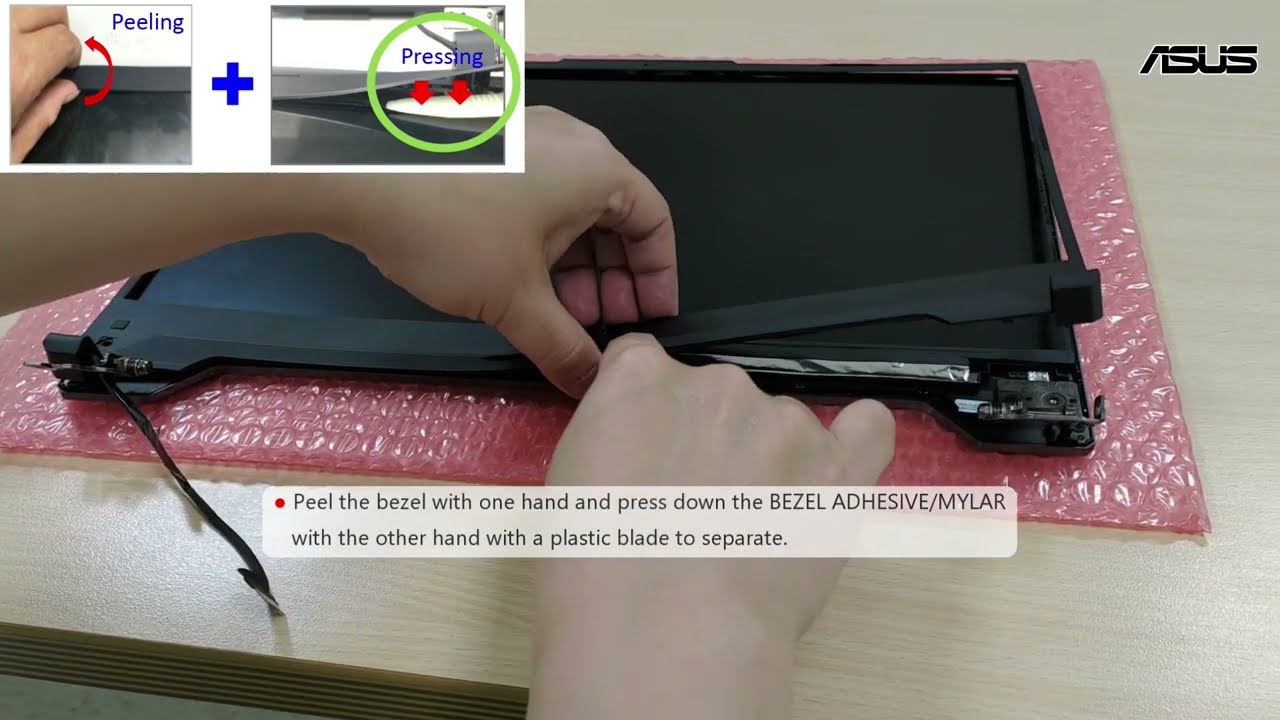
If lines persist on the OSD and all other tests fail, the LCD panel is dying.
When to Replace
• Lines are permanent and internal.
• Monitor is under warranty.
• Cost of the panel is less than 50% of a new monitor price.
Steps for Replacement
- Identify the panel model from the back of the screen or service manual.
- Order an exact match (size, resolution, connector type).
- Carefully remove the bezel, unmount the old panel, and install the new one.
- Reconnect the ribbon cable securely.
Note: Panel replacement is delicate. Consider professional help unless experienced.
Decide Whether to Repair or Replace
Not every monitor is worth fixing. Use this decision matrix:
| Condition | Recommendation |
|---|---|
| Lines gone after cable swap | Keep, issue resolved |
| Reseating cable fixed it | Monitor is aging, watch for recurrence |
| Internal panel failure, lines on OSD | Replace if over 3 years old or ultrawide |
| GPU failure | Repair or upgrade the PC |
| Portable monitor with power issues | Use dual-cable setup or wall charger |
Rule of Thumb: If repair cost exceeds 60% of a new monitor, replace it.
Prevent Future Display Issues
Avoid recurrence with these best practices:
• Use high-quality, shielded cables.
• Avoid sharp bends in display cables.
• Keep firmware and drivers updated.
• Ensure adequate power delivery for portable monitors.
• Clean vents every 3 to 6 months.
• Enable panel self-test features if available.
Frequently Asked Questions About Horizontal Lines on LCD Monitors
What causes horizontal lines on an LCD monitor?
Horizontal lines on an LCD monitor typically result from loose or damaged video cables, outdated graphics drivers, incorrect refresh rate settings, failing internal ribbon cables, or a degrading LCD panel. Power delivery issues can also cause this problem on portable monitors.
Can horizontal lines on a monitor be fixed without replacement?
Yes. In many cases, horizontal lines on a monitor are resolved by reseating or replacing the video cable, updating graphics drivers, lowering the refresh rate, or reseating the internal ribbon cable on a laptop. Replacement is only necessary when the panel itself has failed.
How do I know if the lines are from the monitor or the GPU?
Run the monitor self-test by opening the OSD menu or disconnecting the video cable while the monitor is powered on. If lines appear on the menu, the monitor panel is at fault. If lines disappear, the issue is with the cable, GPU, or software.
Do horizontal lines mean the monitor is dying?
Not always. Intermittent or context-specific lines often indicate cable, driver, or power issues that are easily fixed. However, static lines visible on the OSD menu that worsen over time usually signal permanent panel degradation.
Will a factory reset remove horizontal lines on my monitor?
A factory reset can resolve software-related causes like corrupt drivers or malware conflicts. If horizontal lines persist after a reset and appear on the monitor’s own menu, the issue is hardware-based and requires physical repair or replacement.
Are ultrawide monitors more prone to horizontal line issues?
Yes. Ultrawide monitors report higher incidences of internal ribbon cable failures due to their wider panel design and complex timing boards. When internal parts fail on ultrawides, sourcing replacements is often difficult and expensive, making full unit replacement the more practical option.
Key Takeaways for Fixing Horizontal Lines on Your LCD Monitor
Most cases of horizontal lines on an LCD monitor are resolved with a simple cable swap, a driver update, or a refresh rate adjustment. Always start with the monitor self-test by checking the OSD menu to avoid wasting time on software fixes when the panel is already failing.
If the self-test shows no lines, work through the external variables systematically: cables, ports, drivers, and settings. For laptops, the internal ribbon cable is a frequent culprit and worth reseating before considering panel replacement. For portable monitors, power delivery is often the hidden cause.
When lines persist on the OSD or worsen over time, the panel itself is degrading. At that point, weigh the repair cost against the price of a new monitor. If repair exceeds 60% of replacement cost, upgrade instead. Your next step is to run the OSD test right now and identify exactly where the fault lies.


