
Your screen suddenly looks vertical, and you cannot read a single word without tilting your head. Before you panic about broken hardware, take a breath. A sideways monitor is almost always caused by a simple keyboard shortcut, not a failing graphics card or damaged display. The most common trigger is an accidental press of Ctrl + Alt + an arrow key, often caused by a curious child, a resting pet, or a stray elbow during a long workday. The fix takes seconds, requires no restart, and works on virtually every Windows PC. This guide walks you through every reliable method to rotate your screen back, plus how to stop it from happening again.
Restore Your Screen with Keyboard Shortcuts

The fastest path to a normal display is a single key combination built into most graphics drivers. No menus, no reboots, no technical skill required.
Press Ctrl + Alt + Up Arrow
If your screen sits at any sideways angle, press Ctrl + Alt + Up Arrow to snap it back to standard landscape mode at 0 degrees. The change happens the instant you release the keys. If nothing happens on the first try, press Ctrl + Alt + Left Arrow or Ctrl + Alt + Right Arrow to cycle through orientations until your display looks correct. This shortcut works on most Intel, AMD, and older NVIDIA systems. If your screen stays frozen, your driver may have disabled hotkeys, and you will need to use Windows settings instead.
Cycle Through Every Rotation Option
Not sure which direction your screen rotated? Test each combination one at a time:
- Ctrl + Alt + Right Arrow: Rotates the display 90 degrees clockwise into portrait mode
- Ctrl + Alt + Left Arrow: Rotates 90 degrees counterclockwise into flipped portrait mode
- Ctrl + Alt + Down Arrow: Flips the screen completely upside down at 180 degrees
- Ctrl + Alt + Up Arrow: Returns to standard landscape orientation
Press one combo, wait a second for the screen to respond, and stop when your view looks upright. Avoid mashing the keys rapidly, since each press triggers a full rotation.
Adjust Orientation Through Windows Display Settings

When keyboard shortcuts fail, Windows settings offer a universal fix that works on every version and every graphics card.
Open the Display Settings Menu
Right-click any empty area on your desktop and choose Display settings from the context menu. You can also press Windows + I to open Settings, then navigate to System followed by Display. Even if your screen is sideways, you can still navigate by feel. Right-click the desktop, press D to highlight Display settings, or use Tab and the arrow keys to reach the right option. This method bypasses driver issues entirely.
Select Landscape Orientation
Scroll down until you find the Scale and layout section. Look for the Display orientation dropdown menu and click it. Choose Landscape from the list. Your screen flips back to normal immediately. If a confirmation pop-up appears asking whether to keep these display settings, click Keep changes within 15 seconds, or simply press Enter. Otherwise, the rotation will revert and you will be back where you started.
Handle Multi-Monitor Setups
With several screens connected, you must select the correct one before changing orientation. At the top of the Display settings window, numbered boxes represent each connected display. Click the number that matches your rotated monitor before adjusting the dropdown. Hover your mouse over each box to see which screen it controls. Adjusting the wrong screen leaves you with two problems instead of one.
Rotate Your Display Using Graphics Control Panels

For deeper control or when Windows settings are inaccessible, your graphics card manufacturer offers dedicated tools with direct rotation options.
Intel Graphics Settings
Right-click your desktop and select Intel Graphics Settings or Graphics Properties. Navigate to the Display tab or General Settings section, then find the Rotation dropdown. Choose Normal or set the value to 0 degrees, then click Apply. If the rotation option is missing, open the Intel Graphics Command Center, go to System followed by Hotkeys, and confirm that rotation shortcuts remain enabled.
NVIDIA Control Panel Fix
Open the NVIDIA Control Panel from your desktop context menu or by searching through the Start menu. Under the Display category in the left sidebar, click Rotate display. Select the correct monitor if you have multiple screens connected. Set the orientation to Landscape and click Apply. Your screen updates instantly, and no confirmation timer is required. The change is permanent the moment you click apply.
AMD Radeon Settings Method
Right-click your desktop and choose AMD Radeon Software or Catalyst Control Center. Navigate to Display or Desktop Management, then locate the Rotation or Orientation setting. Select Standard (Landscape) or 0 degrees, then save your changes. AMD interfaces often include a visual preview that helps confirm your selection before applying it.
Manage Rotation Lock on Windows 11 Devices
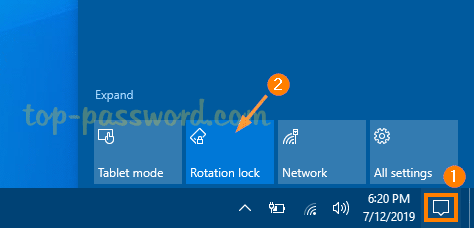
On Windows 11 tablets and convertible laptops, auto-rotation can interfere with manual fixes and cause repeated sideways displays.
Toggle Rotation Lock Off
If your screen refuses to rotate despite correct settings, check the Rotation lock toggle. Open Display settings and look just below the orientation dropdown for this switch. If it shows On, your system blocks manual rotation entirely. Turn it Off, reapply your desired orientation, then toggle it back On to lock the display in place. This prevents future unwanted rotation triggered by motion sensors.
Prevent Accidental Rotation
Keep Rotation Lock enabled whenever you use a convertible laptop or tablet. Doing so stops the screen from rotating when you lift, tilt, or move the device. You can access this toggle quickly through the Action Center by pressing Windows + A and clicking the Rotation Lock icon. A locked padlock symbol means rotation is disabled, which is exactly what you want for stable everyday use.
Solve Stubborn Rotation Problems
Sometimes the standard fixes fail. These troubleshooting steps resolve the most persistent sideways screen issues.
When Keyboard Shortcuts Stop Responding
If pressing Ctrl + Alt + Arrow does nothing, your hotkey feature may be disabled. This often happens after Windows updates or driver changes. Use Windows Display Settings as your backup solution. To re-enable shortcuts on Intel systems, open the Intel Graphics Command Center, navigate to System followed by Hotkeys, and turn on Enable Shortcut Keys. NVIDIA and AMD users should check their driver settings for rotation hotkey toggles.
Screen Stuck in Portrait Mode
When your display refuses to rotate back, follow these steps in order:
- Try setting the orientation to Portrait first, then back to Landscape.
- Download and install the latest graphics driver from your manufacturer’s website.
- Check whether Tablet Mode is active on hybrid devices and disable it under Settings followed by System followed by Tablet mode.
- Restart Windows Explorer through Task Manager to refresh the desktop environment.
Fix Stretched or Distorted Display
After rotation, your image may look squished or blurry. This happens because the resolution does not auto-adjust to match the new orientation. Open Display settings, find the Resolution option, and select the Recommended choice. This ensures your monitor uses its native resolution for the current orientation, such as 1920×1080 in landscape or 1080×1920 in portrait.
Clarify Partial Rotation Myths
Windows cannot rotate only part of a single screen. Rotation always applies to the entire display output. In multi-monitor setups, however, each screen can have its own independent orientation. Always double-check that you are adjusting the correct monitor in settings. If one screen is sideways while another is normal, that is expected behavior, and you can fix each one separately.
Prevent Sideways Screens from Returning

A few simple habits keep your display stable, especially in homes with children, pets, or active workspaces.
Disable Rotation Hotkeys
To stop accidental presses from rotating your screen, turn off the shortcut entirely. In the Intel Graphics Command Center, go to System followed by Hotkeys and disable all rotation commands. On the NVIDIA Control Panel, look under Manage 3D Settings for hotkey options and disable them. AMD users can disable shortcuts inside Radeon Software under Preferences followed by Hotkeys.
Use Physical Keyboard Covers
Laptops are especially prone to accidental key presses. A silicone keyboard cover blocks pets, crumbs, and curious fingers from triggering shortcuts. It is a low-cost shield that works well when transporting or storing your device.
Update Graphics Drivers Regularly
Outdated drivers can cause rotation glitches or disable hotkeys without warning. Visit your GPU manufacturer’s website, whether Intel, NVIDIA, or AMD, and download the latest driver for your specific model. Updated drivers improve stability and ensure every display feature works correctly.
Frequently Asked Questions About Fixing a Sideways Monitor
What causes a monitor display to go sideways?
The most common cause is an accidental press of the Ctrl + Alt + Arrow key shortcut, which is built into most graphics drivers. Children, pets, or stray elbows often trigger this combination without the user realizing it. Secondary causes include manual changes in graphics control panels and auto-rotation sensors on tablets.
Will pressing Ctrl + Alt + Up Arrow always fix a sideways screen?
This shortcut works on most Intel, AMD, and older NVIDIA systems. However, some newer driver versions disable hotkeys by default. If the shortcut does nothing, use Windows Display Settings to manually select Landscape orientation instead.
How do I fix a sideways monitor on Windows 11?
Right-click your desktop, choose Display settings, scroll to Scale and layout, and change Display orientation to Landscape. Click Keep changes within 15 seconds to confirm. If the screen still refuses to rotate, toggle Rotation lock off, reapply the orientation, then toggle the lock back on.
Can I rotate only part of my screen?
No. Windows applies rotation to the entire display output, not a portion of it. In multi-monitor setups, however, each screen can rotate independently. You can have one monitor in landscape and another in portrait at the same time.
Why does my display look stretched after rotating?
Rotating your screen swaps the resolution dimensions, which can cause stretching if the new setting does not match your monitor’s native aspect ratio. Open Display settings, select Resolution, and choose the Recommended option to restore proper proportions.
Is a sideways monitor a sign of hardware failure?
Almost never. A rotated display is a software setting, not a hardware problem. Your monitor, graphics card, and cables are all functioning normally. The fix is purely a configuration change that takes seconds to apply.
Key Takeaways for Resolving a Sideways Monitor Display
A sideways monitor is one of the easiest computer problems to solve, and it never indicates broken hardware. Start with Ctrl + Alt + Up Arrow, which fixes the majority of cases in under a second. If that shortcut fails, open Windows Display Settings and choose Landscape from the orientation dropdown. For stubborn issues, your graphics card control panel offers direct rotation controls. Once your screen is upright again, enable Rotation Lock or disable hotkeys to prevent future accidents. Bookmark this guide so the next time your display flips, you can restore it in seconds without any stress.


