
You’ve set up your sleek new monitor, but there’s one problem: no sound. Many modern monitors, especially portable or minimalist models, don’t come with built-in speakers. That means if you want audio, you’ll need to connect external speakers. But can your monitor output sound at all? And how exactly do you connect speakers to a monitor without compromising quality or convenience?
The answer lies in your monitor’s ports and signal source. Most monitors can pass audio from a computer via HDMI or DisplayPort, but only if they have a 3.5mm headphone out (AUX) port. If your monitor has this jack, you can plug in wired speakers directly. If not, you’ll need to route audio through your PC or use a USB audio adapter. This guide walks you through checking your monitor’s audio capabilities, choosing the right speakers, connecting them properly, configuring your OS, and troubleshooting common issues.
Check Your Monitor’s Audio Output

Before buying speakers or cables, confirm your monitor can actually send audio out.
Look for a 3.5mm Headphone Out Port
Your monitor must have a 3.5mm AUX port, usually labeled “Headphone Out” or “Audio Out,” typically on the back or side panel. This port allows analog audio to be sent to external speakers.
- Monitors with a dedicated 3.5mm jack support direct speaker connection.
- Most portable monitors (like ASUS MB16AC or Dell M16A) omit this port entirely.
- Verify your specific model by checking the user manual or manufacturer specs online.
If no AUX port exists, skip the direct connection method. Audio must come from the computer instead.
Confirm Your Video Input Supports Audio
Even with an AUX port present, your video cable must carry audio to the monitor first.
- HDMI: Full audio and video support. Best choice for most setups.
- DisplayPort: Supports multi-channel audio reliably.
- DVI: Video-only unless paired with a separate audio input (rare).
- VGA: No audio capability whatsoever. Never enables monitor speaker output.
If you’re using VGA or HDMI-to-VGA adapters, the monitor cannot pass audio. Connect your speakers directly to the PC in that case.
Choose Compatible External Speakers
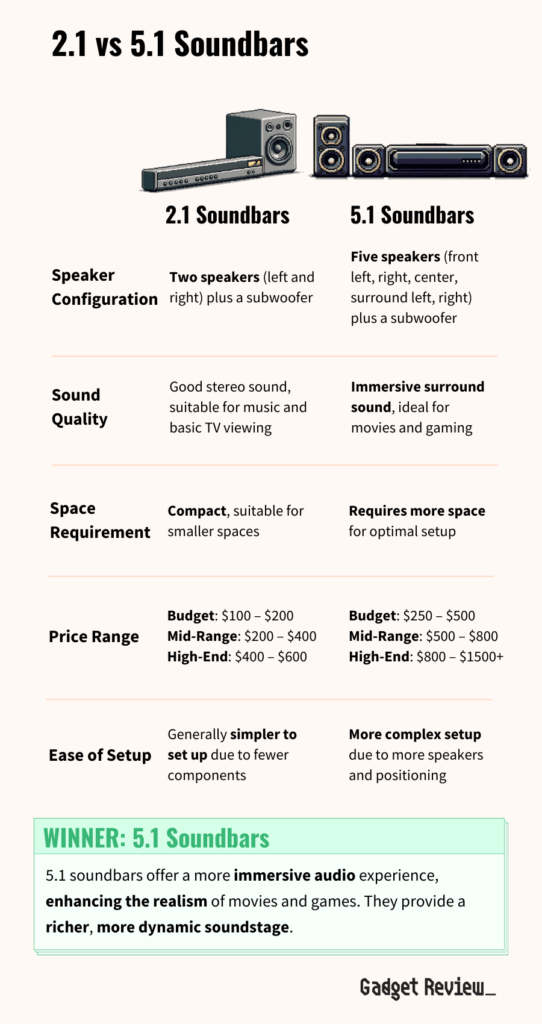
Not all speakers work the same way with monitors. Pick based on power needs, channel type, and connection style.
Match Speaker Channels to Monitor Output
Monitors output stereo (2.0) or 2.1-channel audio via the AUX port. Higher formats like 5.1 surround won’t work correctly through this connection.
| Speaker Type | Supported? | Notes |
|---|---|---|
| 2.0 (Stereo) | Yes | Standard left/right output |
| 2.1 (Stereo + Subwoofer) | Yes | Sub connects to main speaker unit |
| 5.1 / 7.1 Surround | No | Requires digital input like S/PDIF |
Set playback to Stereo or PCM in your OS or game settings to avoid missing dialogue.
Select a Power Source Based on Your Setup
Speakers need power. Choose based on your desk layout and port access.
- USB-Powered (5V):
- Ideal for compact setups.
- Plug into a monitor USB port (if powered), PC, or power bank.
-
Models like Gechic T1 and M505I monitors have powered USB-A ports.
-
AC-Powered:
- For louder, higher-wattage systems.
-
Requires a nearby wall outlet.
-
Battery-Operated:
- Best for portable monitors used on the go.
- No cables needed during active use.
If your monitor lacks powered USB ports, use a USB hub with external power for cleaner cable management.
Use the Correct Cable for Reliable Sound
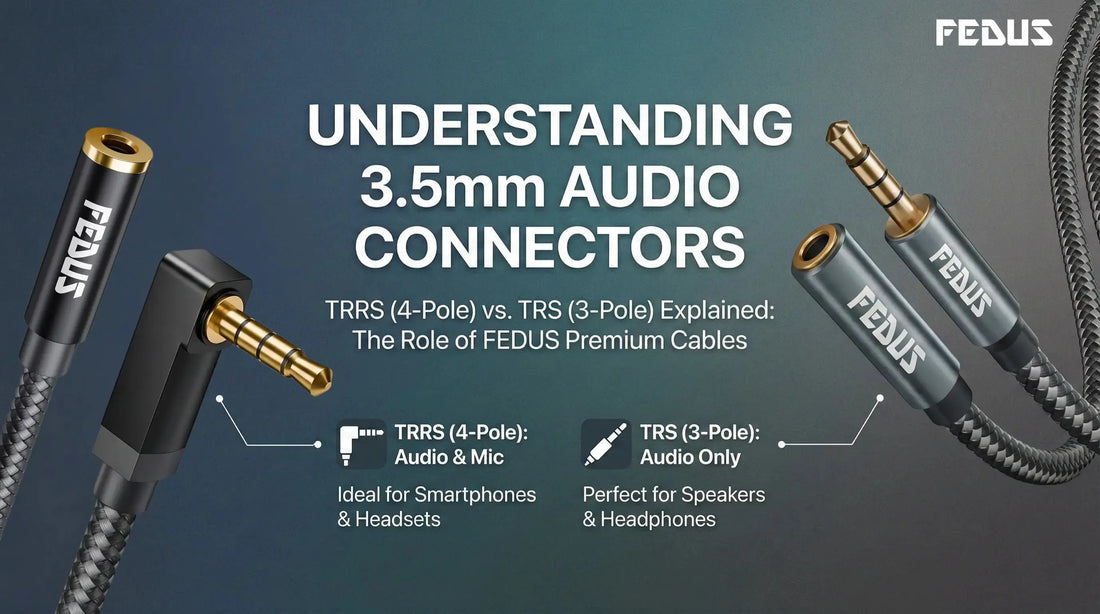
A bad cable kills sound quality or blocks audio entirely. Choose wisely.
Pick TRS, Not TRRS Cables
Use a 3.5mm male-to-male TRS (Tip-Ring-Sleeve) cable with three contacts, not four.
- TRS: Carries left/right audio only. Correct for AUX out.
- TRRS: Used for headsets with microphones. May cause shorting or no sound.
Check the insulation rings on the connector. Three bands means TRRS (wrong), two bands means TRS (correct).
Prioritize Quality and Connector Style
- Gold-plated connectors resist corrosion and improve signal clarity.
- Tinned copper shielding reduces interference from nearby devices.
- Straight plugs over angled ones prevent collision with monitor casing.
When plugged in, the connector should sit flush without wobbling or pressing against the monitor body.
Connect Speakers to Monitor Step by Step
Follow this method if your monitor has a headphone jack and uses HDMI or DisplayPort.
Connect via HDMI to Your Monitor
This routes both video and audio through the monitor.
- Send audio and video from PC to monitor using an HDMI cable.
- Plug speakers into the monitor’s 3.5mm port using your TRS cable.
- Power the speakers via USB (monitor or PC), AC outlet, or battery.
- Test audio by playing a video or music file.
If you’re using VGA, this method fails completely. Switch to HDMI or connect speakers to the PC directly.
Bypass the Monitor: Connect to Computer Instead
Use this method if your monitor has no AUX port, you’re using VGA input, or you want better audio quality via a USB DAC.
- Plug the speaker cable into your PC’s green audio out jack or USB port.
- Set your OS audio output to “Speakers” or “USB Audio Device.”
- The monitor displays video only while audio runs directly from the PC.
Configure Audio in Windows
After connecting, tell Windows where to send sound.
Set Your Monitor as the Playback Device
- Click the speaker icon in the taskbar.
- Click the up arrow to open the output list.
- Select your monitor’s name from the available devices.
If your monitor isn’t listed, right-click the speaker icon, choose Sounds, then the Playback tab. Look for the monitor under disabled devices, right-click it, and select Enable.
Check Volume Mixer Settings
Sometimes individual apps control their own volume levels.
- Right-click the speaker icon and open Sound settings.
- Scroll down and click Volume mixer.
- Ensure system apps and specific programs aren’t muted or set too low.
If volume stays low at maximum, increase both the app volume and system volume sliders.
Configure Audio in macOS
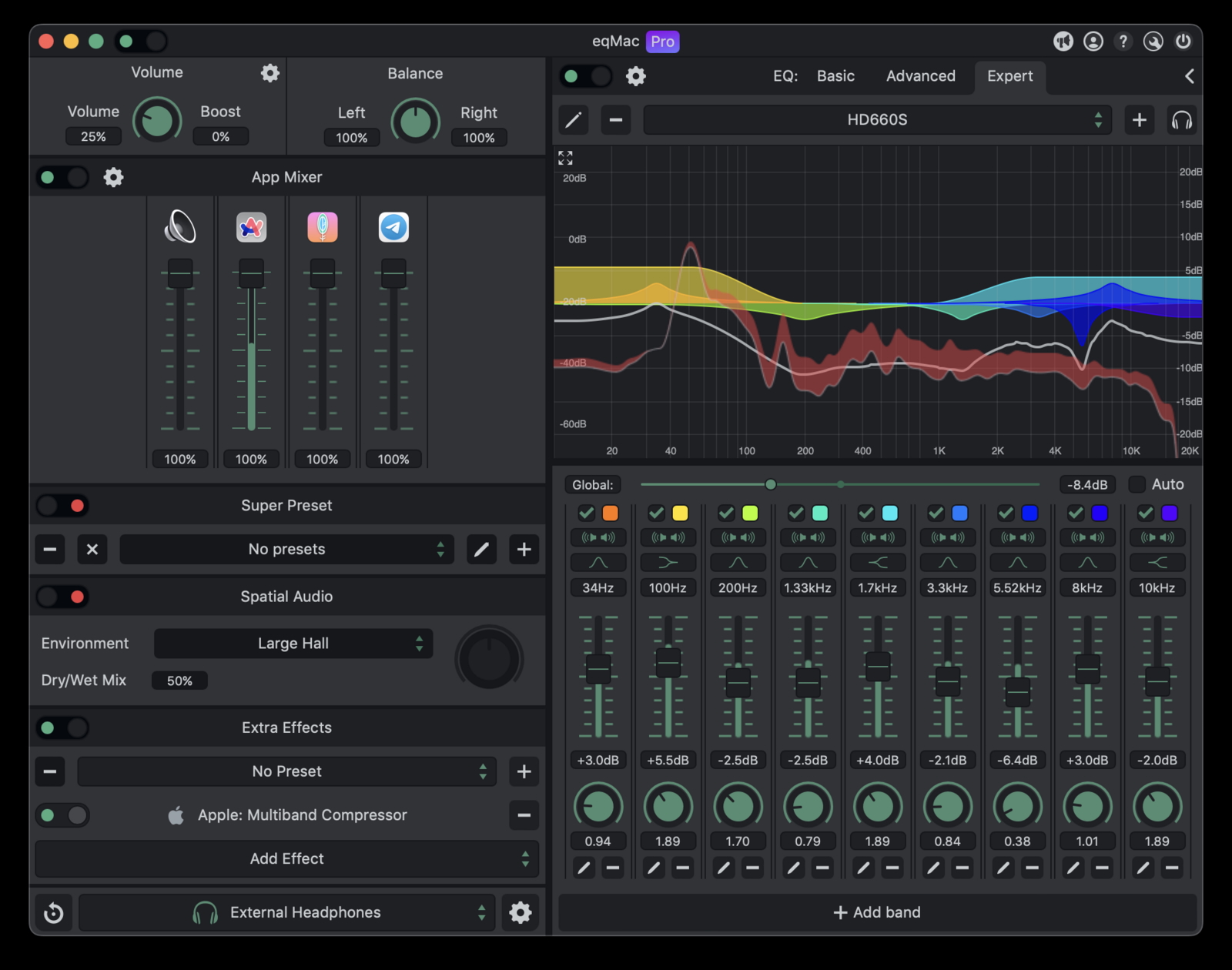
macOS handles external monitor audio differently, especially volume control.
Select the Output Device
- Go to Apple Menu, then System Settings, then Sound.
- Under Output, select your monitor’s name.
Fix Volume Control Issues
By default, macOS often locks volume at maximum when using HDMI audio through a monitor’s AUX port.
Symptom: Keyboard volume keys don’t work and the slider appears grayed out.
Solution: Install eqMac.
- Download eqMac from eqmac.app.
- Install and launch the application.
- In eqMac, select your monitor under output devices (it shows as “Monitor Name (eqMac)”).
- Now the system volume bar and keyboard keys control speaker volume.
Note that eqMac is free but requires occasional reauthorization after system updates.
Troubleshoot Common Audio Problems
Even with correct setup, issues can arise. Diagnose step by step.
No Sound from Speakers
Run through this checklist:
- Is the monitor selected as the audio output device?
- Is the 3.5mm cable fully inserted into the Headphone Out port?
- Are speakers powered and turned on?
- Is the source connected via HDMI or DisplayPort?
- Is the cable TRS, not TRRS?
- Are speakers muted via physical button or software?
Test with headphones plugged into the monitor’s AUX port. If no sound plays, the issue lies upstream with the PC or cable.
Low Volume at Maximum
Even at full volume, audio sounds quiet.
- Check application-specific volume in browsers, games, or media players.
- Open Volume Mixer in Windows and boost individual app levels.
- Ensure the audio file or stream isn’t recorded at low gain.
- Try a different speaker set, as some have weaker amplifiers.
Missing Vocals but Music Plays
Dialogue is silent while background music and effects sound loud.
Cause: The system outputs 5.1 surround to 2.0 speakers, losing the center channel where voice audio lives.
Fix:
- Windows: Right-click speaker icon, choose Sounds, then Playback. Double-click your monitor, go to Advanced, and set default format to 2-channel, 16-bit, 44100 Hz (CD Quality).
- Game settings: Change audio output to Stereo or Headphones.
- Media players like VLC: Audio menu, then Audio Device, then select stereo.
No Sound in Games Only
System audio works fine, but games stay silent.
- Open the game’s audio settings.
- Check that the output device is correct.
- Confirm Master, SFX, Music, and Voice volumes are all up.
- Disable surround sound and switch to Stereo.
- Update audio drivers via Device Manager under Sound, video and game controllers.
Optimize Your Setup for Performance
Get the most from your speaker-monitor combo with these best practices.
Use Monitor USB Ports for a Cleaner Setup
If your monitor has powered USB-A ports, plug USB-powered speakers into them directly.
Benefits:
- Reduces cable clutter on your desk.
- Centralizes connections at the monitor.
- Makes switching between devices easier.
Not all monitor USB ports are powered, so check specs before relying on them.
Avoid Angled Cables Near Monitor Ports
Angled 3.5mm plugs often collide with monitor casing or block nearby USB and HDMI ports. Use straight connectors to ensure full insertion and prevent strain on the port.
Understand the Audio Signal Path
Remember that sound originates from the PC, not the monitor.
- The monitor only passes through audio received via HDMI or DisplayPort.
- Equalization, surround processing, and volume enhancement must be handled by:
- The PC’s sound card or software.
- The external speakers if they have built-in EQ.
- A USB DAC for audiophile-grade sound quality.
Quick Reference: Audio Compatibility by Scenario

| Scenario | Can You Connect Speakers to Monitor? | Solution |
|---|---|---|
| Monitor has 3.5mm AUX + HDMI input | Yes | Plug speakers into monitor, set OS output |
| Monitor has no AUX port | No | Connect speakers to PC directly |
| Using VGA cable | No | Audio impossible, connect to PC |
| macOS volume not working | Limited | Install eqMac for volume control |
| Want 5.1 surround sound | No | Use S/PDIF or HDMI audio to AV receiver |
Frequently Asked Questions About Connecting Speakers to a Monitor
Can any monitor connect to external speakers?
No. The monitor must have a 3.5mm headphone out (AUX) port. Many portable monitors omit this port, so direct connection is impossible. Check your monitor’s specifications or user manual before purchasing speakers.
Do I need HDMI to connect speakers to my monitor?
Yes, for the monitor to pass audio through, the video source must connect via HDMI or DisplayPort. VGA cables cannot transmit audio. If you use VGA, connect your speakers directly to the computer instead.
Why is there no sound after connecting speakers to my monitor?
Common causes include selecting the wrong output device in your OS, using a TRRS cable instead of TRS, loose cable insertion, or connecting via VGA. Work through the troubleshooting checklist systematically to identify the issue.
Can I connect Bluetooth speakers to my monitor?
Most monitors don’t support Bluetooth audio output. Bluetooth speakers typically connect directly to your PC or phone. Some monitors with built-in Bluetooth can pair with speakers, but this feature is rare.
Why is dialogue missing in games but music plays fine?
This happens when your system outputs 5.1 surround sound to 2.0 stereo speakers. The center channel carrying voice audio gets lost. Switch your audio output to Stereo or PCM in both Windows settings and individual game audio menus.
How do I control volume on macOS through a monitor?
macOS often locks volume at maximum when using HDMI audio through a monitor. Install eqMac from eqmac.app, select your monitor in the app, and your keyboard volume keys will regain control.
Final Thoughts on Connecting Speakers to Your Monitor
Learning how to connect speakers to a monitor comes down to three essentials: verify your monitor has a 3.5mm AUX port, use HDMI for your video source, and select TRS cables with stereo speakers. When these conditions align, setup takes just minutes.
If your monitor lacks the AUX port or you’re using VGA, route audio directly through your PC instead. For macOS users, eqMac solves the locked volume problem that often frustrates new setups.
Start by checking your monitor’s rear panel for that headphone jack, then match your speaker choice to your power and channel needs. With the right hardware and a few configuration tweaks, you’ll enjoy crisp, clear audio from your monitor setup without any guesswork.


