
Is your monitor suddenly showing everything too large? Text spilling off the edges, icons huge, or the entire desktop magnified beyond recognition? You are not alone. Many users search for how to zoom out on monitor after accidentally triggering a zoom shortcut and finding no clear way back. The good news: most zoom issues take less than two minutes to fix using a simple keyboard combination. But if your screen stays enlarged even before Windows loads, the cause runs deeper than software. This guide covers every scenario, from accidental browser zoom to system scaling and hardware-level display problems. You will learn how to reset zoom in seconds, adjust Windows settings, use monitor controls, and troubleshoot persistent issues step by step.
Keyboard Shortcuts to Zoom Out on Monitor
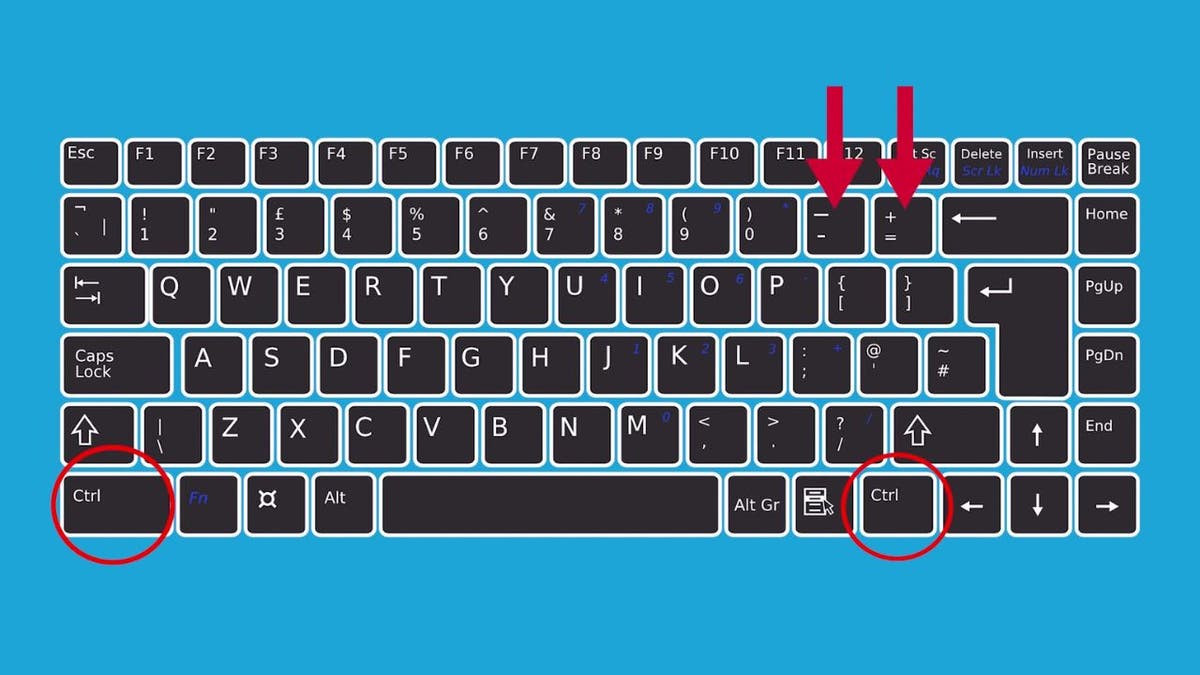
The fastest fix for most zoomed-in screens starts at your fingertips. Accidental key combinations are the top cause of sudden magnification across browsers, documents, and file explorer.
Press Ctrl + Minus to Reduce Zoom
Hold the Ctrl key, then tap the minus (-) key. Each press lowers the zoom level by one step, such as 110% to 100%, then 90%, and so on. This shortcut works in most apps, including Chrome, Edge, Firefox, Microsoft Word, and File Explorer. Keep pressing until the display returns to a comfortable size.
Reset Zoom Instantly with Ctrl + 0
If you are unsure how much zoom is applied, reset it immediately. Press Ctrl + 0 (zero). This returns the view to 100% in one action. The shortcut works in browsers, PDFs, Office apps, Adobe Reader, and many other programs.
Zoom Out Using the Mouse Scroll Wheel
Hold Ctrl and roll the mouse wheel backward (toward you). The screen zooms out smoothly with each scroll click. Rolling forward zooms back in. This method allows fine-grained control but is often triggered by accident, especially if the Ctrl key sticks or gets pressed while scrolling.
Browser-Specific Zoom Fixes
Web browsers save zoom settings per website. One tab may be zoomed in while others appear normal. This behavior can make it seem like your whole screen is enlarged.
Adjust Zoom Through the Browser Menu
Click the three-dot menu (⋮) in Chrome, Edge, or Firefox. Select Zoom from the dropdown. Click the minus (-) button to zoom out. The page updates instantly. Use the percentage dropdown to set a specific level or choose Reset to return to 100%.
Clear Persistent Browser Zoom
Some websites remember zoom levels even after closing. To reset all browser zoom at once:
1. Press Ctrl + 0 while focused on the tab.
2. Or open Settings, go to Appearance, then Page Zoom, and set it to 100%.
This ensures every new page loads at default size going forward.
Fix Windows Display Scaling

If the entire desktop, including taskbar, icons, and login screen, appears enlarged, the issue is system scaling rather than a temporary zoom function. This setting controls how Windows renders all UI elements.
Set Display Scaling to 100%
- Right-click an empty area on the desktop.
- Select Display settings.
- Under Scale and layout, locate “Change the size of text, apps, and other items.”
- Choose 100% (Recommended) from the dropdown.
- Sign out and back in if Windows prompts you.
Note: Higher scaling values like 125% or 150% make everything larger for readability but reduce usable workspace. Use 100% for maximum screen real estate.
Apply Scaling Across Multiple Monitors
Each connected display can have its own scaling value. Scroll down in Display settings and click on each monitor thumbnail. Adjust its scale individually. Mismatched scaling often causes apps to appear zoomed when dragged between screens.
Disable Windows Magnifier
The Magnifier accessibility tool enlarges part or all of the screen. If activated by accident, it can make your monitor appear permanently zoomed in.
Turn Off Magnifier Immediately
Press Windows key + Esc. This exits Magnifier on the spot. If the screen returns to normal size, Magnifier was the cause.
Verify Magnifier Is Fully Disabled
- Press Windows key + Plus (+) to check if Magnifier launches.
- Or open Settings, then Accessibility, then Magnifier.
- Toggle the main switch to Off.
- Disable “Start Magnifier after sign-in” to prevent auto-launch at startup.
Pro Tip: Magnifier can activate with a triple-press of the Windows key on some keyboards. Disable this shortcut in Accessibility settings if it triggers often.
Monitor Hardware Zoom Settings
If the screen looks zoomed before Windows even loads, visible on the BIOS or manufacturer logo screen, software fixes will not help. The issue lives in the monitor’s own settings.
Access the On-Screen Display Menu
Press the physical buttons on your monitor bezel, usually located on the bottom edge, back panel, or side. Navigate the on-screen display using arrow keys or a small joystick button.
Reset Aspect Ratio to Default
Go to Display Mode, Screen Fit, or Aspect Ratio in the menu. Select one of these options:
– 16:9 (for widescreen monitors)
– Auto
– Normal
Avoid 4:3, Zoom, or Wide modes, which crop or stretch the image.
Clear Stuck Monitor Memory
Sometimes internal settings get corrupted. Perform a full power cycle:
1. Shut down the PC completely.
2. Unplug the monitor from the wall outlet.
3. Wait at least 60 seconds.
4. Plug it back in and power on.
This drains residual power and resets the monitor’s internal memory.
Troubleshoot EDID and Connection Issues
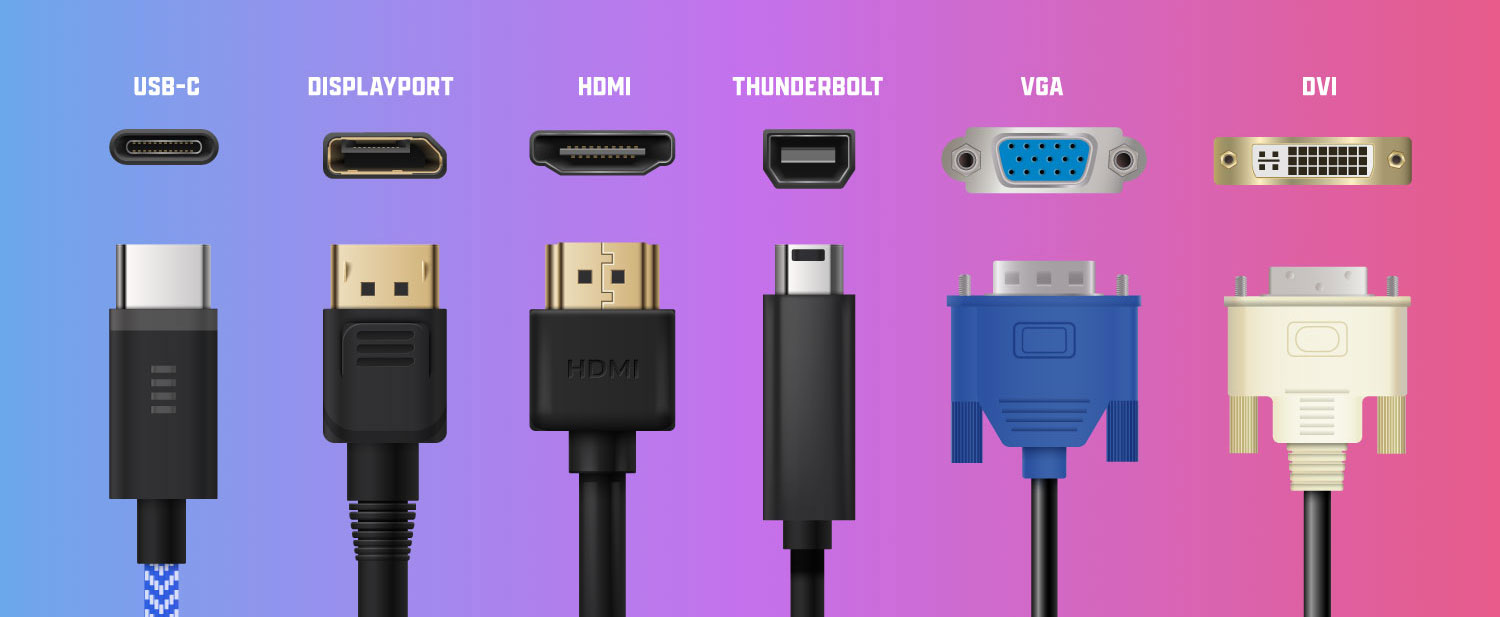
If zoom persists at boot, the PC and monitor may not be communicating correctly. The Extended Display Identification Data (EDID) handshake could be failing, causing the graphics card to default to an incorrect resolution.
Swap the Video Cable
A damaged HDMI, DisplayPort, or VGA cable can corrupt EDID data. Try a different cable of the same type. Even minor bends or pin damage can disrupt signal negotiation.
Change Video Ports on Your PC
Plug the monitor into a different port on your GPU or motherboard. This rules out a faulty output port. For example, switch from HDMI to DisplayPort or use a rear port instead of a front-panel connector.
Test with a Different Monitor
Connect your PC to a different display. If the output looks normal, the issue lies with your original monitor’s settings or hardware. If the problem follows the PC, the culprit is likely the graphics card or driver.
Advanced Fixes for Persistent Zoom Problems
When standard methods fail, deeper troubleshooting is needed. This is especially true after power surges or extended uptime, which can corrupt display handshakes.
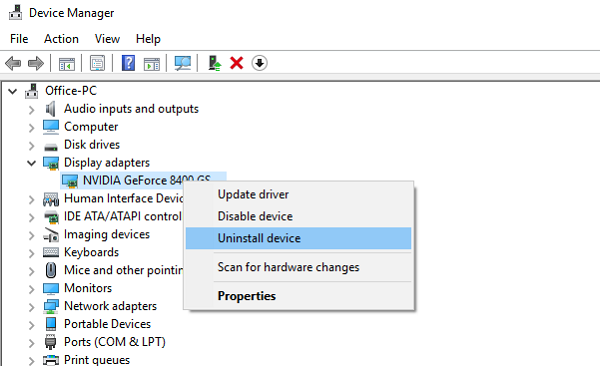
Reinstall the Display Driver
- Press Windows + X, then select Device Manager.
- Expand Display adapters.
- Right-click your GPU and choose Uninstall device.
- Check “Attempt to remove the driver for this device” if available.
- Restart the PC.
Windows will install a generic driver and re-detect the monitor, forcing a fresh EDID handshake.
Boot into Safe Mode
If the screen is too zoomed to navigate normally:
1. Hold Shift while clicking Restart from the power menu.
2. Choose Troubleshoot, then Advanced Options, then Startup Settings, then Restart.
3. Press F4 for Safe Mode.
Safe Mode loads at a basic, stable resolution. Use it to adjust scaling or uninstall display drivers.
Update Monitor Firmware
Brands like Dell, LG, HP, and Samsung occasionally release firmware updates for monitors. Visit the manufacturer’s support site and search using your model number. An update can fix EDID bugs or display logic errors that cause boot-level zoom.
Prevent Accidental Zoom in the Future
A few simple habits can stop zoom problems from coming back.
Clean Your Keyboard Regularly
Dust or debris under the Ctrl key can cause it to stick. Use compressed air to clean between the keys. A stuck Ctrl key turns every scroll into a zoom command.
Disable Touchpad Pinch Zoom
On laptops, two-finger pinch gestures trigger zoom. To disable this:
1. Open Settings, then Devices, then Touchpad.
2. Turn off Pinch to zoom.
Lock Display Settings
On Windows Pro editions, use Group Policy to lock scaling at 100%. Third-party tools can do the same on Home editions. This prevents accidental changes, which is ideal for shared or public computers.
Frequently Asked Questions About Zooming Out on a Monitor
Why is my monitor zoomed in all of a sudden?
A sudden zoom usually comes from an accidental keyboard shortcut. Pressing Ctrl + Plus or scrolling while holding Ctrl triggers magnification in most apps. A stuck Ctrl key can also cause continuous zooming whenever you scroll.
What is the shortcut to zoom out on a monitor?
The universal shortcut is Ctrl + Minus (-). Each press lowers the zoom level. To reset instantly, press Ctrl + 0 to return to 100%.
How do I zoom out my screen in Windows 10 or 11?
For application zoom, press Ctrl + Minus or Ctrl + 0. For system-wide zoom, right-click the desktop, choose Display settings, and set the scale to 100% (Recommended).
Why is my desktop zoomed in but everything else looks fine?
This points to Windows Magnifier being active. Press Windows key + Esc to exit it immediately. Then check Settings to ensure it does not auto-launch at sign-in.
Can a monitor itself zoom in without software?
Yes. Most monitors have an on-screen display menu with zoom, aspect ratio, and screen fit options. If these are set incorrectly, the display appears zoomed even before Windows loads. Access the menu using the physical buttons on the monitor bezel.
What if my screen is zoomed in at startup but normal after Windows loads?
This usually signals a hardware or EDID issue. Try a different video cable, switch ports, or power cycle the monitor by unplugging it for 60 seconds. Reinstalling the display driver can also force a fresh handshake between the PC and monitor.
Key Takeaways for Zooming Out on Any Monitor
When your screen looks too large, work through this sequence in order. Start with Ctrl + 0 to reset app and browser zoom. Then check that the Ctrl key is not physically stuck. Turn off Windows Magnifier using Win + Esc if needed. Set display scaling to 100% in Windows settings. Adjust the monitor’s aspect ratio to 16:9 or Auto through the on-screen display. Swap cables or ports if the issue appears at boot. Power cycle the monitor by unplugging it for a full minute. Finally, reinstall the display driver to force a fresh connection. Most zoom problems resolve in under two minutes using the first two or three steps. With this guide, you now have a complete path to fix any zoom issue on any monitor, from quick software resets to deeper hardware diagnostics.


