
Is your screen too bright during late-night work or in a dimly lit room? Excessive monitor brightness causes eye strain, headaches, and disrupted sleep cycles for millions of users daily. Most people rely on basic sliders, unaware that multiple control layers exist, ranging from hardware buttons to advanced registry edits, that can help you reduce monitor brightness beyond factory minimums.
This guide covers every proven method to dim your display, including OSD controls, OS settings, third-party apps, GPU tweaks, and extreme techniques for near-total darkness. You will learn how to tailor your screen luminance to any environment, whether you use a laptop, desktop, or multi-monitor setup.
Use Monitor OSD Controls for Hardware-Level Adjustment

For external monitors, the On-Screen Display (OSD) is your primary brightness tool. Unlike laptops, desktop monitors often cannot be controlled through Windows, making physical buttons essential for any attempt to reduce monitor brightness effectively.
Navigate LG Monitor Menus
LG monitors typically use a joystick control at the bottom center. Press it to open the menu, then move right to [Settings]. Under [Simple Settings], adjust [Brightness] and [Contrast] to your preferred levels. If options appear missing or erratic, navigate to [General] then [Reset to Initial Settings] and confirm to restore defaults. This often resolves unresponsiveness caused by power-saving glitches.
Adjust Packard Bell and Other Models
On models like the Packard Bell Viseo223DX, press the Menu button and use arrow or volume keys to navigate. Look for Brightness under Display, Image, or Picture settings. Button layouts vary by manufacturer, so consult your specific model’s manual if navigation is unclear.
Find the Physical Buttons
Most monitors place controls on the front, side, or bottom bezel. Common layouts include:
– A central joystick controller
– Separate up, down, and menu buttons
– Touch-sensitive icons
If buttons are unresponsive, ensure the monitor is powered on and not in locked menu mode. A factory reset via the OSD often restores full functionality.
Enable Windows Built-In Brightness Controls
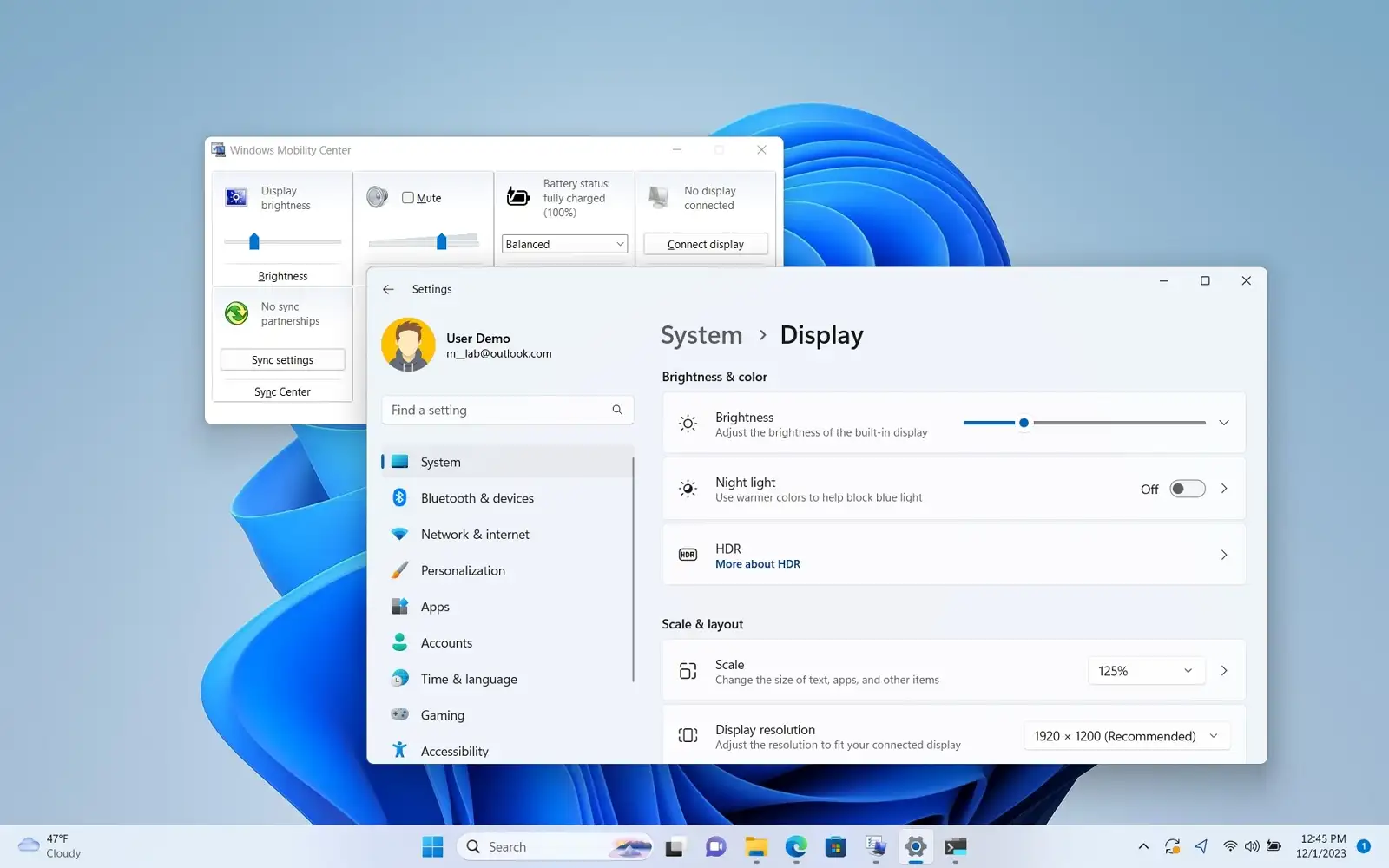
Windows 10 and 11 offer native brightness sliders, but they are not always visible, especially on desktops with external monitors. Knowing where to find these controls is the first step to reduce monitor brightness through your operating system.
Access the Display Slider
Go to Settings then System then Display. Look for the Brightness slider under “Brightness and color.” If visible, drag it down to reduce luminance instantly.
For quick access, click the Notification icon in the taskbar to open the Action Center. The brightness slider often appears there for immediate adjustment.
Fix a Missing Brightness Slider
If the slider does not appear:
– For laptops: Update the display driver via Device Manager then Display adapters
– For desktops: This is common because Windows cannot control external monitor backlights without DDC/CI support. Use the monitor’s OSD or install third-party tools like Twinkle Tray
Use Automatic Brightness Adjustment
On supported devices, enable “Change brightness automatically when lighting changes” in Display settings. This uses ambient light sensors to dim or brighten the screen dynamically. It is ideal for laptops used in varying lighting environments throughout the day.
Apply Night Light and Color Filters for Softer Viewing
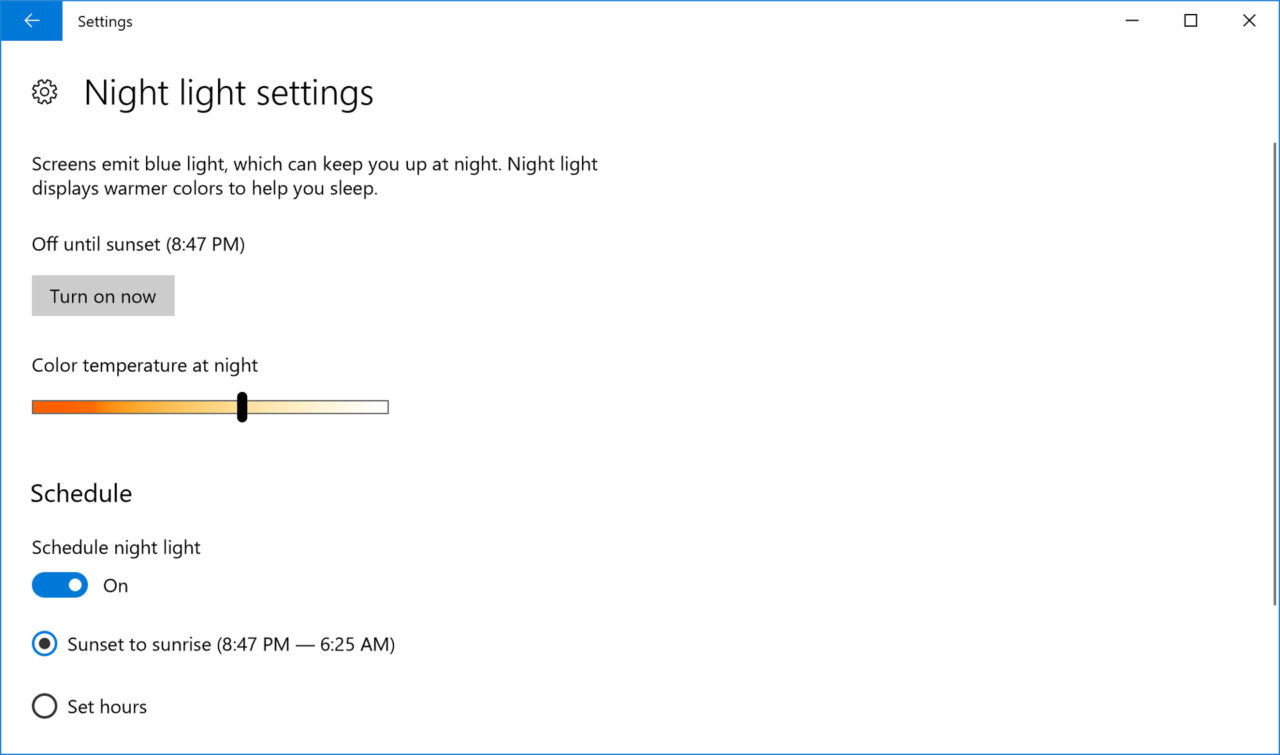
While not true brightness controls, Windows Night Light and color calibration can significantly reduce eye strain and perceived screen harshness. These features work alongside other methods when you reduce monitor brightness for comfort.
Activate Night Light
Go to Settings then System then Display then Night light. Toggle it on and adjust the strength slider to apply a warm, amber tint. This reduces blue light, making the screen feel softer in low-light conditions.
Schedule it to activate at sunset or set custom hours such as 7 PM to 7 AM. Note that Night Light will not work with DisplayLink or Basic Display Adapter drivers.
Calibrate Display Color Manually
Search for “Calibrate display color” in the Start menu or run dccw.exe. This wizard lets you adjust:
– Gamma
– Brightness (black point)
– Contrast (white point)
– Color balance (Red, Green, Blue)
Lower all sliders to their minimum to crush blacks and reduce overall luminance. Save the profile for a permanently dimmer appearance.
Install Third-Party Brightness Tools for Deeper Control
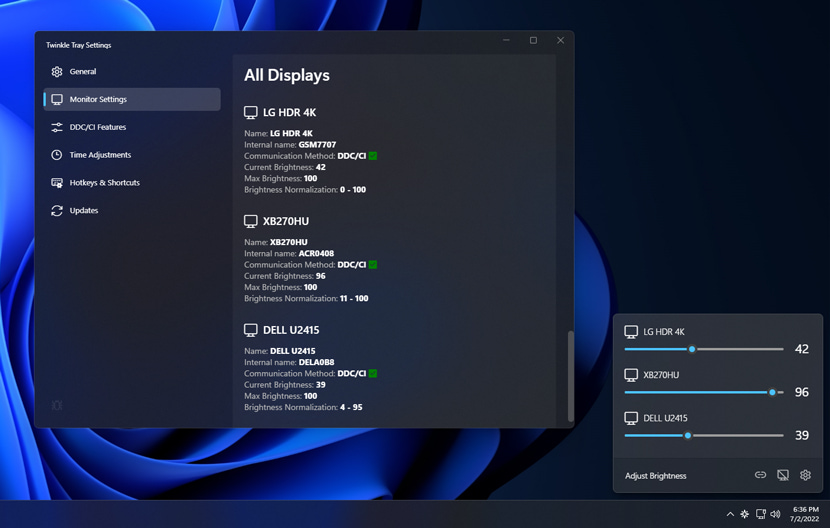
When hardware and OS options fall short, third-party apps offer deeper control, especially for external monitors. These tools help you reduce monitor brightness beyond default limits through software manipulation.
Use Twinkle Tray for External Monitors
Twinkle Tray (available in Microsoft Store) adds a system tray brightness slider for external displays. It works by sending DDC/CI commands directly to the monitor, mimicking hardware controls.
Key features include:
– Supports multiple monitors individually
– Works even when the Windows slider is missing
– Lightweight and easy to install
Ensure your monitor supports DDC/CI and is connected via DisplayPort or HDMI 1.4 or higher.
Try f.lux for Smart Dimming
While known for blue light reduction, f.lux can dim beyond hardware limits. In Settings then Brightness, enable “Dim to Black” and use these hotkeys:
– Alt + Page Down to dim
– Alt + Page Up to brighten
You can disable time-based adjustments and use f.lux purely as a brightness controller.
Run DimScreen for Overlay Dimming
DimScreen is a free, portable app that overlays a semi-transparent black layer to simulate lower brightness.
Control options include:
– Ctrl + - to dim
– Ctrl + + to brighten
– System tray icon for quick access
Warning: This tool may interfere with full-screen video playback. It is best for static work or extreme dimming needs.
Choose Iris for Better Contrast Preservation
Unlike overlay tools, Iris adjusts the white point using low-level color APIs. This preserves contrast and color accuracy better than simple dimming overlays.
Iris offers extended dimming down to 10% and boosting up to 150%. It also automates adjustments based on time of day, reducing visual fatigue compared to pure overlays.
Adjust Graphics Driver Settings for Fine-Tuning
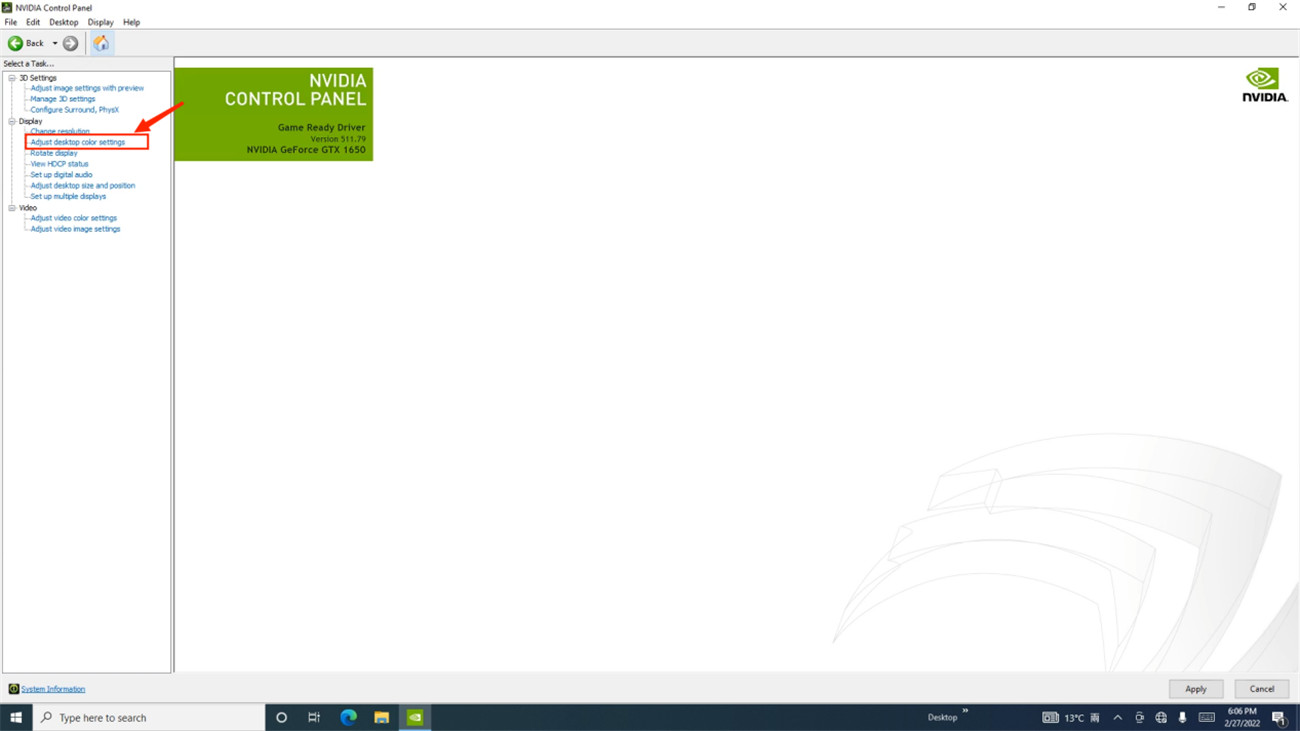
Your GPU can override monitor output by altering gamma, contrast, and digital brightness. This approach is ideal for fine-tuning when other methods to reduce monitor brightness prove insufficient.
NVIDIA Control Panel Tweaks
Right-click your desktop then select NVIDIA Control Panel then Display then Adjust desktop color settings.
Lower the following values:
– Brightness (reduces black levels)
– Gamma (darkens midtones)
– Contrast (reduces white intensity)
If colors appear distorted, click Restore Defaults to reset all values.
Intel Graphics Settings
Open Intel Graphics Command Center then Display then Color Settings. Set Brightness to the lowest available value, such as negative 60 if the scale permits. If the application is missing, update your Intel driver through the manufacturer’s website.
Use Linux and macOS Commands to Bypass GUI Limits
Linux and macOS users have powerful command-line tools available to bypass GUI limitations. These commands offer another path to reduce monitor brightness when standard controls fail.
Linux: xrandr and ddcutil
For laptops or integrated displays, open a terminal and run:
bash

xrandr --listmonitors

xrandr --output eDP-1 --brightness 0.3
Replace eDP-1 with your actual display name. Values below 1.0 dim the screen, while 0.0 produces pitch black.
For external monitors with DDC/CI support, use:
bash

sudo ddcutil setvcp 10 0
This sets VCP code 10 (brightness) to 0. Your monitor and connection must support DDC/CI.
macOS: Force Minimum Backlight
Use Terminal to force the backlight to its lowest level:
bash

sudo nvram boot-args="backlight=0"
Reboot to apply changes. This may not work on newer Macs with T2 chips or Apple Silicon processors. Combine with Night Shift or Accessibility then Display then Invert Colors for deeper dimming effects.
Modify Windows Registry for Forced Minimum Brightness
On some laptops, you can force brightness to 0% through the Windows registry. This advanced method provides another way to reduce monitor brightness when standard controls are unresponsive.
Warning: Editing the registry can cause system instability. Back up your registry before making changes.
- Open Registry Editor by typing
regeditin the Start menu - Navigate to:
HKEY_LOCAL_MACHINE\SYSTEM\CurrentControlSet\Control\Class\{4d36e968-e325-11ce-bfc1-08002be10318} - Look for subkeys named
0000,0001, and similar - In the correct subkey (usually the one with a
DriverDescmentioning “Display”), create a new DWORD (32-bit) value namedBrightness - Set its value data to
0 - Reboot your computer
This may force minimum brightness on compatible hardware configurations.
Apply Physical Screen Modifications for Maximum Reduction
When software reaches its limit, physical solutions can reduce light emission further. These methods work when all digital attempts to reduce monitor brightness have been exhausted.
Use Privacy Window Film
Cut a piece of static-cling privacy film (available at Home Depot or online retailers) to fit your screen dimensions. It:
– Reduces brightness by 30 to 50%
– Blocks glare effectively
– Is reusable and leaves no residue
This solution is ideal for office or shared workspace environments.
Attach Anti-Glare or Matte Filters
Older CRT-era glare screens or modern matte filters diffuse light, softening the image and reducing perceived brightness. These are especially helpful for glossy displays that reflect ambient light.
Block Light with Opaque Tape
For pitch-black conditions such as astrophotography or light-sensitive environments, cover the screen with black electrical tape or a blackout cover. This is the only way to ensure zero light leakage when the screen is on.
Achieve Pitch Black for Sensitive Use Cases

Need near-total darkness? Combine multiple methods for maximum dimming when you reduce monitor brightness for specialized applications.
Combine Software and Accessibility Features
- Set hardware brightness to minimum via OSD
- Enable Night Light at maximum warmth
- Turn on Grayscale or Invert Colors in Accessibility settings
- Run f.lux or DimScreen to apply a final overlay layer
This combination removes stimulating colors and reduces luminance to barely perceptible levels.
Crush Blacks with Gamma Calibration
Use dccw.exe to:
– Set Gamma to the lowest value
– Lower Red, Green, and Blue channels to minimum
This crushes black levels and makes the screen appear much darker, even if the backlight is not fully turned off.
Troubleshoot Common Brightness Issues
| Symptom | Cause | Solution |
|---|---|---|
| No brightness slider | External monitor | Use OSD or Twinkle Tray |
| Slider grayed out | Driver conflict | Update GPU driver or disable DisplayLink |
| Screen still too bright | Hardware minimum reached | Use f.lux or DimScreen for software dimming |
| Colors look washed out | Overlay reducing contrast | Use Iris or f.lux white-point adjustment |
Fix Inconsistent Brightness
If brightness fluctuates unexpectedly, Content Adaptive Brightness Control (CABC) may be active. Disable “Change brightness based on content” in Display Settings to stabilize output.
Address PWM Flicker Concerns
Some monitors use Pulse Width Modulation (PWM) to dim. At very low brightness, this can cause visible flickering, leading to eye strain and headaches. If you experience this, try using software dimming methods instead of hardware minimums.
Choose the Right Method for Your Setup
| Scenario | Best Solution |
|---|---|
| Desktop with external monitor | Monitor OSD plus Twinkle Tray |
| Laptop in dark room | Windows slider plus Night Light plus f.lux |
| Multi-monitor setup | ClickMonitorDDC or PangoBright |
| Need pitch black | OSD minimum plus Grayscale plus DimScreen plus tape |
| Linux user | xrandr --brightness 0.1 or ddcutil |
| Mac user | Night Shift plus Terminal backlight command |
Frequently Asked Questions About Reducing Monitor Brightness
Why is there no brightness slider on my Windows desktop?
Windows cannot control external monitor backlights natively unless your monitor supports DDC/CI protocol. Most desktop monitors lack this communication channel. Use your monitor’s physical OSD buttons or install Twinkle Tray from the Microsoft Store to add system tray brightness control.
Can I reduce monitor brightness below the minimum factory setting?
Yes, through software methods. Tools like f.lux with “Dim to Black” enabled, DimScreen overlays, or Iris white-point adjustments can dim your screen beyond hardware minimums. Linux users can use xrandr --output [name] --brightness 0.3 for similar results.
Is reducing brightness better for eye health?
Absolutely. Lower brightness reduces eye strain, prevents headaches, and minimizes sleep disruption from blue light exposure. Combine reduced brightness with Night Light or f.lux for optimal eye comfort during evening use.
Will software dimming damage my monitor?
No, software dimming methods do not affect hardware. Overlay tools like DimScreen simply add a transparent layer, while white-point adjusters like Iris modify color output. Your backlight and panel remain unaffected by these software solutions.
What is DDC/CI and why does it matter?
DDC/CI (Display Data Channel/Command Interface) is a protocol that allows software to communicate with your monitor’s hardware settings. Without DDC/CI support, tools like Twinkle Tray and ClickMonitorDDC cannot function. Check your monitor’s specifications or OSD menu to verify DDC/CI is enabled.
How do I dim my screen for astrophotography or complete darkness?
Combine multiple methods: set OSD brightness to minimum, enable Night Light at maximum warmth, activate Grayscale in Accessibility settings, and apply DimScreen or f.lux overlay. For absolute darkness, cover the screen with opaque tape or a blackout cover.
Key Takeaways for Reducing Monitor Brightness Comfortably
Reducing monitor brightness involves layering multiple techniques for the best results. Start with your monitor’s OSD controls for hardware-level adjustment, then add Windows native tools like Night Light for color temperature management. When these prove insufficient, third-party apps like Twinkle Tray, f.lux, and DimScreen provide deeper control beyond factory limits.
For extreme dimming needs, combine accessibility features, gamma calibration, and physical modifications. Your specific setup determines the best approach. Desktop users should prioritize OSD and DDC/CI tools, while laptop users benefit most from OS sliders combined with Night Light.
Next step: Identify your monitor type and current limitations, then apply the matching solution from the table above. Test each method individually before combining layers for optimal comfort and eye health.


