
You just unboxed your high-refresh gaming monitor, but screen tearing keeps ruining your gameplay. Your NVIDIA GPU and display both support G-Sync, yet the option is missing or grayed out in the settings. This is one of the most common frustrations among PC gamers, especially those using G-Sync Compatible FreeSync monitors.
The good news is that enabling G-Sync on your monitor is a straightforward process once you know the exact steps. This guide walks you through hardware verification, monitor OSD configuration, NVIDIA driver setup, and performance optimization. By the end, you’ll enjoy buttery-smooth, tear-free visuals in every game.
Verify Hardware Compatibility for G-Sync
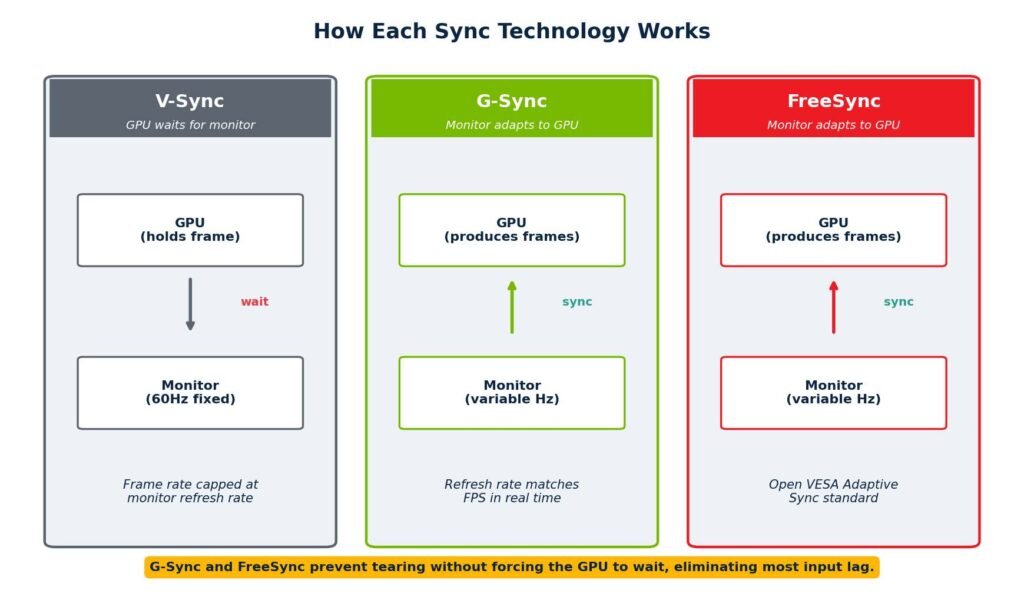
Before touching any settings, confirm your system meets the minimum requirements. Mismatched hardware is the leading cause of failed G-Sync activation.
Check GPU and Monitor Support
Your graphics card must match the type of G-Sync you want to enable. Native G-Sync requires a GTX 650 Ti BOOST or newer Kepler-class GPU. G-Sync Compatible mode needs a Pascal-class GPU (GTX 10-series) or later, including RTX 20, 30, and 40-series cards. Laptops work too if they have a compatible NVIDIA GPU with a DisplayPort output.
Your monitor must be labeled as one of these:
– NVIDIA G-Sync (with dedicated module)
– G-Sync Ultimate (HDR-capable premium tier)
– G-Sync Compatible (validated FreeSync display)
Visit NVIDIA’s official G-Sync monitor list to verify your exact model is certified.
Confirm DisplayPort Connection
DisplayPort is mandatory for nearly all G-Sync setups. HDMI support exists only on specific G-Sync Ultimate TVs with HDMI 2.1. Standard G-Sync Compatible monitors work exclusively over DisplayPort. If the G-Sync option is missing, switching from HDMI to DisplayPort 1.2 or higher often solves the problem.
Also verify your cable is VESA-certified for your target resolution and refresh rate. A weak cable can silently break the VRR handshake.
Enable Adaptive Sync in Your Monitor OSD

Even with perfect hardware, G-Sync won’t activate unless your monitor allows variable refresh rate signals. This setting lives in the On-Screen Display menu.
Access the OSD Menu
Use the physical buttons or joystick on your monitor to open the OSD. Navigate to sections labeled Display, Game Settings, Image, or Advanced Settings. Look for one of these options:
– FreeSync
– Adaptive Sync
– Variable Refresh Rate (VRR)
– G-Sync (on native G-Sync monitors)
Set the feature to On or Enabled. On brands like ASUS, Acer, and LG, this setting appears under “FreeSync,” which is completely normal when paired with an NVIDIA GPU.
Fix LG Overclock Conflicts
If you own an LG monitor, disabling the Overclock feature is critical. Navigate to Settings > Game Control > Overclock and set it to Off. Leaving Overclock enabled can cause flickering, black screens, or complete G-Sync failure, even when all software settings are correct.
Activate G-Sync in NVIDIA Control Panel

With hardware and OSD settings confirmed, it’s time to enable G-Sync through NVIDIA’s software interface.
Open the Control Panel
Right-click your desktop and select NVIDIA Control Panel. If it doesn’t appear, install or update your NVIDIA drivers from the official NVIDIA website. On systems using the newer NVIDIA App (2026+), navigate to Display > G-Sync instead.
Turn On G-Sync
Follow these steps inside the control panel:
- Expand Display in the left navigation tree.
- Click Set up G-SYNC.
- Check the box labeled Enable G-SYNC, G-SYNC Compatible.
- Select your monitor from the display icons that appear.
- For G-Sync Compatible monitors, check Enable settings for the selected display model.
- Click Apply.
Your monitor should now show as “G-SYNC Compatible” with a green confirmation checkmark.
Force G-Sync via 3D Settings (Fallback)
If the “Set up G-SYNC” page is missing entirely, use this alternative method:
- Go to Manage 3D Settings in the left panel.
- Find Monitor Technology.
- Change it from “Auto” to G-SYNC Compatible.
- Click Apply.
This forces the driver to treat your VRR monitor as fully G-Sync capable.
Choose Your G-Sync Operating Mode

G-Sync supports two distinct modes. Pick the one that matches your gaming habits.
Full Screen Only Mode
G-Sync activates exclusively in exclusive full-screen applications. This mode delivers maximum stability and avoids potential conflicts with Windows’ Desktop Window Manager. It’s ideal for older games and competitive titles where windowed mode isn’t needed.
Windowed and Full Screen Mode
This mode keeps G-Sync active in borderless windowed games, streaming overlays like OBS, and multitasking scenarios. It’s the preferred choice for streamers and anyone who runs games in borderless windowed mode. This mode requires Windows 10 or 11 with DWM enabled (the default setting).
To switch modes, return to Set up G-Sync and select your preferred radio button before clicking Apply.
Optimize In-Game and Driver Settings
Enabling G-Sync is only half the battle. Without proper frame rate management, you can introduce stutter or lose VRR entirely.
Disable In-Game V-Sync
Keep V-Sync turned OFF inside your game settings. Enabling it creates a frame queue that causes noticeable stuttering when frame rates climb above the refresh ceiling. Instead, enable V-Sync at the driver level through NVIDIA Control Panel > Manage 3D Settings > Vertical Sync. Driver-level V-Sync acts as a safety net without traditional V-Sync’s input lag penalty.
Cap Frame Rates Below Maximum Refresh
G-Sync only operates within your monitor’s refresh range. If your GPU outputs 250 FPS on a 240Hz display, G-Sync disengages at the top end and tearing returns. The fix is simple: cap your frame rate 3 to 5 FPS below maximum refresh.
For example:
– 240Hz monitor → cap at 237 FPS
– 144Hz monitor → cap at 141 FPS
You can cap frames using in-game limiters, the NVIDIA Control Panel’s Max Frame Rate setting, or third-party tools like RivaTuner Statistics Server.
Enable HDR with G-Sync (If Supported)
On G-Sync Ultimate or HDR-capable Compatible monitors, you can run HDR and VRR simultaneously. Turn on HDR through Windows Settings > System > Display > HDR, then enable HDR inside your game. This combination requires DisplayPort 1.4 with DSC or HDMI 2.1 for 4K HDR with VRR.
Verify G-Sync Is Working
Never assume the feature is active. Run a quick verification to confirm the handshake succeeded.
Use the NVIDIA G-Sync Indicator
Navigate to Display > G-SYNC Indicator in the NVIDIA Control Panel and enable it. Launch any game or browser test. A green overlay confirms G-Sync is actively synchronizing. A red indicator or no overlay means VRR is disabled.
Test with TestUFO
Open your browser and visit testufo.com. Run the “UFO motion” test and lower the frame rate to 40 to 60 FPS. Smooth, tear-free motion confirms G-Sync is working. Visible judder or tearing means the VRR handshake failed.
Monitor Refresh Rates with HWiNFO
Download HWiNFO and run it during gameplay. Watch the GPU Output Frame Rate and Monitor Refresh Rate values. When G-Sync is active, both numbers match dynamically frame by frame.
Troubleshoot Common G-Sync Issues

Even after correct setup, problems can appear. Here are the fastest fixes.
G-Sync Option Grayed Out
Common causes and solutions:
– Using HDMI instead of DisplayPort → Switch to DP
– FreeSync or Adaptive Sync disabled in OSD → Enable it
– Outdated drivers → Update to version 417.71 or newer
– Monitor not set as primary → Set it as main display in Windows
– GPU too old → Must be GTX 10-series or newer for Compatible mode
Flickering or Black Screens
Disable LG’s Overclock feature if applicable. Replace your cable with a VESA-certified DisplayPort 1.4 cable. If your monitor lacks Low Framerate Compensation, set a minimum FPS cap (such as 48) to stay above the VRR floor.
High Input Lag in Competitive Games
G-Sync adds minimal latency, but competitive players running 300+ FPS on a 240Hz monitor may prefer disabling G-Sync entirely and using Fast Sync instead. Pair this with NVIDIA Reflex for the lowest possible input lag.
Ultrawide or 4K Displays Not Working
High-resolution screens demand more bandwidth. Verify you’re using DisplayPort 1.4 or HDMI 2.1, confirm DSC is active, and update your monitor firmware. Re-check OSD settings after any firmware update.
Maintain Long-Term G-Sync Performance
Keep G-Sync running smoothly with these ongoing habits.
Update Drivers Regularly
NVIDIA adds new G-Sync Compatible certifications and performance fixes with each driver release. Use GeForce Experience or check manually every few months. Perform clean installs using DDU if you encounter persistent issues.
Re-enable After Firmware Updates
Monitor firmware updates can silently reset VRR settings. Always re-enable FreeSync or Adaptive Sync in the OSD and re-check G-Sync activation in the NVIDIA Control Panel after any firmware flash.
Adapt Settings by Game Type
Single-player, story-rich games benefit most from G-Sync’s tear-free immersion. Competitive shooters with stable 300+ FPS may run better with G-Sync disabled and a frame cap slightly above refresh rate. Test both approaches to find your ideal setup.
Frequently Asked Questions About G-Sync
Why is the G-Sync option grayed out in NVIDIA Control Panel?
The most common reason is using an HDMI cable instead of DisplayPort. Other causes include disabled FreeSync in the monitor OSD, outdated drivers below version 417.71, or a GPU older than the GTX 10-series for Compatible mode.
Do I need DisplayPort for G-Sync to work?
Yes, for nearly all setups. G-Sync Compatible monitors require DisplayPort exclusively. HDMI support exists only on specific G-Sync Ultimate TVs with HDMI 2.1. If G-Sync isn’t appearing, switch to DisplayPort first.
Can I use G-Sync with a FreeSync monitor?
Absolutely. NVIDIA validates certain FreeSync displays as “G-Sync Compatible.” Your monitor must be on NVIDIA’s official certified list, and you need a Pascal GPU or newer. Enable FreeSync in the OSD and G-Sync in the NVIDIA Control Panel.
Should I enable V-Sync with G-Sync?
Enable V-Sync at the driver level through NVIDIA Control Panel, but keep it disabled in-game. Driver-level V-Sync prevents tearing at the top of your refresh range without adding input lag, while in-game V-Sync causes stuttering.
Does G-Sync work in windowed or borderless mode?
Yes, if you select “Windowed and Full Screen” mode in the G-Sync setup page. This requires Windows 10 or 11 with Desktop Window Manager active. Streamers and multitaskers benefit most from this mode.
How do I know if G-Sync is actually working?
Enable the G-Sync Indicator in NVIDIA Control Panel for a real-time green overlay during gameplay. You can also use TestUFO in your browser or HWiNFO to verify that GPU frame rate and monitor refresh rate match dynamically.
Key Takeaways for Enabling G-Sync on Your Monitor
Enabling G-Sync on your monitor boils down to a reliable three-step handshake: enable VRR in the monitor OSD, activate G-Sync in the NVIDIA Control Panel, and connect everything with a certified DisplayPort cable. Skip any one of these steps and the feature simply won’t engage.
Start by verifying your hardware compatibility, then work through the OSD settings before touching the driver software. After activation, cap your frame rate slightly below maximum refresh and disable in-game V-Sync for the smoothest experience. Run a quick TestUFO verification to confirm everything works, and keep your drivers updated to maintain long-term stability. With these steps complete, you’ll enjoy tear-free, low-latency gameplay across your entire library.


