
You’ve installed a CCTV camera but can’t see the feed on your monitor. You’re not alone. Many homeowners and business operators struggle with the same issue, especially when dealing with different camera types and connector standards. This guide on how to connect CCTV camera to monitor covers every connection path, from simple BNC converters to advanced IP decoders and NVR systems.
Whether you’re setting up a single entry-point camera for deterrence or building a full multi-camera surveillance system, the method depends on your camera type and whether you need recording. Below, you’ll find step-by-step instructions for analog, HD-over-Coax, and IP cameras, plus troubleshooting tips to eliminate “no signal” errors and get crystal-clear video on your screen in minutes.
Direct BNC Camera to Monitor Connection Without a DVR
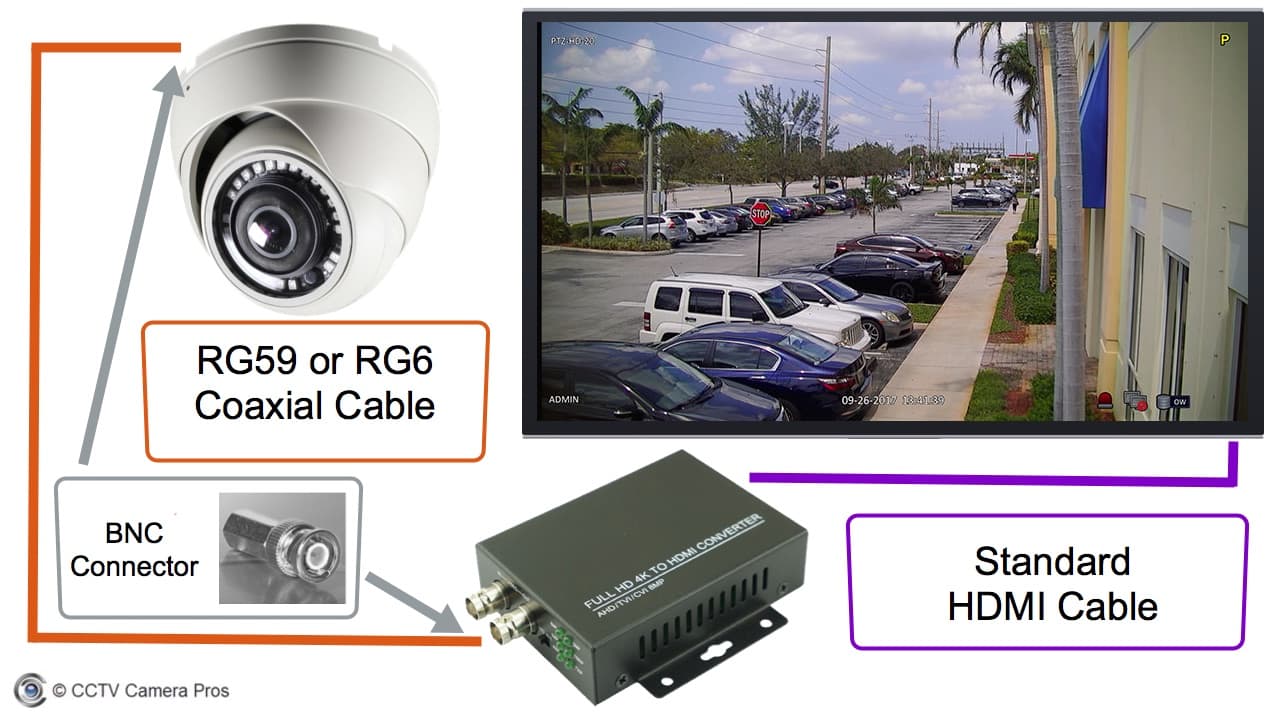
Use this method when you need live video from a single analog or HD-over-Coax CCTV camera without recording. It’s ideal for entryway displays, public deterrents, or simple monitoring setups.
Connect via BNC-to-HDMI Converter
Most modern monitors lack BNC inputs, so a BNC-to-HDMI converter (like the HDCV-3-T) is required to translate the coaxial signal into HDMI.
What You Need:
– BNC CCTV camera (Analog, AHD, TVI, or CVI)
– RG59 Siamese cable for video and power
– BNC-to-HDMI converter
– DC power adapter for camera and converter
– HDMI cable
– HDMI monitor
Steps:
1. Power the camera: Plug the DC adapter into the camera and an outlet. Check for LED indicators confirming power.
2. Run coaxial cable: Connect the camera’s BNC output to the converter’s BNC input using RG59 cable.
3. Power the converter: Connect its DC power supply. Most converters don’t draw power from the video line.
4. Link to monitor: Use an HDMI cable to connect the converter’s HDMI output to the monitor’s HDMI input.
5. Select input source: Turn on the monitor and switch to the correct HDMI channel.
6. Verify feed: Live video should appear. If not, check connections and power.
Pro Tip: Use a multi-format converter (e.g., HDCV-3-T) to support AHD, TVI, CVI, and Analog. This prevents black screen issues caused by format mismatch.
Connect to VGA or RCA Monitor
For older monitors with VGA or RCA inputs, alternative converters work just as well.
- VGA: Use a BNC-to-VGA converter. Connect the VGA cable from converter to monitor. Note that VGA is analog and offers lower resolution than HDMI.
- RCA (Yellow Jack): Use a BNC-to-RCA adapter. Plug into a TV’s composite input. Set the TV to “AV” or “Video” mode.
⚠️ Warning: Never plug a BNC connector directly into an RCA port without an adapter. This can damage both pieces of equipment.
View Multiple BNC Cameras Without a DVR
Want to display 2, 4, or more BNC cameras on one screen without recording? A video multiplexer solves this problem efficiently.
Use a Video Multiplexer
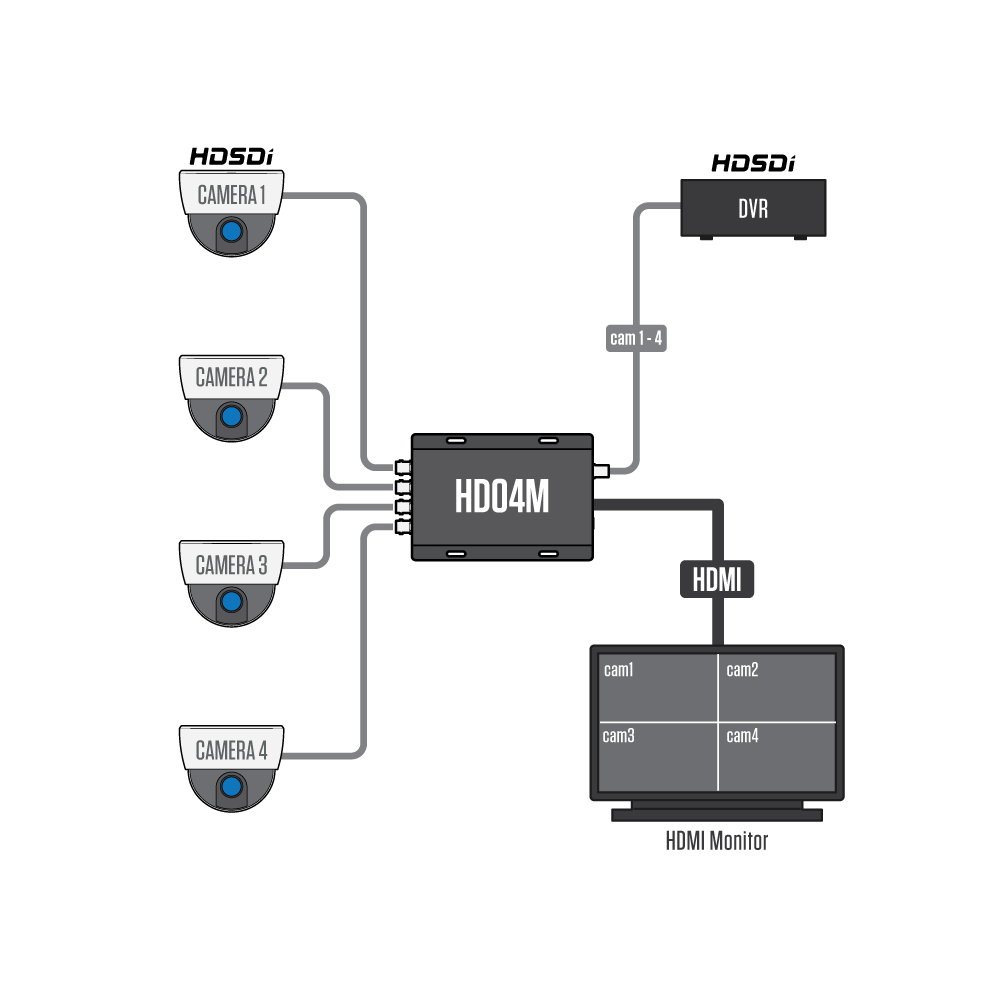
A multiplexer combines multiple BNC feeds into one output for split-screen viewing on a single monitor.
Setup Steps:
1. Connect cameras: Attach each camera’s BNC cable to an input port on the multiplexer (quad, 8-channel, or 16-channel).
2. Power cameras: Use individual adapters or a centralized power supply box.
3. Output to monitor:
– For HDMI monitors: Connect the multiplexer’s BNC output to a BNC-to-HDMI converter, then to the monitor.
– For RCA monitors: Use a BNC-to-RCA adapter on the multiplexer’s output.
4. Switch display modes: Use the multiplexer’s remote or buttons to toggle between quad view, scan mode, and picture-in-picture.
✅ Best for: Retail stores, reception areas, or garages where live multi-angle viewing is needed without the cost of a DVR.
Connect IP Camera to Monitor Directly
IP cameras send digital video over Ethernet and cannot plug into a monitor directly. You need a decoder or PC to translate the digital stream into a viewable signal.
Use an IP-to-HDMI Decoder
A decoder pulls the IP stream from the network and outputs HDMI video directly to your monitor.
Recommended Device: Viewtron IP-HDMI-D4K (supports 4K, PoE, and IR remote control)
Steps:
1. Connect camera to network: Plug the IP camera into a network switch or directly into the decoder if it has Ethernet ports.
2. Power the camera: Use PoE or a 12V adapter.
3. Power the decoder: Plug it into an outlet.
4. Connect to monitor: Use an HDMI cable from decoder to monitor.
5. Add cameras: Use the IR remote to open the decoder’s menu. Search for cameras on the network or add by IP address.
6. View live feed: Select camera(s) on screen. Some decoders support quad view for multiple cameras.
✅ No NVR needed: Perfect for small setups or adding a single IP camera to a display.
Connect via DVR or NVR for Recording Systems
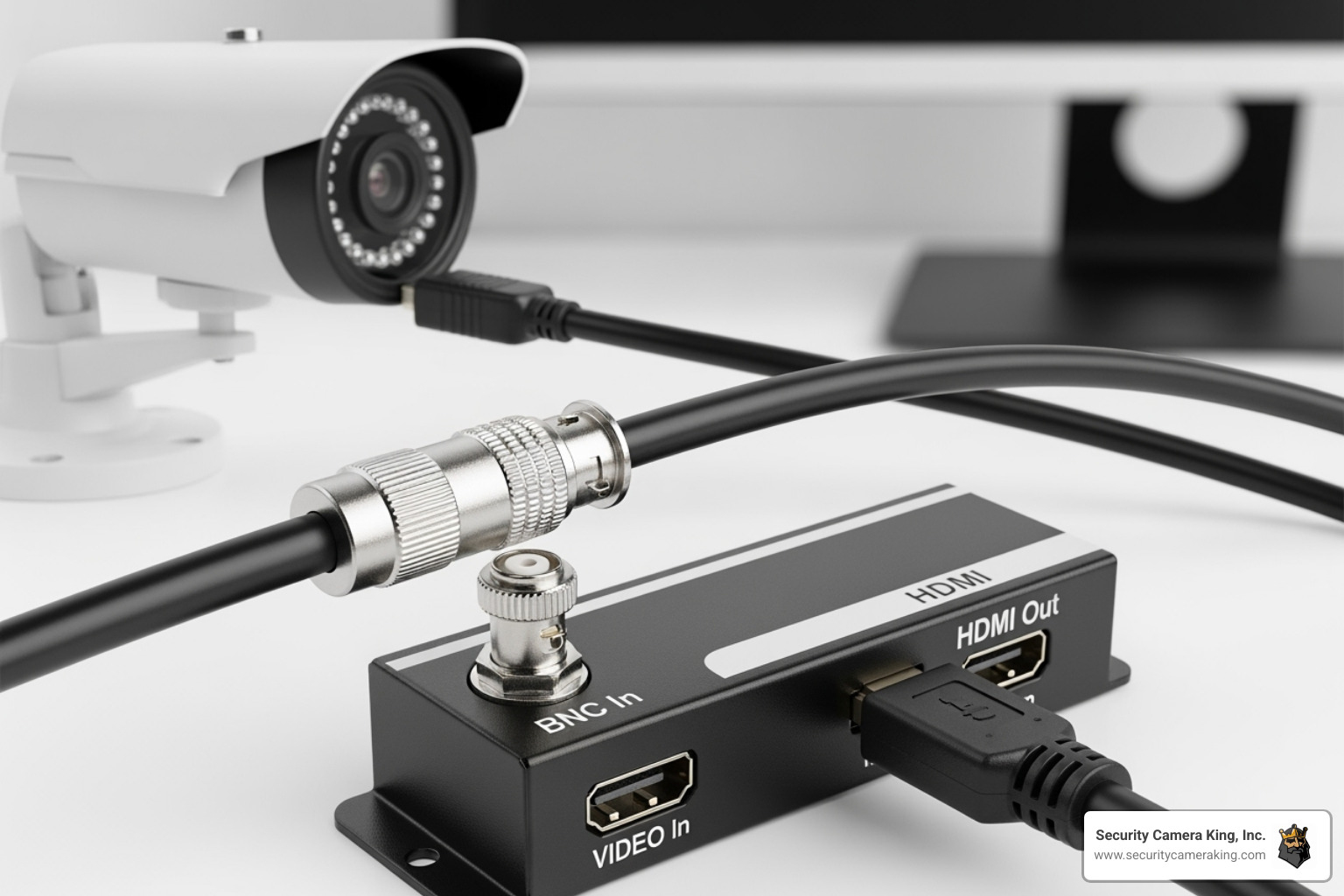
For multi-camera systems with recording, a DVR (for BNC cameras) or NVR (for IP cameras) is the standard solution.
DVR: Connect Analog and HD Cameras
System Setup:
1. Cameras to DVR: Plug each BNC camera into a BNC input on the DVR using RG59 cable.
2. Power cameras: Use individual DC adapters or a power distribution box.
3. DVR to monitor: Connect the DVR’s HDMI or VGA port to the monitor.
4. Connect mouse: Plug a USB mouse into the DVR for menu navigation.
5. Power on: Turn on the DVR and monitor. Select the correct HDMI or VGA input.
🔄 Auto-detect: Most DVRs auto-detect camera resolution and format (AHD, TVI, or CVI) without manual configuration.
NVR: Connect IP Cameras
Setup Steps:
1. Cameras to network: Plug IP cameras into a PoE switch. Alternatively, connect directly to the NVR if it has built-in PoE ports.
2. NVR to network: Link the NVR to the same switch via Ethernet.
3. NVR to monitor: Connect an HDMI or VGA cable from NVR to monitor.
4. Power on: The NVR should auto-detect ONVIF-compatible cameras on the network.
5. Configure: Use the mouse to set recording schedules, grid layout, and motion detection zones.
✅ Plug-and-play: Modern NVRs auto-add cameras without requiring manual IP configuration.
View CCTV on PC or Laptop Monitor
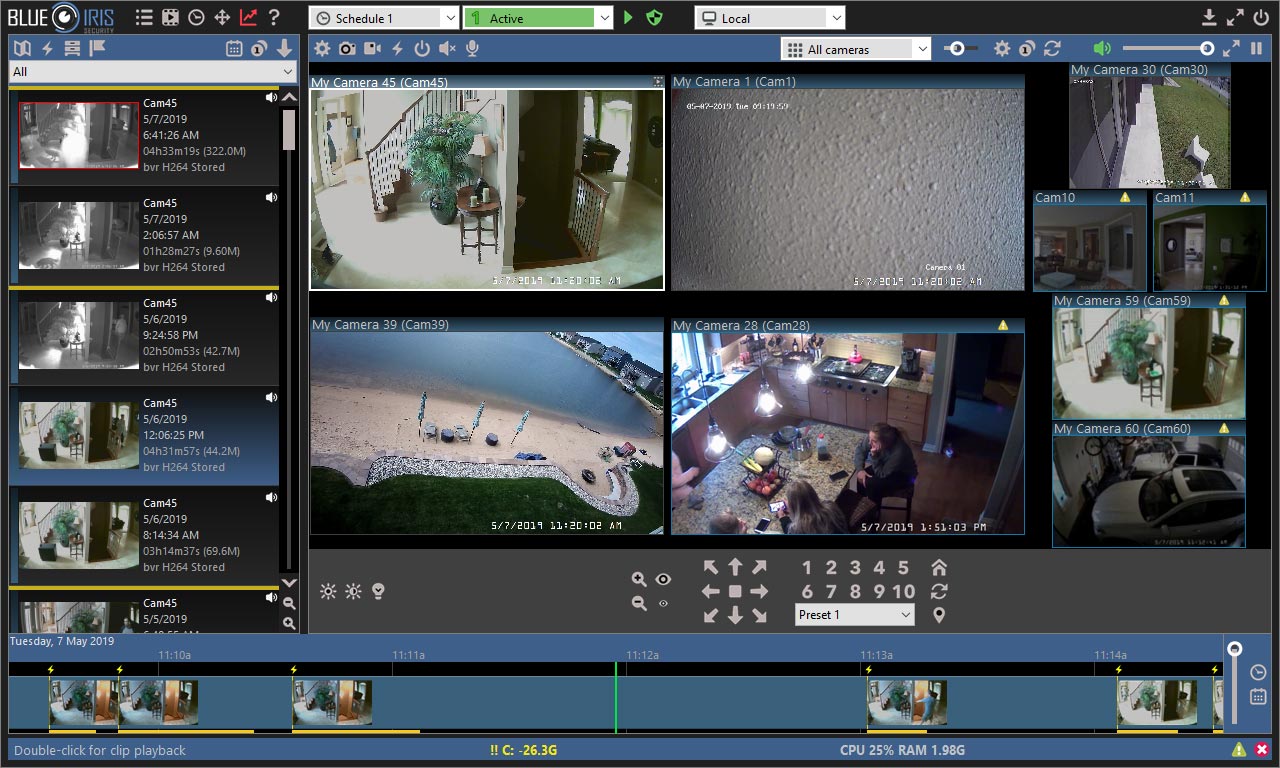
Turn your computer into a surveillance monitor using dedicated software or a web browser.
Use VMS or Web Browser
Option 1: Video Management Software (VMS)
– Install software like Blue Iris, Milestone, or manufacturer-specific tools.
– Add cameras by UID, IP address, or auto-discovery.
– View multiple feeds in customizable grid layouts.
Option 2: Web Browser Access
1. Find the camera’s IP address via router or app.
2. Type the IP into a browser (e.g., 192.168.1.100).
3. Log in with credentials.
4. View the live feed directly.
Connect Without Internet (Direct PC Link)
For offline setup without a router:
- Link camera to PC: Use an Ethernet cable between the IP camera and PC.
- Power camera: Use a PoE injector or DC adapter.
- Set PC IP: Assign a manual IP in the same subnet (e.g., camera:
192.168.1.100, PC:192.168.1.50). - Open VMS or browser: Enter the camera IP and log in.
🛠️ Tip: Use manufacturer tools (e.g., Reolink Client) to scan and detect local cameras automatically.
Wireless IP Camera to Monitor via PC
No cables? No problem. Wireless IP cameras offer flexible placement options.
Steps:
1. Power camera: Insert batteries or plug into an outlet.
2. Pair via app: Use the mobile app to connect the camera to Wi-Fi.
3. Connect PC to same Wi-Fi.
4. Open VMS: Software will detect the camera on the network.
5. Add and view: Enter credentials and display the feed on your monitor.
✅ Best for: Renters, temporary setups, or locations without Ethernet infrastructure.
Troubleshoot: No Signal on Monitor
“No signal” is the most common issue when connecting a CCTV camera to a monitor. Here’s how to diagnose and fix it fast.
Check Power and Cables
- Is the camera powered? Look for LED indicator lights.
- Are BNC connectors tight? Twist until locked into place.
- Is HDMI fully inserted? Reseat both ends of the cable.
- Try another cable: Faulty HDMI or coaxial cables frequently cause signal loss.
Verify Input Source
- Press “Input” or “Source” on the monitor or TV.
- Select the correct HDMI port (HDMI 1, HDMI 2, etc.).
Fix Format Incompatibility
- Problem: Analog camera on HDMI monitor without converter.
- Solution: Use a multi-format BNC-to-HDMI converter.
- Problem: 4K camera on 1080p monitor.
- Solution: Check converter settings and enable auto-downscale.
Diagnose IP Camera Connection Failures
| Issue | Fix |
|---|---|
| Camera offline | Restart camera, check network cable, verify power |
| IP conflict | Change camera or PC IP address |
| Wrong subnet | Ensure both devices are on the same network (e.g., 192.168.1.x) |
| Firewall blocking | Allow VMS app through Windows Defender or antivirus |
| Forgot password | Reset camera to factory defaults |
🔁 Reset Tip: Hold the reset button for 10 to 15 seconds until the LED blinks.
Extend CCTV to Multiple Monitors
Need the same feed in multiple rooms? HDMI over Ethernet kits make this simple.
Use HDMI Over Ethernet Kit
What You Need:
– HDMI Transmitter (TX)
– HDMI Receiver(s) (RX)
– Cat5e or Cat6 cable
– Network switch (optional, for multiple receivers)
Setup:
1. Connect the TX to the video source (converter or multiplexer) via HDMI.
2. Link the TX to a switch via Ethernet.
3. Connect RX units to the same switch.
4. Attach each RX to a monitor via HDMI.
✅ Result: Same live feed on all monitors, extending up to 100m using Ethernet.
🎯 IR Extension: Some kits include IR blasters, allowing you to control the source from any monitor location.
Record Without DVR or NVR
Can’t use a recorder? Several alternatives provide local or remote storage.
Use MicroSD Card
- Insert a microSD card into the camera.
- Enable motion recording via app or web interface.
- Limitations: Max 256GB, footage overwrites when full, vulnerable to theft.
PC-Based Recording
- Run VMS software (e.g., Blue Iris).
- Set to record continuously or on motion.
- Store footage on the PC hard drive.
- Requirement: PC must stay on 24/7.
Cloud Storage
- Subscribe to the manufacturer’s service (e.g., Reolink Cloud, Amcrest).
- Footage uploads via Wi-Fi or Ethernet.
- Pros: Remote access, no local hardware needed.
- Cons: Monthly fee and stable internet required.
Choose the Right Method for Your Needs
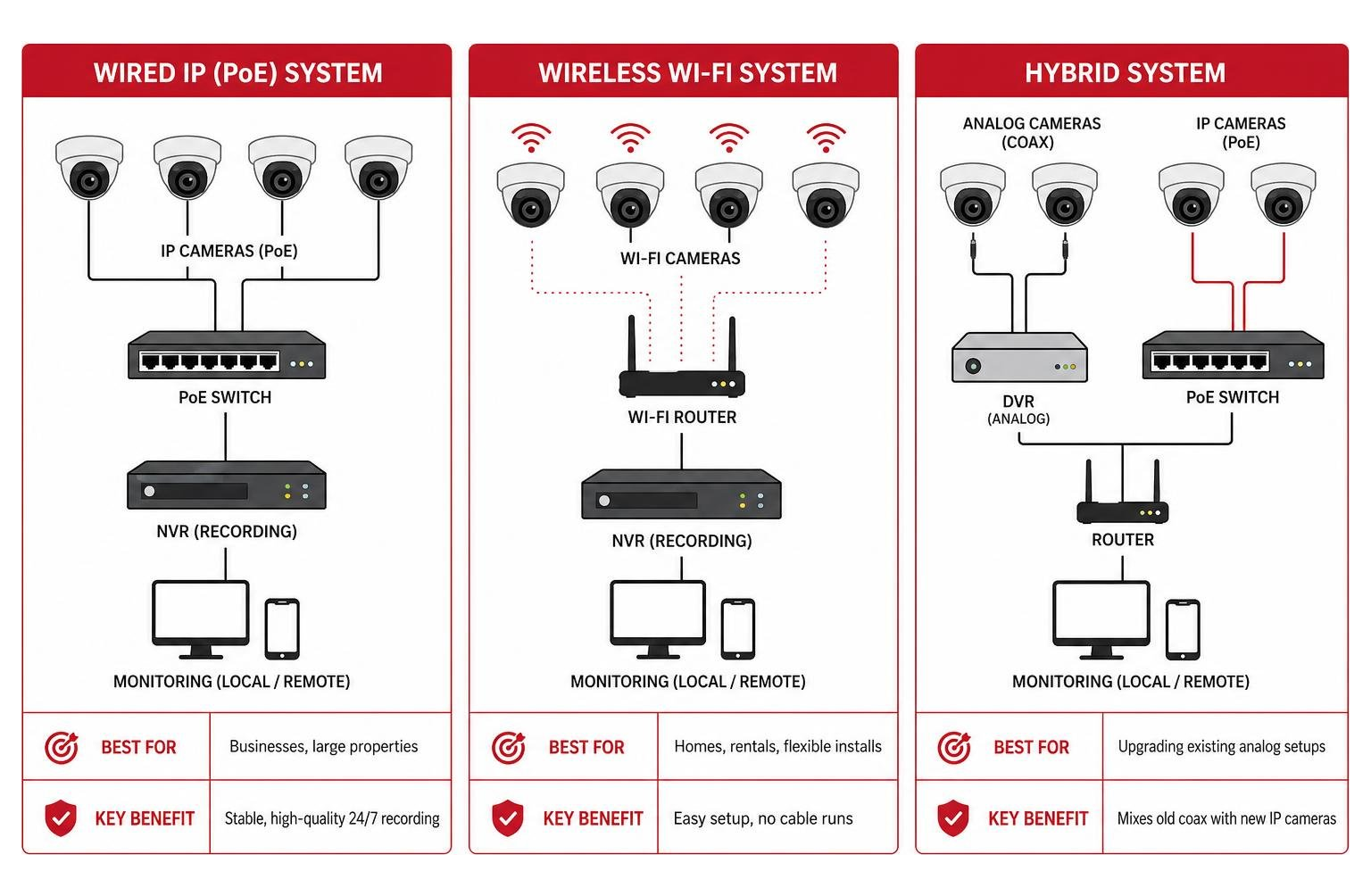
Deterrent Display for Retail Stores
Goal: Visible live feed to discourage theft.
Best Setup:
– Single BNC camera → BNC-to-HDMI converter → TV at entrance.
– Label the screen “Live Surveillance” for maximum psychological effect.
Home Monitoring for Front Door
Goal: See visitors from the living room.
Best Setup:
– Wireless IP camera → Connect to Wi-Fi → View on PC or smart TV via app.
– Or: PoE camera → NVR → HDMI to TV.
Full Security System with 24/7 Recording
Goal: Record all footage for evidence.
Best Setup:
– 4+ cameras → NVR or DVR → HDMI to monitor.
– Set motion recording, remote viewing, and backup storage.
Tech-Integrated Smart Home Setup
Goal: Combine with home automation.
Best Setup:
– IP cameras → VMS (e.g., Home Assistant) → Display on wall-mounted tablet or PC monitor.
– Trigger lights or alerts on motion detection.
Frequently Asked Questions About Connecting CCTV Cameras to Monitors
Can I connect a CCTV camera directly to a TV without a DVR?
Yes, you can connect a CCTV camera directly to a TV using a BNC-to-HDMI converter for analog cameras or an IP-to-HDMI decoder for IP cameras. The converter translates the camera’s signal into a format your TV can display. This works for live viewing but doesn’t provide recording capability.
What do I do if my monitor says “no signal” after connecting the CCTV camera?
First, verify the monitor is set to the correct input source (HDMI 1, HDMI 2, etc.). Check that all cables are fully seated and the camera has power. If using a converter, confirm it supports your camera’s format (AHD, TVI, CVI, or Analog). A multi-format converter like the HDCV-3-T resolves most compatibility issues.
Do I need an NVR for IP cameras to view them on a monitor?
No, you don’t need an NVR. An IP-to-HDMI decoder (like the Viewtron IP-HDMI-D4K) connects directly to your network and outputs the camera feed to a monitor via HDMI. This is ideal for single-camera setups or when you only need live viewing without recording.
How do I connect multiple CCTV cameras to one monitor?
You have two main options. Use a video multiplexer to combine multiple BNC camera feeds into a single output for split-screen viewing. Alternatively, use a DVR or NVR, which accepts multiple camera inputs and displays them in grid layouts on one monitor while also providing recording.
Can I view my CCTV camera on a laptop without internet?
Yes. Connect the IP camera directly to your laptop using an Ethernet cable. Set your laptop’s IP address to the same subnet as the camera (e.g., camera at 192.168.1.100, laptop at 192.168.1.50). Open VMS software or a browser, enter the camera’s IP, and view the feed locally without internet.
What’s the difference between BNC-to-HDMI and BNC-to-VGA converters?
BNC-to-HDMI converters deliver digital high-definition video (up to 4K) and are preferred for modern monitors. BNC-to-VGA converters output analog video at lower resolutions and work with older monitors. HDMI offers superior clarity and is the recommended choice unless you’re using legacy equipment.
Key Takeaways for Connecting Your CCTV Camera to a Monitor
Connecting a CCTV camera to a monitor is straightforward once you identify your camera type and choose the right method. For analog and HD-over-Coax cameras with BNC outputs, a BNC-to-HDMI converter or multiplexer provides live viewing without a DVR. For IP cameras, an IP-to-HDMI decoder or NVR delivers reliable display with optional recording. PC-based setups using VMS software offer maximum control and customization for tech-savvy users.
Always match your equipment formats, double-check power connections, and invest in multi-format converters to avoid compatibility headaches. With the right setup, you’ll have a clear, reliable live feed in minutes. Start by identifying your camera type, gather the appropriate converter or recorder, and follow the step-by-step instructions above to get your surveillance system running today.


