
You’ve found an old AV cable with red, white, and yellow connectors and you’re wondering how to connect it to your modern monitor. You’re not alone. Many people still use AV cables from older devices like DVD players, retro gaming consoles, or VCRs and want to display that content on a contemporary screen. The challenge is that most modern monitors lack AV inputs. With the right tools and steps, you can make it work for nostalgia, legacy equipment, or specific setup needs.
This guide walks you through exactly how to connect an AV cable to a monitor, even when your screen doesn’t have matching ports. You’ll learn about AV cable types, compatible adapters, connection steps, and troubleshooting tips. By the end, you’ll know how to bridge the gap between older analog devices and modern digital displays.
Identify Your AV Cable Type Before Connecting
Before plugging anything in, figure out what type of AV cable you’re working with. Using the wrong cable can lead to no signal or poor image quality.
What Is a Composite AV Cable?
AV stands for audio and video. The most common AV cable is the composite AV cable, which has three color-coded connectors:
– Yellow: Video input and output
– Red: Right audio channel
– White or black: Left audio channel
These cables carry analog signals and are typically used with older electronics like VCRs and early gaming systems.
Composite vs. Component Cables Explained
Don’t confuse composite (single yellow video) with component cables (three video cables in green, blue, and red plus audio). Component supports higher resolution but still uses analog signals. Make sure your source device and adapter match your cable type to avoid connection issues.
Check What Input Ports Your Monitor Has
Most modern monitors use digital inputs like HDMI, DisplayPort, or VGA on older models. Since AV is analog, direct connection isn’t possible without conversion.
Common Monitor Input Ports to Look For
Look at the back or side of your monitor and note the available input ports:
– HDMI
– VGA
– DVI
– DisplayPort
If none of these support AV directly, you’ll need an AV to HDMI or AV to VGA converter to complete the connection.
Connect AV to Monitor Using an HDMI Converter
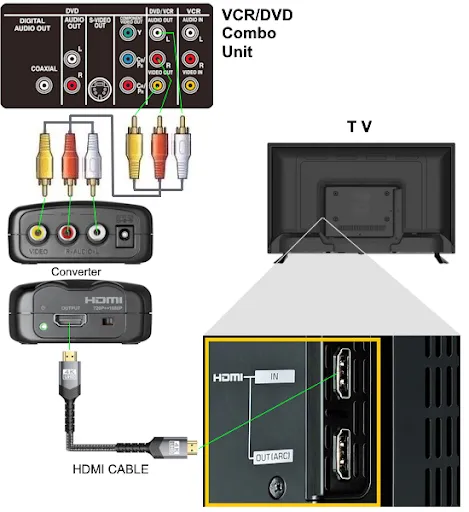
The most effective way to connect AV to a modern monitor is by using a converter box that changes analog signals into digital ones.
Choose the Right AV to HDMI Converter
Select a converter that accepts RCA inputs in red, white, and yellow, outputs to HDMI, and is powered via USB. Popular options include the GANA AV to HDMI Converter and the J-Tech Digital AV to HDMI Adapter.
Step-by-Step Connection Process
Follow these steps to complete the setup:
1. Plug the yellow AV cable into the video input on the converter.
2. Plug the red and white cables into the corresponding right and left audio inputs.
3. Connect an HDMI cable from the converter to your monitor’s HDMI port.
4. Power the converter using the included USB cable and adapter.
Once powered, turn on your source device and switch the monitor to the correct HDMI input.
Connect AV to Monitor Using a VGA Converter

If your monitor only has a VGA port, you can still connect AV using a different type of converter.
Select a Compatible AV to VGA Converter
Ensure the converter supports RCA input, outputs to VGA, and includes audio output since VGA doesn’t carry sound on its own.
Configure the VGA Connection
- Attach the yellow, red, and white AV cables to the converter.
- Connect a VGA cable from the converter to the monitor.
- Use a separate 3.5mm audio cable from the converter to external speakers if sound is needed.
- Power the converter and turn on your devices.
Note that image quality may be lower than HDMI, but it works for basic viewing needs.
Troubleshoot No Signal Problems on Your Monitor

Even after connecting everything, you might see a “No Signal” message on your monitor. Here’s how to fix common issues.
Verify Power and Input Source Settings
Make sure the converter is powered since many fail silently when unpowered. Confirm the monitor is set to the correct input like HDMI 1 or HDMI 2. Check that the source device is turned on and actively playing content.
Test Cables and Ports for Damage
Swap HDMI or VGA cables to rule out cable failure. Try the setup on another monitor or TV with AV inputs if possible. Inspect AV cable ends for bent pins or corrosion that can block signal transmission.
Check Converter Video Standard Compatibility
Some converters don’t support older video formats like NTSC or PAL properly. Make sure your converter supports the output standard of your device. Most converters upscale 480i or 576i to 720p or 1080p resolution.
Use a TV as an Alternative Display Option
If your monitor setup continues to fail, consider using a modern smart TV as a temporary display instead.
Why TVs Make AV Connection Easier
Many TVs still include AV inputs or come with an AV adapter. Simply plug the AV cable into the AV input on the TV, switch the TV to the correct source like AV or AUX, and use the TV screen as your display. This is often the quickest solution for legacy devices.
Improve Video Quality From Analog Sources
Analog signals can look fuzzy on high-resolution monitors. Here are practical ways to improve clarity.
Enable Upscaling on Your Converter
Some AV to HDMI converters offer 1080p upscaling. Check settings or switches on the device and set to 720p or 1080p if supported for sharper images.
Use High-Quality Shielded Cables
Even with analog signals, better-shielded AV cables reduce interference and color bleed. Investing in quality cables makes a noticeable difference.
Keep Cable Runs Short
Keep the source, converter, and monitor close together. Long cable runs degrade analog signal quality and produce weaker output.
Prevent Common AV Connection Mistakes
Avoid these frequent errors that block successful setup and waste your time.
Never Plug AV Directly Into HDMI Ports
HDMI ports do not accept AV signals directly. Always use a converter to translate the analog signal into digital format.
Avoid Cheap Unpowered Adapters
Unpowered adapters often fail or deliver poor results. Always choose a converter with external USB power for stable performance.
Match Video Standards Between Devices
If your device uses PAL (common outside the U.S.) and the converter defaults to NTSC, the image may not display. Manually switch the standard if your converter allows it.
Optimize Your Final AV Setup
Once you’re up and running, these tips help you maintain a reliable setup.
Label Your Cables for Easy Management
Use tags or colored tape to mark AV cables, especially if managing multiple devices in the same area.
Keep a Spare Converter on Hand
Store an extra AV to HDMI converter for future use with old equipment. Having a backup saves time when troubleshooting.
Consider Upgrading Legacy Source Devices
If you frequently use old gear, think about digitizing content like converting VHS tapes to digital files. This eliminates AV dependency long-term.
Frequently Asked Questions About Connecting AV Cable to Monitor
Can I connect AV cables directly to a monitor without a converter?
No, you cannot connect AV cables directly to a modern monitor. AV signals are analog while modern monitors use digital inputs like HDMI. You need an AV to HDMI or AV to VGA converter to bridge the signal difference.
Will any AV to HDMI converter work with my setup?
Not every converter works with every setup. You need one that accepts RCA inputs (red, white, yellow), outputs HDMI, and supports your device’s video standard (NTSC or PAL). Powered converters generally perform better than passive adapters.
Why is there no sound when I connect AV to my monitor?
Most monitors don’t have built-in speakers or don’t process audio through HDMI from converters. You may need to connect external speakers using a 3.5mm audio cable from the converter or use a TV instead of a monitor.
Can I use an AV to HDMI converter with a PAL device?
Yes, but only if the converter supports PAL video standards. Many budget converters default to NTSC and won’t display PAL signals correctly. Check the product specifications before purchasing.
Is image quality good when converting AV to HDMI?
Image quality depends on your source material and converter quality. AV signals max out at 480i resolution, so even with 1080p upscaling, the result won’t match native HD content. Expect softer images with some color bleed.
Do I need to power my AV to HDMI converter?
Yes, most reliable AV to HDMI converters require external USB power to function properly. Without power, the converter won’t process the analog signal into digital output.
Key Takeaways for Connecting AV Cable to Monitor
Connecting an AV cable to a modern monitor requires a powered converter since monitors don’t accept analog signals directly. The most reliable method is using an AV to HDMI converter with proper RCA connections and USB power. For older monitors, an AV to VGA converter works but requires separate audio routing.
If you encounter no signal issues, check power connections, input source settings, and video standard compatibility first. For the best results, use quality shielded cables, keep cable runs short, and ensure your converter supports your device’s output format. With the right setup, you can successfully display legacy content on any modern screen and preserve access to your favorite older media.


