
You cannot plug a standard monitor directly into a Wi-Fi network like you would a smartphone or laptop. Instead, you stream your PC’s display to the monitor wirelessly using the right tools. If HDMI cables are cluttering your desk and you want a cleaner setup, this approach lets you send your computer’s screen over your existing wireless network.
This guide explains how to connect a monitor to Wi-Fi indirectly by transmitting your desktop’s display wirelessly. You will learn the most effective methods, including wireless display adapters, wireless HDMI kits, and software-based streaming. Each option includes setup steps, requirements, and tips for choosing the right solution for your needs.
Use a Wireless Display Adapter
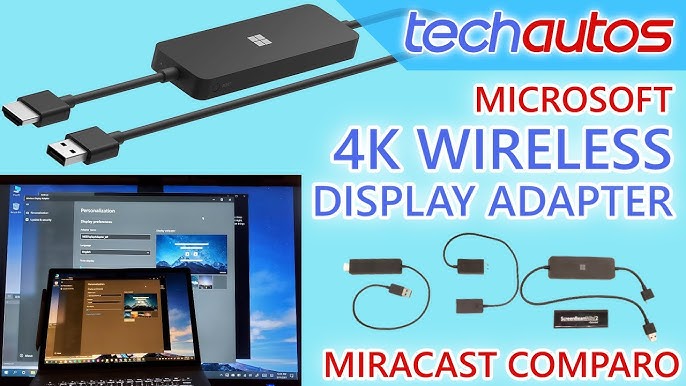
A wireless display adapter is the fastest way to send your PC screen to a monitor over Wi-Fi. These compact HDMI dongles turn any HDMI-equipped monitor into a wireless receiver with minimal setup.
Choose a Miracast-Compatible Adapter
Miracast is a built-in Windows standard that mirrors your screen without installing extra software. Most modern Windows 10 and 11 PCs already support this protocol. Popular adapter options include:
- Microsoft Wireless Display Adapter
- ScreenBeam Mini2
- Plugable USB-C and HDMI Wireless Adapter
Confirm the adapter supports Miracast and lists Windows compatibility before purchasing.
Connect the Adapter to Your Monitor
- Plug the adapter into your monitor’s HDMI port.
- Connect the adapter’s USB cable to a power source such as a laptop USB port, wall charger, or powered hub.
- Switch the monitor input to the correct HDMI channel.
Wait for the adapter’s indicator light to signal it is ready. A solid or blinking blue light typically means the device is powered on and searching for a connection.
Cast From Your Windows PC
- Press Windows + K to open the Cast menu.
- Wait for your adapter to appear in the device list.
- Click the adapter name to connect.
Your desktop will mirror on the monitor within seconds. If no devices appear, go to Settings > System > Display > Multiple Displays > Connect to a wireless display. Make sure Wi-Fi is enabled and your PC supports Miracast.
Fix Common Connection Issues
- No wireless display devices found: Update your Wi-Fi drivers and enable “Connect to a wireless display” in Settings.
- Lag or stuttering: Move your PC closer to the router or switch to a 5 GHz Wi-Fi network.
- Black screen after connection: Check HDCP settings or restart the adapter.
This method works best for office tasks, presentations, and casual browsing rather than high-performance activities.
Install a Wireless HDMI Kit

A dedicated wireless HDMI kit delivers reliable, high-quality video without relying on your PC’s operating system features. These systems transmit video directly over a private wireless link or your home Wi-Fi network.
Pick a High-Performance Kit
Top models worth considering include:
- IOGEAR Wireless 4K HDMI Kit
- Satechi Wireless HDMI Transmitter
- Nyrius Aries Pro
Look for support for 1080p or 4K resolution, low latency under 60ms, and HDMI 2.0 compatibility.
Set Up the Transmitter and Receiver
- Connect the transmitter to your PC’s HDMI output. Use an adapter such as DisplayPort to HDMI if needed.
- Connect the receiver to your monitor’s HDMI input.
- Plug both units into power outlets.
- Press the pairing button on each device within 10 seconds until the LED turns solid.
Most kits pair automatically once powered on within range of each other.
Switch the Monitor Input Source
Use your monitor’s input or source button to select the HDMI port connected to the receiver. Within 10 to 20 seconds, your PC screen should appear on the display.
Place both devices within line of sight for the strongest signal. Avoid thick walls or microwaves that can interfere with the wireless connection.
Optimize for 4K or Gaming
- Enable 4K mode in your PC’s display settings.
- Reduce desktop animations to minimize lag.
- Use the 5 GHz Wi-Fi band if your kit supports network streaming.
These kits deliver near-wired performance and work well for home theaters, conference rooms, or dual-monitor setups where running cables is not practical.
Stream via Software: Moonlight, Parsec, or Remote Desktop
If you already own a smart device near your monitor, such as a smart TV, Android box, or secondary PC, you can stream your desktop over Wi-Fi using dedicated software.
Install Moonlight for GPU-Accelerated Streaming
Moonlight works best for users with NVIDIA, AMD, or Intel Arc GPUs.
- On your PC, install NVIDIA GeForce Experience for NVIDIA cards or Sunshine for AMD and Intel hardware. Sunshine enables GameStream on non-NVIDIA systems.
- On the receiving device, such as an Android tablet or Fire TV, install Moonlight.
- Confirm both devices are on the same Wi-Fi network.
- Open Moonlight and enter your PC’s IP address.
- Pair using the PIN shown on your PC.
- Start streaming.
Moonlight delivers low-latency, high-frame-rate performance suitable for gaming or video editing.
Try Parsec for Remote Collaboration
Parsec excels at remote work and screen sharing scenarios.
- Download Parsec on both your host PC and client device.
- Create a free account and log in on both.
- From the client, select your PC from the connection list.
- Click to connect.
Parsec supports multi-user access, file transfer, and ultra-low latency on a stable Wi-Fi network.
Use Microsoft Remote Desktop for Office Tasks
Remote Desktop works for productivity tasks but is not ideal for video or gaming.
- Enable Remote Desktop on your PC through Settings > System > Remote Desktop > Turn on.
- Note your PC’s name or IP address.
- On a Windows tablet, Mac, or Android device, install the Microsoft Remote Desktop app.
- Add your PC and connect.
You will see your full desktop and control it remotely, though video playback may experience some lag.
All software options require port forwarding or UPnP for outside-network access but work seamlessly on local Wi-Fi.
Check Your Network for Stability
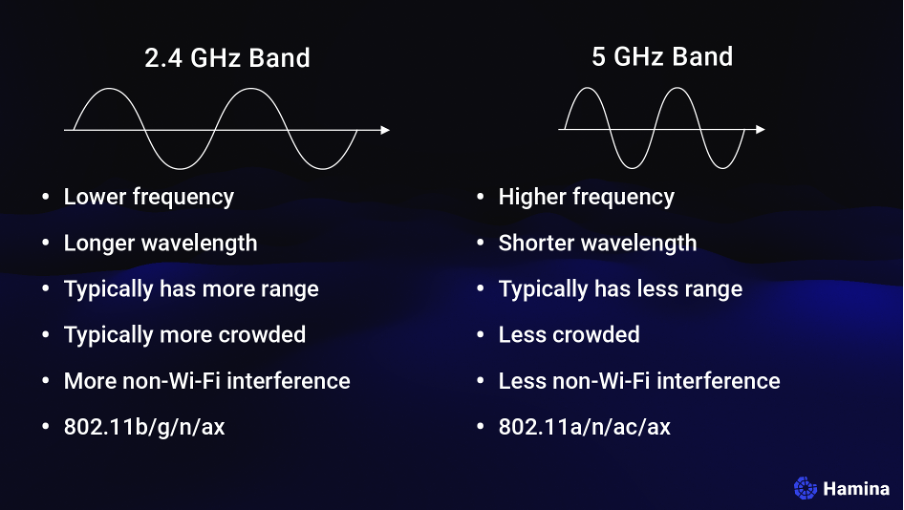
A strong Wi-Fi connection is critical for smooth wireless display performance. Even the best adapter cannot overcome a poor network signal.
Use the 5 GHz Wi-Fi Band
The 2.4 GHz band is slower and more congested. Always connect to 5 GHz for:
- Lower latency
- Higher bandwidth
- Better signal quality
Go to your PC’s Wi-Fi settings and confirm connection to the 5 GHz network, which is often labeled with “5G” in the SSID.
Position Your Router Strategically
- Keep your PC and wireless receiver within 15 feet of the router.
- Avoid metal objects, concrete walls, or cordless phones nearby.
- Use a Wi-Fi extender if the signal is weak in your workspace.
Test Your Network Speed
Open Command Prompt and run a ping test to your router’s IP address. Consistent response times under 10ms indicate a stable connection for wireless display streaming.
Frequently Asked Questions About Connecting a Monitor to Wi-Fi
Can any monitor connect to Wi-Fi?
No. Standard monitors do not have built-in Wi-Fi receivers. You need an external wireless adapter, HDMI kit, or streaming device to send your PC’s display to the monitor wirelessly.
Do I need a special monitor to connect wirelessly?
You only need a monitor with an HDMI input. The wireless adapter or receiver plugs into that port and handles the Wi-Fi connection independently.
What is the best wireless adapter for streaming a PC to a monitor?
For most users, a Miracast-compatible adapter like the Microsoft Wireless Display Adapter offers the simplest setup. For higher performance, a dedicated wireless HDMI kit provides better quality and lower latency.
Will wireless display work for gaming?
It depends on the method. Wireless HDMI kits and Moonlight can support casual gaming on a strong 5 GHz network, but competitive or fast-paced gaming still benefits from a wired connection due to unavoidable latency.
Do I need internet or just a local network?
You only need a local Wi-Fi network for all three methods. None of these solutions require an active internet connection to stream your PC’s display to your monitor.
Why is my wireless display laggy?
Lag usually comes from a weak Wi-Fi signal, network congestion, or distance between your PC and the adapter. Switch to 5 GHz, move closer to the router, and reduce interference from other devices.
Key Takeaways for Connecting Your Monitor to Wi-Fi Wirelessly
Connecting a monitor to Wi-Fi directly is not possible, but streaming your PC’s display wirelessly is straightforward with the right hardware. For most users, a Miracast-compatible wireless display adapter offers the easiest and most affordable path to a cable-free setup. Users who need higher performance for gaming or 4K video should invest in a dedicated wireless HDMI kit.
Software solutions like Moonlight, Parsec, and Microsoft Remote Desktop add flexibility for users with smart devices already near their monitor. No matter which method you choose, a strong 5 GHz Wi-Fi network is essential for smooth, lag-free performance.
Start by checking whether your PC supports Miracast, then choose the method that matches your budget and performance needs. A wireless display setup can transform your workspace in under an hour.


