
You finished building your PC, slotted in a powerful graphics card, and now you want a second monitor plugged directly into the motherboard for extra screen real estate. You connect the cable, power everything on, and nothing happens. The screen stays black. This frustrating experience is common because most motherboards disable onboard video outputs when a dedicated GPU is detected. The good news is that learning how to connect a monitor to the motherboard while keeping your GPU active is entirely possible with the right configuration. This guide covers every step from BIOS tweaks to Windows settings, helping you build a working hybrid display setup without sacrificing performance.
Verify Hardware Compatibility Before You Begin
Before touching any cables, confirm your system actually supports output from both the motherboard and GPU at the same time. Skipping this step is the fastest way to waste time troubleshooting.
Your CPU Must Include Integrated Graphics
The video ports on your motherboard only function when your processor has a built-in graphics chip. Many modern CPUs include this feature, but several popular models do not.
- Intel processors: Most non-F series chips include UHD Graphics, such as the i5-12400 or i7-13700K.
- AMD processors: Most non-G series chips include Radeon graphics, with Ryzen 5 5600G being a strong example.
- Avoid F-series CPUs: Models like the i5-13400F or Ryzen 5 5600X lack integrated graphics entirely, so no signal will ever come from the motherboard.
If your CPU falls into the F-series category, motherboard video output will never work. Your only option is connecting every monitor directly to the dedicated GPU.
Confirm Your Motherboard Has Active Video Ports
Even with a compatible CPU, your board must physically include working display outputs. Most modern motherboards offer at least one of these ports on the rear I/O panel:
- HDMI
- DisplayPort
- DVI
- VGA (typically found on older models)
Check the cluster of ports near the USB and audio jacks on the back of your case. If no video ports exist there, you cannot use this hybrid method.
Enable Integrated Graphics Through BIOS
By default, most motherboards automatically disable onboard graphics when a dedicated GPU is installed. You must manually turn this feature back on inside the BIOS setup utility.
Enter the BIOS Setup Screen
- Power on your computer.
- Press Delete or F2 repeatedly during the boot sequence to open BIOS.
- Switch to Advanced Mode if your board offers a simplified view (F7 on many MSI boards).
Turn On IGD Multi-Monitor
The exact menu path varies by manufacturer, but the setting itself is similar across major brands.
MSI Motherboards (Example: B250 Pro Gaming Carbon)
- Select Settings, then Advanced, then Integrated Peripherals.
- Open Integrated Graphics Configuration.
- Change IGD Multi-Monitor from Disabled to Enabled.
- Press F10 to save and exit.
ASUS Motherboards
- Navigate to Advanced, then System Agent (SA) Configuration, then Graphics Configuration.
- Set iGPU Multi-Monitor to Enabled.
Gigabyte Motherboards
- Go to Peripherals, then Integrated Graphics, then IGD Multi-Monitor.
- Change the value to Enabled.
If these options do not appear, your CPU likely lacks integrated graphics, or the feature is hidden in your BIOS version. Updating the BIOS firmware can sometimes reveal additional settings.
Connect Your Monitors Using the Right Strategy

With onboard graphics enabled, you can now wire up both displays for maximum efficiency.
Primary Monitor Goes to the GPU
Your main display, the one used for gaming, video editing, or other demanding tasks, should always connect to the dedicated graphics card. Use DisplayPort or HDMI depending on which connection supports your monitor’s highest refresh rate and resolution. This guarantees that graphics-heavy workloads use the full power of your GPU.
Secondary Monitor Goes to the Motherboard
Your second display, such as a Logik L22FED13 used for chat windows, email, or reference material, can connect to any available video port on the motherboard’s rear panel. Match the cable type to the port whenever possible:
- HDMI to HDMI
- DisplayPort to DisplayPort
If the ports do not match, a DisplayPort to HDMI adapter or DVI-D to HDMI adapter will work in most cases. Cheap or unshielded cables can cause flickering or signal drops, so always choose certified options.
Fix the “No Signal” Problem on Motherboard Output
Seeing “No Signal” on your second monitor is frustrating but usually easy to resolve. Work through these checks in order.
Select the Correct Input on Your Monitor
Many users overlook this simple fix. Open your monitor’s On-Screen Display menu and manually select the input source, such as HDMI 1, DVI, or DisplayPort. Some displays auto-detect signals, but many require manual selection.
Inspect the Cable and Port
- Unplug the cable and firmly reseat it at both ends.
- Swap in a different cable to rule out a faulty wire.
- Try a different motherboard port if one is available.
- Connect the monitor to a laptop or another device to confirm the display itself works.
Recheck the BIOS Setting
Reboot and re-enter the BIOS to confirm IGD Multi-Monitor is still set to Enabled. If the setting reverted, save again and check whether your motherboard battery needs replacement.
Power On the Monitor Before Booting
Some systems fail to detect displays that are switched off during startup. Turn on the motherboard-connected monitor first, then power on your PC so the BIOS can recognize it during initialization.
Configure Your Displays in Windows
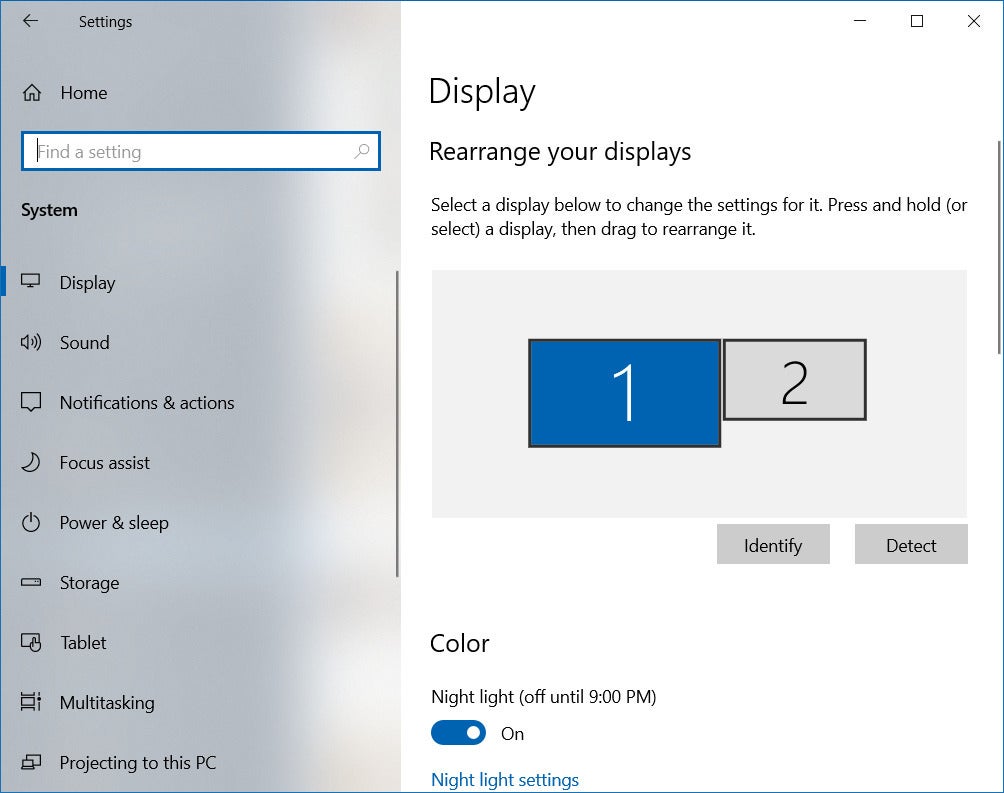
Once both screens are detected, arrange them properly inside Windows for a smooth workflow.
Open Display Settings
- Right-click the desktop and choose Display settings.
- Alternatively, navigate to Start, then Settings, then System, then Display.
Windows displays numbered boxes representing each connected monitor.
Identify and Arrange Your Monitors
- Click Identify to see which number matches which physical screen.
- Drag the monitor icons to match their actual physical layout, whether side by side or stacked vertically.
- This arrangement controls how your cursor moves between screens.
Choose the Primary Display
- Click the monitor you want as your main screen, usually the one connected to the GPU.
- Scroll down and check Make this my main display.
- Click Apply to save the change.
Games should always run on the GPU-connected monitor. If a game launches on the motherboard display, it will use weak integrated graphics and deliver poor frame rates.
Set Native Resolution and Orientation
- Select each monitor individually in the settings window.
- Choose the Display resolution that matches the panel’s native resolution, such as 1920×1080, for the sharpest image.
- Change Orientation if you prefer a vertical portrait setup.
Understand the Performance Trade-Offs

A hybrid setup splits rendering between two graphics processors. Knowing how this affects performance helps you avoid bottlenecks.
How Workloads Are Distributed
- The GPU-connected monitor uses your dedicated graphics card for all rendering.
- The motherboard-connected monitor uses integrated graphics, such as Intel UHD or AMD Radeon Graphics.
Light tasks like web browsing, email, or music playback on the second screen consume minimal resources. However, running a game or 4K video on the motherboard monitor forces the system to rely on integrated graphics, which dramatically reduces performance.
Best Use Cases for a Hybrid Setup
This configuration works well for productivity-focused users:
- Programmers running code on one screen and documentation on another
- Traders monitoring multiple markets simultaneously
- Streamers keeping chat and OBS controls on a secondary display
- Office workers managing documents alongside email
Avoid using the motherboard-connected monitor for gaming, video editing, or 3D rendering. Those tasks belong on the GPU-connected display.
Keep Drivers and BIOS Updated
Outdated drivers are a leading cause of detection problems and resolution errors.
Update Your Integrated Graphics Driver
Even with a dedicated GPU installed, the integrated graphics processor still needs current drivers.
For Intel CPUs:
1. Visit the Intel Driver and Support Assistant page.
2. Run the detection tool or manually download the latest Intel UHD Graphics driver.
3. Install the package and reboot.
For AMD CPUs:
1. Open the AMD Driver Support page.
2. Enter your specific CPU model.
3. Download and install the latest AMD Radeon Graphics driver.
Update Your Dedicated GPU Driver
- NVIDIA users: Open GeForce Experience or download the latest driver from the NVIDIA website.
- AMD users: Open Radeon Software or visit the AMD support page.
Update the Motherboard BIOS
If detection issues persist after driver updates, visit your motherboard manufacturer’s website and download the latest BIOS version for your specific model. Follow the manufacturer’s instructions carefully, since incorrect BIOS updates can cause boot failures.
Avoid These Common Setup Mistakes
Most failed setups come down to a handful of recurring errors.
Skipping the BIOS Configuration
The number one reason motherboard video ports stay dead is forgetting to enable IGD Multi-Monitor. The port remains disabled by default whenever a dedicated GPU is detected.
Using an F-Series CPU
Intel F-series and non-G AMD processors lack integrated graphics. No BIOS tweak will ever activate the motherboard video outputs with these chips installed.
Launching Games on the Wrong Screen
Starting a game on the motherboard-connected monitor forces it to run on integrated graphics. Drag the game window to the GPU-connected display before launching to maintain playable frame rates.
Choosing Low-Quality Adapters
Cheap DisplayPort to HDMI adapters often fail to carry audio or support high resolutions. Use active adapters when needed and prefer native cables whenever possible.
Frequently Asked Questions About Connecting a Monitor to the Motherboard
Why is my motherboard HDMI not working with a GPU installed?
Your motherboard HDMI port stays inactive by default when a dedicated GPU is detected. Enable IGD Multi-Monitor in the BIOS to activate it. If the setting is missing, your CPU likely lacks integrated graphics.
Can I use both motherboard and GPU at the same time?
Yes, provided your CPU includes integrated graphics and you enable IGD Multi-Monitor in the BIOS. This creates a hybrid setup where one monitor runs on the GPU and the other runs on the integrated processor.
Do I need a special cable to connect a monitor to the motherboard?
No special cable is required. Use a standard HDMI, DisplayPort, or DVI cable that matches the port on your motherboard and the input on your monitor. Adapters work when port types differ, but native cables deliver the most reliable signal.
Will gaming on the motherboard monitor hurt performance?
Yes, significantly. The motherboard-connected monitor uses integrated graphics, which delivers far lower frame rates than a dedicated GPU. Always run games on the GPU-connected display for smooth performance.
How do I know if my CPU supports integrated graphics?
Check the model number. Intel CPUs ending in F (such as i5-13400F) lack integrated graphics, while non-F models include UHD Graphics. AMD Ryzen CPUs ending in G (such as Ryzen 5 5600G) include Radeon graphics, while most non-G models do not.
What should I do if the second monitor is still not detected after enabling BIOS?
Update your integrated graphics driver, then update your motherboard BIOS to the latest version. Also confirm the monitor input source is set correctly and the cable is firmly seated at both ends.
Key Takeaways for Your Hybrid Monitor Setup

Connecting a monitor to the motherboard while keeping a dedicated GPU active comes down to three essentials. First, confirm your CPU includes integrated graphics, since F-series and non-G processors will never output video through the motherboard. Second, enable IGD Multi-Monitor inside the BIOS before expecting any signal from the rear panel ports. Third, keep your heavy workloads on the GPU-connected display and reserve the motherboard monitor for productivity tasks like email, browsing, or chat.
Your next step is simple. Power on your PC, enter the BIOS, and verify the multi-monitor setting is enabled. Once both screens are detected in Windows, drag your productivity apps to the second monitor and enjoy the expanded workspace your hybrid setup provides.


