
You’ve set up your laptop with a large external monitor, connected a full-sized keyboard and mouse, and transformed your machine into a desktop workstation. Everything’s perfect until you close the lid and your screen goes black. Your external monitor turns off, and the laptop goes to sleep. Frustrating? Absolutely. But it doesn’t have to be this way.
The good news is that you can close your laptop lid and keep your external monitor running, but only if your system is configured correctly. By default, Windows tells your laptop to sleep when the lid shuts, killing all displays. This guide walks you through exactly how to close laptop and keep monitor on, covering power settings, display modes, hardware requirements, and troubleshooting tips.
Change Lid Close Action in Power Settings

The core fix lies in overriding your laptop’s default sleep behavior when the lid closes. You must tell Windows to do nothing instead of sleeping.
Set “Do Nothing” in Windows 11
By default, closing the lid triggers sleep mode. Fix it by changing this action in Windows Power Options.
Steps:
1. Press Windows + I to open Settings.
2. Type “lid” in the search bar at the top.
3. Click “Change what closing the lid does” from the results.
4. Under “When I close the lid”, set both:
– On battery: Do nothing
– Plugged in: Do nothing
5. Click Save changes.
Set “Do Nothing” in Windows 10 or Older
If you’re using an older Windows version, the Control Panel method works reliably.
Steps:
1. Open Control Panel > Hardware and Sound > Power Options.
2. Click “Choose what closing the lid does” on the left.
3. Set both On battery and Plugged in to Do nothing.
4. Click Save changes.
⚠️ Important: Even if you plan to use your laptop on battery, always test this setup while plugged in. Many laptops ignore OS settings and force sleep when on battery with the lid closed.
Force External Display Only
Even with power settings fixed, your external monitor might still turn off. This happens because Windows may still rely on the internal display. You must explicitly tell the system to use only the external monitor.
Use “Second Screen Only” Mode
This step ensures your laptop disables its internal display and routes all visuals to the external monitor.
Steps:
1. With the laptop lid open, press Windows + P.
2. Select Second screen only.
3. Wait for the internal screen to go dark.
4. Now close the lid.
✅ Success sign: Your external monitor stays lit and responsive.
🔁 Pro Tip: If the monitor turns off after closing the lid, reopen it, press Windows + P again, reselect Second screen only, and try once more.
Meet Required Hardware Setup
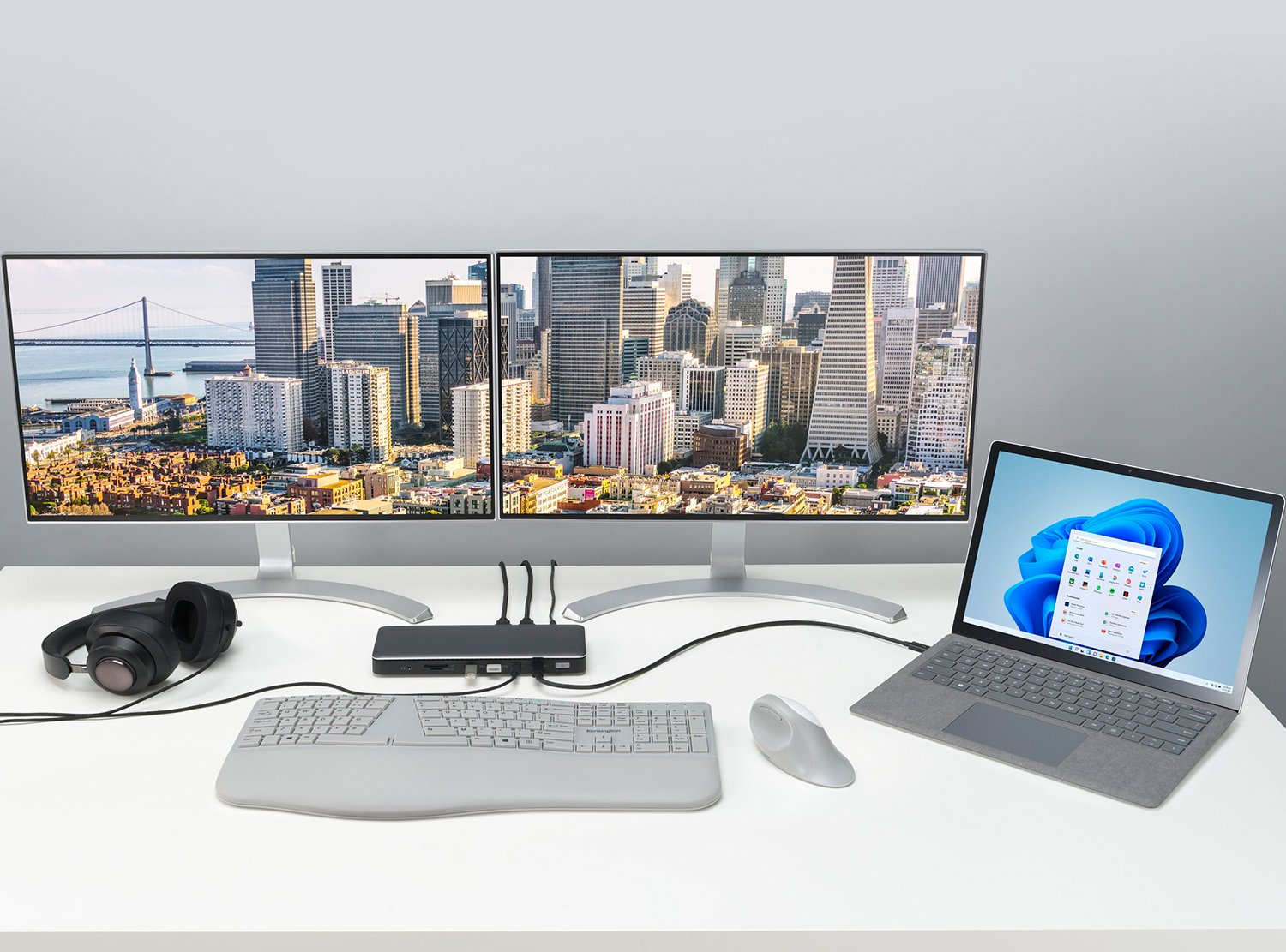
No software fix works without the right hardware conditions. Your laptop must meet specific physical and power requirements to stay on with the lid shut.
Stay Plugged Into Power
Most laptops will sleep or shut down when the lid closes on battery power, even if you set “Do nothing” in Windows.
- ✅ Always plug in your laptop before closing the lid.
- ❌ Avoid relying on battery mode for lid-closed operation.
Some business laptops allow lid-closed use on battery via BIOS settings, but consumer models rarely support this.
Use a Powered Dock If Applicable
Using a USB-C or Thunderbolt dock? Make sure it’s powered.
- An unpowered dock may cut video signal when the lid closes.
- Verify your dock supports video output during lid-closed mode.
- Some docks require firmware updates for full compatibility.
Connect Compatible Video Cables
Not all connections behave the same. Use the right cable type to ensure stable signal delivery.
Supported Connection Types
- HDMI
- DisplayPort
- USB-C with DisplayPort Alt Mode
- Thunderbolt 3/4
📌 Checklist Before Closing Lid:
– Monitor is detected in Settings > System > Display.
– Cable is securely plugged into both devices.
– External display is powered on and set to correct input.
🔄 If the monitor isn’t detected with the lid open, it won’t work when closed.
Handle Restart and Boot Issues

You can work with the lid closed, but starting up isn’t always that simple.
Booting With Lid Closed
- ✅ Restart: If already running, restarting with the lid closed will show login screen on external monitor (if “Second screen only” is active).
- ❌ Cold Boot: After a full shutdown, most laptops require the lid to be open to power on.
The power button or system firmware may not trigger without the lid open, depending on manufacturer design.
🔧 Workaround:
– Leave the laptop in Sleep or Hibernate instead of shutting down.
– Wake it via keyboard, mouse, or power button while lid is closed.
Maintain Background Processes
Closing the lid doesn’t stop your laptop from working. It keeps running silently.
Keep Tasks Running
With correct settings:
– Downloads continue
– Video renders proceed
– Automated scripts execute
– Cloud backups sync
🧠 Use Case: Perfect for using your laptop as a media server, download machine, or development workstation with only the external monitor active.
💡 Pro Tip: Disable “Fast Startup” in Power Options if you experience inconsistent behavior after shutdowns.
Fix BIOS-Level Conflicts
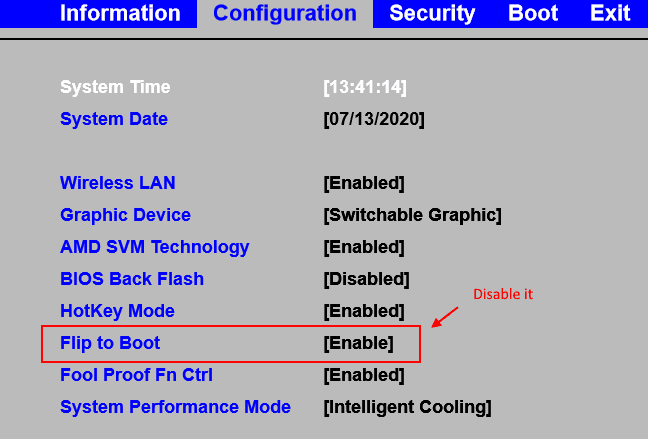
Sometimes Windows settings aren’t enough. Your laptop’s BIOS or UEFI firmware may override them.
Access BIOS Lid Settings
Common on business laptops like Lenovo ThinkPad, Dell Latitude, and HP EliteBook models.
Steps:
1. Restart the laptop.
2. Press F1, F2, or Del during boot to enter BIOS/UEFI.
3. Navigate to Power, Config, or Security tab.
4. Look for:
– Lid Close Action
– Lid Switch State
– Sleep on Lid Close
5. Set to Do Nothing or Allow Lid-Closed Operation.
6. Save and exit.
🔁 BIOS settings often override Windows, so this step is critical if your laptop still sleeps despite correct OS configuration.
Troubleshoot Monitor Blackout

Everything set but your external monitor still turns off? Follow this diagnostic flow.
No Display After Closing Lid?
✅ Check Power Source
- Is the laptop plugged into AC power?
- Try a different charger or outlet.
✅ Re-verify Display Mode
- Open lid.
- Press Windows + P.
- Select Second screen only again.
- Close lid.
✅ Test Cable and Monitor
- Swap HDMI or DP cable.
- Connect to a different monitor.
- Ensure monitor input source is correct.
✅ Inspect Docking Station
- Is the dock powered?
- Try connecting monitor directly to laptop.
- Update dock firmware via manufacturer tool.
✅ Review BIOS Settings
- Enter BIOS and confirm no lid-closed restrictions exist.
- Disable “Sleep on Lid Close” if present.
✅ Reset Power Plan
- Open Command Prompt as Admin.
- Run:
powercfg -restoredefaultschemes - Reapply “Do nothing” lid settings.
Prevent Overheating
With the lid closed, airflow is restricted, especially if your laptop vents through the screen area.
Cooling Best Practices
- ✅ Place laptop on a hard, flat surface (not carpet or bed).
- ✅ Use a laptop cooling pad if running intensive tasks.
- ✅ Monitor temperatures with tools like HWMonitor or Core Temp.
- ❌ Avoid prolonged heavy workloads unless cooling is sufficient.
📌 Some laptops actively block lid-closed operation without an external display due to thermal risks. Windows machines are more flexible but still need airflow.
Use External Keyboard and Mouse
With the lid shut, your laptop’s built-in keyboard and touchpad are inaccessible.
Required Peripherals
- USB or wireless keyboard
- Mouse (USB or Bluetooth)
💡 Alternative: If you forget your peripherals, enable On-Screen Keyboard:
1. Press Windows + Ctrl + O.
2. Use mouse or touchscreen to type.
🔔 Note: Some laptops disable USB ports in sleep mode. Ensure ports stay powered by adjusting USB selective suspend settings in Power Options.
Frequently Asked Questions About Closing Laptop and Keeping Monitor On
Why does my external monitor turn off when I close my laptop lid?
Windows defaults to sleep mode when the lid closes, which cuts power to all displays. To keep your monitor on when closing laptop lid, change the power setting to “Do nothing” and select “Second screen only” in the projection menu.
Do I need to keep my laptop plugged in to use it with the lid closed?
Yes, in most cases. Many laptops force sleep mode when running on battery with the lid closed, regardless of OS settings. Always plug into AC power before closing the lid for reliable lid-closed operation.
Can I turn my laptop back on after shutting down with the lid closed?
Generally no. Most laptops require the lid to be open to power on after a full shutdown. To avoid this limitation, use Sleep or Hibernate mode instead of full shutdown, then wake the system with an external keyboard or mouse.
Will closing my laptop lid damage it or cause overheating?
Closing the lid itself won’t damage the laptop, but restricted airflow can cause overheating during heavy tasks. Place the laptop on a hard, flat surface and consider a cooling pad to maintain safe temperatures.
What cable should I use to connect my external monitor?
Use HDMI, DisplayPort, USB-C with DisplayPort Alt Mode, or Thunderbolt 3/4. Ensure the cable is securely connected and the monitor is detected in Display Settings before closing the lid.
Does BIOS override Windows power settings for lid close actions?
Yes, on many business laptops, BIOS settings take precedence over Windows Power Options. If your laptop still sleeps despite correct OS settings, check the BIOS for lid-close policies and disable any sleep restrictions.
Key Takeaways for Closing Laptop Lid While Keeping Monitor On
Successfully configuring your laptop to run with the lid closed requires combining three elements: correct power settings, proper display mode, and adequate hardware support. Start by setting “Do nothing” for both battery and plugged-in states, then activate “Second screen only” mode before closing the lid.
Always keep your laptop plugged into AC power, use compatible video cables, and verify your monitor is detected before shutting the lid. If problems persist, check BIOS settings for conflicting lid policies and ensure your docking station is powered if applicable.
Your next step: open Settings right now, search “lid,” and set both power states to “Do nothing.” Then press Windows + P, select “Second screen only,” and test your setup. Within minutes, you’ll have a clean, silent desktop workstation with zero laptop screen clutter.


