
You’re staring at a black screen with a floating error message that reads “The current input timing is not supported by the monitor display.” Your PC is clearly running, but the display refuses to cooperate. This error appears when your graphics card sends a signal (resolution or refresh rate) that your monitor cannot process. The good news is that learning how to change monitor input timing is straightforward once you understand the signal chain.
This guide covers every proven method to restore your display, from quick Windows settings adjustments to boot-level workarounds when the screen is completely black. You’ll also learn how to prevent the error from coming back after you fix it.
Set Correct Resolution and Refresh Rate in Windows

The fastest fix for input timing errors involves aligning your GPU output with your monitor’s supported specifications. Most modern displays run best at 1920×1080@60Hz, though your specific model may support higher rates.
Adjust Display Settings (Windows 10 and 11)
If you can see the desktop, follow these steps:
- Right-click an empty area on the desktop and select Display settings.
- Scroll down and click Advanced display settings.
- Under Display information, click Display adapter properties.
- Open the Monitor tab.
- In the Screen refresh rate dropdown, select 60 Hz or the value shown in your error message.
- Click Apply, then OK.
Pro Tip: If the screen goes black after applying changes, wait 15 seconds. Windows reverts automatically so you can try a lower refresh rate next time.
Match the Error Message Specifications
Some monitors display a specific fix like “Please change your input timing to 1920×1080@144Hz.” Follow it exactly when your hardware supports it.
- VGA and most adapters cannot deliver 144Hz, so stick to 60Hz on those connections.
- High refresh rates (120Hz, 144Hz) require direct HDMI or DisplayPort cables.
- Avoid passive VGA-to-HDMI adapters unless you use an active (powered) converter.
Boot Into Low-Resolution Video Mode
When the error blocks access to your desktop or login screen, you need to force a safe boot that bypasses your GPU driver.
Force Low-Resolution Mode (Windows 10 and 11)
This method triggers Windows Recovery Environment to access startup options:
- Power off your PC completely.
- Turn it on, then hold the power button for 5 seconds to force shutdown.
- Repeat this process 3 times until “Preparing Automatic Repair” appears.
- Select Advanced options > Troubleshoot > Advanced options > Startup Settings > Restart.
- After reboot, press F3 or 3 to enable Low-resolution video (640×480).
- Log in and go to Display settings to set resolution to 1920×1080@60Hz.
Note: This bypasses GPU drivers temporarily, letting you reconfigure settings safely without a black screen.
Use VGA Mode (Windows 7 and Older)
Legacy systems use a different shortcut:
- Restart the PC.
- Press F8 repeatedly after the BIOS screen but before Windows loads.
- Select Enable VGA Mode from the Advanced Boot Options menu.
- Log in and adjust resolution and refresh rate via Control Panel > Display > Screen Resolution.
Reinstall the Graphics Driver in Safe Mode
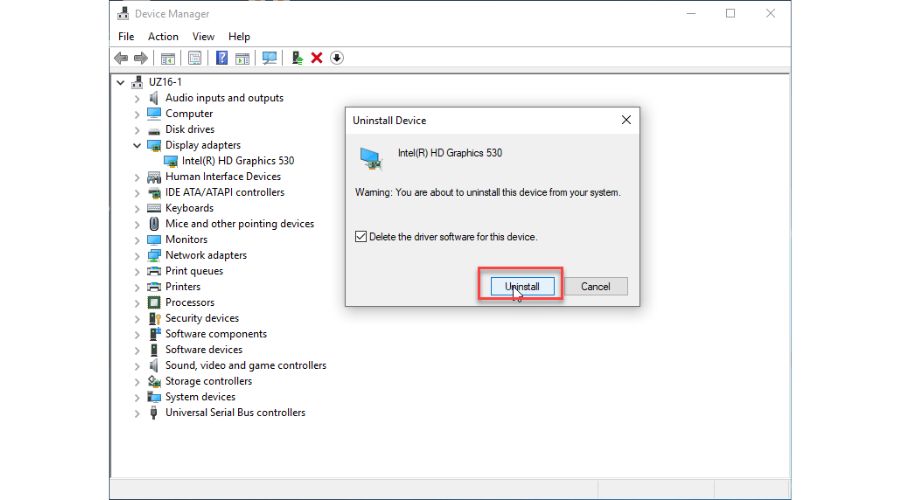
Corrupted or outdated drivers frequently cause timing mismatches. Reinstalling them in Safe Mode forces Windows to use a generic driver that works with any monitor.
Enter Safe Mode and Remove the Driver
- Boot into Safe Mode using F8 (Windows 7) or the interrupted boot method (Windows 10/11).
- Press Win + R, type
devmgmt.msc, and press Enter. - Expand Display adapters.
- Right-click your GPU (NVIDIA, AMD, or Intel) and select Uninstall device.
- Check “Delete the driver software” if the option appears.
- Click Uninstall and restart normally.
Windows loads a basic display driver and restores visibility. Then download the latest driver from your GPU manufacturer’s website, install it, and reboot. Re-check your resolution and refresh rate after installation.
Warning: Never skip the driver cleanup. Leftover files can cause the same error to return after reboot.
Check Cables and Physical Connections

Physical connections cause more timing errors than most users expect, especially when adapters or older cables are involved.
Replace VGA-to-HDMI Adapters
VGA is analog while HDMI is digital. Passive adapters fail at high refresh rates because they cannot convert signals properly.
- Use direct HDMI-to-HDMI or DisplayPort-to-HDMI cables instead.
- If conversion is unavoidable, use an active VGA-to-HDMI adapter with external power.
- Avoid cheap passive adapters for any high-resolution or high-refresh setup.
Test DVI and Other Ports
DVI connections show known issues with several Dell monitor models (including P1913S). Users report timing errors on DVI that disappear on HDMI.
- Try a different port on your GPU or monitor.
- Jiggling the DVI cable may reveal loose pins. Replace the cable if movement changes the display.
- Switch to HDMI or VGA if DVI consistently triggers the error.
Swap Cables and Test With Another Monitor
- Use a known working cable of the same type.
- Connect your PC to a different monitor.
- If the second monitor works, configure the correct timing (1920×1080@60Hz) on that screen.
- Reconnect to the original monitor.
A USB-to-HDMI adapter also works as a temporary video output, especially for servers without accessible displays.
Visual Cue: If the monitor’s power light is amber or blinking, it is not receiving a valid signal.
Reset the Monitor and Update Firmware
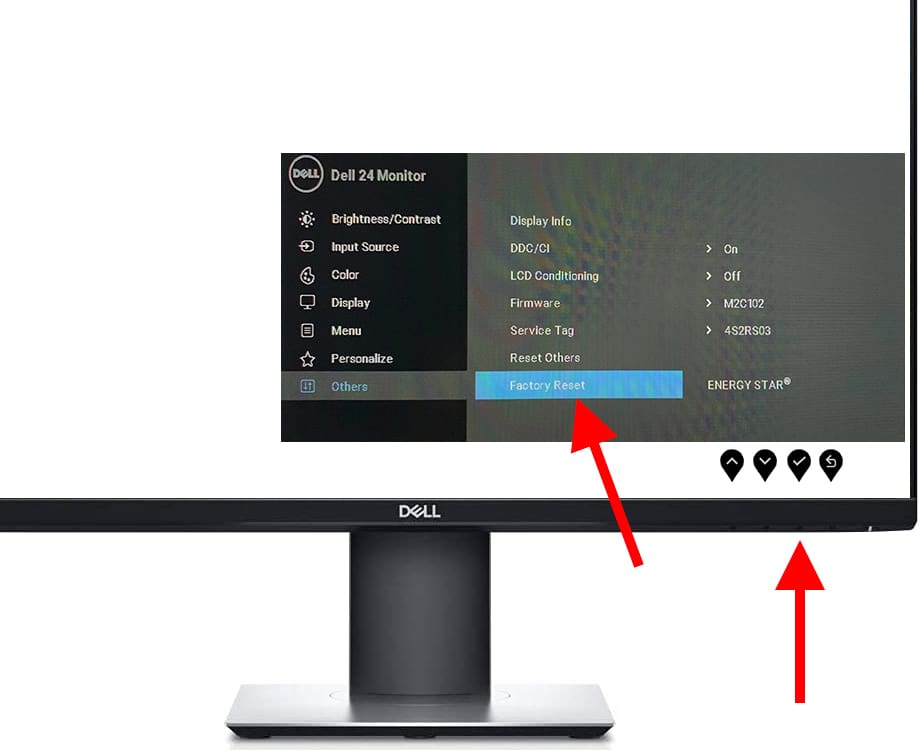
Sometimes the problem lives in the monitor itself, misreading the input signal.
Manually Select the Input Source
Monitors in Auto Input mode may misidentify the signal when waking from sleep.
- Press the menu button on the monitor.
- Navigate to Input Source.
- Manually select the active port (HDMI 1, DP, or DVI).
- Save and exit the menu.
Pro Tip: Disable Auto input switching in the OSD settings to prevent future misidentification.
Factory Reset the Monitor
A factory reset clears corrupted EDID or timing caches that may be causing handshake failures.
- Open the On-Screen Display menu.
- Go to Settings > Management > Factory Reset.
- Confirm the reset and reboot.
After the reset, reconnect and reconfigure input timing from your PC.
Update Monitor Firmware
Check your manufacturer’s website (Dell, LG, ASUS, and others) for firmware updates. Some updates fix EDID reporting bugs, input handshake failures, and refresh rate detection errors.
Fix Servers and Remote Systems
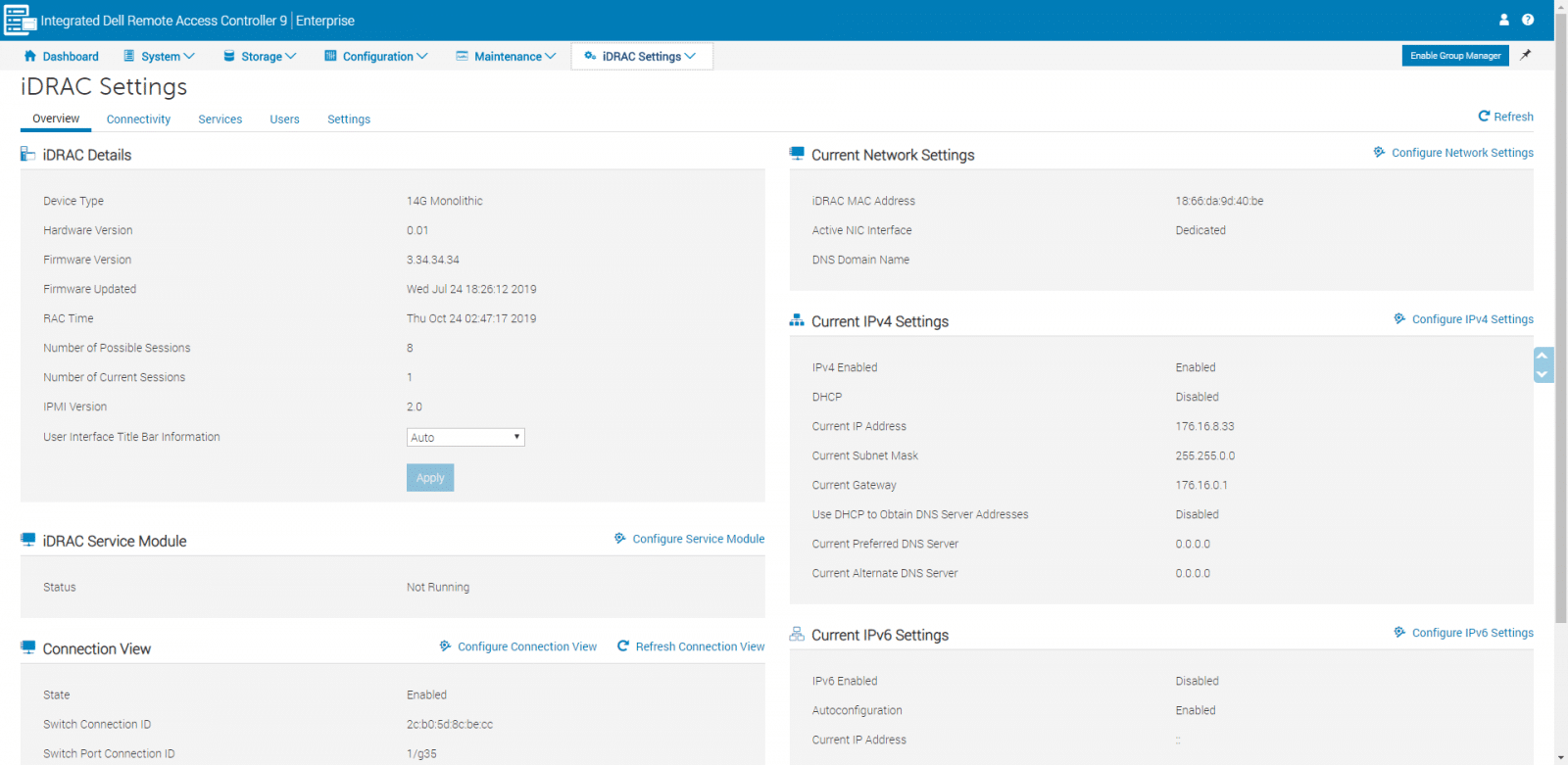
For headless servers like Dell T440 running Windows Server 2019, physical access is often limited. Remote tools solve this problem.
Use iDRAC or IPMI for Remote Access
Dell iDRAC, HP iLO, and similar out-of-band management tools let you access the server console remotely.
- Connect via web browser or dedicated client software.
- Open the remote console window.
- Change display settings before the local output locks up.
- Set resolution to 1920×1080@60Hz.
Key Advantage: This method bypasses the local video error entirely.
Force Safe Settings via Registry (Remote Access)
If you can access the system through Remote Desktop, PowerShell, or console:
- Open Registry Editor (
regedit). - Navigate to:
HKEY_LOCAL_MACHINE\SYSTEM\CurrentControlSet\Control\Class\{4d36e968-e325-11ce-bfc1-08002be10318} - Find subkeys (0000, 0001) containing your GPU.
- Create or modify these DWORD values:
–DefaultSettings.XResolution=1920
–DefaultSettings.YResolution=1080
–DefaultSettings.BitsPerPel=32
–DefaultSettings.VRefresh=60 - Reboot the server.
Caution: Back up the registry before editing. Incorrect changes can prevent the system from booting.
Prevent Future Input Timing Errors
Once your display works again, these practices keep the error from coming back.
Use Native Digital Connections
- Always prefer HDMI, DisplayPort, or DVI-D over VGA.
- For 4K or 144Hz, use High-Speed HDMI or DisplayPort 1.4 or newer.
- Eliminate analog adapters in professional and server environments.
Maintain Driver Hygiene
- Update GPU drivers after major Windows updates.
- Use the clean install option when available.
- Avoid generic Windows drivers for high-performance displays.
Pre-Configure for IT Deployments
- Set default resolution via Group Policy or deployment scripts.
- Use disk imaging with correct display settings pre-applied.
- Lock the input source in the monitor OSD to prevent auto-switching.
Test Before Final Setup
- Always connect and test at 60Hz first, then increase refresh rate.
- Verify EDID detection using tools like MonInfo or PowerStrip.
Quick Diagnostic Flowchart
Use this decision path to resolve the issue quickly:
- Error appears? Note the recommended timing (1920×1080@60Hz).
- Can you see the desktop?
Yes: Change resolution and refresh rate.
No: Boot into Low-Resolution Mode. - Still black? Boot to Safe Mode and uninstall the GPU driver.
- Cable connected? Replace VGA-HDMI adapters with HDMI or DisplayPort.
- Monitor unresponsive? Manually select the input source via OSD.
- Server or remote system? Use iDRAC or registry edits to force safe mode.
Caps Lock Test: Press Caps Lock. If the LED toggles, the OS is running. The issue is video-only, not a system crash.
Frequently Asked Questions About Monitor Input Timing
What does “current input timing not supported” mean?
This error means your graphics card is sending a resolution or refresh rate that your monitor cannot display. The monitor rejects the signal because it falls outside its supported specifications. You need to change the display output to match what your monitor accepts, typically 1920×1080@60Hz.
How do I change monitor input timing without seeing the screen?
Force the PC into Low-Resolution Video Mode by interrupting the boot process three times. This triggers Windows Recovery Environment, where you can access Startup Settings and boot at 640×480. Once logged in, adjust resolution and refresh rate through Display settings.
Can a bad HDMI cable cause input timing errors?
Yes. Faulty HDMI cables cause handshake failures between the GPU and monitor, which triggers timing errors. Damaged pins, loose connectors, or cables that don’t support your desired resolution all contribute. Replace the cable with a known working unit rated for your signal type.
Will reinstalling graphics drivers fix timing errors?
Reinstalling graphics drivers fixes timing errors caused by corrupted or outdated driver software. Boot into Safe Mode, uninstall the current driver through Device Manager, then install the latest version from your GPU manufacturer’s website. This forces Windows to use a clean driver configuration.
Why does my monitor show the error only on DVI?
Several Dell Professional monitors (including P1913S) have known compatibility issues with DVI connections. Users report timing errors on DVI that disappear when switching to HDMI or VGA. The issue stems from EDID handshake quirks specific to certain DVI implementations.
How do I fix input timing on a server without a monitor?
Use out-of-band management tools like Dell iDRAC or HP iLO to access the server console remotely. You can also edit the registry to force safe resolution settings before reboot. Navigate to the GPU class registry key and set DefaultSettings values to 1920×1080@60Hz.
Key Takeaways for Changing Monitor Input Timing
Learning how to change monitor input timing starts with identifying whether you can see your desktop. If yes, adjust resolution and refresh rate through Windows Display settings. If no, force Low-Resolution Video Mode or Safe Mode to regain access before reconfiguring.
The most common fix is setting output to 1920×1080@60Hz, which works on virtually every modern monitor. Replace any VGA-to-HDMI adapters with direct digital cables, reinstall your GPU driver if settings changes don’t stick, and manually select the input source on your monitor to bypass auto-switching bugs.
Start with the simplest fix (changing refresh rate to 60Hz) and work through the flowchart if the issue persists. With the right approach, you can resolve this error in under 15 minutes without a technician.


