
You just bought a docking station to expand your workspace, but your external monitors remain dark or mirror your laptop screen instead of extending it. This frustrating scenario happens when users try to connect monitor to docking station without checking port compatibility or installing necessary drivers first.
This guide walks you through verifying your laptop specs, choosing the right cables, and configuring display settings for Windows and Mac. You will learn how to fix black screens, enable true multi-monitor support on macOS, and optimize your setup for maximum productivity.
Verify Laptop and Dock Compatibility Before Connecting
Skipping compatibility checks is the primary reason connections fail. Your laptop port must support specific video protocols to drive external displays effectively.
Check Your Laptop Port Capabilities
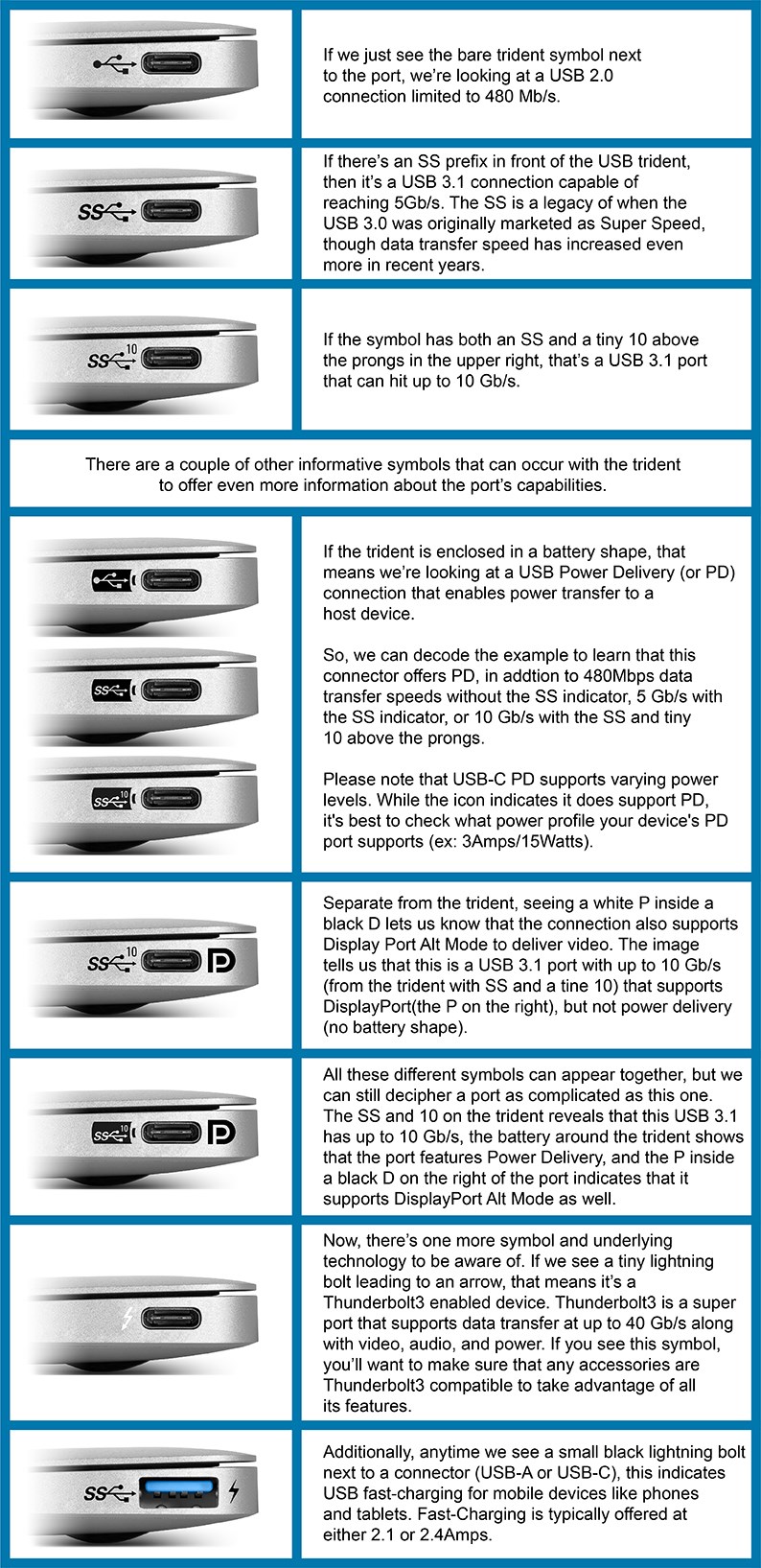
Not every USB-C port can output video signals to a monitor. You need to inspect the symbols next to your laptop ports to determine their function.
- Thunderbolt (⚡): Supports video, data, and charging simultaneously.
- DisplayPort (DP) Symbol: Indicates the port can transmit video signals.
- Plain USB-C: Often supports only data transfer or charging without video.
Your device requires a USB-C or Thunderbolt port with DisplayPort Alt Mode to send video to most modern docks. If your laptop only has USB-A or HDMI ports, you will need a specific legacy adapter rather than a standard USB-C dock.
Confirm Multi-Monitor Support by Operating System
Your operating system dictates how many screens you can extend to natively. Windows generally supports two to four external monitors depending on your graphics card.
macOS has a strict limitation where it natively extends to only one external monitor via USB-C or Thunderbolt. If you try to add a second screen without special technology, macOS will simply mirror your display. To run dual or triple monitors on a Mac, you must use a dock equipped with DisplayLink® technology.
Match Dock Specifications to Your Needs
Select a docking station that aligns with your monitor count and resolution requirements. Using a basic dock for a complex setup will result in poor performance or failure.
- 1–2 Monitors (Windows/Mac): Use a USB-C dock with DP Alt Mode.
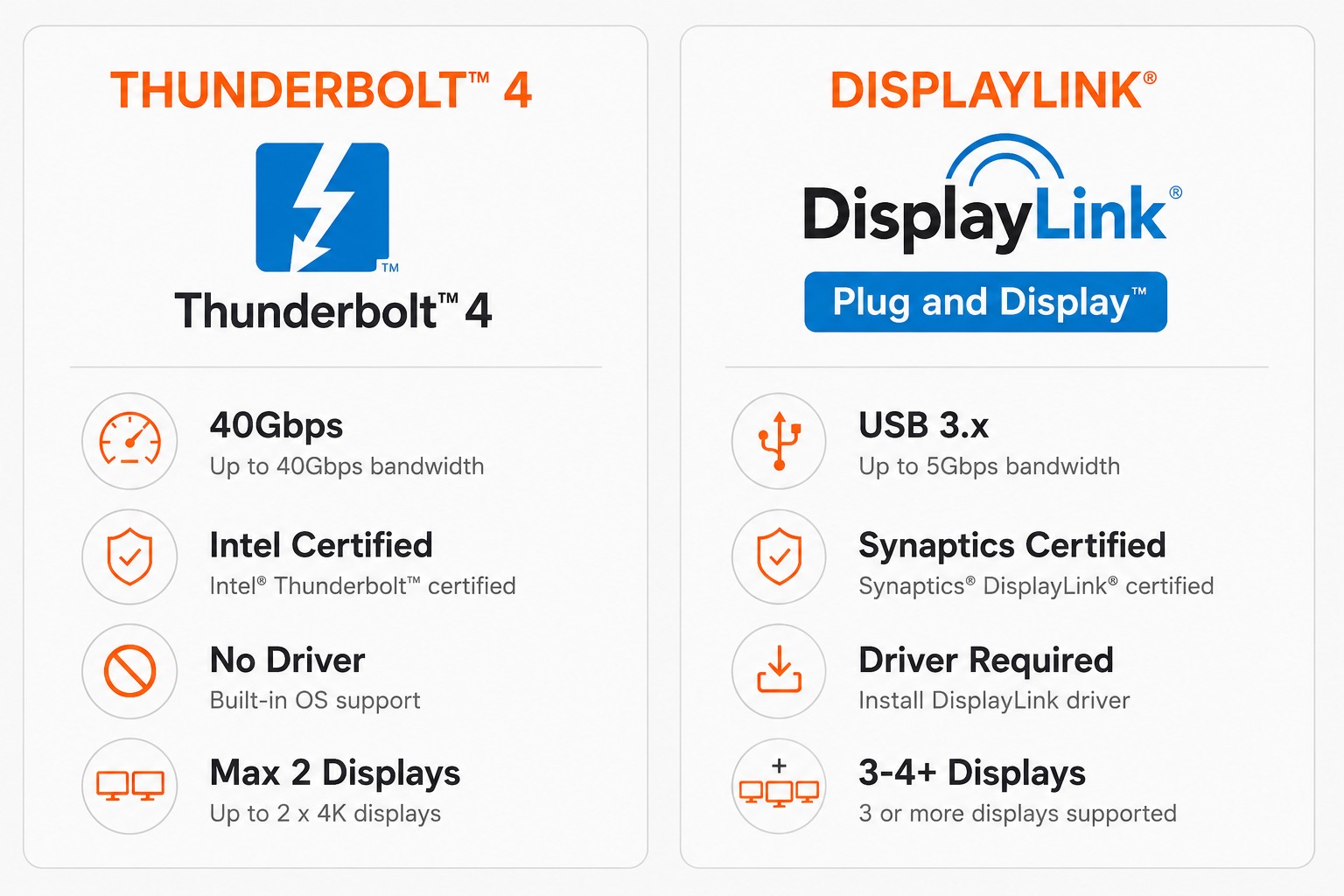
- 3–4 Monitors (Windows): Choose a DisplayLink or Thunderbolt 4 dock.
- 2+ Monitors (Mac): Require a Thunderbolt dock with integrated DisplayLink.
- High-Speed Data + Video: Thunderbolt 4 offers 40 Gbps bandwidth for demanding workflows.
For instance, the Kensington SD5900T supports up to four displays on Mac because it includes DisplayLink tech. In contrast, the SD5800T uses Thunderbolt 4 for high-speed dual 4K output but limits Mac users to two screens natively.
Power and Cable Setup Essentials

Proper power delivery and high-quality cabling prevent the majority of connection failures. Never skip the power step or use cheap cables.
Connect Dock to Power First
Always power the docking station before connecting it to your laptop. This ensures the dock has enough energy to drive peripherals and video signals.
- Plug the dock’s external power adapter into a wall outlet.
- Connect the power cable securely to the dock’s DC input port.
- Wait for the indicator lights on the dock to turn on.
Warning: Do not use your laptop’s charger for the dock unless the manufacturer explicitly approves it. Docks require specific voltage and amperage that standard laptop chargers often cannot provide.
Use the Correct Host Cable
The cable connecting your laptop to the dock is critical for video transmission. Always use the cable provided in the box, especially for Thunderbolt models.
- USB-C to USB-C: Required for standard USB-C docks.
- Thunderbolt Cable (marked ⚡): Mandatory for Thunderbolt docks even if it looks like a regular USB-C cable.
Substandard cables might charge your device but fail to carry the bandwidth needed for video. This results in black screens or flickering displays.
Gather Compatible Video Cables
Match your video cables to your monitor inputs for the best results. Using outdated cables can limit your resolution and refresh rate.
- HDMI: Use HDMI 2.0 or higher for 4K resolution at 60Hz.
- DisplayPort (DP): Preferred for 4K+ and daisy-chaining; use DP 1.4 for multiple 4K monitors.
- VGA/DVI: Require active adapters from HDMI or DisplayPort sources.
Invest in certified, high-quality cables. Cheap HDMI cables often max out at 1080p or cause signal instability.
Connect Monitor to Dock: Step-by-Step

Follow this specific sequence to ensure your devices enumerate correctly and recognize all peripherals.
Plug Peripherals into Dock First
Connect all your external devices to the dock before linking it to your computer. This allows the dock to initialize all connections before the operating system loads.
- Connect monitors via HDMI or DisplayPort cables.
- Attach your keyboard, mouse, Ethernet, and external drives.
- Turn on your monitors and set the input source to the correct port (e.g., HDMI 1).
This process ensures the dock is ready to hand off all device data to your laptop instantly upon connection.
Link Laptop to Dock
Once peripherals are attached, connect your computer to complete the circuit.
- Connect the host cable from the dock to your laptop’s USB-C or Thunderbolt port.
- Ensure the connection is snug since wiggling can disrupt the video signal.
- Power on your laptop.
Many docks feature a power button that will also turn on your laptop automatically. If you are adding a third or fourth monitor using a USB 3.0 to HDMI adapter, plug it into a USB-A port now and install any required drivers.
Configure Display Settings by OS
Physical connection is only half the battle. You must configure your operating system to extend your desktop rather than mirror it.
Windows: Extend and Arrange Displays
Windows usually detects new monitors automatically, but you often need to adjust the layout manually.
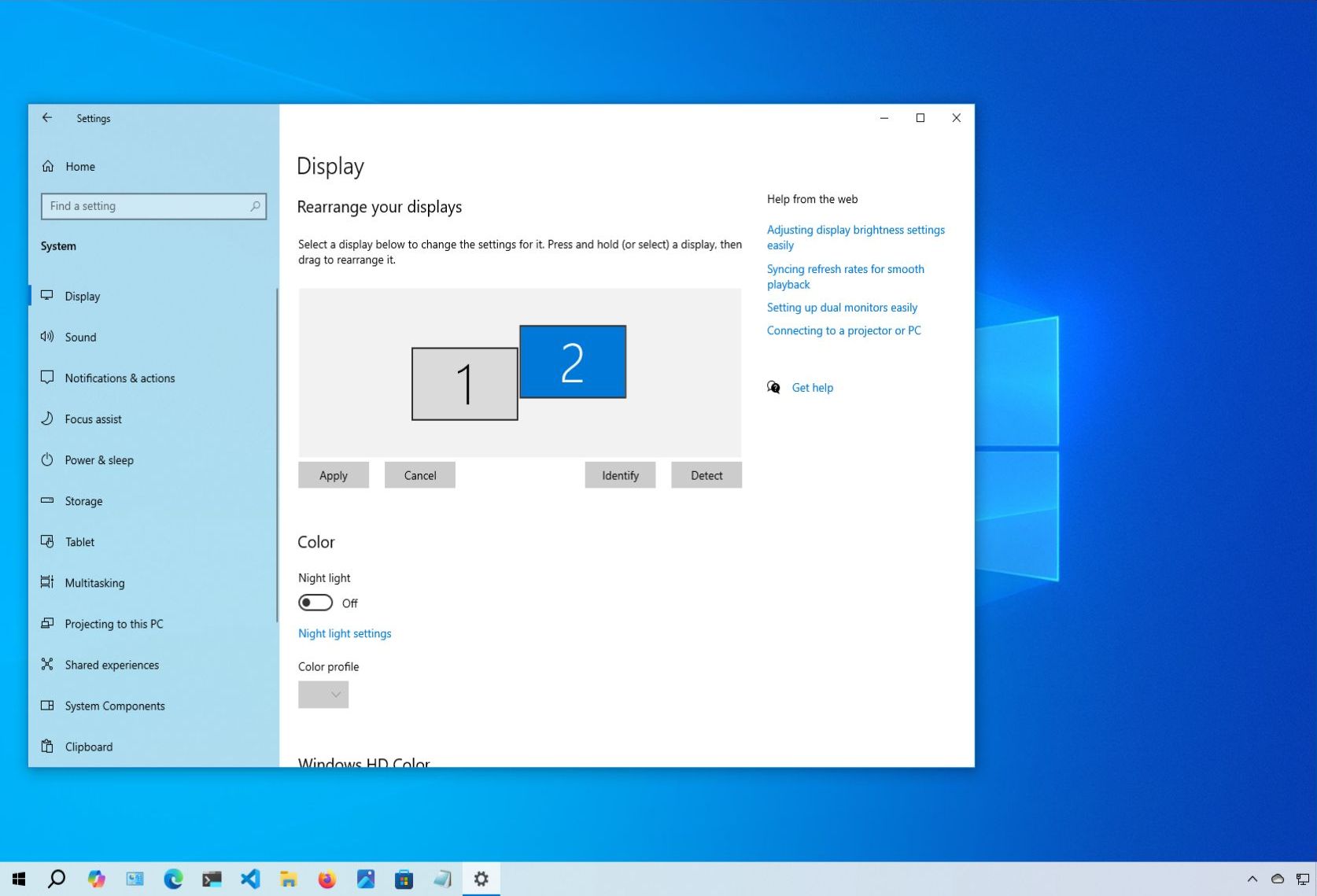
- Right-click the desktop and select Display settings.
- Click Identify to see which number corresponds to each physical screen.
- Drag the screen boxes to match your actual desk layout.
- Select Extend these displays under the Multiple displays section.
- Set each monitor to its native resolution (e.g., 3840×2160 for 4K).
- Adjust scaling to 150% if text appears too small on high-resolution screens.
Move your mouse across all screens to ensure the cursor flows smoothly from one to the next without jumping.
macOS: Enable Extended Desktop
Mac users must be careful to avoid mirroring if they want independent workspaces.
- Go to System Settings and select Displays.
- Click the Arrangement tab to view your screen layout.
- Drag the white menu bar to your preferred primary display.
- Arrange the blue screen previews to match your physical setup.
- Ensure the Mirror Displays option is unchecked.
If your screens are mirroring despite being unchecked, you likely need a DisplayLink-enabled dock. Install the software from the DisplayLink website and grant Screen Recording permission in Privacy settings.
Fix Common Monitor Connection Issues
Even with careful setup, issues like black screens or detection failures can occur. Use these targeted fixes to resolve them quickly.
No Signal on Monitor
A black screen usually indicates a loose cable, wrong input selection, or power issue.
- Check that the monitor input source matches the connected port (e.g., HDMI 1 vs HDMI 2).
- Swap video cables or try a different port on the docking station.
- Power cycle the dock by unplugging it from the wall for 60 seconds.
- Test the monitor with another device to rule out hardware failure.
Monitor Not Detected
If your computer does not see the external display, the issue is likely driver-related.
- Windows: Press
Win + Pand select Extend. Update your GPU drivers. - Mac: Install DisplayLink software and enable Screen Recording access in Security settings.
- Try a different video port on the dock.
- Restart your laptop with the dock already connected.
Incorrect Resolution or Flickering
Flickering or low resolution often stems from cable limitations or bandwidth issues.
- Use DisplayPort 1.4 or HDMI 2.0+ cables for 4K resolution.
- Manually set the resolution in your Display settings menu.
- Avoid daisy-chaining more than two 4K monitors unless your GPU supports MST and DP 1.4.
If your laptop only supports DisplayPort 1.3, driving three 4K monitors may force the system to drop resolution on one screen to maintain bandwidth.
Mouse Jumps Between Screens
Erratic cursor movement means your logical layout does not match your physical setup.
- In Windows, drag screen boxes in Display settings to align with your desk.
- On Mac, drag blue display previews in the Arrangement tab.
Ensure side monitors are positioned left or right unless you have vertically mounted them.
Optimize for Triple, Quad, or 5+ Monitors
Expanding beyond two screens requires strategic hardware choices to maintain performance.
Use DisplayLink for Extra Screens
Most laptops max out at two or three native displays. To go beyond this limit, use a DisplayLink-enabled dock or add USB 3.0 to HDMI adapters.
Each USB adapter adds processing load to your CPU but works well for static content like dashboards or code. Note that these adapters typically max out at 1920×1080 resolution and are not suitable for gaming or video editing.
Thunderbolt 4 for High-Performance Setups
For users needing two to four high-resolution monitors, a Thunderbolt 4 dock is ideal. These support up to four 4K displays on Windows and deliver up to 100W of charging power.
On Mac, Thunderbolt 4 supports only two external displays natively. Combine this with DisplayLink technology if you need more screens on macOS.
5+ Monitor Workstations
Achieving five or more screens usually involves a hybrid approach.
- Use a main dock to drive two or three monitors.
- Add one or two USB 3.0 HDMI adapters for extra screens.
- Consider a second dock or PCIe expansion for desktops.
This configuration is not recommended for laptops due to thermal and power constraints.
Maintain and Update Your Setup
Regular maintenance prevents sudden failures and ensures long-term stability for your docking station.
Update Drivers and Firmware
Outdated firmware causes sleep/wake bugs and detection issues. Perform these updates monthly:
- Update DisplayLink drivers if your dock uses them.
- Update GPU drivers for Intel, AMD, or NVIDIA.
- Check the manufacturer site for dock firmware updates.
- Update your laptop BIOS/UEFI for USB-C stability.
Clean Ports and Manage Cables
Dust buildup causes poor contact and intermittent video loss. Use compressed air to clean dock and laptop ports regularly.
Use cable sleeves or clips to prevent strain on ports. Label your cables if you frequently switch between devices to save time during setup.
Protect Against Power Surges
Plug your dock into a surge protector or UPS. Power spikes can fry dock circuitry or damage connected monitors. A stable power source extends the life of your entire workstation.
Final Checklist: Is Your Setup Working?
Before finalizing your installation, verify these key elements to ensure full functionality.
- All monitors display their native resolution.
- The mouse moves smoothly between screens without jumping.
- Your laptop is charging via the dock.
- Audio and Ethernet functions are operational.
- DisplayLink permissions are granted on Mac.
- Firmware and drivers are up to date.
If all checks pass, you have successfully connected your monitor to a docking station and unlocked a powerful workspace.
Frequently Asked Questions About Connecting Monitors to Docks
Why won’t my second monitor work on my Mac?
macOS natively supports only one external monitor via USB-C or Thunderbolt. To use two or more external screens, you must use a dock with DisplayLink® technology and install the corresponding drivers.
Can I use any USB-C cable to connect my dock?
No. You must use the cable provided with the dock or a certified Thunderbolt cable. Standard USB-C cables often lack the bandwidth required for video transmission and high-speed data.
Why is my external monitor mirroring instead of extending?
This often happens on Macs or when using docks without proper drivers. On Windows, select Extend in Display Settings. On Mac, ensure Mirror Displays is unchecked and install DisplayLink software if using multiple screens.
Do I need a separate power adapter for my docking station?
Yes. Most multi-monitor docks require an external power brick connected to a wall outlet. They cannot rely solely on laptop power to drive multiple displays and peripherals.
Can I connect 4K monitors to a USB 3.0 dock?
You can, but performance may vary. USB 3.0 adapters typically max out at 1080p resolution. For reliable 4K output, use a dock with HDMI 2.0 or DisplayPort 1.4 support and a compatible laptop port.
Key Takeaways for Connecting Your Monitor to a Docking Station
Successfully connecting your monitor to a docking station requires matching your hardware capabilities with the right technology. Always verify that your laptop ports support video output and choose a dock with DisplayLink if you are a Mac user needing multiple screens. Proper cabling and driver updates are essential for a stable, high-resolution experience.
Take action today by checking your port symbols and updating your drivers. With the correct setup, you can transform your laptop into a desktop powerhouse and boost your productivity significantly.


