
Your Acer monitor displays crisp video, but the silence is deafening because there is no sound. Many users struggle to figure out how to connect speakers to an Acer monitor since built-in audio is rare on these screens. You need a clear path to restore sound to your desktop setup immediately.
This guide explains exactly how to route audio through HDMI, 3.5mm jacks, or USB-C connections depending on your specific model. You will learn to identify available ports and configure Windows settings for instant results. Follow these steps to fix your audio issues today.
Identify Audio Ports on Your Acer Monitor

You must inspect your specific monitor model before buying cables or speakers. Not every Acer screen includes the hardware necessary to output sound directly.
Check for 3.5mm Headphone Jacks
Look at the back or side panel of your monitor for a small circular port.
* Locate a port labeled with a headphone icon or the words “Audio Out.”
* This jack is typically green and accepts standard 3.5mm stereo cables.
* Plug your powered speakers directly into this slot if available.
If your monitor lacks this specific port, it likely cannot drive external speakers directly. You will need to route audio through your computer instead.
Verify HDMI and USB-C Capabilities
Examine the other connection options on the rear of your display unit.
* HDMI ports carry both video and audio signals from your source device.
* USB-C ports on newer models can transmit audio if they support DisplayPort Alt Mode.
* Check your user manual to confirm if the USB-C port supports audio extraction.
Pro Tip: If you see only video ports like VGA or DVI, your monitor definitely cannot output audio. You must connect speakers to your PC.
Route Audio Through HDMI Connections

HDMI is the most common method for sending sound from a computer to a monitor setup. This approach works best when connecting soundbars or receivers.
Configure HDMI Audio Pass-Through
Your computer sends the audio signal through the HDMI cable to the monitor.
1. Connect an HDMI cable from your PC graphics card to the monitor.
2. Ensure the monitor volume is unmuted via its on-screen display menu.
3. Right-click the volume icon in the Windows taskbar.
4. Select Sounds or Sound Settings to open the control panel.
5. Choose the HDMI device as your default playback option.
This setup allows the monitor to receive the digital audio stream. However, many Acer monitors do not have speakers or an audio-out jack to release that sound.
Troubleshoot Missing HDMI Sound
Users often face issues where video works but audio remains silent.
* Verify that the HDMI device is set as the Default Device in Windows.
* Update your graphics drivers since they often handle HDMI audio processing.
* Restart your computer and monitor to reset the handshake protocol.
If your monitor has no audio output port, the HDMI signal stops at the screen. You must use an alternative method to extract the sound.
Utilize the 3.5mm Audio Output Jack
Some Acer monitors include a dedicated headphone jack to release audio received via HDMI or DisplayPort. This feature allows direct speaker connection.
Connect Powered Speakers Directly
Use a standard auxiliary cable to link your hardware.
1. Insert one end of a 3.5mm cable into the monitor audio out port.
2. Plug the other end into your powered speaker system.
3. Turn on your speakers and ensure the volume knob is raised.
4. Play a test sound file on your computer to verify output.
This method provides a clean look with fewer cables running to your tower. It relies entirely on the monitor passing the signal through correctly.
Resolve Signal Loss Issues
Sometimes the monitor fails to send audio to the headphone jack despite being connected.
* Ensure your video source is HDMI or DisplayPort, as VGA does not carry audio.
* Check the monitor menu to ensure internal speakers are not muting the external jack.
* Test the cable with headphones to confirm the port is active.
If these steps fail, the monitor model likely does not support audio extraction through the 3.5mm port.
Leverage USB-C for Modern Setups

Newer laptops and monitors use USB-C to transmit video, data, and audio simultaneously. This single-cable solution simplifies desk organization significantly.
Connect via USB-C Hubs
You can split the signal using a compatible hub or dongle.
* Connect your laptop to the monitor using a USB-C cable.
* Plug your speakers into the audio jack on a USB-C hub.
* Select the USB audio device in your system sound settings.
This method bypasses potential monitor limitations by handling audio at the hub level. It is ideal for ultrabooks and MacBooks with limited ports.
Use USB Audio Adapters
If your monitor lacks audio features, a USB adapter offers a quick fix.
1. Plug a USB-to-3.5mm adapter into your computer’s USB port.
2. Connect your speakers to the adapter’s headphone jack.
3. Set the USB audio device as the default output in Windows.
This approach keeps your video connection clean while solving the audio problem independently.
Bypass Monitor by Connecting to Source
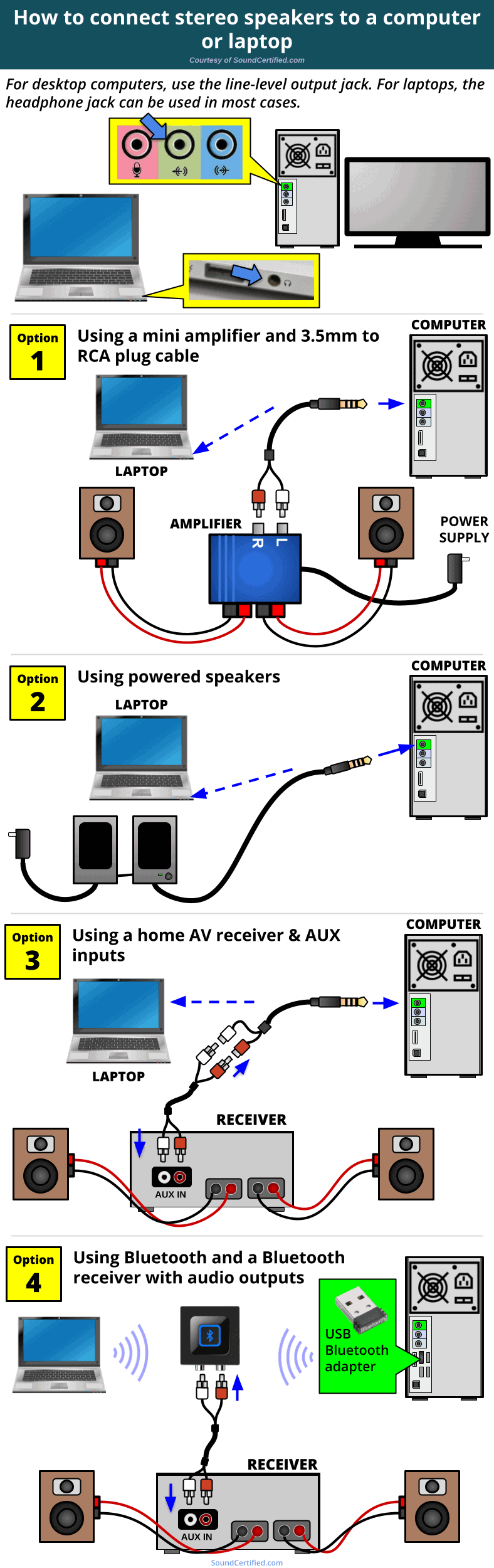
The most reliable solution for how to connect speakers to an Acer monitor is often ignoring the monitor entirely. Your computer has its own audio outputs designed for this purpose.
Connect Directly to Computer Audio Ports
Desktop and laptop computers have dedicated audio jacks for this exact scenario.
* Locate the green audio out port on your PC motherboard or laptop side.
* Plug your speaker system directly into this jack.
* Adjust the volume using your speaker controls or Windows mixer.
This method guarantees sound regardless of your monitor’s capabilities. It is the standard setup for most desktop users.
Configure Default Playback Device
Windows may not switch to your new speakers automatically.
1. Right-click the speaker icon in the taskbar tray.
2. Open Sound Settings or the Playback tab.
3. Find your connected speakers in the list.
4. Click Set Default to force all system audio through them.
Your audio will now play consistently without relying on monitor pass-through features.
Deploy Wireless Bluetooth Speakers
Wireless connections eliminate cable clutter and bypass monitor hardware limits completely. This is perfect for modern workspaces.
Pair Bluetooth Speakers to PC
Windows 10 and 11 have built-in Bluetooth support for audio devices.
1. Put your Bluetooth speaker into pairing mode.
2. Go to Settings > Devices > Bluetooth & other devices.
3. Click Add Bluetooth or other device and select your speaker.
4. Wait for the “Connected” status to appear.
Once paired, your computer streams audio directly to the speakers. The monitor simply displays the video content.
Use Bluetooth Transmitters for Older PCs
Desktops without built-in Bluetooth need a small adapter.
* Purchase a USB Bluetooth transmitter dongle.
* Plug it into an available USB port on your computer.
* Install any required drivers and pair your speakers.
This cheap upgrade adds wireless audio capability to any desktop setup instantly.
Diagnose Common Audio Problems
Even with correct wiring, software glitches can prevent sound from playing. Use these steps to fix common errors.
Fix No Sound Errors
Check these basic settings if your speakers remain silent.
* Confirm the correct output device is selected in Windows.
* Ensure the physical volume knob on the speakers is turned up.
* Check that the cable is fully inserted into the port.
* Restart the Windows Audio service via the Services menu.
These simple checks resolve the majority of connectivity issues quickly.
Correct Audio Video Sync Issues
Lag between sound and picture often occurs with wireless or processed audio.
* Reduce the audio sample rate in the speaker properties menu.
* Disable audio enhancements in the Windows sound control panel.
* Switch to a wired connection if latency persists.
Wired connections generally offer the most stable synchronization for gaming and movies.
Frequently Asked Questions About Connecting Speakers to Acer Monitor
Do all Acer monitors have built-in speakers?
No, most Acer monitors do not have built-in speakers. You usually need to connect external speakers to your computer or use a monitor with a dedicated audio output jack.
Can I use the HDMI port on my Acer monitor for sound?
Yes, HDMI carries audio, but the monitor must have an audio-out port or built-in speakers to release that sound. If not, connect speakers directly to your PC.
Why is there no sound when I connect speakers to my monitor?
Your monitor likely does not support audio extraction. Try connecting the speakers directly to your computer’s green audio jack or use a USB audio adapter.
How do I change the audio output on Windows 11?
Click the volume icon in the taskbar, click the arrow next to the volume bar, and select your desired speaker or headphone device from the list.
Can I connect a soundbar to an Acer monitor?
Yes, if the monitor has a 3.5mm audio out or optical port. Otherwise, connect the soundbar directly to your PC via HDMI, USB, or Bluetooth.
Key Takeaways for Connecting Speakers to Acer Monitor
Connecting speakers often requires bypassing the monitor entirely since many Acer models lack audio output hardware. The most effective solutions involve using the 3.5mm jack on your computer, leveraging HDMI pass-through if supported, or utilizing Bluetooth for a wireless experience. Always verify your specific monitor specifications before purchasing extra cables.
Start by checking the back of your monitor for a headphone icon. If it is missing, plug your speakers directly into your PC’s audio port for immediate sound. This simple step solves the problem for most users instantly.


