
You are ready to present or work, but a tangle of HDMI cables blocks your path. A wireless monitor solves this by transmitting your screen data through the air instantly.
This guide explains exactly how does a wireless monitor work using Wi-Fi Direct and Miracast. You will learn about signal transmission, setup steps, and how to fix common connection issues.
Signal Transmission From PC to Screen
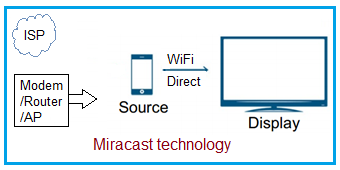
Your laptop converts video images into digital data packets for travel. These packets fly through the air as radio waves instead of moving through a copper cable.
How Video Data Goes Wireless
The source device encodes your screen content and compresses it for speed. It sends this data via high-bandwidth wireless standards like Wi-Fi Direct.
* The monitor receives these data packets through an internal receiver.
* The system decodes the signal back into visible video and audio.
* Speakers on the monitor play sound synchronized with the image.
This peer-to-peer link bypasses your main router to reduce traffic jams. The entire process happens in milliseconds to mimic a wired connection.
Latency and Compression Trade-Offs
Real-time compression algorithms shrink file sizes to ensure smooth streaming. This compression introduces a tiny delay known as latency.
* Modern systems keep latency under 30ms for office tasks.
* Casual gaming and video playback work smoothly on these connections.
* Competitive gaming still requires wired links for zero-latency performance.
You might notice slight delays in fast-paced action games due to this trade-off.
Core Wireless Technologies Explained
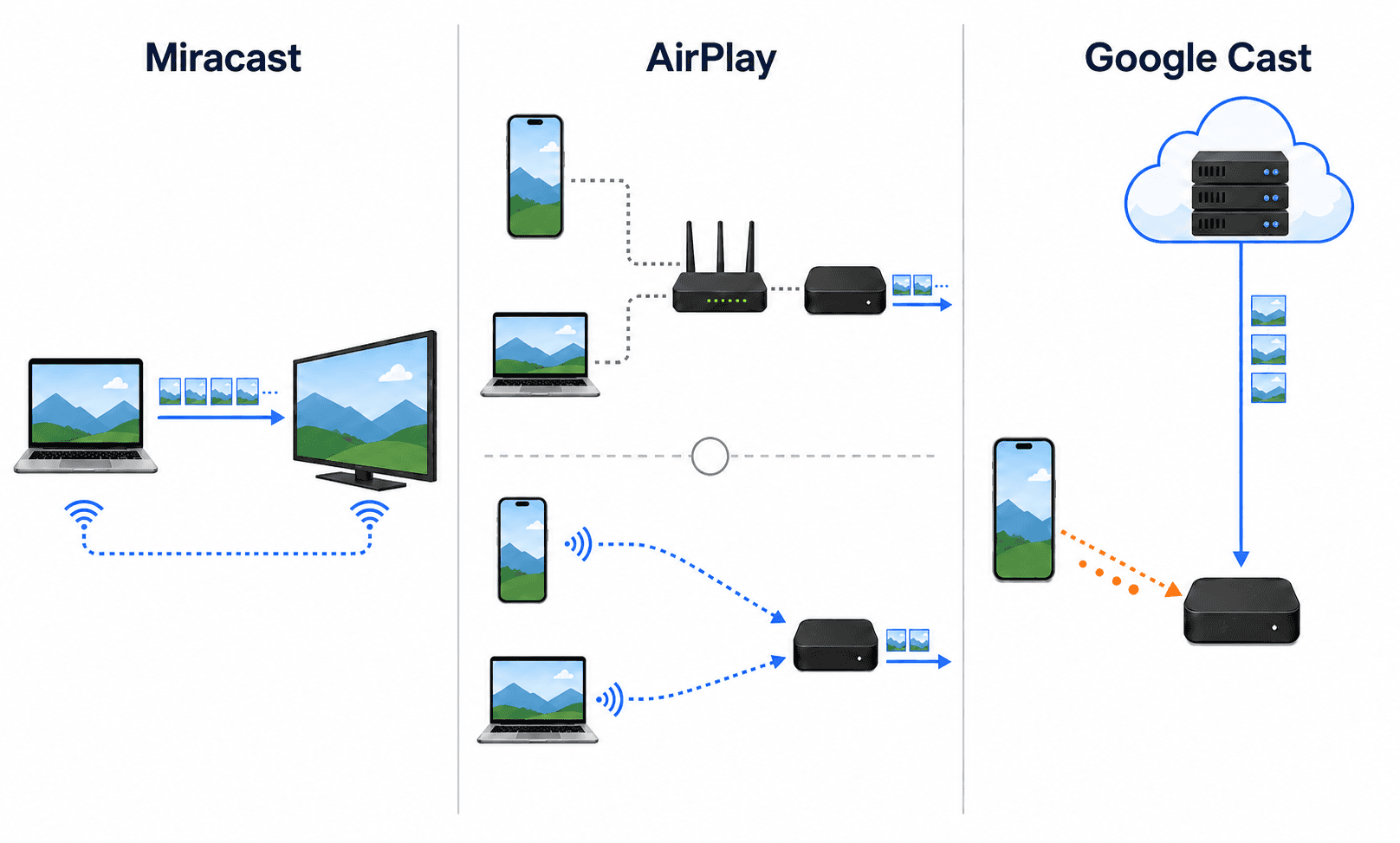
Different protocols power the connection between your device and the display. Understanding these helps you choose the right hardware for your needs.
Wi-Fi Direct and 5GHz Band Use
Wi-Fi Direct creates a direct bridge between your laptop and the monitor. This method avoids routing traffic through a central access point.
* Most systems operate on the 5 GHz frequency band for speed.
* The 5 GHz band offers wider bandwidth and less congestion than 2.4 GHz.
* You can switch to 2.4 GHz if you need better range through walls.
This direct link ensures high bandwidth for 1080p or 4K video streams.
Miracast The Universal Screen Mirroring Standard
Miracast is the industry standard built into Windows and Android devices. It allows you to duplicate your screen without installing extra apps.
* Press Windows + K to scan for available Miracast receivers.
* The protocol supports video up to 1080p at 60Hz with stereo audio.
* Apple devices do not support Miracast and require AirPlay instead.
This plug-and-play feature makes it ideal for conference rooms and classrooms.
Proprietary RF and USB-C Transmitters
Some systems use dedicated USB-C transmitters for enhanced stability. These kits often support extended desktop modes rather than just mirroring.
* Your USB-C port must support DisplayPort Alternate Mode.
* These transmitters send video over a dedicated 5 GHz RF channel.
* Features often include pass-through charging and privacy buttons.
Check your laptop specifications to ensure compatibility before buying these kits.
Types of Wireless Monitors and Adapters

You can achieve wireless connectivity through dedicated screens or by upgrading existing hardware. Each option offers distinct advantages for different setups.
Built-In vs Adapter-Based Systems
Dedicated wireless monitors have receivers built directly into the display panel. Examples include specific Dell models designed for seamless office integration.
* Wired monitors with adapters use external dongles to receive signals.
* A Miracast dongle plugs into the HDMI port of any standard monitor.
* Wireless HDMI kits use separate transmitter and receiver units for a bridge.
Adapter-based systems offer flexibility if you already own a high-quality display.
Popular Adapter Types Compared
Different adapters suit different needs regarding resolution and latency.
* Miracast Dongles: Best for office presentations with 1080p output.
* Wireless HDMI Kits: Ideal for home theater setups supporting 4K.
* USB-C Transmitters: Perfect for laptops with DP Alt Mode support.
* Streaming Sticks: Great for media casting but may have higher latency.
Select the adapter type that matches your primary usage scenario.
Setup Connect in Minutes
Connecting your devices usually takes only a few simple steps. Modern operating systems make pairing intuitive and fast.
Windows and Android Pairing Steps
Windows 10 and 11 handle most connections natively without extra drivers.
1. Press Windows + K to open the Connect panel on your PC.
2. Select your wireless monitor from the list of available devices.
3. Confirm the connection on the monitor screen if prompted.
Android users can find similar options under Settings > Connected devices > Cast. Enable wireless display on your phone and select the monitor.
Dual Device Connection Dual Cast
Some monitors support Dual Cast to show two sources at once. This feature allows a Windows laptop and an Android device to connect simultaneously.
* The Windows screen fills the main display area.
* The Android device appears in a Picture-in-Picture window.
* You can move or mute the secondary window using a mouse.
Note that you cannot connect two Windows devices at the same time.
Performance What to Expect
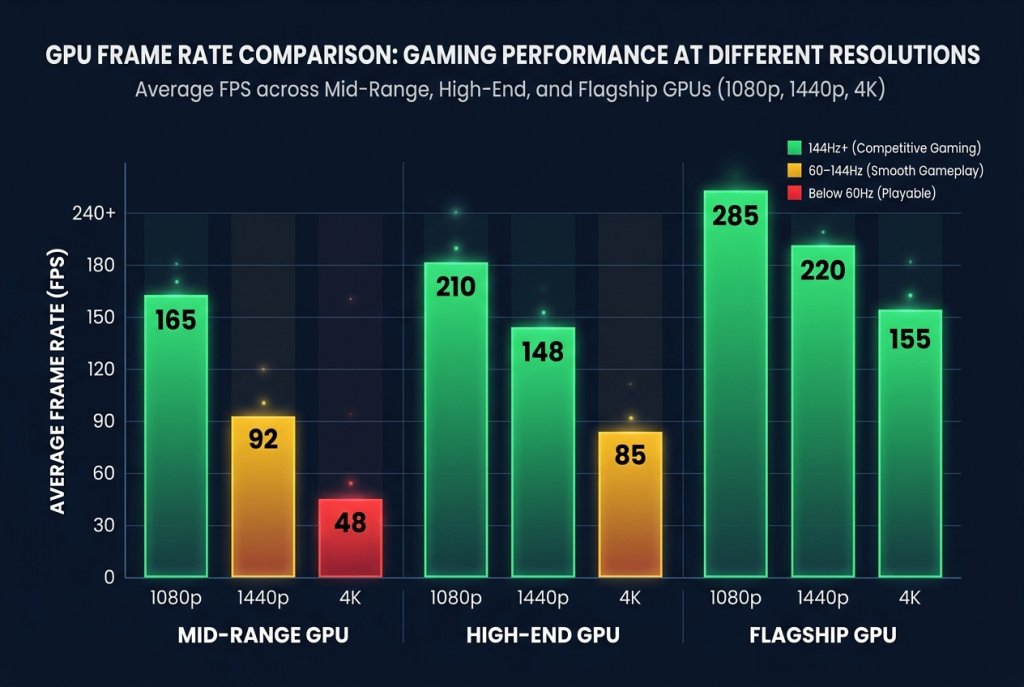
Wireless technology has improved significantly but still has physical limits. Knowing these limits helps set realistic expectations for your workflow.
Latency in Gaming and Video
Casual gamers will find the experience smooth and responsive enough for most titles. however, competitive players may notice input lag during fast actions.
* Video playback remains excellent with synchronized audio.
* Refresh rates typically hit 60Hz for fluid motion.
* Fast-paced shooters may feel less responsive than on wired displays.
Resolution Limits 1080p vs 4K
Most wireless monitors currently max out at 1920×1080 resolution. This provides sharp text and clear images for standard productivity tasks.
* Emerging 4K wireless monitors offer four times the pixel density.
* Streaming 4K requires massive bandwidth and close proximity.
* Systems may downgrade 4K content to 1080p to prevent lag.
Stay within 30 feet of the monitor to maintain the best possible quality.
Troubleshooting Common Issues
Connection problems often stem from interference or simple configuration errors. These steps will help you resolve them quickly.
Device Not Found Fix Connectivity Fast
Restart both your source device and the monitor to refresh the connection. Ensure that Wi-Fi and Miracast features are enabled on both ends.
* Move closer to the monitor to rule out distance issues.
* Check that the monitor is not in a power-saving mode.
* Verify your PC has the necessary Wi-Fi module for Miracast.
Audio and Peripheral Problems
Select the wireless monitor as your default audio output device in settings. If your keyboard or mouse fails, reconnect them to the monitor’s USB port.
* Reset the monitor by unplugging it for 30 seconds.
* Update your graphics and USB drivers on the computer.
* Re-pair the devices and allow input permissions when prompted.
Security Privacy and Best Practices
Wireless connections require attention to security to protect your data. Encryption and authentication keep your screen safe from prying eyes.
Encryption and Unauthorized Access
Most systems use WPA2-level encryption to secure the data stream. Pairing requires manual confirmation or a PIN code to prevent hijacking.
* Use the privacy button on transmitters to blank the screen instantly.
* Avoid connecting to unknown public wireless displays.
* Keep your monitor firmware updated to patch security holes.
Maintenance Tips for Longevity
Regular updates ensure your device runs smoothly and securely. Clean the screen gently with a microfiber cloth to avoid damage.
* Dust the vents on transmitters to prevent overheating.
* Perform a factory reset if connection issues persist.
* Store portable transmitters in a safe dry place when not in use.
Frequently Asked Questions About Wireless Monitors
Can I use a wireless monitor with an iPhone or Mac?
Apple devices use AirPlay and do not natively support Miracast standards. You need an AirPlay-compatible receiver or third-party software to connect.
Does a wireless monitor need an internet connection?
No, most systems use Wi-Fi Direct to create a peer-to-peer connection. This allows them to function without an active internet router.
What is the typical range for a wireless monitor?
Standard setups work reliably up to 30 feet with line of sight. High-performance kits may reach up to 100 feet in open environments.
Can I play video games on a wireless monitor?
Casual and turn-based games work well, but competitive gaming suffers from latency. Wired connections are better for fast-paced action titles.
Why is my wireless monitor lagging or pixelated?
Interference from other devices or distance often causes quality drops. Try switching to the 5 GHz band or moving closer to the receiver.
Key Takeaways for How Does a Wireless Monitor Work
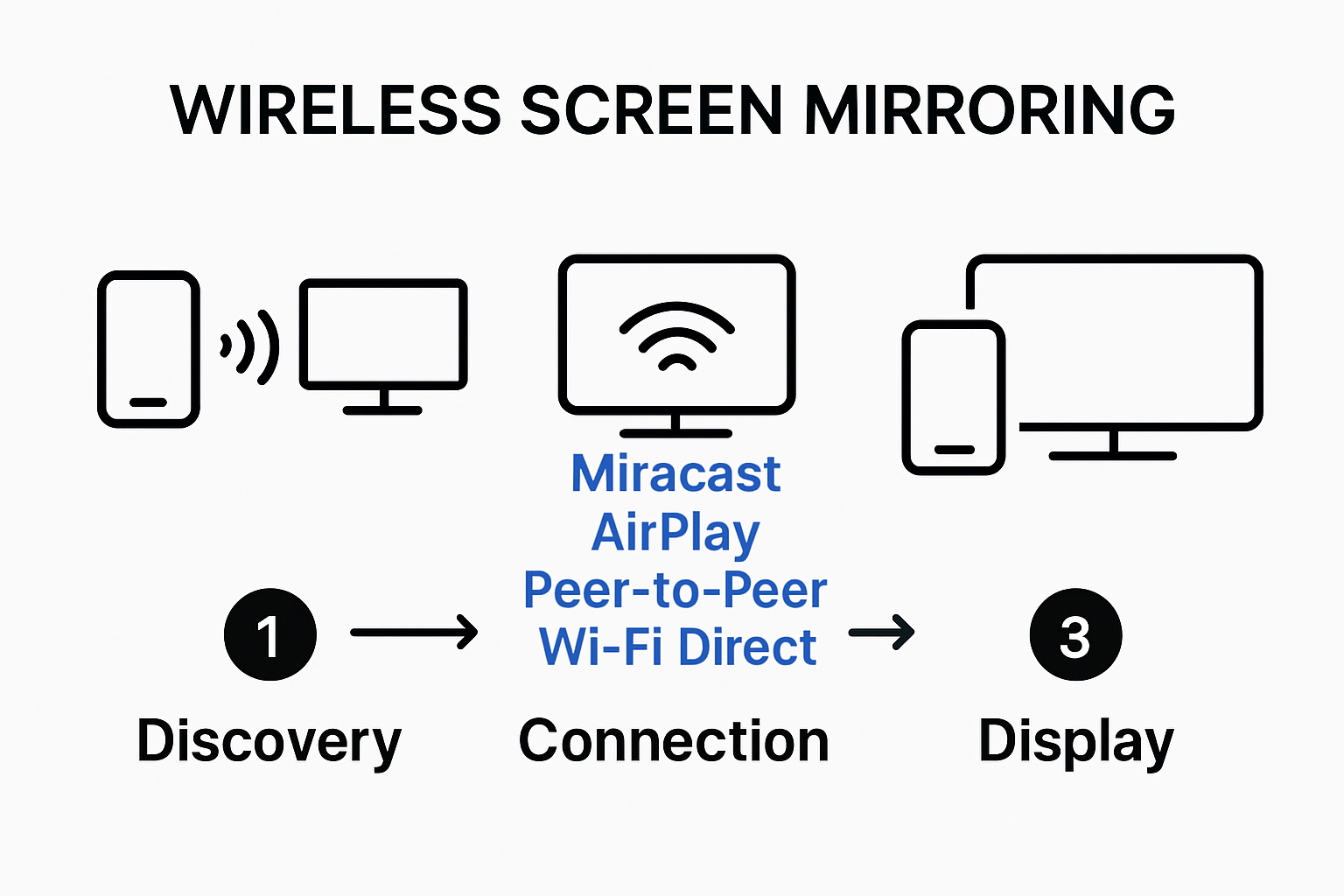
A wireless monitor replaces video cables with high-speed radio waves using Wi-Fi Direct or Miracast. This technology offers freedom from clutter while maintaining high-quality video for work and entertainment.
You now know that successful setup depends on compatible hardware and proper band selection. Start by checking if your laptop supports Miracast or has a USB-C port with DP Alt Mode.
Cut the cord today by selecting the right wireless solution for your workspace. Your organized and flexible desk setup awaits.


