
Endless scrolling through code, documents, or long articles often leads to fatigue and lost focus. You can solve this by learning how to display monitor vertical to see significantly more content at once.
This guide explains the hardware checks, software settings, and workflow tweaks needed to rotate your screen effectively. You will discover how to double your visible text area and streamline your daily tasks.
Verify Monitor Hardware Compatibility
Not every screen can physically rotate without damage. You must confirm your specific model supports a portrait orientation before attempting any changes.
Check for Pivot-Ready Stands
Many business-grade monitors like Dell UltraSharp or Eizo FlexScan include stands that swivel 90 degrees. Inspect your current base for a pivot mechanism or rotation lock. If your stand feels rigid, do not force it as this may break the hinge.
Identify VESA Mounting Patterns
If your native stand lacks rotation, check the back of your monitor for VESA holes. Standard patterns include 75x75mm or 100x100mm for most screens. You can attach a third-party arm that supports full rotation to these mounting points.
Assess Large Format Limitations
Be aware that very large ultrawide monitors often lack pivot support due to weight distribution. Models exceeding 34 inches frequently cannot rotate safely even with a heavy-duty arm. Consult your user manual to verify size limits before purchasing mounting hardware.
Execute Physical Screen Rotation
Once you confirm hardware support, you can safely turn the display to its new position. Proper handling prevents cable strain and ensures the mechanism locks correctly.
Prepare Your Workspace
Clear your desk area to give the monitor ample room to swing. Raise the screen to its highest height setting and tilt it slightly upward to relieve pressure on the pivot joint. Disconnect power and video cables if they create tension during the turn.
Perform the 90-Degree Turn
Grip the monitor firmly on both sides and rotate it clockwise into portrait mode. Stop immediately if you feel significant resistance rather than forcing the movement. Ensure the screen clicks or locks securely into its vertical position before releasing.
Reconnect and Power On
Reattach your cables carefully to avoid bending connectors at sharp angles. For professional displays, power off the unit completely before reconnecting to ensure the system detects the new orientation. Wait about 15 seconds for the image to stabilize after turning it back on.
Configure Display Settings in Windows
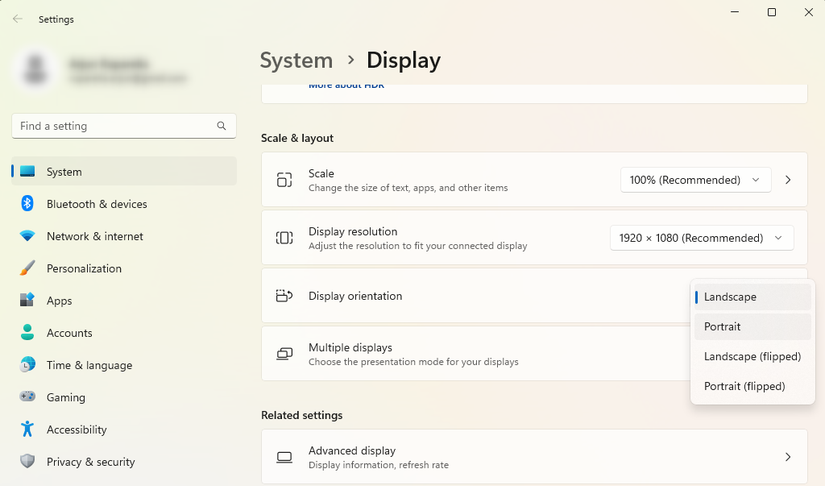
Your operating system must match the physical position of your screen to render images correctly. Windows provides native tools to handle this switch easily.
Select Target Monitor Icon
Right-click your desktop and choose Display settings to open the configuration menu. Click the rectangular box representing the specific screen you wish to rotate if you have multiple displays. This step is vital to avoid changing the wrong monitor in a multi-screen setup.
Change Orientation Dropdown
Scroll down to the Scale and layout section and find the Display orientation menu. Select Portrait for standard vertical use or Portrait (flipped) if your screen is upside down. Click Keep changes when the prompt appears to finalize the setting.
Troubleshoot Missing Options
If the orientation menu is grayed out, your graphics driver may need an update. Verify that your monitor reports rotation capabilities through its EDID data. Try accessing the rotation settings through your specific GPU control panel instead.
Utilize Graphics Driver Control Panels
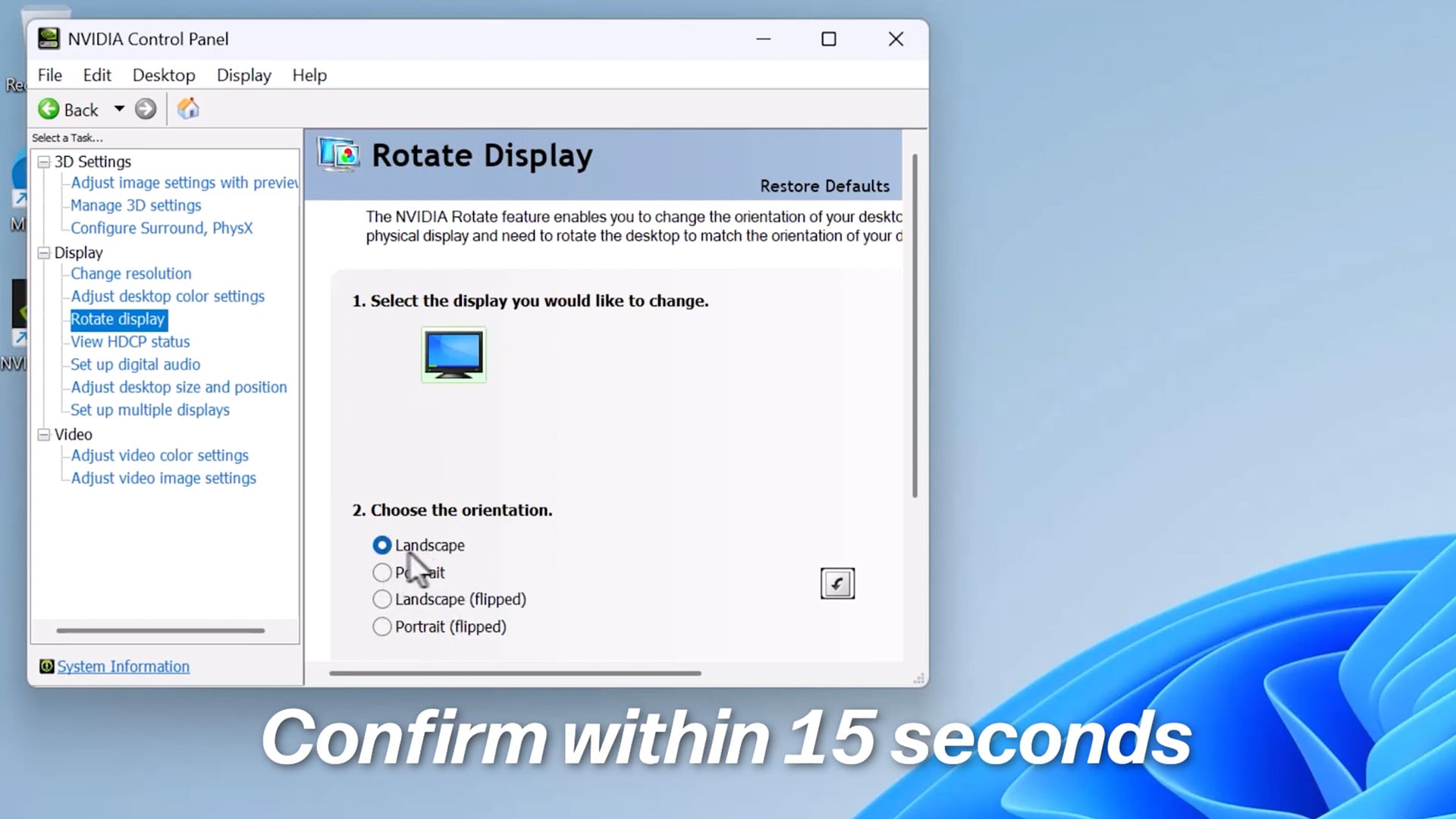
Dedicated software from your graphics card manufacturer offers an alternative way to manage screen rotation. These panels often provide more granular control than Windows settings.
Rotate via NVIDIA Control Panel
Right-click the desktop and open NVIDIA Control Panel then navigate to the Display section. Select Rotate display and choose your target monitor from the list. Pick 90° to achieve portrait mode and click Apply to save changes.
Adjust Intel Graphics Properties
Access Intel Graphics Properties or the Command Center via the desktop context menu. Go to the Display tab and locate the Rotation setting. Choose 90 degrees to flip the screen vertically for your workflow.
Configure AMD Radeon Software
Open AMD Radeon Software and click the gear icon to access Settings. Navigate to the Display tab and find the Rotation option. Select 90° to orient your screen vertically for better document viewing.
Enable Fast Keyboard Shortcuts
Hotkeys allow you to switch orientations instantly without navigating through menus. This feature saves time if you frequently alternate between landscape and portrait modes.
Activate Ctrl Alt Arrow Keys
Press Ctrl + Alt + Right Arrow to rotate your screen 90 degrees instantly. Use Ctrl + Alt + Up Arrow to return to the standard landscape view. Note that this shortcut depends on your specific driver configuration and may be disabled by default.
Enable Shortcut Features in Drivers
Open your Intel Graphics Control Panel and go to Options and Support to enable hotkeys. Look for a checkbox labeled Enable Rotation or similar within the hotkey settings. Without this enabled, the keyboard combination will not trigger any action.
Install iRotate Utility Software
Download iRotate if your current drivers do not support native hotkeys. This lightweight tool works with NVIDIA, AMD, and Intel GPUs to provide customizable rotation shortcuts. Set your own key combinations to toggle between views effortlessly.
Optimize Multi-Monitor Layouts

Using a vertical screen alongside horizontal ones requires careful arrangement. Proper configuration ensures your mouse cursor moves logically between displays.
Isolate Specific Display Settings
Open Display settings and click only the monitor box you intend to rotate. Change the orientation for that specific screen while leaving others in Landscape mode. This prevents accidental rotation of your primary work display.
Realign Monitor Positions Visually
Drag the monitor icons in the settings window to match their physical arrangement on your desk. Align the edges so moving your mouse left or right feels natural between screens. Incorrect alignment causes the cursor to jump unexpectedly when crossing display borders.
Adapt Workflow for Vertical Viewing
Switching to portrait mode changes how applications appear and function. You can maximize efficiency by adjusting your software settings to fit the new aspect ratio.
Adjust Scaling for Readability
Text may appear too small when the screen width narrows significantly. Go to Display settings and increase the scale to 125% or 150% for comfortable reading. Avoid scaling beyond 150% unless you are using a high-resolution 4K panel.
Customize Browser and Editor Views
Hide unnecessary toolbars in your web browser to maximize vertical space for content. Enable Reader Mode in your browser to strip away distractions and fill the screen with text. In code editors, stack your terminal window below the code area for better visibility.
Manage Narrow Interface Challenges
Long URLs may wrap awkwardly in the narrow address bar of a vertical browser. Consider using a vertical tab extension to prevent tabs from becoming too thin to read. Resize pop-up windows manually as they may appear off-center in portrait mode.
Resolve Common Rotation Issues
Technical glitches can occur when changing display orientations. Understanding these common problems helps you fix them quickly without frustration.
Fix Upside Down Display
Your screen appears inverted if you selected the wrong orientation mode. Switch from Portrait to Portrait (flipped) or vice versa in your display settings. This corrects the image so the top of the screen aligns with the physical top of your monitor.
Correct Stretched or Distorted Images
A stretched image usually indicates a resolution mismatch after rotation. Ensure your resolution settings match the native vertical dimensions like 1080×1920. Do not leave the resolution set to the original horizontal values.
Address No Signal Errors
If the screen goes black, the cable connection may have loosened during rotation. Power off the monitor, unplug the video cable, and reconnect it firmly. Restart the computer to allow the system to detect the display configuration again.
Evaluate Best Use Cases

Vertical screens excel at specific tasks but are not ideal for every workflow. Knowing when to use this setup helps you decide if it fits your needs.
Ideal Scenarios for Portrait Mode
Developers benefit from seeing more lines of code without constant scrolling. Writers and researchers gain the ability to view full document pages or long articles at once. This setup also works perfectly for viewing mobile content like TikTok or chatting in AI tools.
Situations to Avoid Vertical Setup
Spreadsheets suffer in portrait mode because they lack the necessary horizontal width. Video editing timelines and photo editing interfaces are designed for wide landscapes. Most video games do not support vertical resolutions natively.
Frequently Asked Questions About Vertical Monitors
Can I rotate any monitor vertically?
No, only monitors with pivoting stands or VESA mounts can rotate safely. Forcing a non-pivot stand can break the hinge or damage the panel. Always check your specific model specifications before attempting rotation.
Does rotating the monitor affect performance?
Rotating the screen does not impact computer performance or frame rates. It simply changes how the graphics card outputs the image to the display. Your system resources remain unchanged during the process.
Why is my text blurry after rotating?
Blurry text often results from incorrect scaling settings after the orientation change. Adjust the scale percentage in Display Settings to 125% or 150% for sharper text. Ensure the resolution matches the native vertical dimensions of your panel.
How do I switch back to landscape mode?
Use the Ctrl + Alt + Up Arrow shortcut if hotkeys are enabled on your system. Alternatively, right-click the desktop, open Display Settings, and select Landscape from the orientation dropdown.
Is vertical mode good for gaming?
Most modern games do not support vertical resolutions and will display black bars on the sides. However, it works well for strategy games, emulators, or viewing maps and guides while playing.
Key Takeaways for Displaying Monitor Vertically
Rotating your monitor offers a powerful productivity boost for coding, writing, and browsing long content. By verifying hardware compatibility, adjusting Windows settings, and optimizing your workflow, you can eliminate endless scrolling.
Start by checking your stand or VESA mount today to see if your setup supports this change. Once configured, you will likely wonder how you worked without the extra vertical space.


