
Your tablet is sitting in a drawer or on a shelf, barely used. What if it could become a second screen for your laptop or desktop? Learning how to turn a tablet into a monitor is simpler and cheaper than most people think. You skip the cost of buying new hardware while gaining real productivity.
The setup works by streaming your computer’s display to the tablet over Wi-Fi or USB. It functions as a true extended monitor for dragging windows, editing photos, sketching digitally, or just keeping chat apps visible. Both free and paid tools exist, and some brands like Samsung and Apple even offer built-in options.
In this guide, you will learn how to turn a tablet into a monitor using the best apps and native methods. You will also get troubleshooting tips, tablet recommendations, and creative ways to use your new dual-screen setup.
Use Space Desk for Any Tablet (Free)
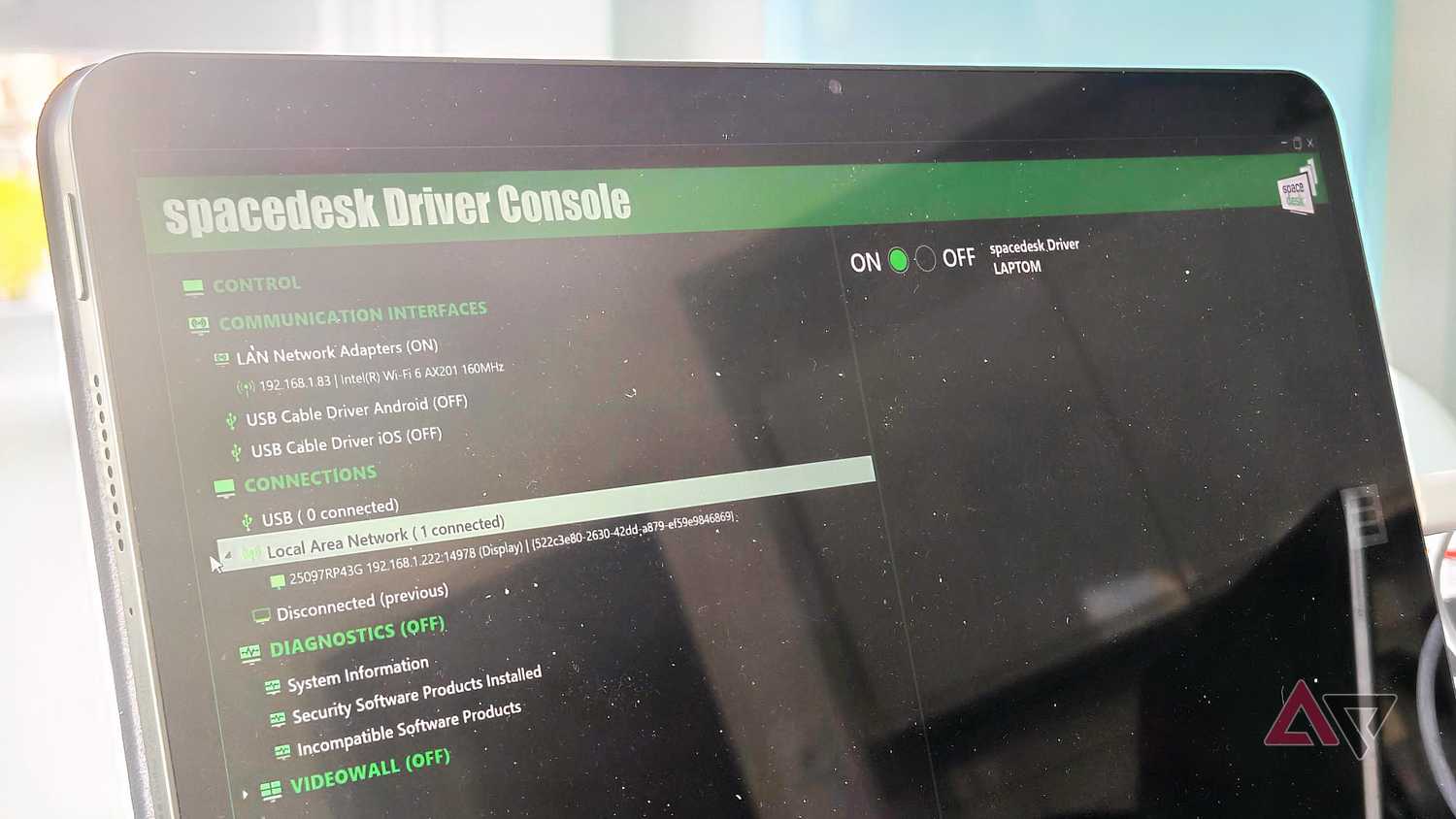
Space Desk is the top free tool for turning almost any tablet into a working second monitor. It supports Windows PCs and connects to Android tablets, iPads, and even web browsers. There are no monthly fees, no watermarks, and no hidden limits.
Set Up Space Desk Wirelessly
Connecting over Wi-Fi takes only a few steps:
- Download the Space Desk driver from
spacesdesk.netonto your Windows PC. - Choose the correct installer: standard for Intel or AMD, ARM64 for Snapdragon devices like Surface Pro X.
- Install the Space Desk app on your tablet from Google Play or the App Store.
- Open the app and let it auto-detect your PC on the same network.
- Tap the PC name to connect.
Once connected, press Windows + P on your PC and select Extend. You can now drag windows, resize apps, and use touch on the tablet.
Pro Tip: For the smoothest experience, connect both devices to a 5GHz Wi-Fi network. Avoid crowded routers or long distances between devices.
Connect via USB for Low Latency
If you want smoother performance for drawing or gaming, use a USB cable instead:
- Plug your tablet into the PC using a USB-C or USB-A cable.
- Open the Space Desk console on your PC and select USB Cable (Android) or USB Cable (iOS).
- Authorize the connection if prompted, and enable USB debugging on older Android devices.
This wired mode dramatically reduces lag, stabilizes the connection, and often charges your tablet while you work.
Enable Touch and Audio Features
Space Desk supports more than just video streaming:
- Touch input lets you tap, swipe, and drag windows directly on the tablet.
- Audio routing sends PC sound to the tablet speakers. Tap the three-dot menu, then Audio, then Enable.
- Security options include password protection in the Space Desk driver settings.
- Performance tweaks let you adjust image quality, frame rate (up to 120 FPS), color depth, and resolution.
Try Super Display for Artists (Android Only)
If you are using an Android tablet for digital art, Super Display is worth the $14.99 one-time purchase. It is built specifically for creatives who need pressure-sensitive stylus support and high refresh rates.
Why Artists Prefer Super Display
Unlike general-purpose tools, Super Display delivers features that matter most to illustrators:
- Full S-Pen and stylus pressure sensitivity, supporting up to 8,192 levels.
- Smooth performance even on 2.4GHz Wi-Fi networks.
- Compatibility with Krita, Photoshop, Illustrator, and other design apps.
- Simultaneous file transfer over USB while streaming the display via Wi-Fi.
It works with most Android tablets and foldables, including Samsung Galaxy Tabs, Lenovo M10, and Xiaomi Pad models.
Install and Connect in Minutes
- Download the Super Display Windows driver and install it.
- Install the Super Display app from the Google Play Store on your tablet.
- Connect via USB-C or Wi-Fi.
- Authorize the connection when prompted.
After connecting, extend your display using Windows + P. Then calibrate the stylus in your design software for accurate pressure response.
Expert Note: For maximum responsiveness, use a USB-C to USB-C cable and disable battery optimization on the tablet.
Use Samsung Second Screen Without Extra Apps

Samsung Galaxy Tab S7, S8, S9, and S10 owners get a major advantage. Second Screen is built into One UI 3.1 and later, so no downloads are required.
Activate the Built-In Wireless Display
This native feature mirrors or extends your Windows PC screen without third-party software:
- On your tablet, swipe down from the top-right corner with two fingers.
- Tap the Second Screen icon.
- Choose a mode: Drawing/Gaming or Video.
- On your PC, press Windows + K to open the Connect menu.
- Select your tablet from the list.
Your PC screen appears instantly on the tablet. Use Extend mode to expand your workspace or Duplicate mode to mirror.
Optimize for Productivity
Fine-tune your setup with these adjustments:
- Adjust scaling in Windows Display Settings. Set it to 150% or 175% for readable text on smaller tablets.
- Switch to Portrait mode for coding, reading docs, or keeping chat apps visible.
- Use touch control to navigate with taps and swipes. The mouse cursor follows your finger.
If the tablet does not appear, check that both devices are on the same Wi-Fi. Confirm that Wireless Display is enabled in Windows Settings under System and Display. Disable any VPNs or temporarily turn off Windows Firewall.
Enable Apple Sidecar for iPad and Mac
For Mac and iPad users, Sidecar is the gold standard. It turns your iPad into a seamless second monitor with ultra-low latency, Apple Pencil support, and Touch Bar emulation.
Connect iPad to Mac Easily
- Make sure both devices use the same Apple ID and connect to the same Wi-Fi.
- On your Mac, open System Settings and go to Displays.
- Click the plus button or find your iPad under AirPlay.
- Select Add Display and choose Extend or Mirror.
You can also connect via USB-C cable for better stability and charging.
Unlock Creative Features
Sidecar shines for designers and creatives:
- Apple Pencil support lets you draw directly on the iPad while editing in Photoshop or Procreate.
- Touch Bar mode turns the bottom of the iPad screen into a customizable toolbar.
- Resolution matching automatically adapts to your Mac’s display settings.
No extra apps or drivers are needed. Just seamless integration across Apple devices.
Repurpose Old Tablets with Space Desk
Got an old Android tablet collecting dust? Don’t throw it away. Turn it into a free second monitor using Space Desk.
Steps to Revive Old Hardware
Even budget or outdated tablets like Galaxy Tab A, Teclast, or generic brands work well:
- Update the tablet to Android 6.0 or higher.
- Install the Space Desk app.
- Install the driver on your Windows PC.
- Connect over Wi-Fi or USB.
Useful ways to repurpose old tablets include:
- Keep email, Slack, or your music player open on the tablet.
- Monitor server dashboards, stock prices, or live feeds.
- Display recipes while cooking or lyrics while practicing music.
Warning: Avoid trying to install Linux on old tablets. Locked bootloaders and driver incompatibility make it rarely work. Stick with Android apps for reliable results.
Compare Connection Types: Wi-Fi vs USB

The way you connect affects performance. Here is how wireless and wired options compare.
Wireless (Wi-Fi) Pros and Cons
Pros:
– No cables mean a portable and clutter-free setup.
– Easy setup with automatic device detection.
– Works across rooms within router range.
Cons:
– Higher latency on 2.4GHz networks.
– Signal drops when walls or interference exist.
– Drains the tablet battery faster.
Best for: General browsing, document editing, and media playback.
Wired (USB) Pros and Cons
Pros:
– Near-zero lag for real-time tasks.
– Stable connection unaffected by network traffic.
– Charges the tablet during use.
Cons:
– Tethered setup limits mobility.
– Requires a compatible cable, with USB-C recommended.
Best for: Gaming, digital art, video editing, and any real-time work.
Fix Common Tablet-as-Monitor Issues
Even smooth setups hit snags. Here is how to solve frequent problems fast.
Tablet Not Detected?
Try these troubleshooting steps:
- Confirm both devices are on the same Wi-Fi network.
- Restart your router and both devices.
- Disable VPNs or firewall software on the PC.
- Update the Space Desk or Super Display driver.
For USB connections, make sure USB debugging is allowed on Android if prompted.
Screen Lagging or Freezing?
Reduce strain on your connection with these fixes:
- Switch to the 5GHz Wi-Fi band.
- Move closer to the router.
- Lower image quality in the app settings.
- Use a USB connection instead of Wi-Fi.
Touch Input Not Working?
Check these settings:
- Confirm touch is enabled in the tablet app settings.
- Reinstall the host driver.
- Restart both devices after updates.
No Sound from Tablet?
To route PC audio to your tablet:
- In the Space Desk app, tap the menu, then Audio, then Enable.
- On the PC, open Sound Settings and set the tablet as the default output device.
For Linux users, use GNOME Remote Desktop with Wayland, not Xorg, to avoid invisible cursor issues.
Best Tablets for Secondary Display Use
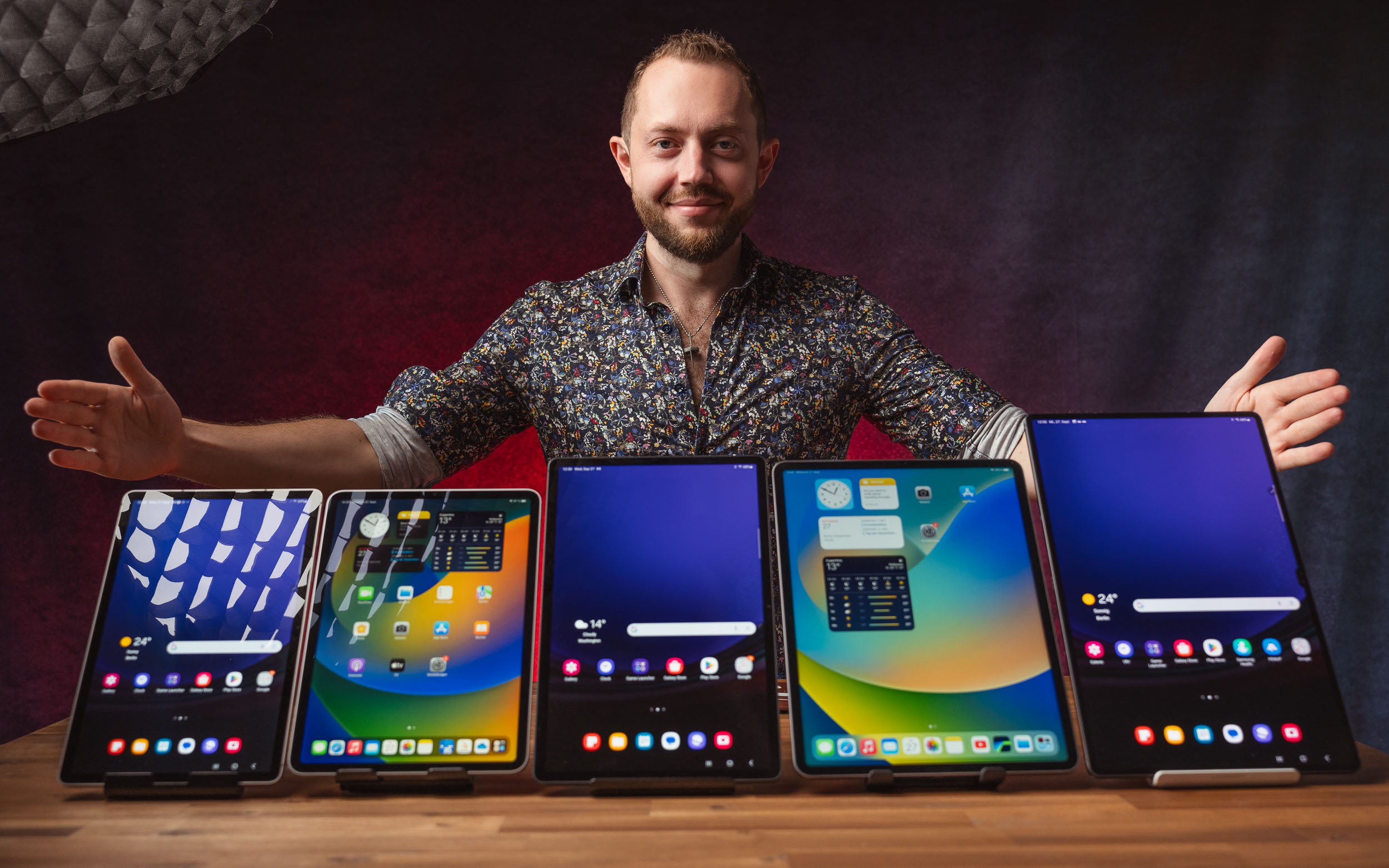
Not all tablets perform equally. Here are the top picks based on use case.
Samsung Galaxy Tab S Series
- Why it wins: Native Second Screen support, S-Pen included, and DeX desktop mode.
- Models: S7, S8, S9, and S10.
- Best for: Windows users already in the Samsung ecosystem.
iPad (Air, Pro, Mini)
- Why it wins: Flawless Sidecar integration, Retina display, and Apple Pencil support.
- OS requirement: iPadOS 13 or later.
- Best for: Mac users, artists, and creatives.
XP-Pen Artist Series
- Why it wins: Large screen up to 22 inches, 16,000+ pressure levels, and standalone Android OS.
- Models: Artist 22 Plus and Magic Drawing Pad.
- Best for: Professional illustrators needing a big, responsive canvas.
Budget Android Tablets
- Why they work: Cheap or free if you already own one.
- Brands: Lenovo, Xiaomi, and generic options.
- Best for: Basic multitasking, static info displays, and students.
Maximize Your Dual-Screen Workflow
Now that you know how to turn a tablet into a monitor, use it wisely with these workflow tips.
Productivity Hacks
- Portrait mode works great for coding windows, e-books, or chat apps.
- App grouping keeps all communication tools like Slack, Teams, and Discord on the tablet.
- Reference panel displays PDFs, design mockups, or research while you work on the main screen.
Creative Uses
- Digital drawing uses Super Display or Sidecar to sketch on the tablet.
- Photo editing lets you view full-size previews while adjusting settings on the main screen.
- Music production keeps DAW plugins or lyrics visible on the tablet.
Gaming and Streaming
- Second-screen HUD displays maps, inventories, or Twitch chat.
- Remote viewing streams gameplay to the tablet while using the main screen for controls.
Cost Comparison: Tablet vs Portable Monitor
Think twice before buying new gear. Here is how the costs stack up:
| Option | Cost | Notes |
|---|---|---|
| Dedicated Portable Monitor | $100 to $300 | Requires power, extra cables, and storage |
| Space Desk (Free) | $0 | Uses existing tablet with full touch and audio support |
| Super Display (One-Time) | $14.99 | Premium features for artists |
| Repurposed Old Tablet | $0 | Eco-friendly and extends device life |
Using your tablet saves money and reduces e-waste, making it a win-win choice.
Frequently Asked Questions About Turning a Tablet into a Monitor
Can any tablet be used as a second monitor?
Most Android tablets running Android 6.0 or higher and iPads running iPadOS 13 or later work as second monitors. You need a compatible app like Space Desk or a native feature like Sidecar or Samsung Second Screen to make the connection.
Is using a tablet as a monitor free?
Yes, free options exist. Space Desk is completely free for personal use and works with Windows, Android, and iOS. Samsung Second Screen and Apple Sidecar are also free built-in features on supported devices.
Does using a tablet as a monitor cause lag?
Lag depends on your connection type. Wired USB connections have near-zero lag, while Wi-Fi performance depends on your network. Using a 5GHz Wi-Fi band minimizes lag for wireless setups.
Can I use a tablet as a monitor for gaming?
Yes, but use a USB connection for the best gaming experience. Wired setups provide near-zero latency, making them suitable for real-time gaming. Wireless connections work for casual games but may show lag in fast-paced titles.
Do I need a stylus for using a tablet as a monitor?
No, a stylus is optional. Basic monitor functions like window management and touch input work without one. However, for digital art, a pressure-sensitive stylus with apps like Super Display or Sidecar is highly recommended.
Can I charge my tablet while using it as a monitor?
Yes, especially when using a USB connection. Most wired setups charge the tablet while streaming the display. Wireless setups drain the battery faster unless you connect the tablet to a charger separately.
Key Takeaways for Turning Your Tablet into a Monitor
Learning how to turn a tablet into a monitor opens up new possibilities without spending much money. The best free option is Space Desk, which works across Windows, Android, and iOS with both Wi-Fi and USB connections. Samsung users get a built-in Second Screen feature, while Mac and iPad owners enjoy seamless Sidecar integration. Artists should consider Super Display for pressure-sensitive stylus support.
Start by choosing the method that matches your devices. Download Space Desk if you want a free, universal solution. Try Samsung Second Screen or Apple Sidecar if you own compatible hardware. Invest in Super Display if you are a digital artist needing stylus precision.
Your tablet is already capable of becoming a second monitor. Pick your method, follow the setup steps, and enjoy your new dual-screen workspace today.


