
Setting up monitor speakers correctly is essential for anyone serious about music production, podcasting, or audio editing. Unlike regular speakers, monitor speakers are designed to deliver a flat, uncolored frequency response, meaning you hear exactly what has been recorded without artificial bass boosts or treble enhancements. But even the best monitors can mislead you if placed incorrectly, connected poorly, or left in an untreated room.
A bad setup leads to mixes that sound great in your studio but fall apart on other systems. You might miss muddy bass, overdo reverb, or misjudge panning. This guide walks you through every step of how to set up monitor speakers properly, from choosing the right cables and forming the ideal listening triangle to integrating a subwoofer and calibrating your room with software.
Choose the Right Monitor Type for Your Studio
Active vs. Passive Monitors
Most modern studio setups use active (powered) monitors, which have built-in amplifiers tailored to each driver. These are ideal for home and project studios because they simplify signal flow. You just connect them directly to your audio interface. Examples include the Yamaha HS5, KRK Rokit, and Mackie CR series.
Passive monitors require an external amplifier between the interface and the speakers. While they offer more customization, they are less common today due to added complexity and cost.
For beginners and most project studios, active monitors are recommended. They are easier to set up, more consistent, and eliminate mismatched power issues.
Verify Your Audio Source
Ensure your computer or DAW setup includes an audio interface, not just onboard sound. Built-in audio outputs lack the dynamic range and low noise floor needed for critical listening. The interface sends clean, line-level signals via balanced outputs (TRS or XLR), which connect directly to your monitors.
Position Monitors in an Equilateral Triangle
Achieve Balanced Stereo Imaging
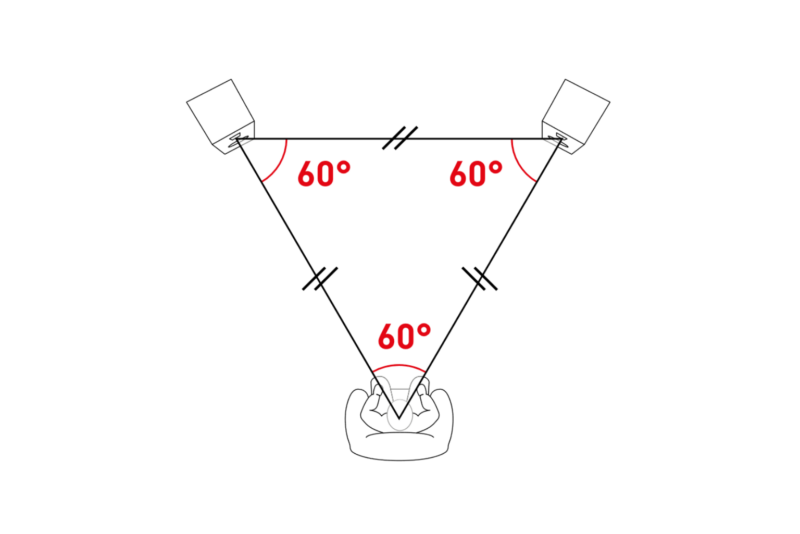
The foundation of accurate monitoring is geometry. Place your monitors so they form an equilateral triangle with your head at the listening position:
– Distance from left speaker to ears equals right speaker to ears equals distance between speakers
– This symmetry ensures both channels reach you at the same time, preserving phase and panning accuracy
Avoid placing one monitor closer than the other. Even a few inches can cause noticeable imbalance.
Apply Proper Toe-In
Angle your monitors inward so the tweeters point directly at your ears. This creates a 30-degree angle from center, focusing high frequencies where you need them. Some monitors have waveguides that benefit from precise alignment. Misalignment can dull highs or exaggerate mids.
Use a tape measure or laser distance tool for precision. Even small adjustments matter when you set up monitor speakers correctly.
Set Correct Height and Alignment

Match Tweeters to Ear Level
High-frequency response is highly directional. If tweeters are above or below ear level, you lose clarity and detail.
- Ideal setup: Tweeters aligned exactly with your ears when seated
- Use speaker stands or risers to elevate desktop monitors
- If stands are not possible, tilt the speakers slightly, but avoid excessive angling, which can cause internal reflections
Never place monitors on uneven surfaces or wobbly desks. Stability prevents vibration transfer and maintains imaging focus.
Avoid Symmetrical Room Distances
Room modes build up when distances between walls, floor, and ceiling are multiples of each other. To minimize standing waves:
– Keep the distance from speaker back to rear wall different from side-wall and floor clearances
– Example: If rear clearance is 1.5 feet, avoid setting side clearance at 3.0 feet or 4.5 feet
This modal randomization helps distribute bass energy more evenly throughout your space.
Optimize Your Listening Position
Center Yourself Between Side Walls
Sit centered between the left and right walls. Off-center positioning distorts stereo imaging and creates uneven bass response due to asymmetric reflections.
In rectangular rooms, avoid sitting in the middle of the room length. This often coincides with a low-frequency null where bass cancels out. Instead, experiment with positions between 30 to 40 percent of the room depth for better bass balance.
Maintain Nearfield Distance
For most home studios, the listening position should be 3 to 5 feet from the monitors. This nearfield setup means you hear more direct sound and less reflected sound from walls, improving clarity.
Pull your desk away from the front wall to reduce early reflections off the surface in front of you.
Isolate Speakers from Surfaces
Use Stands or Isolation Pads
Placing monitors directly on a desk couples vibrations into the surface, causing resonance that colors the sound, especially in the low end.
Best solution: Use dedicated monitor stands filled with sand or isolation material. Mount monitors behind your workstation for cleaner acoustics.
If using a desk:
– Place monitors near the front edge
– Use isolation pads under each speaker
– Add rubber feet or anti-slip material to prevent sliding from bass vibrations
This decoupling improves bass definition and prevents phase issues caused by surface resonance.
Treat Your Room Acoustically
Install Bass Traps in Corners
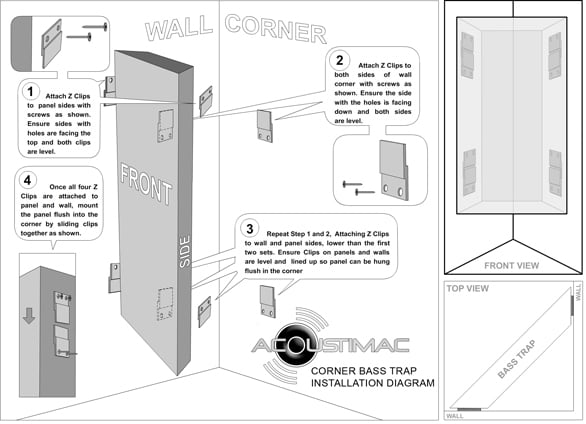
Low frequencies accumulate in corners. Without treatment, this causes boomy, uneven bass.
- Place bass traps in all vertical corners (front, rear, side)
- Use dense materials like mineral wool or fiberglass
- Standard acoustic foam does not absorb bass effectively, so invest in thick, high-density panels
Treating corners is the single most impactful step for controlling low-end response.
Add Panels at First Reflection Points
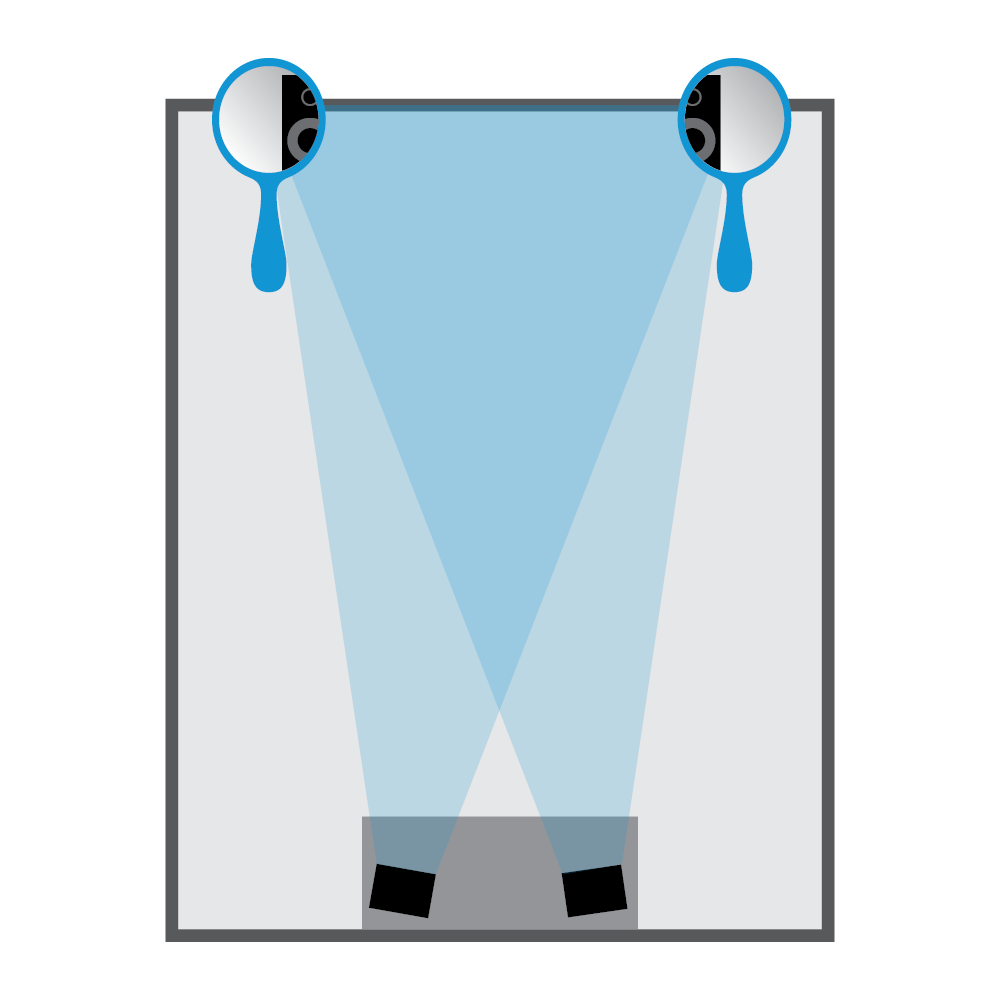
Sound bounces off side walls, ceiling, and floor before reaching your ears, muddying stereo imaging.
To find first reflection points:
– Use the mirror trick: Have someone slide a mirror along the side wall while you sit in the sweet spot
– When you see a monitor in the mirror, mark that spot. It is a primary reflection zone
Install acoustic panels at these locations to absorb early reflections.
Control Floor and Ceiling Bounce
- Place a thick rug or carpet under and between monitors and listening position
- Hang a ceiling cloud above the mix position to catch overhead reflections
Even modest treatment dramatically improves clarity and imaging when you set up monitor speakers.
Connect with Balanced Cables
Use TRS or XLR for Clean Signal
Always use balanced connections (TRS or XLR) when possible:
– They reject electromagnetic interference and noise, especially over runs longer than 5 feet
– Avoid unbalanced RCA or 3.5mm cables unless absolutely necessary and only for short distances
Match your interface outputs to monitor inputs:
– If your interface has TRS outputs and monitors have XLR inputs, use TRS-to-XLR cables
– Never daisy-chain multiple adapters, as this increases noise and connection failure risk
Follow Safe Connection Order
Before plugging anything in:
1. Turn off all equipment
2. Set monitor volume knobs to minimum
3. Connect cables securely
4. Power on interface first, then monitors
This prevents loud pops that can damage speakers or your hearing.
Wire Monitors Correctly
Single-Amplifier Setup
Some monitors use a master/slave configuration:
– Connect Left/Right outputs from interface to the Main (Left) monitor
– Use a speaker cable to link Main to the Secondary (Right) monitor
This design powers both monitors from one internal amp section. Always follow manufacturer diagrams.
Dual-Amplified Setup
Most professional monitors receive power and signal independently:
– Connect Left output to Left monitor
– Connect Right output to Right monitor
– Each speaker operates autonomously for better control and reliability
Use identical cable lengths for both channels to maintain timing consistency.
Integrate a Subwoofer Properly
Use the Summed Signal Path
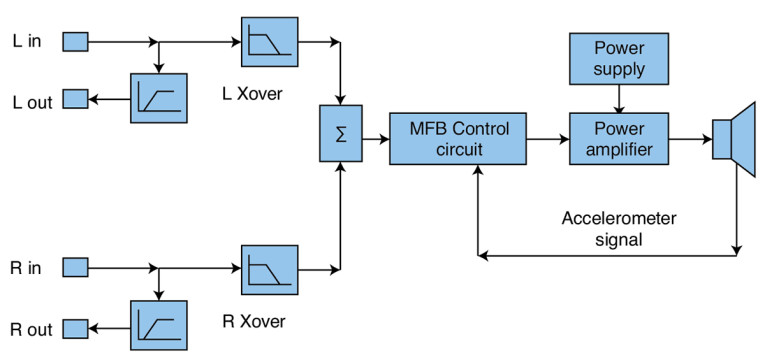
For most users, the easiest way to add a sub is the summed signal path:
1. Connect interface Left/Right outputs to subwoofer inputs
2. Connect subwoofer outputs to your main monitors
The sub processes the full signal, splits the low end via internal crossover, and sends the filtered highs to the monitors.
Benefits include:
– No DAW or interface routing needed
– Maintains phase coherence
– Simple and reliable setup
Set Subwoofer Crossover at 80 Hz
Start with the crossover set to 80 Hz, which is the industry standard for seamless integration.
Then:
– Play a track with strong kick drum or bassline
– Adjust crossover frequency while listening for smoothness
– Flip the polarity switch if bass sounds weak or hollow to correct phase issues
– Move the sub slightly for best coupling
The goal is bass that feels present and tight, not boomy or missing.
Calibrate Volume Levels Safely
Follow a Step-by-Step Power-Up Sequence
- Set interface output to 50 to 75 percent
- Keep monitor volume at minimum
- Power on interface, then monitors
- Play a familiar reference track
- Gradually raise monitor volume to a moderate, comfortable level around 75 to 85 dB SPL
Never blast volume during setup. Extended exposure above 85 dB causes hearing fatigue and damage. Use a sound pressure level meter app to check levels at ear position.
Fine-Tune with Calibration Software
Use Sonarworks or Similar Tools
Even a well-treated room has acoustic flaws. Software correction like Sonarworks SoundID Reference can flatten your frequency response.
Process:
1. Use the included calibration microphone at ear height in the sweet spot
2. Run the sweep so it measures how your room colors the sound
3. Software applies real-time EQ to correct peaks and dips
Common fixes include:
– Boosts in 100 to 400 Hz (muddy mids) are reduced
– Dips around 80 to 100 Hz (missing bass) are filled
Important: Use this as a refinement tool, not a substitute for physical treatment. Over-reliance can mask underlying room problems.
Test and Verify Your Setup
Listen to Reference Tracks
Play professionally mixed songs you know well, ideally in multiple genres. Listen for:
– Natural tonal balance
– Clear, defined bass
– Stable stereo image with center vocals anchored
If everything sounds off, revisit placement or treatment.
Check Original Mixes on Other Systems
Create a simple recording with no EQ or effects. Test it on:
– Car stereo
– Consumer Bluetooth speaker
– Earbuds
If it sounds drastically different, your monitors may be misleading you due to room issues.
Diagnose Common Problems
| Symptom | Likely Cause | Fix |
|---|---|---|
| Muddy or boomy bass | Poor room modes, no bass traps | Add corner traps, reposition sub |
| Harsh highs | Tweeters above ear level, reflections | Adjust height, add side panels |
| Stereo imbalance | Asymmetric placement | Re-measure distances, center listener |
| Boxiness | Overuse of acoustic foam | Remove excess foam, add diffusion |
Maintain Your Monitoring System
Check Isolation and Stability
Regularly inspect:
– Rubber feet and isolation pads for wear
– Monitor position to ensure they have not shifted from vibration
– Cable connections for looseness or corrosion
Even minor movement can affect bass response and imaging.
Upgrade Cables When Needed
Replace unbalanced RCA runs with balanced TRS or XLR cables. This lowers the noise floor and improves long-term reliability. Label cables for easy identification during troubleshooting.
Frequently Asked Questions About Setting Up Monitor Speakers
What is the ideal distance between monitor speakers and the listener?
The ideal distance is 3 to 5 feet for nearfield monitoring. The two speakers and your head should form an equilateral triangle, meaning the distance between speakers equals the distance from each speaker to your ears.
Do I need an audio interface to set up monitor speakers?
Yes, an audio interface is highly recommended. Built-in computer audio outputs lack the dynamic range and low noise floor needed for accurate monitoring. An interface provides clean, line-level signals via balanced outputs.
Can I place my monitors directly on my desk?
You can, but it is not ideal. Placing monitors on a desk couples vibrations into the surface, coloring the sound. Use isolation pads or dedicated monitor stands to decouple the speakers from the desk for better bass definition.
How do I find first reflection points in my room?
Use the mirror trick. Sit in your listening position and have someone slide a mirror along the side wall. When you see a monitor reflected in the mirror, mark that spot. That is a first reflection point where you should place acoustic panels.
What crossover frequency should I use for my subwoofer?
Start at 80 Hz, which is the industry standard for seamless subwoofer integration. Adjust slightly based on your room and speakers, and use the polarity switch to correct any phase issues you detect.
How often should I recalibrate my room with software?
Recalibrate whenever you change your room layout, move your monitors, or add new acoustic treatment. For static setups, recalibrating every 6 to 12 months ensures continued accuracy, especially if you rely on software correction tools.
Key Takeaways for Setting Up Monitor Speakers
Setting up monitor speakers properly requires attention to placement, acoustics, and connections. Focus on forming an equilateral triangle between your speakers and listening position, aligning tweeters to ear level, and isolating monitors from surfaces. Treat your room with bass traps in corners and acoustic panels at first reflection points to control reflections and bass buildup.
Use balanced cables whenever possible and follow safe power-on sequences to protect your gear and hearing. When adding a subwoofer, the summed signal path with an 80 Hz crossover offers the simplest and most reliable integration for most users.
Your next step is to measure your room, mark your ideal speaker positions, and start building your acoustic treatment plan. Take your time with each step. A well-tuned monitoring environment becomes a trusted tool that helps you create mixes that translate accurately across every playback system.


