
You plug your headphones into the monitor’s 3.5mm jack expecting instant sound, but nothing happens. This frustrating scenario affects countless users who assume any headphone-shaped port works the same way. The truth is that monitor audio jacks vary widely in function, and connecting headphones to a monitor requires understanding your specific hardware.
This guide walks you through everything needed to connect headphones to monitor setups successfully. You’ll learn how to verify audio output support, configure the right cables, adjust operating system settings, and troubleshoot silent failures. By the end, you’ll have a clear path to private audio from your monitor without guesswork.
Check Your Monitor’s Audio Output Capability

Before connecting anything, confirm your monitor can actually send audio to headphones. This single step prevents most failed attempts.
Not All 3.5mm Jacks Are Outputs
A major source of confusion is mistaking an audio input for an output. Many monitors include a 3.5mm jack marked with a headphone icon, but it may be designed to receive audio from your PC to power the monitor’s internal speakers. It cannot send audio out to your headphones.
- Audio Input (Line In): Receives audio from your PC to drive monitor speakers.
- Audio Output (Headphone Out): Sends audio from the monitor to external headphones or speakers.
💡 Pro Tip: If your monitor has no internal speakers (like the Lenovo L24q-20), the 3.5mm jack must be an output. Otherwise, there’s no audio path at all.
How to Verify Output Support
- Search for “[Your Monitor Model] audio output specs” online.
- Look for terms like “3.5mm Headphone Out,” “Audio Line-Out,” or “Supports external headphones.”
- If the spec sheet says “Audio Input” or “Line In,” that jack cannot drive headphones unless your video source sends embedded audio through HDMI or DisplayPort.
Match Your Video Cable to Audio Support
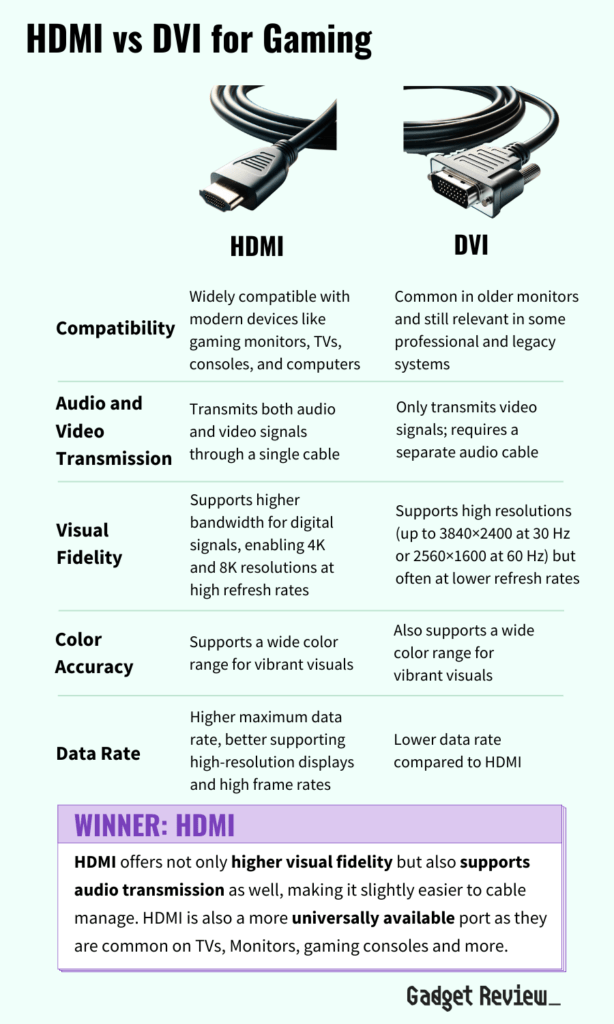
Your video connection determines whether audio even reaches the monitor. Choosing the wrong cable creates silent setups.
HDMI and DisplayPort: Audio Plus Video
These cables carry both video and audio signals digitally. The monitor receives audio from your PC or console and can route it to the 3.5mm output jack for headphones.
✅ Works with headphones when:
– The monitor has a headphone-out port.
– Your operating system sends audio via HDMI or DisplayPort.
– The monitor’s audio source is correctly selected in its menu.
DVI and VGA: Video Only
These older standards do not carry audio signals. Even if your monitor has a 3.5mm jack, it’s almost always an input, not an output.
🚫 You cannot connect headphones to a DVI or VGA monitor unless:
– You run a separate 3.5mm audio cable from your PC to the monitor (to power speakers).
– The monitor has a dedicated headphone-out port, which is rare.
🔧 In this case, the only reliable solution is plugging headphones directly into your PC.
Connect Headphones via HDMI: Step-by-Step
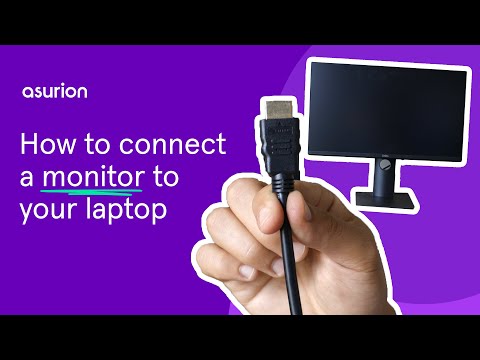
If your setup uses HDMI and your monitor supports audio output, follow these steps for a working connection.
1. Plug in the HDMI Cable
Connect one end to your PC’s GPU and the other to the monitor. Power on the monitor and confirm the video displays correctly.
2. Plug in Your Headphones
Insert the 3.5mm plug into the monitor’s headphone jack. This port is usually located on the side or back panel.
3. Set Monitor as Default Audio Device (Windows)
- Right-click the speaker icon in the taskbar.
- Select Sounds and open the Playback tab.
- Find a device named after your monitor (such as “L24q-20” or “HDMI Audio Output”).
- Right-click that device and choose Set as Default Device.
⚠️ If the monitor doesn’t appear in the list, continue with the troubleshooting steps below.
4. Test the Audio
Play a sound or video file. Adjust volume using both your PC controls and the monitor’s physical buttons.
Connect Headphones via DisplayPort: Key Differences

DisplayPort also carries audio, but auto-detection is less reliable than HDMI. Manual configuration is often required.
Why DisplayPort Audio Fails
Windows may not automatically switch to the monitor’s audio renderer. Some GPUs also require manual driver configuration before audio routes correctly.
Fix: Manually Select Audio Output
- Open Settings and navigate to System then Sound.
- Under Output, click the dropdown menu.
- Choose your monitor (often listed as “NVIDIA High Definition Audio” or “AMD HDMI Output”).
- If multiple HDMI or DisplayPort options appear, test each one.
💡 Note: The audio device name often reflects the GPU rather than the monitor model.
Configure External Devices Like Consoles and Cable Boxes

Using a PlayStation, Xbox, or cable box introduces additional configuration steps that often get overlooked.
1. Verify HDMI Audio on the Source Device
Even when video works perfectly, audio might be disabled in the source settings.
On a Cable Box or Streaming Box:
- Open Settings and find Audio or Display.
- Ensure HDMI Audio or Audio Output is set to “HDMI” or “Auto.”
- Disable “Optical Audio” if it’s currently enabled.
On a Gaming Console:
- PS5 or Xbox: Navigate to Settings, then Sound, then Audio Output, and select HDMI.
- Avoid selecting “Headset Jack” or “Optical” unless using a soundbar.
2. Set the Monitor’s Line Out Source
Access the monitor’s On-Screen Display (OSD) menu using its physical buttons.
- Press the menu button on the monitor.
- Navigate to Audio Settings.
- Find Line Out Source or Audio Output Source.
- Change it to match your active input, such as HDMI, DP, or PC Audio.
🔍 Example: On a Dell ST2410, set Line Out to “HDMI” when using an HDMI-connected console.
Troubleshoot No Sound: Isolate the Problem
When headphones remain silent, use this systematic approach to find the failure point.
1. Test Headphones on Another Device
Plug them into a phone, laptop, or tablet. If they don’t work there either, the headphones are faulty and need replacement.
2. Test the Monitor Jack with External Speakers
Connect known-working powered speakers to the monitor’s 3.5mm jack. If no sound plays, the monitor isn’t receiving or passing audio correctly.
3. Swap the 3.5mm Cable
Use a different cable to rule out internal wire damage. Intermittent sound when wiggling the plug indicates a bad cable or worn port.
4. Check Volume on All Levels
Ensure nothing is muted at any layer:
– PC Volume Mixer: Not muted and set above zero.
– Monitor OSD: Audio level not set to zero.
– Headphones: Physical volume wheel adjusted properly.
Fix OS Audio Routing Issues
Even with correct hardware, Windows may not switch audio outputs automatically after a new connection.
Why Audio Stays on PC Speakers
After connecting HDMI or DisplayPort, Windows often keeps playing sound through:
– Realtek Audio (onboard PC speakers)
– USB audio devices
– Bluetooth headphones
Solution: Force the Output Change
- Open Sound settings by right-clicking the taskbar speaker icon.
- Under Output, click the dropdown menu.
- Select your monitor’s audio device.
- Test immediately to confirm audio routes correctly.
📌 Pro Tip: Rename the device in Sound Control Panel for easier identification. Right-click the device, select Properties, enter a custom Name like “Monitor Headphones,” and save.
Common Problems and Quick Fixes

No Sound After HDMI Connection
Cause: The operating system didn’t switch audio output automatically.
Fix: Manually select the monitor in Sound settings.
Sound Works on TV but Not Monitor
Cause: The monitor’s Line Out Source is set to the wrong input.
Fix: Use the OSD menu to set the audio source to HDMI.
Headphones Work Only When Plugged In a Certain Way
Cause: Damaged cable or loose jack connection.
Fix: Replace the headphone cable or try different headphones.
Front PC Jack Works, But Monitor Doesn’t
Cause: The monitor jack is an input, not an output.
Fix: Plug headphones into the PC’s rear jack or use a USB audio interface.
DVI User: No Audio Despite 3.5mm Jack
Cause: DVI doesn’t carry audio, and the jack is likely input-only.
Fix: Use the PC’s audio output directly or upgrade to HDMI or DisplayPort.
Advanced: Use a USB Audio Adapter or DAC
If your monitor lacks audio output or your GPU’s HDMI audio is unstable, external solutions provide reliable alternatives.
Option 1: USB to 3.5mm Adapter
Plug the adapter into any USB port. Set it as the default playback device in Windows. Then connect your headphones directly to the adapter.
✅ Best for: Laptops, mini-PCs, or monitors without audio-out capability.
Option 2: External DAC and Amplifier
A dedicated DAC delivers higher-quality audio processing. Many models include volume control and better amplification for demanding headphones. They connect via USB, optical, or coaxial inputs.
💡 Ideal for audiophiles or users with high-impedance headphones that need more power.
Prevent Future Issues: Best Practices
1. Buy Monitors with Verified Audio-Out
Before purchasing, confirm the specifications list:
– “Headphone Out” or “Audio Line-Out”
– HDMI or DisplayPort audio pass-through support
– No reliance on DVI or VGA for audio
2. Label Your Cables
Use tags to identify which HDMI or DisplayPort port sends audio, especially on multi-input setups with several devices.
3. Update GPU Drivers
Outdated drivers can break HDMI audio functionality. Keep them current using:
– NVIDIA: GeForce Experience
– AMD: Adrenalin Software
– Intel: Intel Driver and Support Assistant
4. Use Fixed Audio Connections
Frequent plugging and unplugging wears out 3.5mm jacks over time. Consider using:
– A short extension cable for easy access
– A permanent DAC setup for stability
Frequently Asked Questions About Connecting Headphones to a Monitor
Why don’t my headphones work when plugged into my monitor?
The 3.5mm jack on your monitor is likely an audio input designed to receive sound from a PC to power internal speakers. Check your monitor’s specifications for “Audio Out” or “Headphone Out” labeling to confirm output capability.
Do all monitors have headphone jacks?
No. Some monitors include only an audio input jack, while others have no audio ports at all. Models like the Lenovo L24q-20 include a 3.5mm audio-out jack, but many budget monitors omit audio features entirely.
Does HDMI carry audio to my monitor?
Yes. HDMI cables carry both video and audio signals digitally. Your monitor extracts the audio and can route it to a 3.5mm output jack if one exists. The operating system must also be configured to send audio through HDMI.
Why is there no sound after connecting HDMI?
Windows often keeps audio routed through the previous default device. Open Sound settings, locate your monitor under the Output section, and set it as the default playback device manually.
Can I connect headphones to a DVI monitor?
DVI cables do not carry audio signals. If your monitor has a 3.5mm jack, it’s almost certainly an input for internal speakers. The only reliable solution is plugging headphones directly into your PC’s audio output.
How do I set my monitor as the default audio device?
Right-click the speaker icon in the taskbar, select Sounds, and open the Playback tab. Find your monitor in the device list, right-click it, and choose Set as Default Device. Click OK to apply the change.
Key Takeaways for Connecting Headphones to Your Monitor
Connecting headphones to a monitor requires more than just plugging in a cable. Success depends on hardware compatibility, correct cabling, and proper software configuration. The most common failure point is assuming the 3.5mm jack is an output when it’s actually an input.
To ensure a working setup:
1. Confirm your monitor supports audio output through its specifications.
2. Use HDMI or DisplayPort cables for combined audio and video transmission.
3. Set the correct playback device in your operating system’s sound settings.
4. Configure both the source device and monitor OSD audio source settings.
Once configured properly, you’ll enjoy clean, private audio perfect for late-night work, gaming sessions, or streaming without disturbing others. If sound cuts out in the future, you now know exactly where to look. Start by checking your monitor’s port type and cable connection, then work through the troubleshooting steps systematically until the issue resolves.


