
Is your gaming monitor acting up with flickering screens, input lag, or strange color shifts? You’re not alone. These issues often trace back to outdated firmware, one of the most overlooked maintenance tasks for any display. Knowing how to update a monitor properly can restore performance, fix bugs, and extend your device’s lifespan. The process differs between brands, so getting the steps right matters.
Unlike PC or phone updates, monitor firmware updates usually require manual action. Samsung models typically use a USB drive, while MSI monitors rely on proprietary software and specific cables. Skip a step, like using the wrong file format or third-party cable, and the update could fail or even damage your display. This guide walks you through every detail for both Samsung and MSI monitors, from preparation to post-update verification.
Prepare Before Updating Your Monitor
Before touching any cables or downloading files, follow these essential steps to protect your monitor and ensure a smooth update.
Verify Model and Firmware Version
Start by confirming your monitor’s exact model number. It’s usually printed on the back or found under OSD Menu > Support > Information. Once you know the model:
- Visit the manufacturer’s support site (Samsung.com or MSI.com)
- Search for your model
- Check if a newer firmware version is available than what’s currently installed
Mismatched firmware can permanently damage your monitor, especially with MSI models, so double-check compatibility before proceeding.
Gather Required Tools
You’ll need different tools depending on brand and method:
- Samsung: USB drive (8GB or less, FAT32 formatted), original power cable
- MSI: Original DisplayPort cable, original USB cable, Gaming OSD or Game Intelligence App
Never use third-party cables for MSI updates. They often lack the bandwidth needed and cause transfer failures.
Backup and Reset Expectations
After a firmware update, expect the following:
- All custom settings (brightness, color profile, input preferences) reset to factory defaults
- You’ll need to reconfigure these after the update
- Save your preferred settings manually so you can restore them later
Also, plan for 10 to 15 minutes of downtime. Do not interrupt power during the process.
Samsung: USB Firmware Update Steps
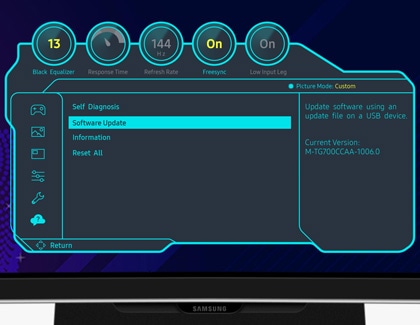
For most Samsung gaming monitors, updating via USB is the standard method. Follow this sequence carefully.
Download the Correct Firmware File
- Go to Samsung.com and click Support > Manuals and Software
- Enter your exact monitor model (e.g., Odyssey G7 S28AG70)
- Look for the Firmware section and download the latest
.zipfile - Save it to your PC desktop for easy access
Never rename the downloaded file. Samsung monitors expect the original filename (e.g., S28AG70_FW_V100.bin).
Format and Prepare the USB Drive
- Insert a USB flash drive (preferably 8GB or smaller)
- Format it to FAT32:
– On Windows: Right-click the drive, choose Format, select FAT32, then Start
– On Mac: Use Disk Utility and select MS-DOS (FAT) - Extract the downloaded
.zipfile - Copy only the
.binor.imgfile to the root folder of the USB drive
– No subfolders
– No extra files
– Example:USB:\S28AG70_FW_V100.bin
Avoid having multiple folders or files on the drive. This confuses the update script.
Plug in USB and Start Update
- Safely eject the USB from your PC
- Insert it into the USB Service Port on the back of the monitor
– Some models use USB-C, so you may need a USB-A to USB-C adapter - Power on the monitor
- Press the Jog Button (usually on the lower-right back panel) to open the OSD menu
- Navigate to Menu > Support > Software Update
- Select USB Update
The monitor will detect the file and begin installation automatically, power cycling 2 to 3 times.
Do not touch anything during this phase. No buttons, no unplugging.
Confirm Update Success
After the final restart:
- Unplug the monitor from the wall for 30 seconds
- Plug it back in and power on
- Go to Menu > Support > Information
- Check the Software Version field
If it matches the version in the downloaded file, the update succeeded.
MSI: Software-Based Update Process
MSI monitors require their own apps and cables. There’s no direct USB method; updates go through the PC using official software.
Install the Correct MSI App
Choose the correct app based on your model:
- Gaming OSD App: Most gaming monitors
- Game Intelligence App: Newer high-refresh models
- Productivity Intelligence App: Pro and creator series
- Download from MSI.com
- Install and launch the app
- Connect your monitor using the original DisplayPort and USB cables included in the box
Do not use adapters, hubs, or third-party cables. These are the leading cause of update failure.
Check for Firmware Updates
- Open the app
- It should auto-detect your monitor
- Click Check for Updates or go to the System tab
- If a firmware update is available, click Download and Install
The app will download the correct .bin file, push it to the monitor, and trigger the update process.
During installation, the screen may flicker or go black, and the monitor may restart automatically. Do not close the app or disconnect cables during this phase.
Use DP-Only Update If the App Fails
Some MSI models support direct DP firmware updates:
- Ensure the monitor is connected via the original DP cable
- Open the OSD menu using physical buttons
- Go to Settings > System > Firmware Update
- Select Update via PC
- Let the monitor search for the firmware through the DP link
You may need to run the MSI app simultaneously for this to work.
If the update fails, try switching DP ports on your GPU or PC.
Fix Common Update Errors
Even with careful prep, things can go wrong. Here’s how to fix the most frequent issues.
Samsung USB Not Detected
Symptoms include “No update file found” or no response after inserting the USB.
Solutions:
- Reformat the USB to FAT32 (not NTFS or exFAT)
- Ensure the
.binfile is in the root directory, not in a folder - Try a different USB drive, as some brands aren’t compatible
- Clean the USB port or use an adapter if the connection is loose
MSI Update Fails Midway
Symptoms include “Connection lost,” “Update failed,” or app freezing.
Solutions:
- Replace cables with the original ones from the box
- Close other monitor utilities (like DisplayCAL or third-party OSD tools)
- Run the MSI app as administrator
- Disable antivirus temporarily, as some block firmware transfers
Monitor Stuck After Update
If the screen stays black or the logo loops:
- Unplug the power cord
- Wait 30 seconds
- Plug it back in
- Let it boot
Samsung monitors have an auto-retry function. If the first attempt fails, it may retry on its own.
Still stuck? Contact MSI Support or Samsung Tech Help. They can provide model-specific recovery tools.
Post-Update Verification and Optimization

Once the firmware is updated, don’t just assume it’s done. Validate and re-optimize your display.
Confirm Firmware Version
Go to:
- Samsung: Menu > Support > Information
- MSI: OSD > System > Firmware Version
Match the number to the downloaded file. If it’s correct, the update worked.
Reconfigure Display Settings
Your monitor reset to defaults. Now restore your preferences:
- Brightness and contrast
- Color temperature (sRGB, HDR, Game Mode)
- Input source priority
- Audio output (if applicable)
You may also want to recalibrate with a colorimeter, re-enable adaptive sync (FreeSync or G-Sync), and test response time with online tools.
Test Performance
Run through common use cases:
- Play a fast-paced game to check for lag
- Watch HDR video to confirm tone mapping
- Switch inputs to ensure quick detection
If anomalies persist, the issue may not be firmware-related.
Prevent Future Update Issues
Keep your monitor running smoothly with these maintenance tips.
Schedule Regular Checks
Set a reminder every 6 months to:
- Visit the manufacturer’s support page
- Check for new firmware
- Review changelogs (e.g., “fixes screen flicker” or “improves HDR”)
Store Your USB Drive Safely
Keep a dedicated FAT32 USB drive labeled “Monitor Update” in your desk drawer. Having it ready avoids last-minute formatting issues.
Avoid Unofficial Tools
Never use third-party firmware updaters or modified .bin files. These can corrupt the scalar and void your warranty.
Frequently Asked Questions About Updating a Monitor
How often should I update my monitor firmware?
Check for firmware updates every 6 months or whenever you experience display issues. Manufacturers release updates to fix bugs, improve performance, and add features. Regular checks ensure your monitor runs optimally.
Can a firmware update brick my monitor?
Yes, if interrupted. Power loss or disconnection during the update process can cause permanent damage. Always ensure stable power and avoid touching cables until the update completes. Samsung monitors have an auto-retry feature, but caution is still essential.
Do I need the original cables to update an MSI monitor?
Yes, MSI requires the original DisplayPort and USB cables from the accessory box. Third-party cables often lack sufficient bandwidth and cause transfer failures. Using original cables is the only reliable way to update an MSI monitor.
What happens to my settings after a firmware update?
All custom settings, including brightness, color profiles, and input preferences, reset to factory defaults. You’ll need to reconfigure them after the update. Save your preferred settings beforehand so you can restore them quickly.
Can I update a Samsung monitor without a USB drive?
Most Samsung gaming monitors require a USB drive for manual updates. However, Wi-Fi-enabled Samsung smart gaming monitors can update automatically when connected to a network. Check your model’s specifications to confirm.
What should I do if the MSI app doesn’t detect my monitor?
Ensure you’re using the original DP and USB cables without adapters. Close other monitor control software, run the MSI app as administrator, and try different USB ports. If detection still fails, contact MSI Technical Support for direct assistance.
Key Takeaways for Safely Updating Your Monitor

Learning how to update a monitor correctly protects your investment and improves performance. The most critical points to remember are verifying your exact model before downloading firmware, using only original cables for MSI updates, and formatting USB drives to FAT32 for Samsung updates. Never interrupt power during installation, and always verify the new version number in your OSD menu afterward.
Now that your firmware is current, take a few minutes to reconfigure your preferred display settings and run a quick performance test. Your monitor should deliver smoother visuals, faster response times, and fewer bugs, exactly as designed.


