
Light, faded text on your screen can turn simple tasks into exhausting eye workouts. Whether you’re squinting at gray email lists in Outlook or struggling with thin web fonts in Firefox, the default text weight often fails users who need stronger contrast. Turning up brightness won’t fix it, and Windows High Contrast mode can break app layouts and ruin printouts. You need targeted solutions that darken text without distorting your entire display.
This guide walks you through proven methods to make text darker across Windows 11, browsers, and key applications. You’ll learn gamma adjustments, font weight changes, and CSS techniques that deliver sharper, bolder text exactly where you need it. Each method is tested and safe for everyday use.
Adjust Display Gamma for Darker Text

Gamma controls mid-tone luminance, which is where most text pixels live. Lowering gamma makes gray and soft-black text appear denser and closer to pure black. This improves legibility without crushing image detail the way contrast adjustments do.
Lower Gamma Through Graphics Settings
Your GPU control panel offers direct gamma access that works across all apps and desktop content.
For NVIDIA Users:
1. Right-click desktop and select NVIDIA Control Panel
2. Navigate to Display then Adjust desktop color settings
3. Reduce the Gamma value from 1.0 to 0.8
4. Click Apply to save changes
For AMD Users:
1. Open AMD Radeon Software
2. Go to Display then Color
3. Adjust the Gamma slider down to 0.75 or 0.8
4. Save your changes
For Intel Graphics:
1. Launch Intel Graphics Command Center
2. Select Display then Color
3. Modify Gamma to 0.8
4. Confirm and apply
Pro Tip: Test readability after each adjustment. Dropping gamma below 0.7 can make photos and videos look muddy.
Use QuickGamma for Fine Control
When GPU software lacks gamma controls, QuickGamma provides a lightweight portable solution that adjusts gamma at the driver level.
- Download QuickGamma from a trusted source
- Extract the files and run quickgamma.exe
- Drag the Master Gamma slider left to 0.8
- Click Set to apply your changes
QuickGamma runs in the background without requiring installation. It works well on laptops and systems with limited graphics options.
⚠️ Warning: Reset gamma if visuals become too dark. Click Reset in QuickGamma or close the app to revert to defaults.
Apply Bold Fonts in Key Applications
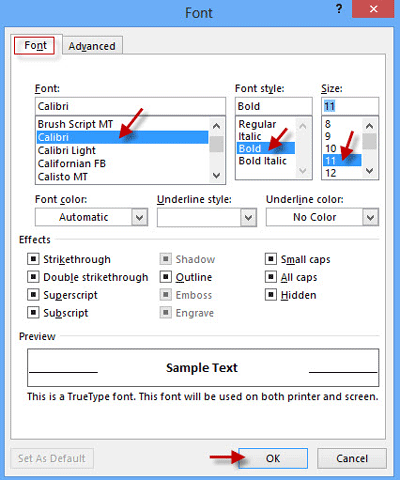
Changing font weight to bold increases pixel density in text strokes, making characters appear darker. Windows doesn’t allow safe global bold font replacement, but you can apply bold fonts app by app.
Make Outlook 2016 Text Bolder
Outlook frequently uses light gray text in message lists and reading panes. This creates readability problems on white backgrounds.
Steps for reading and composing text:
1. Open Outlook and click File then Options
2. Select Mail then Stationery and Fonts
3. Click Font under composing and reading plain text messages
4. Choose Segoe UI Bold or Calibri Bold
5. Set color to Black (Text 1)
6. Click OK twice to save
Steps for the message list:
1. Go to the View tab and click View Settings
2. Click Other Settings
3. Change the Font to a bold variant
4. Confirm and close
All emails and headers now appear darker and easier to read.
Customize Firefox Text with CSS
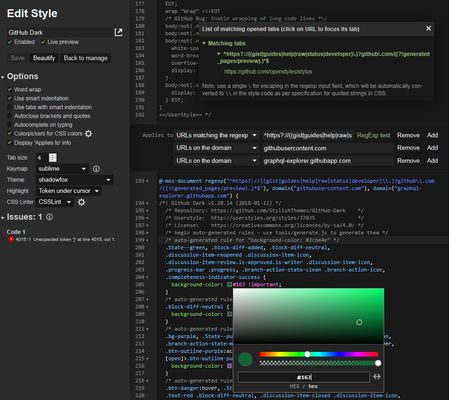
Web pages often use thin or light fonts that strain your eyes. The Stylus extension lets you force bold black text across all sites.
- Install the Stylus extension from Firefox Add-ons
- Click the Stylus icon and select Write new style
- Name your style “Dark Bold Text”
- Paste this CSS code:
css

* {

  font-weight: bold !important;

  color: #000000 !important;

} - Set Apply to as “All websites”
- Click Save
All web text now appears bold and pitch black. No more faint headlines or gray body copy.
✅ Bonus: Add exceptions for sites like YouTube or Netflix in Stylus to preserve their original styling.
Optimize System Text Rendering
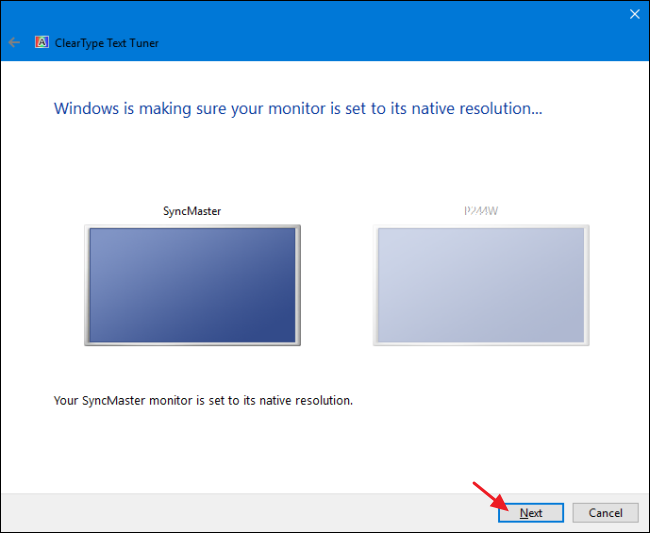
Windows includes built-in tools that improve text clarity. These don’t bold text directly, but they enhance contrast and sharpness on LCD monitors.
Tune ClearType for Sharper Text
ClearType smooths font edges using sub-pixel rendering. Proper tuning makes text appear darker and more defined.
- Press Win + S and type ClearType
- Select Adjust ClearType text
- Check Turn on ClearType and click Next
- On each screen, pick the text sample that looks clearest and darkest
- Finish the wizard
✅ Best suited for LCD monitors. Skip this step if you use OLED or high-DPI screens.
Enable Dark Mode Selectively
Dark Mode inverts themes to show light text on dark backgrounds. This reduces overall screen brightness and improves text contrast.
- Press Win + I to open Settings
- Navigate to Personalization then Colors
- Under Choose your mode, select Dark
- Choose Custom to apply dark theme only to apps or Windows shell
⚠️ Avoid Dark Mode if you need consistent print output. It can reverse colors in screenshots and printed documents.
Avoid High Contrast Mode
High Contrast themes like Night Sky make text bold and high-contrast, but they come with serious drawbacks:
- Break app interfaces (invisible search bars in Kindle)
- Reverse colors in printouts and waste ink
- Distort icons and images throughout the system
Bottom line: Skip High Contrast unless you require it for accessibility and have tested all your critical apps.
Use Magnifier for Temporary Readability
When darkening text isn’t enough, Magnifier enlarges screen areas to make light text easier to read.
Quick keyboard shortcuts:
– Zoom in: Win + Plus (+)
– Zoom out: Win + Minus (-)
– Exit: Win + Esc
To customize Magnifier:
1. Press Win + I and go to Accessibility then Magnifier
2. Choose your mode: Full-screen, Lens, or Docked
3. Adjust zoom level and color filters as needed
✅ Use Lens mode to hover over faint text without resizing the entire screen.
Third-Party Tools for Advanced Control

Some applications offer deeper display control than Windows built-in settings.
DisplayCAL for Precision Calibration
Users with color-critical workflows can use DisplayCAL to create custom ICC profiles with lowered gamma.
- Install DisplayCAL and connect a colorimeter (optional)
- Run the calibration wizard
- Set target gamma to 0.8
- Save the profile and assign it to your display
This method ensures consistent, accurate darkening across all content.
DimScreen for Low-Brightness Viewing
When your monitor can’t dim enough through hardware controls, DimScreen layers a transparent dark filter over the desktop.
- Download and run DimScreen
- Press Ctrl + Alt + Down to darken the screen
- Press Ctrl + Alt + Up to brighten it back up
⚠️ DimScreen doesn’t change font weight. It only reduces overall screen luminance.
Recommended Workflow: Hybrid Approach
For best results across all applications, combine multiple methods:
- Set gamma to 0.8 using QuickGamma or GPU settings for global text darkening
- Install Stylus in Firefox with bold black CSS for web text
- Configure Outlook with bold fonts and black color for emails
- Tune ClearType for sharper rendering of system text
- Use Magnifier temporarily for small or light text you can’t otherwise fix
Avoid High Contrast mode and full-screen dark themes unless absolutely necessary.
Troubleshooting Common Issues
Text Looks Too Dark or Blurry
- Cause: Gamma set too low
- Fix: Increase gamma to 0.85 or reset in your GPU control panel
App Layouts Break After Font Changes
- Cause: Bold fonts take more horizontal space
- Fix: Revert to regular weight or use app-specific styling instead
Printing Comes Out With Black Background
- Cause: High Contrast mode enabled
- Fix: Turn it off in Settings > Accessibility > Contrast themes
QuickGamma Not Working
- Cause: Conflicting GPU overlays (such as GeForce Experience)
- Fix: Disable overlays or use your GPU control panel instead
Frequently Asked Questions About Making Text Darker on Monitor
Does lowering brightness make text darker?
No. Lowering brightness reduces overall screen luminance but doesn’t increase text darkness specifically. Gamma adjustments work better for darkening text because they target mid-tones where text pixels reside.
Will changing text darkness affect image quality?
Gamma adjustments affect all visual output, including photos and videos. Images may appear slightly darker overall. However, this is usually acceptable and often improves perceived contrast across the board.
Is High Contrast mode bad for printing?
Yes. High Contrast mode can invert colors in screenshots and printed documents, producing excessive ink usage or illegible output. Disable it before printing any documents.
Can I make text darker without administrator access?
Yes. Browser extensions like Stylus work without admin rights. CSS injection lets you force bold black text on any website you visit.
What’s the safest gamma value for darker text?
A gamma value between 0.75 and 0.85 provides noticeable text darkening without making images look unnaturally dark. Start at 0.8 and adjust based on your preference.
Do bold fonts work in all applications?
Not universally. Some apps respect font weight settings while others use custom rendering engines. Test changes in your most-used applications before committing to system-wide modifications.
Final Takeaways for Darker Monitor Text
Making text darker on your monitor doesn’t require extreme measures or accessibility workarounds. Start by adjusting gamma to 0.8 through QuickGamma or your GPU control panel. This single change darkens text system-wide without breaking app interfaces or print jobs.
For web browsing, install Stylus in Firefox and apply bold black CSS to force maximum legibility on every site. In Outlook, configure bold fonts with pure black color for email lists and reading panes. These targeted adjustments work together to deliver consistently darker text.
Begin with the gamma adjustment today. Test it across your most-used apps, then layer in browser and email-specific changes for a complete readability upgrade.


