
Your screen suddenly goes black while your computer keeps running. You wiggle the mouse, tap keys, and nothing happens. After a few seconds or minutes, the display flickers back, only to repeat the cycle. This frustrating problem affects users across brands, but most causes are fixable without replacing the monitor.
The root issue usually falls into three categories: power loss, signal interruption, or host-side hardware failure. The key to solving it lies in what your monitor’s power light does when it turns off. If the light goes out completely, it is a power issue. If it stays on or turns amber, the problem is signal or software related. This guide walks you through every cause, from quick settings tweaks to internal repairs, so you can stabilize your display fast.
Diagnose Power Light Behavior to Find the Cause
Is It Power Loss or Signal Loss?
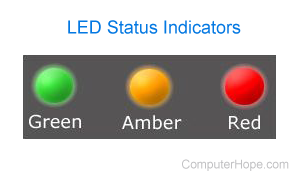
The monitor’s LED indicator is your first diagnostic clue:
– Green light turns off completely means total power loss. The display is cutting out electrically.
– Light stays on or turns orange means signal loss. The monitor has power but no video input.
This distinction shapes your next steps. A dead light points to internal power board failure, a stuck button, or a faulty cable. An orange or blinking light suggests refresh rate issues, cable faults, or GPU problems.
Test the Monitor With Another Device
Connect your display to a different computer, laptop, or game console. If it works without shutting down, the issue is with your original PC. If it still turns off, the problem is in the monitor or its immediate peripherals.
This simple test eliminates half the variables instantly.
Lower Refresh Rate to Stabilize the Display Signal
Why High Refresh Rates Cause Cycling
Refresh rates like 120Hz or 144Hz can destabilize the GPU-to-monitor connection, especially with older or low-quality cables. Many users report cycling every 1 to 2 minutes until the rate is reduced.
Step-by-Step Fix to Reduce Refresh Rate
- Right-click the desktop and open Display Settings.
- Scroll down and click Advanced Display Settings.
- Select the affected monitor.
- Click Refresh Rate and choose 60Hz.
- Apply and observe for 10 to 15 minutes.
Pro Tip: If 60Hz works, gradually increase the rate to find the highest stable setting. Your hardware may not support the maximum advertised rate over current cabling.
Reset Monitor Service Mode for Firmware Glitches

Reset Internal Timers and Firmware
Some monitors have hidden service modes that reset internal timers and fix firmware glitches causing auto-shutdowns. BenQ models support this procedure even when other fixes fail.
BenQ Service Reset Procedure
- Turn the monitor off completely.
- Press and hold the Menu button on the bezel.
- While holding Menu, press Power to turn the monitor on.
- Keep holding until a hidden service menu appears.
- Navigate to Timer Reset and confirm with OK.
- Power off and restart normally.
Note: Not all brands support this. Check your monitor’s manual for model-specific service codes.
Swap Video Cables to Fix Signal Dropouts
Why Cables Cause Random Shutdowns
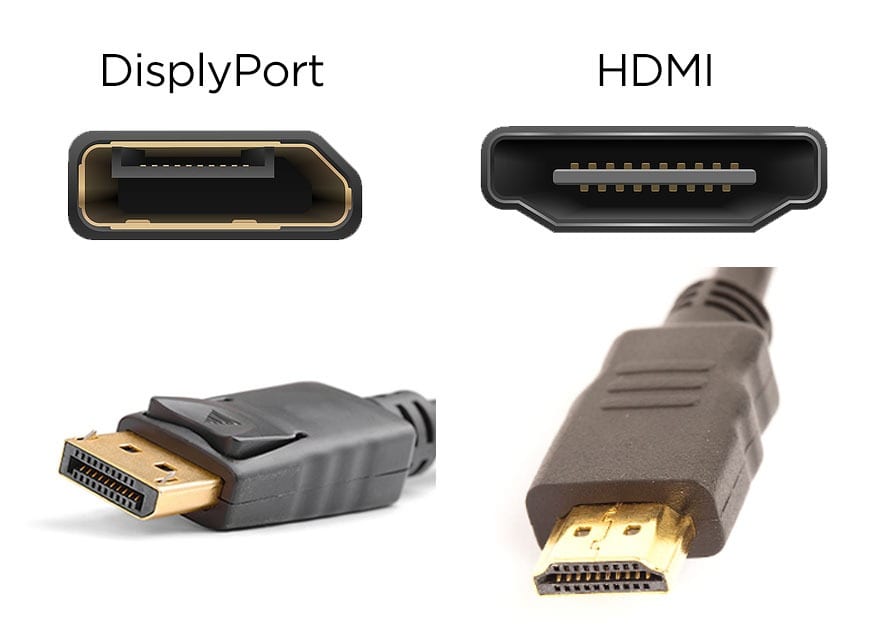
A failing or low-quality video cable is a common cause of signal dropout. Longer cables are more susceptible to signal degradation and electromagnetic interference.
What to Do When Cables Fail
- Replace with a shorter, high-quality cable (3-foot instead of 6-foot).
- Test with different ports on the GPU and monitor.
- Try DisplayPort instead of HDMI, since it is less prone to interference.
Warning: If the issue returns after a cable swap, the problem may be port damage or EMI, not the cable itself.
Remove Electromagnetic Interference Sources Nearby
Smart Lights and EMI Disruptions
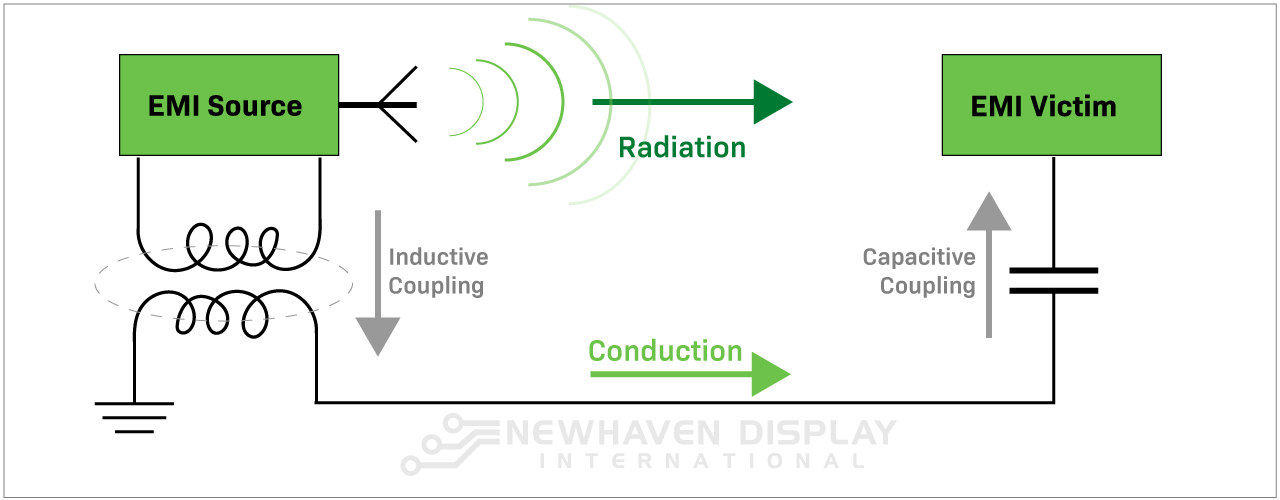
Smart LED strips, especially those placed behind the monitor, emit electromagnetic noise that disrupts video signals. This mimics a loose cable and causes the display to cycle into “No Input” mode.
Troubleshooting Steps for EMI
- Unplug all nearby smart lights, USB hubs, and wireless chargers.
- Observe if the blinking or shutdown stops.
- If yes, move devices farther away or use shielded cables.
Fact: LED driver circuits often emit frequencies in the 20 to 50 kHz range, which can interfere with HDMI signal integrity.
Clean the Power Button to Stop Random Switching
Why a Dirty Button Causes Cycling
Debris or corrosion on the button board can create a short circuit or cause the switch to register repeated press commands. This triggers random on and off cycles even when the monitor sits untouched.
Safe Cleaning Procedure for the Power Button
- Unplug the monitor from power.
- Open the rear casing by removing screws.
- Locate the button board.
- Apply 99% isopropyl alcohol to the button and internal switch.
- Press the button repeatedly while wet to flush debris.
- Let dry completely for 24 hours.
- Reassemble and test.
Critical: Never use 70% alcohol. The 30% water content leaves residue and accelerates corrosion.
Replace the Internal Power Board for Total Power Loss

Symptoms of Power Board Failure
When the monitor cuts power completely (light off), the internal power board is likely failing. Common signs include cycling every 1 to 2 minutes, no visible bulging capacitors, no burning smell, and brief operation after a cold start.
Repair Strategy for the Power Board
- Do not waste time replacing individual capacitors. They may test fine but still fail under load.
- Buy a replacement power board from vendors with a return policy.
- Swap it in after disassembly and test the display.
Tip: Search for your monitor model plus “power board” to find compatible replacements on parts marketplaces.
Check for Overheating Inside the Monitor
How Heat Triggers Thermal Shutdowns
Overheating power boards or ICs can trigger protective shutdowns after 10 to 30 minutes of use. Unlike GPU overheating, monitor thermal shutdowns affect only the display, not PC performance.
How to Test for Overheating
- Run the monitor until it shuts down.
- Feel for hot spots on the back casing.
- Disassemble and aim a fan at the internal boards.
- If it stays on with cooling, heat is the culprit.
Ensure vents stay unobstructed. Avoid placing the monitor in enclosed spaces or near heat sources.
Test the Graphics Card for Host-Side Failures
Signs the GPU Is the Real Problem
If multiple monitors turn off simultaneously on the same PC, the GPU is likely failing. Watch for these indicators:
– All displays lose signal at once.
– The issue persists across different monitors and cables.
– The system becomes unresponsive and requires a hard reboot.
– Driver updates and OS reinstalls do not help.
Diagnostic Tools to Monitor GPU Health
- NVIDIA GeForce Experience: Press Alt + Z to monitor GPU temperature and power.
- AMD Adrenalin or MSI Afterburner: Track clock speeds and throttling.
- Look for thermal throttling or power spikes before each blackout.
Final GPU Checks Before Replacement
- Clean the GPU and case with compressed air.
- Test the GPU in another PC.
- Try a known-good GPU in your system.
If the problem follows the GPU, replacement or professional repair is needed.
Use a Surge Protector or UPS for Stable Power
Why Dirty Power Causes Resets
Voltage fluctuations or unstable power from the wall outlet can cause the monitor to reset randomly. Sharing outlets with high-draw appliances makes the problem worse.
Simple Power Stabilization Fix
- Plug the monitor and PC into a quality surge protector or UPS.
- Avoid sharing outlets with refrigerators, air conditioners, or vacuums.
Bonus: A UPS also protects against data loss during outages.
When to Replace the Monitor or Seek Professional Help
Know Your Repair Limits
- Replace the monitor if the power board is unavailable, the screen flickers persistently, or internal damage is visible.
- Seek professional repair if you are uncomfortable disassembling electronics.
- Contact the GPU manufacturer if the card is under warranty and failure is confirmed.
Modern GPUs are complex. Diagnosing deep hardware faults often requires specialized tools and equipment.
Frequently Asked Questions About Fixing a Monitor That Turns Off
Why does my monitor turn off but the PC keeps running?
This usually means the monitor lost power or video signal while the computer stayed operational. Check whether the power LED goes off completely (power issue) or stays on or turns amber (signal or GPU issue).
How do I know if it is the monitor or the GPU?
Connect the monitor to a different PC. If it works fine elsewhere, the GPU or drivers are likely at fault. If multiple monitors fail simultaneously on the same PC, the GPU is the probable cause.
Can a bad HDMI cable cause the monitor to turn off?
Yes. A failing or low-quality HDMI cable can drop the signal repeatedly, causing the monitor to cycle into standby mode. Replace it with a shorter, high-quality cable to test.
Will lowering the refresh rate stop the cycling?
In many cases, yes. High refresh rates like 144Hz can destabilize the GPU-to-monitor connection. Reducing to 60Hz often resolves 1 to 2 minute cycling issues immediately.
How do I clean a stuck monitor power button?
Disassemble the monitor, apply 99% isopropyl alcohol to the button and switch, press repeatedly while wet, and let dry for 24 hours before reassembly. Never use 70% alcohol because the water content causes corrosion.
When should I replace the internal power board?
Replace the power board when the monitor loses power completely (light off), cycles every 1 to 2 minutes, and shows no bulging capacitors or burning smell. Buying a replacement board with a return policy is the most practical diagnostic step.
Key Takeaways for Fixing a Monitor That Turns Off
Start by observing the power light. A dead light means power loss, while an amber light means signal loss. Lower the refresh rate to 60Hz and swap to a shorter, high-quality cable. Unplug nearby smart lights to rule out EMI. Clean the power button with 99% isopropyl alcohol and let it dry for 24 hours.
For complete power loss, suspect the internal power board and replace it rather than chasing individual capacitors. If multiple monitors fail on the same PC, the GPU is likely failing. Use a surge protector or UPS to stabilize power input.
Your next step: begin with the power light diagnosis and work through the fixes in order. Most users restore stable display output in under an hour by following this structured process.


