
You’re deep in a fast-paced game or editing dark video footage when you notice dark trails following moving objects or a stubborn shadow in the corner of your screen. It’s distracting and frustrating. You’re not alone. Shadow on monitor is a widespread issue affecting millions of users, and most cases are fixable without replacing the entire display. Whether it’s ghosting, corner darkening, or static smears, this guide breaks down every possible cause and solution. If you’ve searched how to fix shadow on monitor, you’re in the right place. We’ll help you diagnose the exact type of shadow, apply targeted fixes, and restore your screen to full clarity.
Identify the Type of Shadow on Your Monitor

Before diving into fixes, you need to know what kind of shadow you’re dealing with. Different shadows require different solutions.
Ghosting vs. Static Shadows
Ghosting appears as blurred trails behind fast-moving objects, common in games or action videos. It’s caused by slow pixel response times, especially on VA panels. Static shadows (like dark corners or clouding) stay in one place no matter the image. These usually point to backlight or panel issues.
Quick Diagnostic Tests
Use these tests to identify your specific shadow type:
- Move the content: If the shadow moves with windows or videos, it’s likely ghosting.
- Check dark backgrounds: Display a pure black screen. If dark patches remain visible, it’s backlight clouding or corner shadowing.
- Tilt the monitor: Gently press or tilt the screen. If the shadow changes or disappears, you likely have a loose internal cable.
- Switch devices: Connect your monitor to a laptop or another PC. If the shadow persists, the issue is with the monitor or cable, not your GPU.
Knowing the shadow type directs you to the right fix, saving time and effort.
Check and Replace Video Cables
A faulty or low-quality cable is one of the most overlooked causes of monitor shadows and ghosting.
Reseat and Clean Cables
- Unplug both ends of your HDMI or DisplayPort cable.
- Inspect for bent pins, dust, or corrosion.
- Use compressed air or a dry microfiber cloth to clean connectors.
- Reconnect firmly and ensure a snug fit on both ends.
Pro tip: If using multiple monitors, mismatched cables can cause uneven performance. Use identical high-quality cables across all displays.
Upgrade to High-Bandwidth Cables
Your cable must support your monitor’s resolution and refresh rate:
| Resolution & Refresh | Minimum Cable Standard |
|---|---|
| 1080p @ 144Hz | HDMI 1.4 or DP 1.2 |
| 1440p @ 144Hz | HDMI 2.0 or DP 1.4 |
| 4K @ 60Hz+ | HDMI 2.0 / DP 1.4 |
| 4K @ 120Hz+ | HDMI 2.1 / DP 1.4+ |
Using an outdated HDMI 1.4 cable for 1440p gaming can cause signal lag and ghosting. Replace it with a certified HDMI 2.0 or DisplayPort 1.4 cable.
Try a Different Port or Cable Type
Some monitor ports are stronger than others. Try switching from HDMI to DisplayPort, as it often delivers cleaner signals and better refresh rate stability. Also, avoid cheap extension cables or adapters, since they degrade signal quality.
Update and Reset Graphics Drivers
Outdated, corrupted, or mismatched drivers can mimic hardware shadows, especially in games.
Perform a Clean Driver Update
- Press Win + X, then open Device Manager and expand Display adapters.
- Right-click your GPU (NVIDIA, AMD, Intel), select Uninstall device, and check “Delete the driver software.”
- Download the latest driver from the official manufacturer site.
- Install and restart your computer.
Why clean install? Leftover driver fragments can cause conflicts. A full wipe ensures a stable setup.
Roll Back if Shadows Appear After Update
Did the shadow start after a driver update? Roll back:
- Open Device Manager and expand Display adapters.
- Right-click your GPU, select Properties, then go to the Driver tab.
- Click Roll Back Driver, then reboot and test.
Check forums like NVIDIA’s or AMD’s community boards for known shadow issues with specific driver versions.
Optimize Monitor Settings
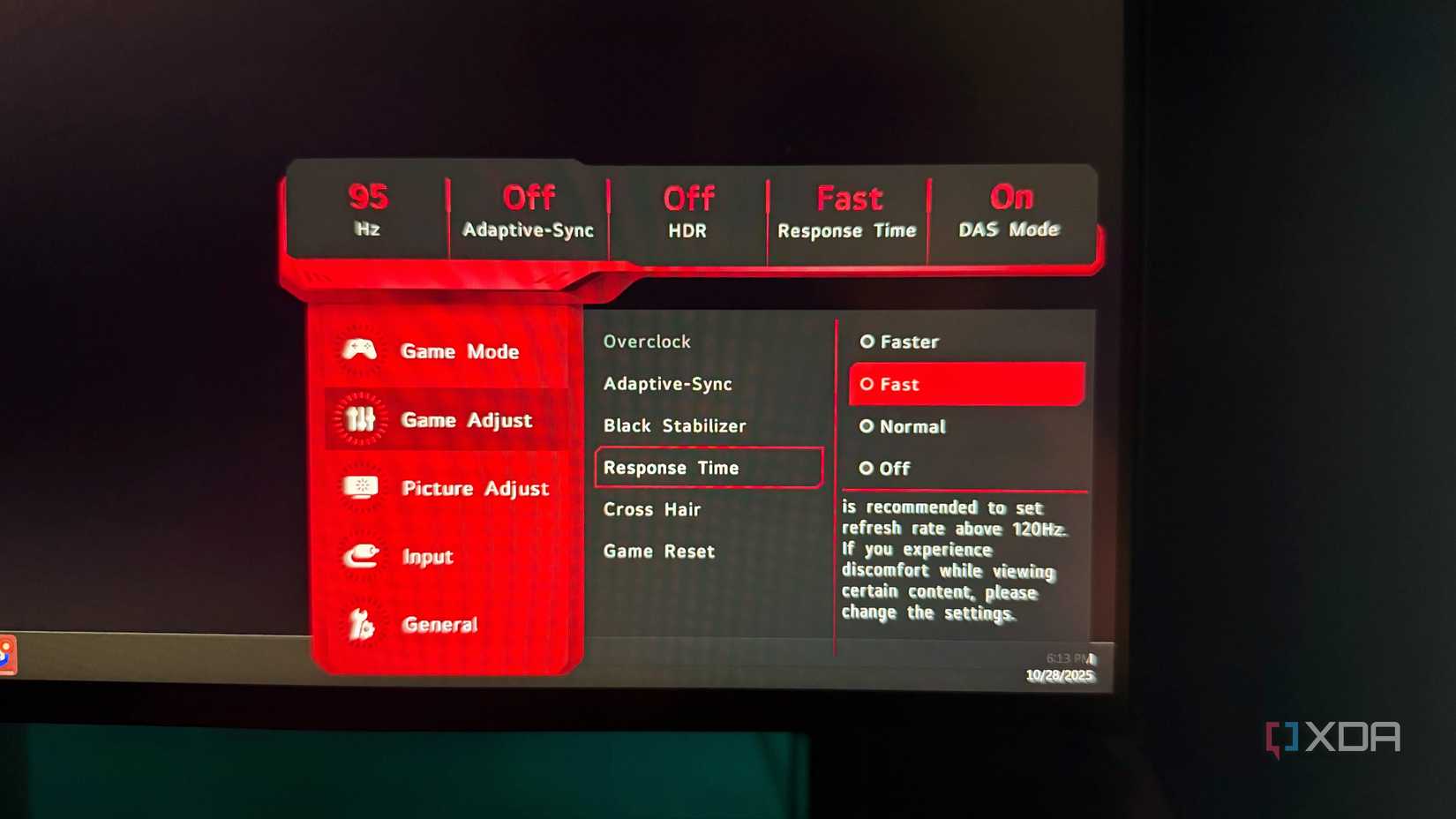
Your monitor’s internal settings can dramatically reduce or eliminate shadows, especially ghosting.
Reset to Factory Defaults
Start fresh. Go to your monitor’s OSD (On-Screen Display) menu, navigate to Settings, and select Reset to Default. This removes any problematic custom configurations.
Adjust Key Display Settings
- Brightness: Set between 60% and 80% for balanced dark detail. Too low crushes shadows; too high washes them out.
- Contrast: Keep around 70% to 80%. High contrast can make shadows disappear entirely.
- Gamma: Try gamma 2.2 for standard viewing. Lower gamma (2.0) brightens shadows; higher (2.4) deepens them.
- Color Temperature: Use 6500K (standard) unless calibrated otherwise.
Enable and Tune Response Time Overdrive
Most gaming monitors have Overdrive (also called Response Time, AMA, or Trace Free).
How to set it:
1. Open OSD and navigate to Response Time or Overdrive.
2. Test settings:
– Off or Normal: Too slow, resulting in ghosting.
– Fast or High: May cause inverse ghosting (bright trails).
– Extreme or Turbo: Often creates coronas or flickering.
Find the sweet spot: Use a motion test to see trails. Adjust until motion is sharp but no inverse artifacts appear.
Set Correct Refresh Rate
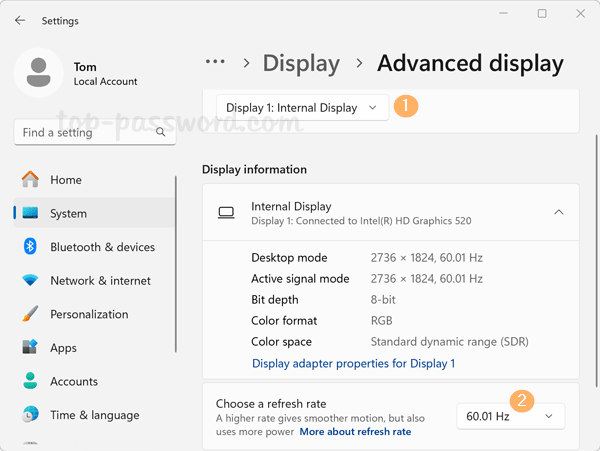
Running at 60Hz when your monitor supports 144Hz or higher makes shadows and blur far more noticeable.
Verify Your Refresh Rate
- Right-click your desktop and select Display settings.
- Scroll down to Advanced display.
- Check the Refresh rate under your monitor.
- If not at maximum (e.g., 144Hz), click the dropdown and select the highest available.
Common issue: Some monitors default to 60Hz after driver updates. Always double-check.
Create Custom Resolution (If Needed)
If your desired refresh rate is missing:
– NVIDIA: Open NVIDIA Control Panel, go to Change resolution, then Customize, and select Create Custom Resolution.
– AMD: Use AMD Software, navigate to Display, then Custom Resolutions.
Warning: Don’t exceed your monitor’s specs. Overclocking can damage hardware over time.
Address Panel Technology Limitations
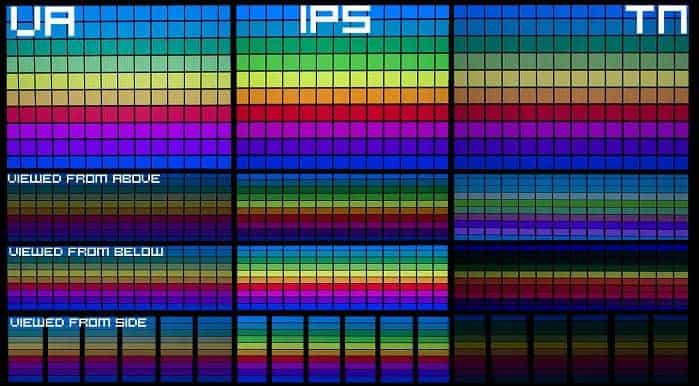
Not all shadows are fixable, since some are inherent to your monitor’s panel type.
VA Panels: The Black Smearing Trade-Off
VA panels offer deep blacks and high contrast but are prone to black smearing, a type of ghosting in dark scenes. This is normal behavior, not a defect.
What you can do:
– Use Overdrive to minimize it, but avoid extreme settings.
– Accept it for media and productivity.
– Switch to IPS if gaming in dark environments is critical.
IPS vs. TN vs. VA Comparison
| Panel Type | Ghosting Risk | Best For |
|---|---|---|
| IPS | Low to moderate | Color work, general use |
| VA | High (black smearing) | Movies, contrast-heavy content |
| TN | Low (but inverse ghosting possible) | Competitive gaming |
If you’re sensitive to motion blur, consider upgrading to an IPS or OLED panel.
Eliminate Environmental Factors
Sometimes, the shadow isn’t on the monitor. It’s in your environment.
Reduce Glare and Reflections
Bright lights or windows reflecting on the screen can create the illusion of shadows. Fix: reposition the monitor away from light sources, use anti-glare screen protectors, lower room lighting, or add bias lighting behind the monitor.
Clean the Screen and Vents
Dust on the screen can look like smudges or shadows. Cleaning steps:
1. Power off and unplug the monitor.
2. Use a dry microfiber cloth to wipe gently.
3. For stubborn spots, dampen the cloth slightly with water or screen cleaner. Never spray directly.
4. Clear dust from vents to prevent overheating, which can worsen backlight issues.
Perform a Hard Power Reset
A simple power cycle can clear temporary firmware glitches causing shadows.
Power Cycle Procedure
- Turn off the monitor.
- Unplug it from the wall outlet.
- Hold the power button for 10 to 15 seconds to discharge capacitors.
- Wait 30 to 60 seconds.
- Plug back in and power on.
This resets internal circuits and often resolves flickering or temporary shadowing.
Advanced: Internal Hardware Repair

If all else fails, the issue is likely internal, especially if the shadow changes when you tilt the monitor.
When to Open the Monitor
Only proceed if:
– The monitor is out of warranty.
– You’re comfortable with electronics.
– You see no improvement from external fixes.
Warning: Opening the monitor exposes high-voltage components. Do not touch capacitors.
Check LVDS and Backlight Cables
- Remove the back panel (screws are usually hidden under rubber feet).
- Locate the LVDS cable, which is the flat ribbon connecting the mainboard to the LCD panel.
- Reseat both ends firmly.
- Inspect for pinched wires or burn marks.
- Check backlight connectors, since loose LED strips cause corner shadows.
Pro tip: If tilting the monitor fixes the shadow, reseating the LVDS cable usually solves it permanently.
Replace Backlight or LCD Panel
If a backlight strip is dead or the panel is damaged:
– Cost: Replacement panels or LED strips cost $50 to $150 online.
– DIY kits are available with guides.
– Professional repair can cost $400 or more, which is often not worth it.
Decision rule: If repair parts cost more than 50% of a new monitor, replace it.
When to Replace the Monitor

Some shadows can’t be fixed, especially permanent ones.
Signs It’s Time to Replace
- Permanent burn-in (image stuck even on white screens).
- Large dead zones or cracked backlight.
- Repair cost exceeds replacement value.
- You need better motion clarity for gaming.
Choose a Shadow-Resistant Monitor
Look for:
– IPS or OLED panels (less ghosting).
– 144Hz+ refresh rate.
– Response time of 5ms GtG or less.
– DisplayPort 1.4 or HDMI 2.1 support.
Frequently Asked Questions About Monitor Shadows
Why do I see ghosting only in certain games?
This suggests a driver conflict or a specific game optimization issue. Update or roll back graphics drivers, and check if the game has specific display settings affecting motion blur or V-Sync.
Can a shadow fixed by tilting the screen be permanently repaired?
Yes, this usually indicates a loose internal connector. Opening the monitor and securely reseating the cable often provides a permanent fix, though it requires technical skill.
Is monitor shadowing covered under warranty?
Typically, yes, if it is a manufacturing defect such as backlight failure or panel uniformity issues. However, damage from opening the monitor or physical impact is excluded.
Do expensive cables prevent shadows?
Not necessarily “expensive,” but certified high-bandwidth cables meeting HDMI 2.0/2.1 or DP 1.4 standards are essential for high-resolution and high-refresh setups to prevent signal-induced ghosting.
How do I know if my shadow is burn-in or a fixable issue?
A true shadow allows the underlying image to change (e.g., a window moving over the dark spot shows the window content, albeit dimmer). Burn-in involves permanent pixel degradation where the ghost of a static image remains even when the screen content changes completely.
What is black smearing on VA panels?
Black smearing is a type of ghosting specific to VA panels where dark transitions leave visible trails. It’s caused by slower pixel response times in dark scenes and is a normal limitation of the panel technology, not a defect.
Final Checklist to Fix Shadow on Monitor
Use this summary to track your troubleshooting progress:
- Identify shadow type (ghosting vs. static)
- Reseat and upgrade video cable
- Update GPU drivers (clean install)
- Reset monitor settings to default
- Enable and tune Overdrive
- Set correct refresh rate (144Hz+)
- Check for environmental glare
- Perform power cycle
- Inspect internal cables (if comfortable)
- Replace monitor if repair isn’t viable
Key Takeaways for Fixing Shadow on Your Monitor
Most monitor shadows aren’t permanent. Start with cables and drivers, since simple fixes resolve 70% of cases. For persistent corner shadows or smearing, internal repair or panel replacement may be needed. If you’re using a VA panel, some black smearing is normal, so adjust expectations or upgrade to IPS for smoother motion. With this guide, you now have every tool to fix shadow on monitor quickly, safely, and effectively. Begin with the diagnostic tests above, work through the checklist systematically, and your screen will return to full clarity.


