
You’re working on your Dell laptop or desktop and need to capture what’s on your screen. Maybe it’s an error message, a webpage, or an important conversation. But where is the Print Screen key, and does it even work the same way on a Dell monitor? Here’s what you need to know: the monitor itself doesn’t capture images. Your Dell computer does. And it comes with every tool you need to grab, edit, and share screenshots in seconds.
This guide walks you through every method to take a screenshot on a Dell monitor. You will learn keyboard shortcuts for full-screen and window captures, how to snip a custom area, where files are saved, and how to fix common issues. Whether you use Windows 10, Windows 11, or Linux, you will find a working solution below.
Capture Screens with Built-in Keyboard Shortcuts
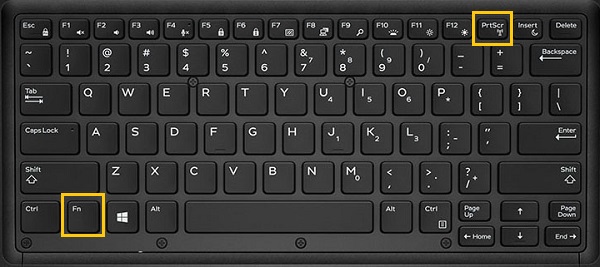
The fastest path to take a screenshot on a Dell monitor is through keyboard shortcuts. These work on Windows 10 and Windows 11 with any monitor connected to your Dell PC.
Full Screen Capture with PrtScn
Press PrtScn (also labeled PrtSc or Prt Scrn) to copy the entire screen to your clipboard. Nothing saves as a file yet. Open Word, Paint, or email and press Ctrl + V to paste the image.
On many Dell laptops, the Print Screen function is a secondary key action. If nothing happens, try Fn + PrtScn. Some models map this function to Fn + F11 or Fn + F12, especially on compact keyboards without a dedicated key.
Active Window Only
Need just one window? Press Alt + PrtScn to copy only the active window to your clipboard. This works great for capturing a single app without the desktop background or taskbar clutter.
Some Dell configurations also support Ctrl + Alt + PrtScn for the same result. Test both options if one does not respond.
Save Screenshots Automatically as Files
Copying to the clipboard is useful, but sometimes you want a file saved instantly. Windows handles this with one simple shortcut.
Windows + PrtScn for Instant Saves
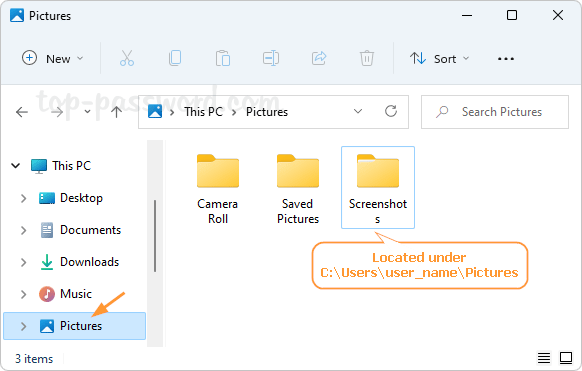
Press Windows + PrtScn to capture the full screen and save it automatically as a PNG file. The screen dims briefly to confirm the capture worked.
Files land in this folder:
C:\Users\[YourName]\Pictures\Screenshots
Names follow a sequential pattern like Screenshot (1).png, Screenshot (2).png, and so on. On Dell laptops where the standard combo fails, try Fn + Windows + PrtScn instead.
Snip a Specific Area of the Screen
Sometimes you only need a portion of your screen. Windows includes a built-in overlay tool for precise selection.
Use Win + Shift + S for Custom Regions
Press Windows + Shift + S to activate the snip overlay. The screen grays out and a small toolbar appears at the top with four capture modes:
- Rectangular Snip: Drag to draw a box around your target area
- Free-form Snip: Draw any custom shape around your subject
- Window Snip: Click any open window to capture just that app
- Full-screen Snip: Capture all connected monitors at once
The selected area copies to your clipboard. A notification appears. Click it to open the editor and save or annotate your capture.
Pro Tip: Capture Pop-up Menus
Need to grab a context menu or dropdown before it disappears? Open the menu first, then press Windows + Shift + S quickly. For recurring needs, third-party tools with delay timers work even better.
Use the Windows Snipping Tool
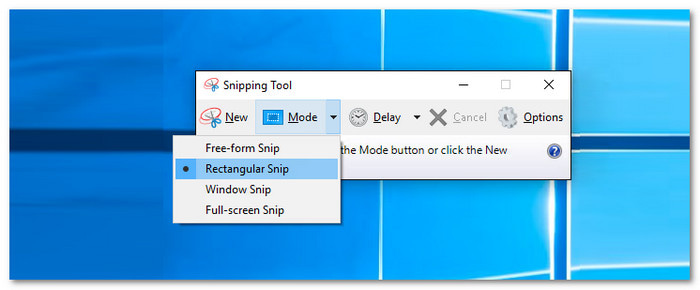
If keyboard shortcuts feel limited, the Snipping Tool gives you more control with editing and saving options built in.
Launch and Capture
Search for Snipping Tool in the Start menu and open it. Click New to start a capture, then choose your mode:
- Free-form for irregular shapes
- Rectangular for standard box selection
- Window for a single application
- Full-screen for the entire monitor
After capturing, use the toolbar to draw with the Pen tool, highlight key areas, add text, or erase mistakes.
Save Your Image
Follow these steps to save your snip:
- Click File then Save As
- Pick a destination folder (default is
Pictures\Screenshots) - Select a format: PNG, JPG, or GIF
- Click Save
The Snipping Tool also includes a Share button for sending captures directly through email or messaging apps. By default, this tool may not capture context menus or the mouse cursor unless you time the capture perfectly.
Try Snip & Sketch for More Editing Power
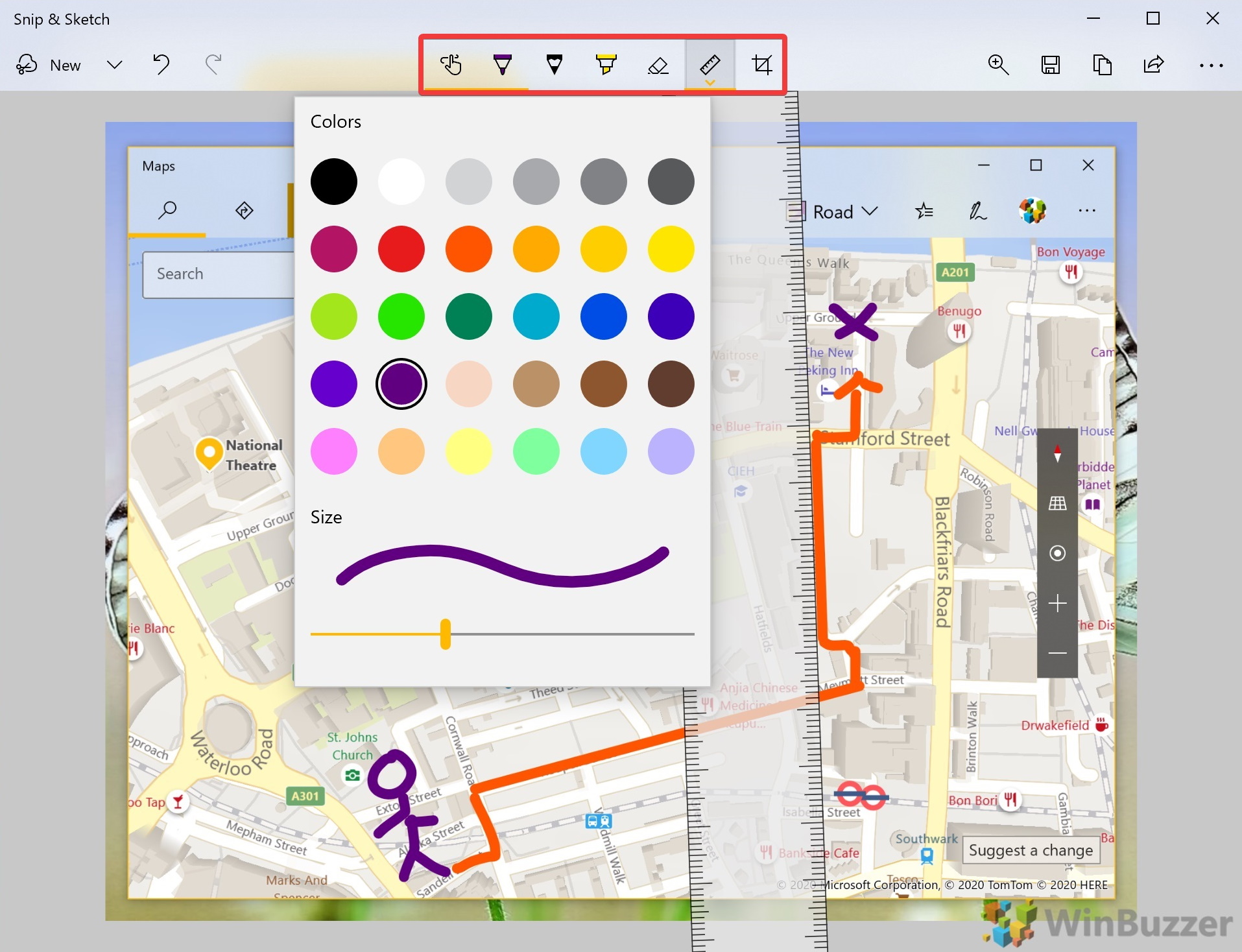
On Windows 10, Snip & Sketch offers advanced editing features that go beyond the basic Snipping Tool.
Access and Edit
Open Snip & Sketch through the Windows + Shift + S shortcut or search for it in the Start menu. After capturing, click the notification to open the full editor.
Features include:
- Crop and rotate images
- Resize the canvas
- Annotate with pens and highlighters
- Add text callouts
Click the Save icon (shaped like a floppy disk) in the top-left corner to store your file locally. Snip & Sketch supports PNG, JPG, and GIF formats. Microsoft is phasing this tool out in favor of the updated Snipping Tool on Windows 11.
Install Third-Party Tools Like ScreenRec
For cloud sharing, screen recording, or advanced annotation, third-party tools add more flexibility than built-in options.
ScreenRec for Instant Sharing
ScreenRec works on Dell PCs running Windows, Mac, and Linux. It captures full screens, specific windows, or custom regions and uploads everything to a private cloud account.
Capture workflow:
- Install and launch ScreenRec
- Press Alt + S or click the camera icon
- Drag to select your capture area
- Release to save the image
The tool auto-saves to the cloud by default. Click Link to copy a private sharing URL. For local storage, open Gallery, click View on your image, then hit Save to download it to your hard drive.
ScreenRec also lets you edit past captures. Reopen old screenshots from the Gallery to add notes, arrows, or highlights. This makes it perfect for remote teams, support tickets, and quick collaboration.
Take Screenshots on Dell Linux Systems
Dell PCs running Ubuntu or other Linux distributions do not respond to Windows shortcuts. You need Linux-native tools instead.
Built-in Options
Use gnome-screenshot on GNOME desktops. Press PrtScn or search for the tool in your applications menu. It covers basic capture needs without extra installation.
Advanced Tool: Flameshot
For more power, install flameshot through the terminal:
bash

sudo apt install flameshot
Launch it with the command flameshot gui to access region selection, annotations, and upload options. Flameshot is open-source and works across most Linux distributions.
Fix Common Screenshot Problems on Dell
Even on reliable Dell hardware, screenshot functions sometimes fail. Here is how to troubleshoot the most common issues.
Print Screen Key Not Working
If PrtScn does nothing, try these fixes:
- Press Fn + PrtScn since many Dell laptops require the Fn key
- Check if Fn Lock is enabled (similar to Caps Lock for function keys)
- Test Fn + F11 or Fn + F12 as some models remap the function there
- Launch the Snipping Tool manually from the Start menu as a workaround
Missing Screenshots Folder
If Pictures\Screenshots does not exist, it creates itself the first time you use Windows + PrtScn or save from the Snipping Tool. If it still does not appear, create the folder manually at this path:
C:\Users\[YourName]\Pictures\Screenshots
Clipboard Overwrite Risk
Screenshots copied via PrtScn or Alt + PrtScn live only in your clipboard. One accidental Ctrl + C anywhere else overwrites them permanently. Paste your screenshot immediately into an app, or use Windows + PrtScn for automatic file saving.
Edit and Polish Your Screenshots
Capturing is only the first step. Quick edits make your screenshots clearer and more professional.
Crop in Microsoft Paint
Paste your screenshot into Paint and follow these steps:
- Press Ctrl + V to paste
- Click Select then drag a box around the area you want to keep
- Click Crop to remove the rest
- Use Text, Shapes, or Pen tools to annotate
- Save as JPG or PNG
Prepare Before You Capture
Clean captures start before you press the shortcut. Close unused apps to reduce desktop clutter. Zoom in on text with Ctrl + Plus in browsers or PDFs. Position windows neatly when capturing multiple apps. Move your cursor away from the capture area to keep the taskbar clean.
Expert Note: Standard tools often miss right-click context menus or the mouse cursor. For those, open the menu first, then snip quickly with Windows + Shift + S. Tools like Flameshot offer delay capture for tricky menus.
Find Where Your Screenshots Are Saved
Stop wasting time hunting for files. Here is where each method stores your images:
| Method | Save Location | Format |
|---|---|---|
| Windows + PrtScn | Pictures\Screenshots |
PNG |
| Snipping Tool | User-defined (default: Pictures\Screenshots) |
PNG, JPG, GIF |
| Snip & Sketch | User-defined (default: Pictures\Screenshots) |
PNG, JPG, GIF |
| ScreenRec | Cloud (local save optional) | Standard formats |
| Clipboard (PrtScn) | Not saved, stored in memory only | N/A |
Quick Reference Cheat Sheet
Keep this table handy for fast access to every shortcut:
| Action | Shortcut | Notes |
|---|---|---|
| Full screen (copy) | PrtScn |
Use Fn + PrtScn on Dell laptops |
| Active window | Alt + PrtScn |
Copies window to clipboard |
| Save full screen | Win + PrtScn |
Auto-saves as PNG |
| Select region | Win + Shift + S |
Opens snip overlay |
| Third-party capture | Alt + S |
ScreenRec default shortcut |
Frequently Asked Questions About Taking Screenshots on a Dell Monitor
Does a Dell monitor have a built-in screenshot button?
No. Dell monitors do not include built-in screenshot functions. Screenshots are captured by the computer connected to the monitor, not the display itself. Use your Dell PC’s keyboard shortcuts or software tools to capture screen content.
Where do Dell screenshots save on Windows?
Screenshots taken with Windows + PrtScn save automatically to C:\Users\[YourName]\Pictures\Screenshots as PNG files. Screenshots copied with PrtScn alone do not save as files. They stay in your clipboard until you paste them into an application.
Why is my Print Screen key not working on my Dell laptop?
Many Dell laptops require the Fn key to activate secondary functions. Try pressing Fn + PrtScn. If that fails, check if Fn Lock is enabled or test Fn + F11 or Fn + F12. Some Dell models remap the Print Screen function to these keys.
Can I take a screenshot on a Dell computer running Linux?
Yes. Dell Linux systems do not respond to Windows shortcuts, but you can use built-in tools like gnome-screenshot or install flameshot for more features. Press PrtScn on GNOME desktops or launch Flameshot with the flameshot gui command for region selection and annotations.
How do I screenshot just one window instead of the whole screen?
Press Alt + PrtScn to capture only the active window. The image copies to your clipboard. Paste it anywhere with Ctrl + V. Some Dell configurations also support Ctrl + Alt + PrtScn for the same result.
Is there a way to take a screenshot using my voice on a Dell PC?
Yes, if Windows Speech Recognition is enabled. Simply say “Take a screenshot” and Windows will capture your screen automatically. This works on Dell systems running Windows 10 or Windows 11.
Key Takeaways for Capturing Screenshots on Any Dell Monitor
Taking a screenshot on a Dell monitor comes down to knowing which shortcut fits your situation. Use Windows + PrtScn for quick automatic saves. Use Win + Shift + S when you need a custom region or specific window. Try ScreenRec when cloud sharing and collaboration matter most. On Linux systems, Flameshot gives you full control with annotations and upload options.
Your next step: pick one method from this guide and test it on your Dell system right now. Bookmark the cheat sheet above so you always have the shortcuts within reach. With these tools, you can capture, edit, and share screen content on any Dell monitor in seconds.


