
Stains on your computer monitor, whether greasy fingerprints, sticky residue, or stubborn smudges, can quickly ruin your viewing experience. Many people grab the nearest paper towel and household cleaner, unknowingly causing permanent scratches or stripping protective coatings from their screens. The wrong technique can cost you hundreds in display damage. This guide reveals the exact, manufacturer-approved methods to safely remove stains from any monitor type, including LCD, LED, and OLED panels, using only safe tools and proven steps.
Why Powering Down Matters Before Cleaning
Cleaning a live screen increases the risk of electrical issues and makes smudges harder to spot. Always start with proper preparation to protect both yourself and your display.
Turn Off and Unplug Your Monitor
Switch off the monitor completely and unplug it from the wall outlet. This prevents electrical shock and reduces the chance of short circuits if moisture reaches the internal edges. A powered-off screen also displays fingerprints and dust more clearly against the dark background.
Skip Cleaning While the Screen Is Active
Never attempt to remove stains from a powered-on monitor. On touchscreens, active cleaning can trigger false inputs that interfere with capacitive sensors. A cool, powered-off display also reduces thermal stress when you apply any damp cloth.
Identify Your Screen Type Before You Start

Different display technologies require different cleaning approaches. Using the wrong method can strip coatings or degrade pixels permanently.
LCD and LED Panels
Most desktop monitors and laptops use LCD or LED-backlit screens with delicate anti-glare coatings. These coatings are easily damaged by harsh chemicals. Start with distilled water, then use diluted 70% isopropyl alcohol sparingly for tough stains.
OLED Screens Require Extra Caution
OLED displays contain organic compounds that alcohol can permanently degrade. Stick to distilled water or a cleaner explicitly approved by the manufacturer. Never apply alcohol to an OLED panel.
Matte Versus Glossy Finishes
Matte screens feature a textured anti-glare surface that alcohol and vinegar can cloud or peel. Use only a dry or barely damp microfiber cloth on matte displays. Glossy glass screens tolerate gentler cleaners better, though you should still avoid ammonia-based products.
Touchscreens Need Minimal Moisture
Frequent touching means more oil buildup, but excess liquid can seep into the bezels and disrupt touch sensors. Power off completely, apply minimal moisture, and avoid soaking the screen edges.
Choose Only Safe Cleaning Tools
The right tools make stain removal effective without causing harm. Many common household items seem harmless but can scratch or chemically damage your screen.
Microfiber Cloth Is the Gold Standard
A soft, lint-free microfiber cloth is the only recommended tool for routine cleaning. It lifts dust and oils without scratching the surface. Use one side dry for dusting, then dampen slightly for stubborn stains. Never reuse a dirty cloth, as trapped debris can grind into the screen.
Acceptable Alternatives
If microfiber is unavailable, a 100% cotton cloth works in a pinch. Ensure it contains no synthetic fibers, dampen with distilled water, and dry immediately to prevent water spots. Clean cotton socks are sometimes used for dust removal, but avoid them on touchscreens due to static buildup.
Safe Cleaning Solutions to Use
Stick to these liquids only:
– Distilled water for all screen types
– 70% isopropyl alcohol for LCD and LED screens only, applied sparingly
– 50/50 distilled water and white vinegar for VA panel LCDs only
– Commercial cleaners labeled safe for LCD, LED, or OLED screens
– Alcohol-free baby wipes for clear glass screens only
Substances That Will Damage Your Screen
Using the wrong cleaner can cause irreversible harm to your monitor. Avoid these common household items entirely.
Skip Household Glass Cleaners
Products like Windex contain ammonia, which strips anti-glare coatings and damages LCD layers. Even gentle glass cleaners can leave residue or cause clouding over time.
Avoid Alcohol and Disinfectants on Coatings
Hand sanitizer, Clorox wipes, and high-concentration alcohol can dissolve screen coatings or degrade OLED pixels. Use these only if the product is specifically designed for electronics.
Tap Water Leaves Mineral Spots
Minerals in tap water create streaks and films on your screen. Always use distilled water to prevent residue buildup.
Paper Towels Cause Micro-Scratches
Tissues, napkins, and paper towels contain abrasive fibers that scratch the surface. These scratches become visible under bright light and worsen with repeated use.
Never Spray Liquid Directly on the Screen
Spraying liquid onto the monitor risks seepage into the bezel, which can cause internal short circuits. Always apply liquid to the cloth, never the screen itself.
Follow This Step-by-Step Cleaning Process
This method delivers a streak-free, safe clean every time you need to remove stains from your monitor.
Dry Dust First
Use a dry microfiber cloth to gently wipe the entire screen in straight lines. This removes loose particles that could scratch during wet cleaning. For corners and bezels, use compressed air held at least six inches away.
Dampen the Cloth Slightly
Lightly mist distilled water onto the cloth. For stubborn grease on LCD or LED screens, add a single drop of 70% isopropyl alcohol. Wring out all excess so the cloth feels barely damp.
Wipe in Straight Lines
Apply light pressure and wipe in straight, overlapping strokes from top to bottom. Avoid circular motions, which can leave visible swirl marks. Focus on stained areas without lingering too long in one spot.
Dry Immediately
Use a second dry section of the microfiber cloth to buff the screen right after wiping. This prevents water spots and ensures a clear finish.
Inspect Under Bright Light
Turn the monitor back on and check under normal lighting conditions. If stains remain, repeat the process. Multiple light passes work better than one aggressive wipe.
Handle Specific Stains With Targeted Methods

Different stains require tailored approaches. Use these fixes to remove stains from your monitor effectively.
Remove Fingerprints and Oils
Start with a dry microfiber cloth. If residue remains, dampen slightly with distilled water. For LCD and LED screens, a drop of 70% alcohol on the cloth breaks down stubborn oils. Buff dry immediately afterward.
Clean Sticky Residue
Use an eyeglass cleaning cloth or alcohol-free baby wipe to gently dissolve sticky spots. Let the cloth do the work without rubbing hard. Finish with a dry microfiber pass.
Clear Dust from Edges
Use compressed air or a soft brush to dislodge dust from screen corners and bezels. Wipe the area lightly afterward to catch any remaining particles.
Respond to Liquid Spills Quickly
If liquid spills on the screen, power off immediately. Blot gently with a dry cloth rather than wiping. Let the monitor air dry for at least 24 hours before turning it on. If liquid entered the device, seek professional repair.
Apply Screen-Specific Cleaning Rules
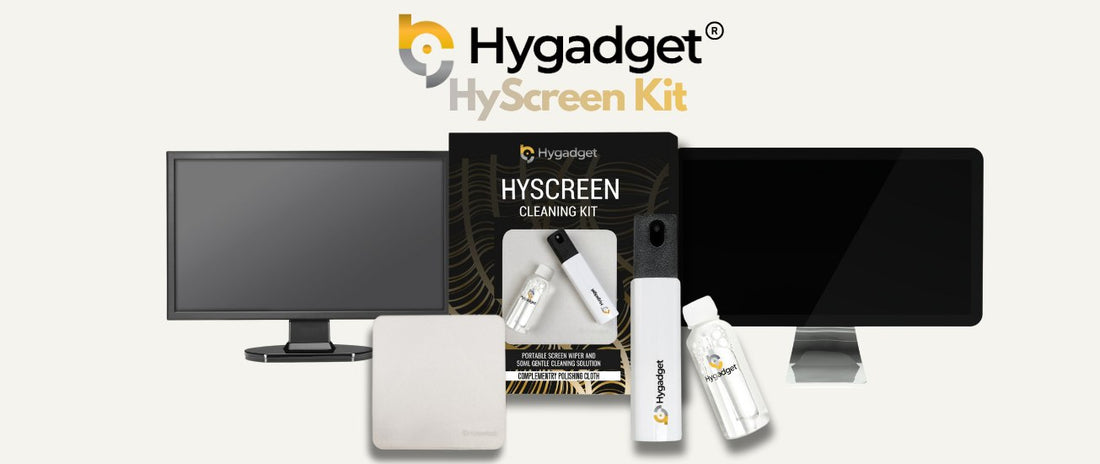
Tailor your method to your monitor’s specific technology for the safest results.
Clean Matte Screens Safely
Use only a dry or barely damp microfiber cloth with distilled water. Avoid alcohol and vinegar entirely, as they can ruin the anti-glare coating and leave permanent shiny patches.
Protect OLED Panels
Use distilled water only or a cleaner approved by the manufacturer. Never apply alcohol, vinegar, or commercial glass cleaners. Wipe gently and dry immediately to protect the organic layers.
Maintain Touchscreens Properly
Clean touchscreens more often due to constant contact. Power off, use minimal moisture, and avoid pressing hard. Consider a screen protector to absorb oil transfer.
VA Panel Exception for Vinegar
Some VA-type LCD monitors tolerate a 50/50 mix of distilled water and white vinegar for tough stains. Do not use this mix on IPS or OLED panels.
Select the Right Commercial Products

When in doubt, professional-grade tools designed for screens offer the safest results.
Use Pre-Moistened Screen Wipes
Choose wipes labeled safe for electronics and free of alcohol and ammonia. They offer convenience for quick cleanups and leave no residue behind.
Invest in a Cleaning Kit
Electronic cleaning kits include microfiber cloths and safe solutions. Look for brands like ZEISS or Whoosh that specialize in screen care products.
Avoid Generic Glass Cleaners
Even streak-free formulas often contain chemicals unsafe for monitors. When uncertain, stick to distilled water as your safest option.
Prevent Stains With Smart Daily Habits
Keep your screen clean longer with these simple preventative steps.
Apply a Screen Protector
A matte or glossy screen protector absorbs fingerprints and scratches. It acts as a sacrificial layer you can replace, protecting the actual display underneath.
Cover When Not in Use
Place a microfiber cloth over a laptop screen before closing the lid. Use a dust cover for desktop monitors in dusty environments.
Keep Drinks and Food Away
Avoid eating or drinking near your monitor. Spills and airborne grease are leading causes of stubborn stains on screens.
Wash Hands Frequently
Clean hands leave fewer oils on touchscreens and reduce the need for frequent cleaning sessions.
Clean Regularly to Prevent Buildup
Stains become harder to remove over time. Stick to a simple maintenance schedule.
Weekly Wipe-Down
Clean every 7 to 14 days with a dry microfiber cloth. This prevents grime accumulation and maintains optimal clarity.
Daily Touchscreen Cleaning
High-use touch devices may need cleaning before each use, especially in shared workspaces or public environments.
Store Cloths Properly
Keep microfiber cloths in a sealed bag or clean drawer. Dirty or dusty cloths will scratch your screen instead of cleaning it.
Troubleshoot Common Cleaning Problems
Even careful cleaning can produce unwanted results. Here’s how to fix common issues.
Fix Streaks and Smears
Streaks usually come from tap water, too much liquid, or a dirty cloth. Switch to distilled water, use less moisture, and wipe in straight lines. Buff thoroughly with a dry microfiber cloth afterward.
Address Ghost Traces After Cleaning
If faint lines appear after cleaning, the cause is likely static from cotton socks or a dirty cloth. Switch to microfiber and ensure the screen stays powered off during cleaning.
Distinguish Stains From Burn-In
If a mark does not wipe away, it may be burn-in (common in OLEDs) or a dead pixel. These are hardware issues, not surface stains. Try pixel-refresh software or contact the manufacturer, since cleaning will not help.
Frequently Asked Questions About Removing Stains From Monitors
Can I Use Windex to Clean My Monitor Screen?
No. Windex contains ammonia, which strips anti-glare coatings and damages LCD and OLED layers. Use distilled water or a cleaner specifically labeled safe for electronics instead.
Is It Safe to Use Alcohol on a Monitor Screen?
Only on LCD and LED screens, and only when diluted to 70% or less. Apply a single drop to a microfiber cloth, never directly to the screen. Never use alcohol on OLED panels or matte displays.
What Is the Best Cloth for Cleaning a Computer Monitor?
A soft, lint-free microfiber cloth is the best option. It lifts dust and oils without scratching. Avoid paper towels, tissues, or rough fabrics that can cause micro-scratches.
How Often Should I Clean My Monitor?
Clean your monitor every 7 to 14 days for routine maintenance. Touchscreens may need daily cleaning due to constant finger contact and oil buildup.
Can I Use Vinegar to Remove Stains From My Monitor?
Only on VA panel LCD monitors, using a 50/50 mix of distilled water and white vinegar. Do not use vinegar on matte screens, IPS panels, or OLED displays, as it can damage coatings.
What Should I Do If Liquid Spills on My Monitor?
Power off and unplug the monitor immediately. Blot excess liquid gently with a dry cloth without wiping. Allow the monitor to air dry for at least 24 hours before powering it back on.
Key Takeaways for Safely Removing Stains From Your Monitor
Cleaning your monitor does not have to be risky when you follow the right approach. Always identify your screen type first, then use only safe tools like microfiber cloths and distilled water. Avoid household cleaners, paper towels, and direct spraying at all costs. Regular maintenance every one to two weeks prevents stubborn buildup and keeps your display looking sharp. Your next step is to gather a clean microfiber cloth and distilled water, then perform a gentle cleaning using the step-by-step method outlined above.


